Project 20: Pong Game on VGA
Implement a Pong game with VGA output and paddle control.
Quick Reference
| Attribute | Value |
|---|---|
| Difficulty | Expert |
| Time Estimate | 2-3 weeks |
| Main Programming Language | Verilog (Alternatives: VHDL, SystemVerilog) |
| Alternative Programming Languages | VHDL, SystemVerilog |
| Coolness Level | Very High |
| Business Potential | Low |
| Prerequisites | VGA timing, FSMs, Collision logic |
| Key Topics | Frame ticks, Collision, Rendering |
1. Learning Objectives
- Update game state per frame
- Render sprites in VGA space
- Implement collision and scoring
2. All Theory Needed (Per-Concept Breakdown)
VGA Timing and Scan Counters
Description/Expanded Explanation of the concept
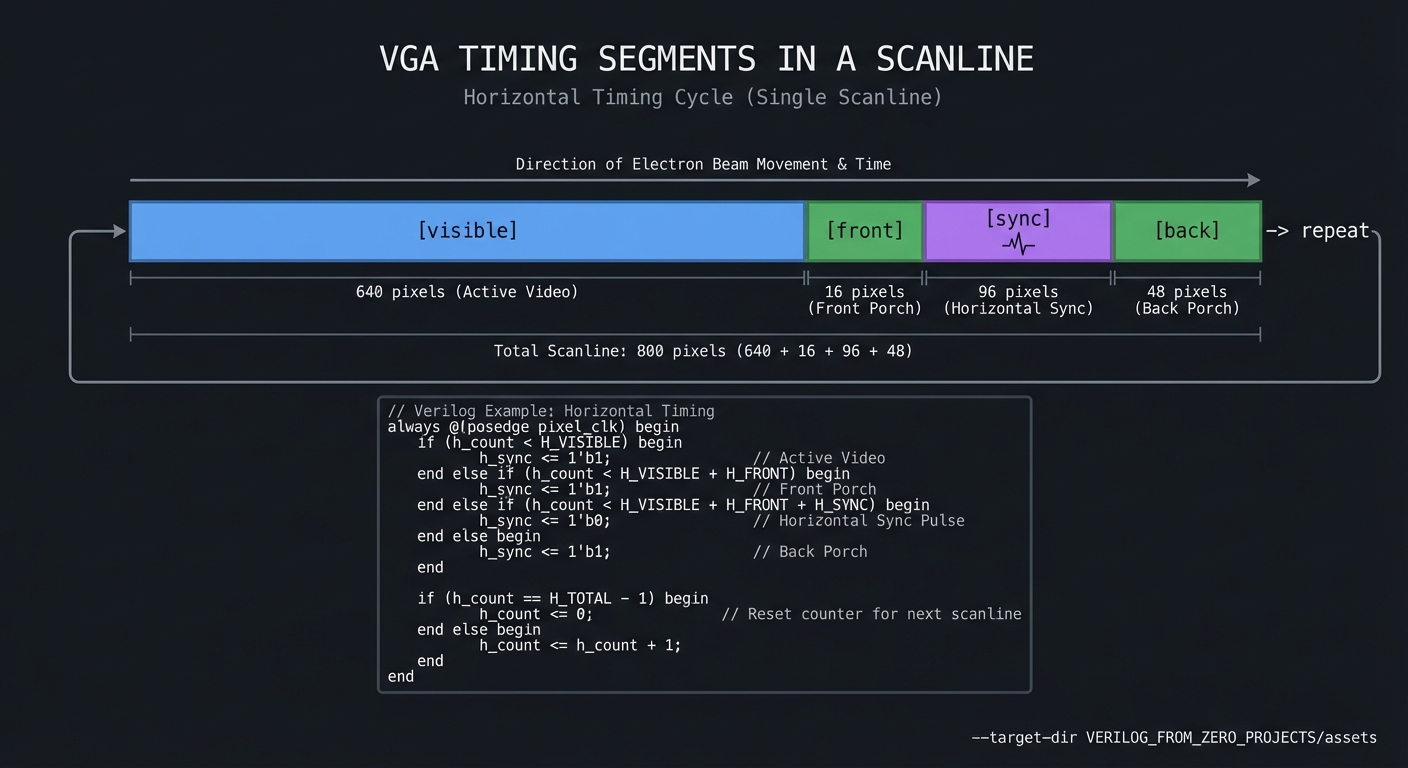
VGA displays pixels by scanning rows and columns at precise timing. Horizontal and vertical counters generate sync pulses and identify the visible region. If timing is wrong, the image rolls or flickers.
Definitions & Key Terms
- Front porch / back porch -> blanking intervals around visible area
- HSYNC/VSYNC -> sync pulses for horizontal and vertical timing
- Pixel clock -> rate of pixel output
Mental Model Diagram (ASCII)
[visible] [front] [sync] [back] -> repeat
How It Works (Step-by-Step)
- Increment horizontal counter each pixel.
- When end-of-line reached, reset hcount and increment vcount.
- Generate HSYNC/VSYNC based on counter ranges.
- Output pixels only in visible region.
Minimal Concrete Example
visible = (hcount < 640) && (vcount < 480);
Common Misconceptions
- “Any pixel clock works.” -> VGA requires exact timing.
- “You can skip blanking.” -> Sync pulses must be correct.
Check-Your-Understanding Questions
- Why are porches required?
- What happens if HSYNC width is wrong?
- How do you compute total line length?
Where You’ll Apply It
- This project: used in Section 3.2 and Section 4
- Also used in: P20-pong-game-on-vga.md
Frame Rendering and Collision Logic
Description/Expanded Explanation of the concept
Games like Pong combine rendering and physics. A frame tick updates object positions; rendering logic draws shapes only inside the visible region. Collision detection can be done with simple bounding boxes.
Definitions & Key Terms
- Frame tick -> periodic signal for game updates
- Bounding box -> rectangular collision region
- Sprite -> a drawn object
Mental Model Diagram (ASCII)
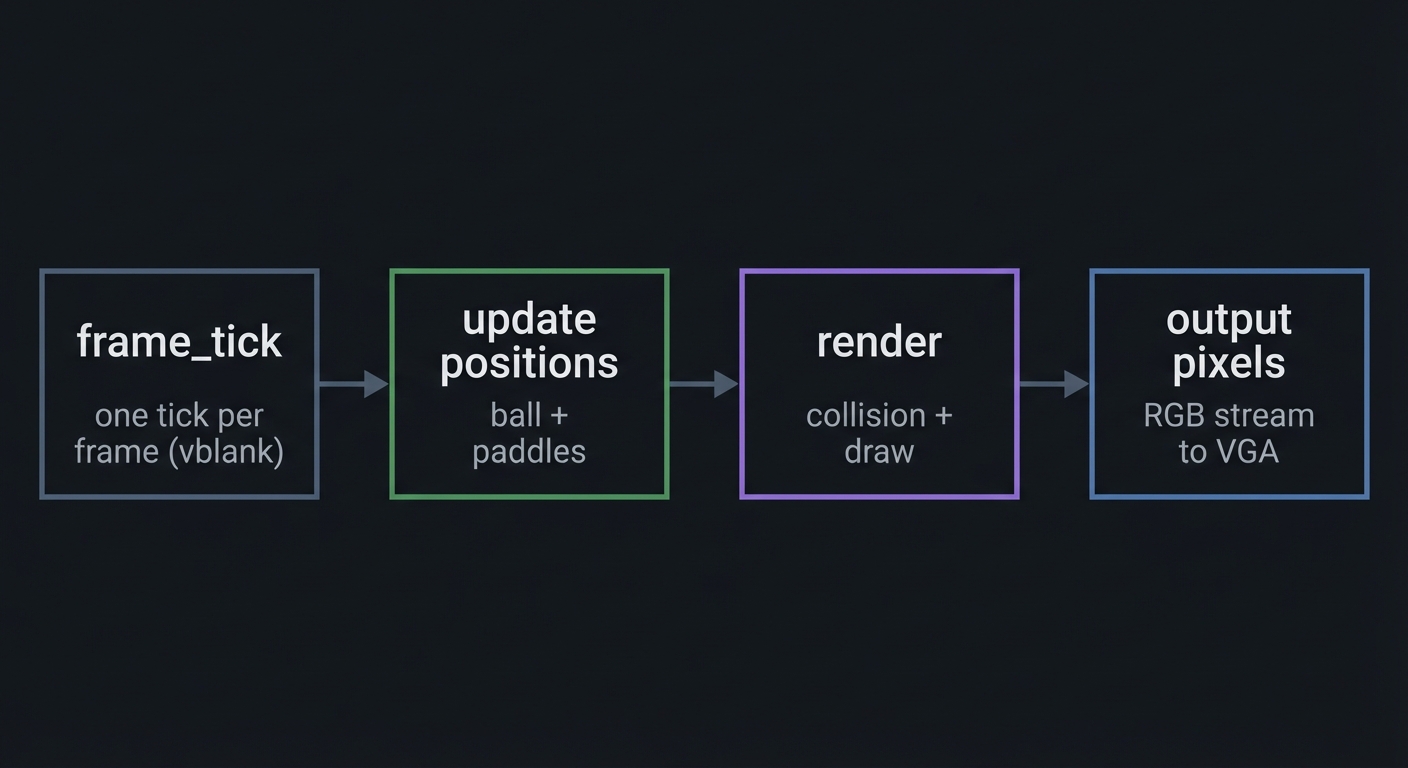
frame_tick -> update positions -> render -> output pixels
How It Works (Step-by-Step)
- Update ball and paddle positions on frame tick.
- Clamp paddles to screen edges.
- Detect collisions via bounding boxes.
- Render pixels based on current positions.
Minimal Concrete Example
hit = (ball_x >= paddle_x) && (ball_x <= paddle_x + P_W);
Common Misconceptions
- “Update logic every pixel.” -> Use frame ticks to stabilize motion.
- “Collision requires heavy math.” -> Simple rectangles are enough.
Check-Your-Understanding Questions
- Why separate game update from rendering?
- How do you avoid tearing?
- What is a bounding box collision test?
Where You’ll Apply It
- This project: used in Section 3.2 and Section 4
- Also used in: P18-vga-pattern-generator.md (timing foundation)
Debouncing and Synchronizers
Description/Expanded Explanation of the concept
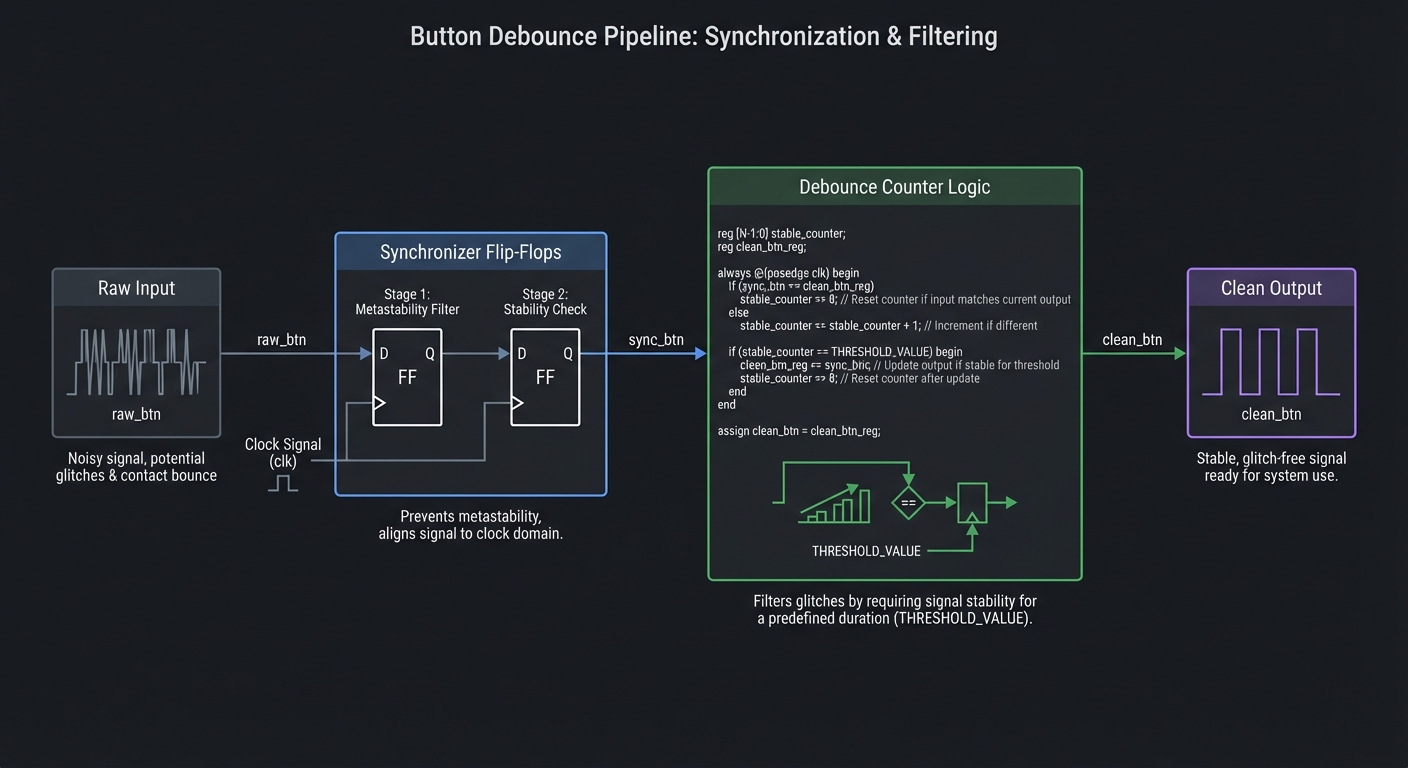
Mechanical buttons bounce: they produce multiple rapid transitions on a single press. Also, a button is asynchronous to your clock, so it can cause metastability. A synchronizer chain plus a stability counter creates a clean, single transition.
Definitions & Key Terms
- Bounce -> rapid oscillation at a switch transition
- Synchronizer -> chain of flip-flops to reduce metastability
- Stable window -> required time with no changes
Mental Model Diagram (ASCII)
raw_btn -> FF -> FF -> stable_counter -> clean_btn
How It Works (Step-by-Step)
- Synchronize the raw input with two flip-flops.
- Count how long the input stays the same.
- Once stable for N cycles, update the clean signal.
Minimal Concrete Example
if (sync_btn == stable_btn) count <= 0;
else count <= count + 1;
Common Misconceptions
- “A button is just a logic input.” -> It is noisy and asynchronous.
- “One flip-flop is enough.” -> Two are standard for safety.
Check-Your-Understanding Questions
- Why is metastability a risk with buttons?
- What is the trade-off between stability time and responsiveness?
- Why not debounce in software on an FPGA-only design?
Where You’ll Apply It
- This project: used in Section 3.2 and Section 5
- Also used in: P19-calculator-with-7-segment-display.md, P20-pong-game-on-vga.md
3. Project Specification
3.1 What You Will Build
A Pong game with VGA output, paddles, ball, and scoring.
3.2 Functional Requirements
- Requirement 1: Render ball and paddles
- Requirement 2: Handle paddle inputs
- Requirement 3: Detect collisions and update score
3.3 Non-Functional Requirements
- Performance: Stable operation at the target clock and interfaces.
- Reliability: Deterministic outputs on all defined inputs.
- Usability: Clear ports and documented behavior.
3.4 Example Usage / Output
{p['example_usage']}
3.5 Data Formats / Schemas / Protocols
{p[‘data_format’]}
3.6 Edge Cases
- Ball hitting corners
- Paddle at screen edge
3.7 Real World Outcome
3.7.1 How to Run (Copy/Paste)
vvp pong_tb
3.7.2 Golden Path Demo (Deterministic)
Run the demo command above with the provided testbench and confirm the outputs match the golden transcript.
3.7.3 CLI Transcript
Screen shows ball and paddles
Score increments on miss
3.7.4 Failure Demo (Expected)
# Example failure case
ERROR: Output mismatch at vector 3
Expected: 0x0A, Got: 0x0B
EXIT CODE: 1
Notes:
- Exit code 0 indicates all tests passed
- Exit code 1 indicates a test failure
4. Solution Architecture
4.1 High-Level Design
[inputs] -> [core logic] -> [outputs]
4.2 Key Components
| Component | Responsibility |
|---|---|
| vga_core | VGA timing generator |
| game_logic | Ball/paddle updates |
| renderer | Pixel generation |
4.3 Data Structures (No Full Code)
// Example signals (adapt to your design)
reg [7:0] state_reg;
reg [7:0] data_reg;
4.4 Algorithm Overview
Key Algorithm: Core control flow
- Initialize state/reset conditions.
- Apply inputs and compute outputs.
- Update state on clock edges (if sequential).
Complexity Analysis:
- Time: O(1) per cycle
- Space: O(N) for registers and logic
5. Implementation Guide
5.1 Development Environment Setup
iverilog -v
# Ensure GTKWave is installed for waveform viewing
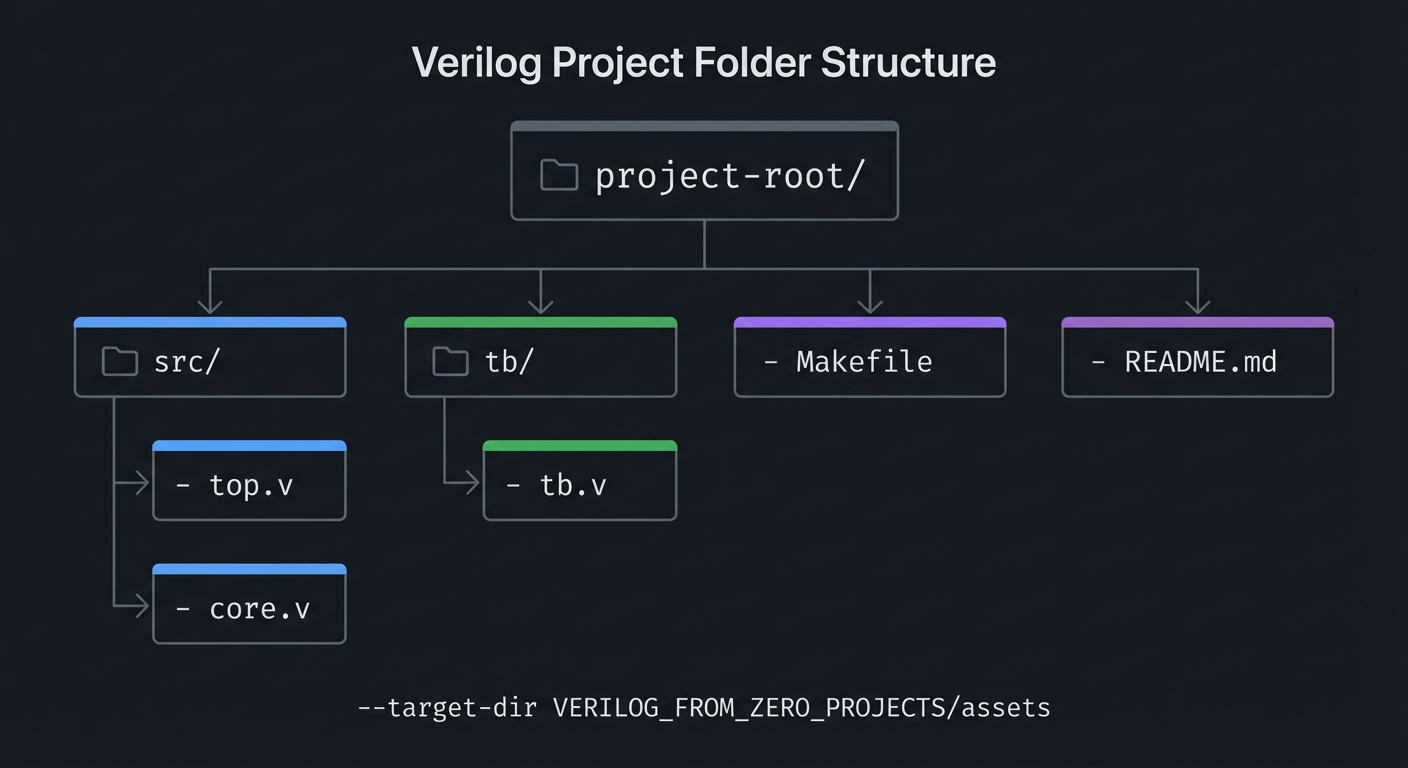
5.2 Project Structure
project-root/
|-- src/
|   |-- top.v
|   |-- core.v
|-- tb/
|   |-- tb.v
|-- Makefile
|-- README.md
5.3 The Core Question You’re Answering
“How do you build a real-time interactive system purely in hardware?”
5.4 Concepts You Must Understand First
- VGA timing
- FSMs
- Collision logic
5.5 Questions to Guide Your Design
- Update every frame or every N frames?
- How will you limit paddle speed?
5.6 Thinking Exercise
Simulate ball position updates for 5 frames.
5.7 The Interview Questions They’ll Ask
- Why use a frame tick?
- How do you avoid tearing?
5.8 Hints in Layers
- Start with static paddles and moving ball.
- Add collision detection after rendering works.
5.9 Books That Will Help
| Topic | Book | Chapter |
|---|---|---|
| Graphics basics | Computer Graphics from Scratch | Ch. 1-2 |
5.10 Implementation Phases
Phase 1: Foundation
Goals:
- Establish core module structure
- Implement minimal behavior
Tasks:
- Scaffold module ports and internal signals
- Write a minimal testbench that compiles
Checkpoint: Simulation runs without errors
Phase 2: Core Functionality
Goals:
- Implement full logic
- Verify edge cases
Tasks:
- Complete core logic
- Add directed tests for edge cases
Checkpoint: All tests pass and waveforms match expectations
Phase 3: Polish & Edge Cases
Goals:
- Improve readability
- Document behavior
Tasks:
- Add comments and README notes
- Expand tests for unusual inputs
Checkpoint: Design is deterministic and documented
5.11 Key Implementation Decisions
| Decision | Options | Recommendation | Rationale |
|---|---|---|---|
| Reset strategy | Sync / Async | Sync | Simpler timing closure |
| Test coverage | Directed / Exhaustive | Exhaustive for small logic | Prevents missed cases |
6. Testing Strategy
6.1 Test Categories
| Category | Purpose | Examples |
|---|---|---|
| Unit Tests | Test core logic | Small vectors |
| Integration Tests | Test modules together | Full system |
| Edge Case Tests | Boundary conditions | Max/min values |
6.2 Critical Test Cases
- Test 1: Ball stays within bounds
- Test 2: Score updates on miss
6.3 Test Data
Use deterministic vectors and document expected outputs.
7. Common Pitfalls & Debugging
7.1 Frequent Mistakes
| Pitfall | Symptom | Solution |
|---|---|---|
| Flicker | Drawing outside visible area | Gate draw to visible region |
7.2 Debugging Strategies
- Inspect waveforms at key internal signals
- Add temporary debug outputs to verify state
- Reduce testcases to the smallest failing case
7.3 Performance Traps
- Overly wide counters or combinational paths can reduce max clock
8. Extensions & Challenges
8.1 Beginner Extensions
- Add parameterization for widths
- Add optional features (enable, reset)
8.2 Intermediate Extensions
- Add configuration registers
- Build a simple driver or demo program
8.3 Advanced Extensions
- Integrate with another project in this series
- Implement a hardware demo on FPGA
9. Real-World Connections
9.1 Industry Applications
- Digital control systems and embedded peripherals
- FPGA prototyping and validation
9.2 Related Open Source Projects
- Yosys / nextpnr toolchain for open-source FPGA flow
- Example HDL projects in the FPGA community
9.3 Interview Relevance
- Demonstrates RTL thinking and verification skills
10. Resources
10.1 Essential Reading
- Computer Graphics from Scratch - Focus on Ch. 1-2
10.2 Video Resources
- Search for project-specific HDL walkthroughs and waveforms
10.3 Tools & Documentation
- Icarus Verilog
- GTKWave
10.4 Related Projects in This Series
- See adjacent projects in
VERILOG_FROM_ZERO_PROJECTS/
11. Self-Assessment Checklist
11.1 Understanding
- I can explain the core concept without notes
- I can predict waveform behavior for basic inputs
11.2 Implementation
- All functional requirements are met
- All tests pass
- Edge cases are documented
11.3 Growth
- I can explain this project in an interview
- I documented at least one lesson learned
12. Submission / Completion Criteria
Minimum Viable Completion:
- Functional requirements implemented
- Testbench passes
- Waveforms inspected
Full Completion:
- All minimum criteria plus
- Edge cases covered and documented
Excellence (Going Above & Beyond):
- Hardware demo on FPGA
- Clear write-up of lessons learned
Appendix A: Deep Dive Walkthrough
A.1 Signal Map and Timing Contract
- Inputs:
clk,reset,btn_up,btn_down - Outputs:
hsync,vsync,rgb[2:0]
A.2 Game State Variables
ball_x,ball_y,vx,vypaddle_yscore_left,score_right
A.3 Frame Tick Strategy
- Update positions once per frame to avoid tearing.
- Use
frame_tickwhenhcount==0 && vcount==0.
A.4 Deterministic Test Plan
- Simulate 10 frames with fixed initial velocity.
- Verify ball bounces at borders and paddle.
- Verify score increments when ball crosses boundary.
A.5 Debugging Tip
If ball flickers, ensure drawing is gated to the visible region only.
13. Deep Dive Appendix
13.1 Timing and Resource Budget
- Use a frame tick (e.g., once per VSYNC) to update game state.
- Rendering happens at pixel clock; game logic should be slower.
- Collision checks are small, but keep them synchronized to the frame tick.
13.2 Waveform Interpretation Guide
- Track frame_tick, ball_x, ball_y, and paddle_y.
- Confirm that positions update only on frame tick, not every pixel.
Example:
frame_tick: 1 per frame
ball_x: 100,101,102,103...
13.3 Hardware Bring-Up Notes
- Reuse the VGA generator from Project 18.
- Map paddles to buttons or switches; debounce inputs.
- If the ball flickers, check visible gating and sprite draw order.
13.4 Alternate Implementations and Trade-offs
- Add simple AI for a single-player mode.
- Implement acceleration so the ball speeds up over time.
- Add sound with a PWM buzzer for hits and misses.
13.5 Additional Exercises
- Add a scoreboard using a 7-seg overlay.
- Add multi-ball mode for chaos.
- Add a pause feature and game reset.