Project 2: Build a Neovim Focus Mode Plugin (Lua)
Build a real Neovim plugin that dims inactive windows, highlights the current paragraph, and displays a floating status widget.
Quick Reference
| Attribute | Value |
|---|---|
| Difficulty | Intermediate |
| Time Estimate | 3-5 days |
| Main Programming Language | Lua (Neovim native) |
| Alternative Programming Languages | None (Lua is required for native API) |
| Coolness Level | Level 7 - Real UI plugin with polish |
| Business Potential | Medium-High (plugin ecosystem) |
| Prerequisites | Basic Lua, Neovim usage, event-driven thinking |
| Key Topics | vim.api, autocommands, extmarks, highlights, floats |
1. Learning Objectives
By completing this project, you will:
- Structure a Neovim plugin with a clean module API.
- Use
vim.apito create namespaces, extmarks, and floating windows. - Register and manage autocommands without memory leaks.
- Render dynamic UI updates without introducing lag.
- Implement configuration and state management for a plugin.
- Debug plugin behavior using Neovim’s built-in tools.
2. All Theory Needed (Per-Concept Breakdown)
2.1 Neovim Lua API (vim.api) Basics
Description
The Lua API is the stable way to manipulate buffers, windows, and editor state from plugins.
Definitions & Key Terms
- API handle: Integer ID for buffers, windows, or namespaces.
nvim_*function: A stable API function exposed to Lua.vim.api: Lua module wrapping the Neovim API.
Mental Model Diagram (ASCII)
[Lua plugin] -> vim.api -> Neovim core
How It Works (Step-by-Step)
- Use
vim.api.nvim_create_namespaceto create an isolated space. - Use
nvim_buf_set_extmarkto attach highlights to text. - Use
nvim_open_winto create floating windows. - Use
nvim_create_user_commandfor user-facing commands.
Minimal Concrete Example
local ns = vim.api.nvim_create_namespace("focus")
vim.api.nvim_buf_set_extmark(0, ns, 10, 0, { end_row = 12, hl_group = "FocusParagraph" })
Common Misconceptions
- “vim.fn is the same as vim.api” ->
vim.fnwraps Vimscript, not core API. - “API handles are stable forever” -> Handles can become invalid when buffers close.
Check-Your-Understanding Questions
- Explain why extmarks need a namespace.
- Predict what happens if you call
nvim_open_winwith an invalid buffer. - Explain why
vim.apiis preferred overvim.fnfor new plugins.
Where You’ll Apply It
- See §3.2 requirements and §5.10 Phase 1.
- Also used in P06-neovim-lite-capstone.
2.2 Autocommands and Event-Driven Updates
Description
Autocommands let your plugin react to editor events such as cursor movement and window focus changes.
Definitions & Key Terms
- Autocommand: A callback triggered by an event.
- Augroup: Named group for managing autocommands.
- Event:
CursorMoved,WinEnter,BufLeave, etc.
Mental Model Diagram (ASCII)
[Editor event] -> [Autocmd] -> [Plugin handler] -> [UI update]
How It Works (Step-by-Step)
- Create an augroup to own your plugin autocommands.
- Register handlers for specific events.
- In the handler, update highlights and floating window.
- Clear autocommands when disabling the plugin.
Minimal Concrete Example
local group = vim.api.nvim_create_augroup("FocusMode", { clear = true })
vim.api.nvim_create_autocmd({"CursorMoved", "WinEnter"}, {
  group = group,
  callback = function() require("focus").refresh() end,
})
Common Misconceptions
- “Autocommands are free” -> Too many can cause lag.
- “All events are equal” -> Some fire very frequently.
Check-Your-Understanding Questions
- Explain why
CursorMovedneeds debouncing. - Predict what happens if you forget to clear the augroup.
- Explain when you would use
BufEnterinstead ofWinEnter.
Where You’ll Apply It
- See §5.10 Phase 2 and §7.1 pitfalls.
- Also used in P03-neovim-gui-client for UI sync.
2.3 Extmarks and Namespaces
Description
Extmarks are persistent markers in a buffer that move as text changes, perfect for highlights.
Definitions & Key Terms
- Extmark: A marker that tracks text edits.
- Namespace: Isolation for extmarks and highlights.
- Virtual text: Additional text displayed without modifying the buffer.
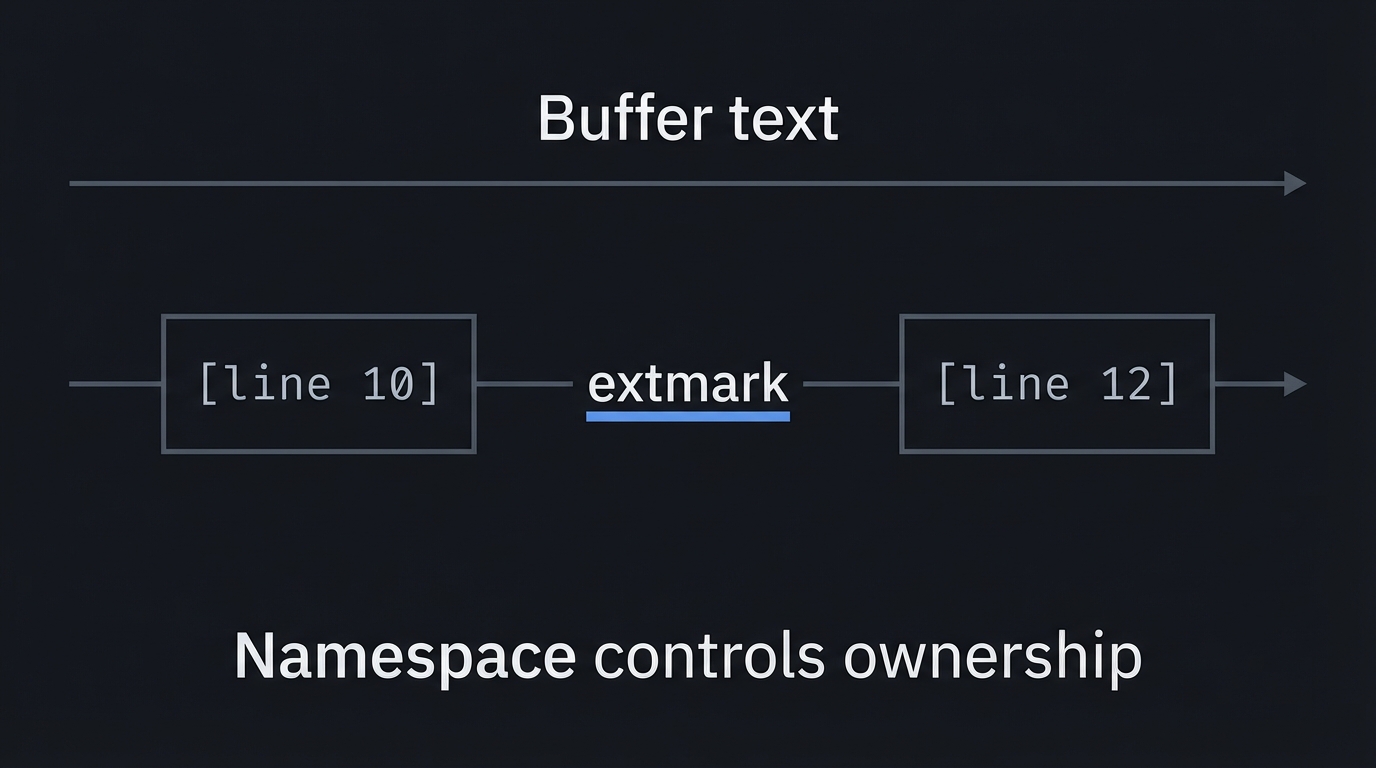
Mental Model Diagram (ASCII)
Buffer text
  [line 10] ---- extmark ---- [line 12]
Namespace controls ownership
How It Works (Step-by-Step)
- Create a namespace for your plugin.
- Clear old extmarks before setting new ones.
- Set an extmark that spans the current paragraph.
- Use highlight groups to style the paragraph.
Minimal Concrete Example
vim.api.nvim_buf_clear_namespace(0, ns, 0, -1)
vim.api.nvim_buf_set_extmark(0, ns, start_row, 0, {
  end_row = end_row,
  hl_group = "FocusParagraph",
})
Common Misconceptions
- “Extmarks are just for highlights” -> They can anchor virtual text too.
- “Clearing all namespaces is fine” -> It can break other plugins.
Check-Your-Understanding Questions
- Explain why namespaces prevent conflicts.
- Predict what happens if you set overlapping extmarks.
- Explain how extmarks survive edits.
Where You’ll Apply It
- See §3.1 features and §5.10 Phase 2.
- Also used in P06-neovim-lite-capstone.
2.4 Highlight Groups and Window-Local UI
Description
Highlight groups define styles, and window-local options allow dimming inactive windows.
Definitions & Key Terms
- Highlight group: Named style (fg, bg, bold, etc).
NormalNC: Highlight for inactive windows.- Window-local option: Setting that applies per window.
Mental Model Diagram (ASCII)
Window A (active) -> Normal
Window B (inactive) -> NormalNC (dimmed)
How It Works (Step-by-Step)
- Define custom highlight groups for focus mode.
- Override
NormalNCto dim inactive windows. - Apply extmark highlights for the current paragraph.
Minimal Concrete Example
vim.api.nvim_set_hl(0, "FocusDim", { fg = "#666666" })
vim.api.nvim_set_hl(0, "NormalNC", { link = "FocusDim" })
Common Misconceptions
- “Changing NormalNC is global” -> It applies to all windows unless restored.
- “Highlights are per-buffer” -> They are global by default.
Check-Your-Understanding Questions
- Explain why you should restore highlights on disable.
- Predict what happens if two plugins both change
NormalNC. - Explain how to scope highlights to a namespace.
Where You’ll Apply It
- See §3.2 requirements and §5.10 Phase 1.
- Also used in P06-neovim-lite-capstone.
2.5 Floating Windows and Buffer Lifetimes
Description
Floating windows are independent UI elements anchored to the editor grid.
Definitions & Key Terms
- Floating window: A window with
relative='editor'orrelative='win'. - Scratch buffer: A temporary buffer not backed by a file.
- Window config: Position, size, and style options.
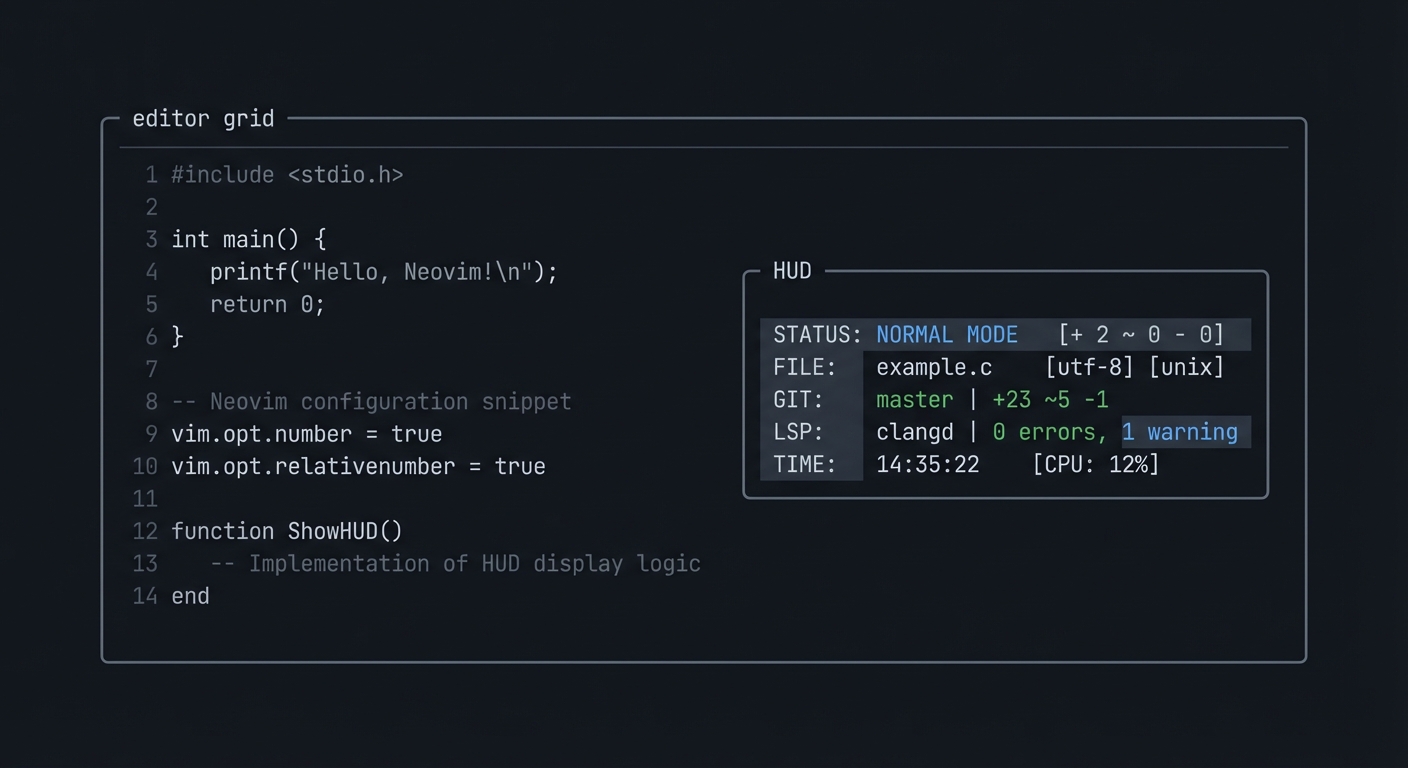
Mental Model Diagram (ASCII)
+---------------------------+
| editor grid               |
|                    +----+ |
|                    |HUD | |
|                    +----+ |
+---------------------------+
How It Works (Step-by-Step)
- Create a scratch buffer for the status widget.
- Open a floating window with fixed row/col.
- Update buffer content as session data changes.
- Reposition on
VimResized.
Minimal Concrete Example
local buf = vim.api.nvim_create_buf(false, true)
local win = vim.api.nvim_open_win(buf, false, {
  relative = "editor",
  width = 20,
  height = 2,
  row = 1,
  col = 1,
  style = "minimal",
  border = "single",
})
Common Misconceptions
- “Floating windows are permanent” -> They disappear if buffer is wiped.
- “You can reuse a closed window handle” -> You must recreate it.
Check-Your-Understanding Questions
- Explain why a scratch buffer should be listed=false.
- Predict what happens if you open a float with width=0.
- Explain how to update float content without flicker.
Where You’ll Apply It
- See §3.7 outcome and §5.10 Phase 2.
- Also used in P03-neovim-gui-client for UI overlay ideas.
2.6 Debouncing, Scheduling, and Performance
Description
Frequent events like cursor moves require debouncing to avoid UI lag.
Definitions & Key Terms
- Debounce: Delay action until events stop for a time window.
- Throttle: Limit execution to at most once per interval.
vim.defer_fn: Schedule a Lua function after a delay.
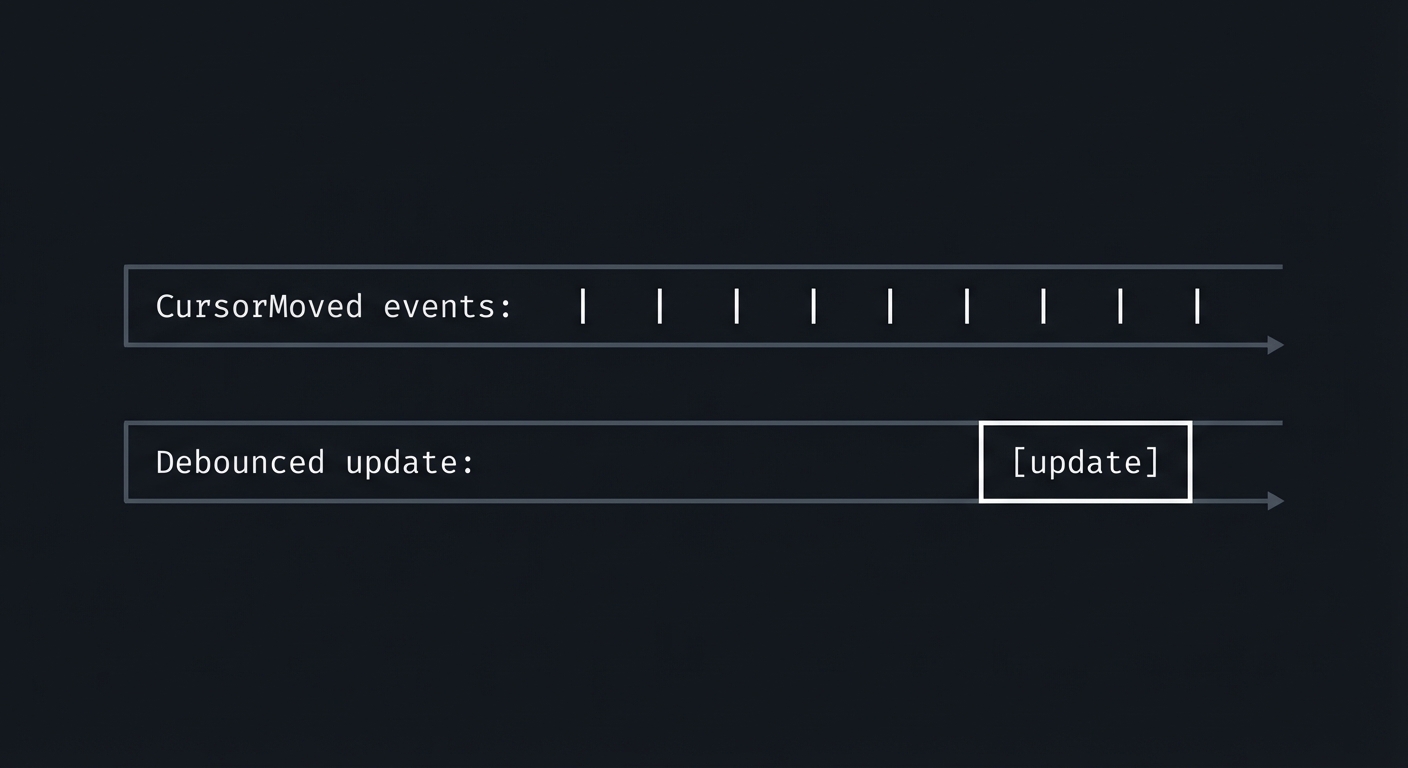
Mental Model Diagram (ASCII)
CursorMoved events: | | | | | | | |
Debounced update:             [update]
How It Works (Step-by-Step)
- Record the last update time or pending timer.
- Cancel any existing timer when a new event arrives.
- Schedule a new update after a small delay (e.g., 50ms).
- Perform UI updates only in scheduled callbacks.
Minimal Concrete Example
local timer
local function debounce(fn, delay)
  return function()
    if timer then timer:stop() end
    timer = vim.defer_fn(fn, delay)
  end
end
Common Misconceptions
- “Debouncing makes UI sluggish” -> Use small delays (20-50ms).
- “Lua timers run in parallel” -> They run on the main loop.
Check-Your-Understanding Questions
- Explain why debouncing reduces lag on CursorMoved.
- Predict what happens if you update extmarks on every keystroke.
- Explain the difference between throttle and debounce in this plugin.
Where You’ll Apply It
- See §5.10 Phase 2 and §7.3 performance traps.
- Also used in P06-neovim-lite-capstone.
2.7 Plugin State and Configuration
Description
A good plugin exposes configuration while keeping internal state consistent.
Definitions & Key Terms
- Module table: Lua table that holds state and functions.
- Setup function: Entry point that merges defaults and user options.
- Toggle: Command to enable/disable behavior.
Mental Model Diagram (ASCII)
User config -> setup() -> merged options -> state
state + events -> UI updates
How It Works (Step-by-Step)
- Define a defaults table.
- Merge user config with defaults in
setup. - Store state in a module-local table.
- On toggle, enable/disable autocommands and UI elements.
Minimal Concrete Example
local M = { enabled = false, opts = { dim = true } }
function M.setup(opts) M.opts = vim.tbl_extend("force", M.opts, opts or {}) end
Common Misconceptions
- “Globals are fine” -> They create conflicts and are hard to test.
- “Config can be changed anywhere” -> Keep a single source of truth.
Check-Your-Understanding Questions
- Explain why
setupshould be idempotent. - Predict what happens if two plugins share a global variable.
- Explain how you would allow runtime config changes.
Where You’ll Apply It
- See §3.2 requirements and §5.10 Phase 1.
- Also used in P06-neovim-lite-capstone.
3. Project Specification
3.1 What You Will Build
A Neovim plugin named focus that:
- Dims inactive windows
- Highlights the current paragraph
- Shows a floating status widget (timer + WPM)
Included: toggle command, autocommands, extmarks, float. Excluded: external dependencies, complex UI dashboards.
3.2 Functional Requirements
- Toggle command:
:FocusModeenables/disables the plugin. - Window dimming: Inactive windows use a dim highlight.
- Paragraph highlight: Current paragraph is highlighted with extmarks.
- Floating widget: Shows elapsed time and current WPM.
- Config:
setup({ dim = true, wpm = true })overrides defaults. - Debounce: Cursor-driven updates are debounced.
- Cleanup: All highlights and floats are removed on disable.
3.3 Non-Functional Requirements
- Performance: No noticeable lag on CursorMoved.
- Reliability: No crashes when buffers close.
- Usability: Clear on/off messages and safe defaults.
3.4 Example Usage / Output
-- init.lua
require("focus").setup({ dim = true, wpm = true })
vim.cmd("FocusMode")
3.5 Data Formats / Schemas / Protocols
- Config table:
{ dim = true, highlight_group = "FocusParagraph", wpm = true, debounce_ms = 50, float = { row = 1, col = 1, width = 20, height = 2 } } - Autocommands:
CursorMoved,WinEnter,WinLeave,VimResized. - Namespace:
focusused for all extmarks.
3.6 Edge Cases
- No file open (empty buffer).
- Multiple splits and tab pages.
- Very large file with rapid cursor movement.
- Window resized smaller than the float size.
3.7 Real World Outcome
You install the plugin and run :FocusMode.
3.7.1 How to Run (Copy/Paste)
mkdir -p ~/.config/nvim/lua/focus
cp -r focus/* ~/.config/nvim/lua/focus/
In Neovim:
:lua require("focus").setup({ dim = true })
:FocusMode
3.7.2 Golden Path Demo (Deterministic)
- Open a fixed file
fixtures/notes.mdwith 3 paragraphs. - Run
:FocusMode. - Move cursor to paragraph 2.
Expected:
- Paragraph 2 is highlighted with
FocusParagraph. - Inactive windows use the dimmed
NormalNCstyle. - Float shows
Focus: 00:05andWPM: 42(withFOCUS_TEST_MODE=1).
3.7.3 Failure Demo
- Disable the namespace or clear it manually.
- Run
:FocusMode.
Expected:
- Notification:
FocusMode: namespace not created. - Plugin disables itself and cleans up.
3.7.8 TUI Layout (Inside Neovim)
+--------------------------------------------------+
| notes.md                                         |
| Paragraph 1 (dimmed if inactive)                 |
|                                                  |
| [Paragraph 2 highlighted]                         |
|                                                  |
|             +------------------+                 |
|             | Focus 00:05      |                 |
|             | WPM 42           |                 |
|             +------------------+                 |
+--------------------------------------------------+
4. Solution Architecture
4.1 High-Level Design
[Events] -> [Autocmd handlers] -> [State update]
                                     |-> [Extmarks]
                                     |-> [Highlight groups]
                                     |-> [Floating window]
4.2 Key Components
| Component | Responsibility | Key Decisions |
|---|---|---|
| Config | Defaults + user overrides | Merge strategy |
| State | Enabled flag, timers, handles | Module-local table |
| Autocommands | Event hooks | Debounce policy |
| Extmark Engine | Paragraph highlight | Namespace usage |
| Float HUD | Status widget | Position strategy |
4.3 Data Structures (No Full Code)
local M = {
  enabled = false,
  ns = nil,
  float = { buf = nil, win = nil },
  opts = {},
  timers = { wpm = nil, debounce = nil },
}
4.4 Algorithm Overview
Key Algorithm: Paragraph Highlight
- On cursor move, find paragraph start/end by scanning blank lines.
- Clear previous extmarks in the namespace.
- Set an extmark spanning the paragraph.
Complexity Analysis:
- Time: O(L) where L is lines scanned around cursor
- Space: O(1) additional
5. Implementation Guide
5.1 Development Environment Setup
nvim --version
5.2 Project Structure
focus/
├── init.lua
├── config.lua
├── state.lua
├── ui.lua
└── events.lua
5.3 The Core Question You’re Answering
“How do I hook into Neovim’s event loop and update UI safely without rewriting the core?”
5.4 Concepts You Must Understand First
Stop and research these before coding:
- Autocommands and events
- Which events are too frequent?
- Neovim help:
:help autocmd
- Extmarks
- How they track edits
- Neovim help:
:help extmarks
- Floating windows
nvim_open_winand buffer lifetime- Neovim help:
:help nvim_open_win
5.5 Questions to Guide Your Design
- What events are minimal to keep the UI correct?
- How will you avoid clearing extmarks too often?
- What should happen if the float goes off-screen?
5.6 Thinking Exercise
Manually list the sequence of events when you:
- Open a file.
- Split the window.
- Move the cursor quickly.
Which events should update paragraph highlight? Which should update the float?
5.7 The Interview Questions They’ll Ask
- What is the difference between
vim.apiandvim.fn? - Why can autocommands create lag?
- How do extmarks stay attached during edits?
5.8 Hints in Layers
Hint 1: Start with a toggle
Implement :FocusMode first and log a message.
Hint 2: Add dimming
Override NormalNC when enabled, restore when disabled.
Hint 3: Add paragraph highlight
Use extmarks with hl_group spanning a line range.
Hint 4: Add floating HUD Start with a static float, then update its contents.
5.9 Books That Will Help
| Topic | Book | Chapter |
|---|---|---|
| Lua language | Programming in Lua | Ch. 1-4 |
| Vim workflow | Practical Vim | Ch. 12 |
| UI design | Refactoring UI | Ch. 4 |
5.10 Implementation Phases
Phase 1: Skeleton (1 day)
Goals:
- Basic module structure
- Toggle command works
Tasks:
- Create
init.luaandsetup. - Register
:FocusModecommand. - Store enabled state.
Checkpoint: Command toggles state and logs messages.
Phase 2: UI Features (2-3 days)
Goals:
- Dimming + paragraph highlight + float
Tasks:
- Create namespace and highlight groups.
- Implement paragraph highlight via extmarks.
- Add float and update WPM.
Checkpoint: Visual effects work without errors.
Phase 3: Performance and Polish (1-2 days)
Goals:
- Debouncing and cleanup
Tasks:
- Debounce CursorMoved updates.
- Handle window resize.
- Restore highlights on disable.
Checkpoint: No flicker and no leftover UI artifacts.
5.11 Key Implementation Decisions
| Decision | Options | Recommendation | Rationale |
|---|---|---|---|
| Update frequency | every event, debounced | debounced | smoother UI |
| Highlight strategy | line highlights, extmarks | extmarks | survives edits |
| Float placement | fixed corner, cursor relative | fixed corner | stable and simple |
6. Testing Strategy
6.1 Test Categories
| Category | Purpose | Examples |
|---|---|---|
| Unit Tests | Config/state helpers | merge config |
| Integration Tests | Autocmd flow | CursorMoved updates |
| Visual Tests | UI correctness | manual screenshots |
6.2 Critical Test Cases
- Toggle on/off 10 times without leaks.
- Move cursor rapidly in a 10k-line file.
- Resize window smaller than float size.
6.3 Test Data
fixtures/
  notes.md (3 paragraphs)
  large.txt (10k lines)
7. Common Pitfalls & Debugging
7.1 Frequent Mistakes
| Pitfall | Symptom | Solution |
|---|---|---|
| Unscoped highlights | Other plugins break | Use namespaces |
| Too many redraws | Lag on CursorMoved | Debounce updates |
| Floating window closed | HUD disappears | Recreate on demand |
7.2 Debugging Strategies
- Use
:messagesandvim.notifyfor logging. - Add a debug flag to print state to the command line.
- Use
:Inspectto verify highlight groups.
7.3 Performance Traps
- Doing heavy work on every keystroke without debounce.
- Clearing and re-adding highlights for the entire buffer.
8. Extensions & Challenges
8.1 Beginner Extensions
- Add a
:FocusStatscommand to show session stats. - Add per-filetype enable/disable rules.
8.2 Intermediate Extensions
- Add a distraction-free mode that hides line numbers.
- Persist focus sessions across restarts.
8.3 Advanced Extensions
- Add focus “zones” and break reminders.
- Export focus metrics to a JSON file.
9. Real-World Connections
9.1 Industry Applications
- Editor tooling: Many Neovim plugins use the same API surface.
- Productivity tools: Focus-mode features are common in IDEs.
9.2 Related Open Source Projects
- folke/zen-mode.nvim: Focus UI patterns.
- lukas-reineke/indent-blankline.nvim: Heavy extmark usage.
9.3 Interview Relevance
- Event-driven UI: Autocommands and debouncing.
- Editor APIs: Managing state and rendering safely.
10. Resources
10.1 Essential Reading
- Neovim
:help lua-guide - Neovim
:help api
10.2 Video Resources
- Neovim Lua plugin basics (search: “neovim lua plugin tutorial”)
10.3 Tools & Documentation
:help extmarks:help nvim_open_win:help autocmd
10.4 Related Projects in This Series
- P01 - Modal Editor in C: core concepts
- P03 - Neovim GUI Client: UI protocol
- P06 - Neovim Lite Capstone: integration
11. Self-Assessment Checklist
11.1 Understanding
- I can explain how extmarks track edits.
- I can explain why autocommands can cause lag.
- I can describe how floating windows are positioned.
11.2 Implementation
:FocusModetoggles cleanly.- Highlights and floats are cleaned up on disable.
- No visible lag on CursorMoved.
11.3 Growth
- I can add a new UI feature using the same API.
- I can explain this plugin in an interview.
12. Submission / Completion Criteria
Minimum Viable Completion:
- Plugin loads and toggles.
- Inactive windows are dimmed.
- Current paragraph is highlighted.
Full Completion:
- All minimum criteria plus:
- Floating widget shows session time and WPM.
- Debounced updates prevent lag.
Excellence (Going Above & Beyond):
- Configurable focus rules per filetype.
- Persistent focus sessions across restarts.
13. Determinism and Reproducibility Notes
- Use
FOCUS_TEST_MODE=1to freeze the timer and WPM for screenshots. - Keep a fixed
fixtures/notes.mdfile for the golden demo. - Failure demo uses a missing namespace to produce a stable error.