Project 5: Intelligent Backup System
Build an incremental backup tool with rotation, verification, and safe restores.
Quick Reference
| Attribute | Value |
|---|---|
| Difficulty | Level 2: Intermediate |
| Time Estimate | 1-2 weeks |
| Language | Bash (Alternatives: POSIX sh, Perl, Python) |
| Prerequisites | Projects 1 and 3, basic permissions knowledge |
| Key Topics | rsync, hard links, rotation, atomic ops |
1. Learning Objectives
By completing this project, you will:
- Implement incremental backups using hard links.
- Orchestrate backups locally and over SSH.
- Add retention policies and cleanup logic.
- Provide a safe restore workflow with verification.
2. Theoretical Foundation
2.1 Core Concepts
- Hard links: Why they allow space-efficient snapshots.
- Rsync internals: Incremental copy and delta algorithms.
- Rotation policies: Keeping last N backups and pruning safely.
- Atomic operations: Avoiding partial backups on failure.
2.2 Why This Matters
Backups are safety-critical. Building your own system teaches defensive scripting, error handling, and reliability under failure.
2.3 Historical Context / Background
Time Machine and rsync-based tools popularized snapshot-style backups. The core idea remains simple: copy changed files and link unchanged ones.
2.4 Common Misconceptions
- Copying everything every time is required. It is not.
- Hard links are risky. They are safe when used correctly.
3. Project Specification
3.1 What You Will Build
A backup CLI that performs incremental snapshots, supports multiple targets, rotates old backups, and provides a guided restore process.
3.2 Functional Requirements
- Init and profile: Set backup name and destinations.
- Run backup: Incremental snapshots with progress output.
- Rotation: Keep last N backups and prune old ones.
- Restore: Recover specific files or directories.
- Notifications: Report success or failure.
3.3 Non-Functional Requirements
- Safety: Never delete without confirming targets.
- Reliability: Backup completes or fails loudly.
- Transparency: Clear output and logs.
3.4 Example Usage / Output
$ backup run
[backup] Snapshot created: 2024-12-22_15-30-00
[backup] Files changed: 234
[backup] Hard links saved: 5.8 GB
3.5 Real World Outcome
You can snapshot your system daily and restore any file with a single command. The system keeps only the most recent backups, and you know exactly what changed.
$ backup list
2024-12-22_15-30-00  incremental  512 MB
2024-12-21_15-30-00  incremental  498 MB
2024-12-20_15-30-00  full         6.3 GB
4. Solution Architecture
4.1 High-Level Design
[config] -> [planner] -> [rsync snapshot] -> [rotation] -> [logs]
                                |
                                -> [restore tool]
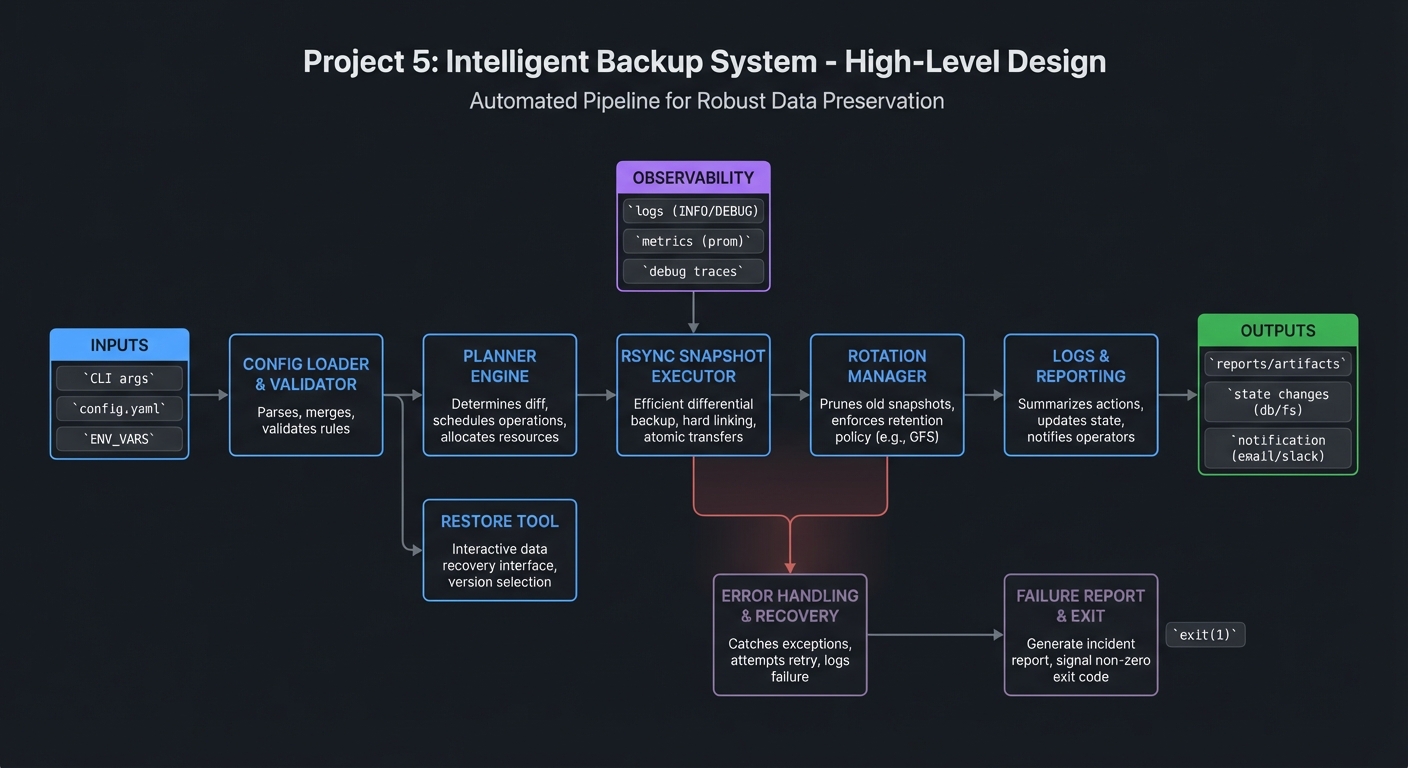
4.2 Key Components
| Component | Responsibility | Key Decisions |
|---|---|---|
| Profile manager | Store backup sets | Config location |
| Snapshot runner | Execute rsync | Link-dest strategy |
| Rotator | Prune old backups | Count-based policy |
| Reporter | Progress and summary | Parse rsync output |
| Restore tool | Recover files | File or directory restore |
4.3 Data Structures
Profile config:
name=macbook-pro
sources=~/Documents,~/Projects
destination=/mnt/backup-drive
keep=5
4.4 Algorithm Overview
- Load profile and resolve paths.
- Determine previous snapshot for link-dest.
- Run rsync into a temp snapshot directory.
- Rename temp to final snapshot name.
- Apply rotation policy.
Complexity Analysis:
- Time: O(changed files) with rsync
- Space: O(changed files) per snapshot
5. Implementation Guide
5.1 Development Environment Setup
# Ensure rsync is available
rsync --version
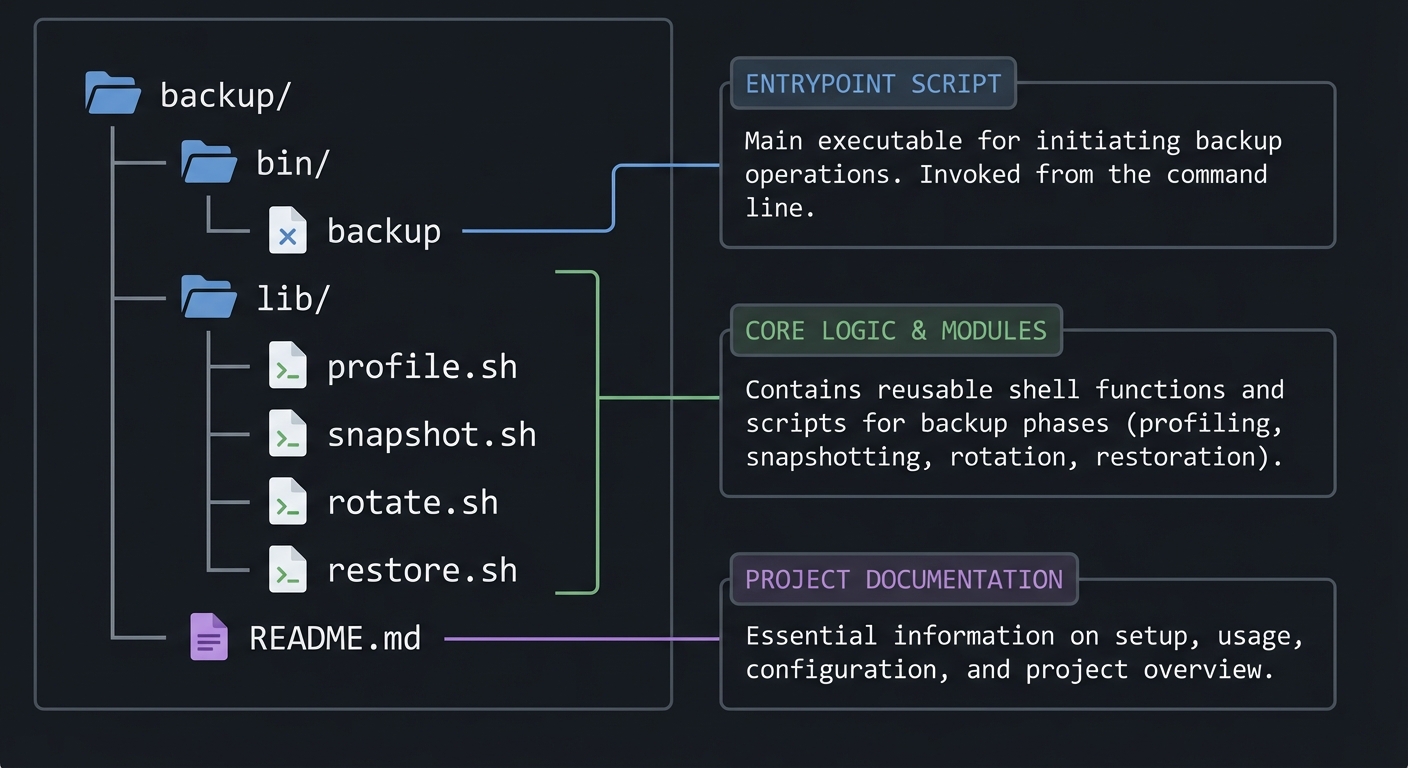
5.2 Project Structure
backup/
|-- bin/
|   `-- backup
|-- lib/
|   |-- profile.sh
|   |-- snapshot.sh
|   |-- rotate.sh
|   `-- restore.sh
`-- README.md
5.3 The Core Question You Are Answering
“How do I make backups that are fast, safe, and easy to restore?”
5.4 Concepts You Must Understand First
- Hard links and inode sharing.
- Rsync options for incremental snapshots.
- Safe deletion and rotation patterns.
5.5 Questions to Guide Your Design
- What counts as a backup failure?
- How will you ensure snapshots are atomic?
- How will you prevent accidental deletion of the wrong directory?
5.6 Thinking Exercise
Describe what happens when a backup fails mid-transfer. How do you recover?
5.7 The Interview Questions They Will Ask
- Why use hard links for incremental backups?
- How do you make a backup operation atomic?
- How do you design a safe rotation policy?
5.8 Hints in Layers
Hint 1: Always sync into a temp directory first.
Hint 2: Use a clear snapshot naming scheme.
Hint 3: Separate restore logic from backup logic.
Hint 4: Log every run with a summary and exit status.
5.9 Books That Will Help
| Topic | Book | Chapter |
|---|---|---|
| File systems | “How Linux Works” | Ch. 4 |
| Rsync basics | “The Linux Command Line” | Ch. 18 |
| Atomic operations | “Advanced Programming in the UNIX Environment” | Ch. 4 |
5.10 Implementation Phases
Phase 1: Foundation (2-3 days)
Goals:
- Define profile format
- Run basic rsync snapshot
Tasks:
- Parse profile
- Run rsync to destination
Checkpoint: Snapshot directory created correctly.
Phase 2: Core Functionality (3-4 days)
Goals:
- Incremental snapshots with link-dest
Tasks:
- Implement snapshot rotation
- Add reporting
Checkpoint: Incremental backups save space.
Phase 3: Restore and Safety (2-3 days)
Goals:
- Implement restore and verification
Tasks:
- Restore file or directory
- Validate checksums
Checkpoint: Restore returns file contents accurately.
5.11 Key Implementation Decisions
| Decision | Options | Recommendation | Rationale |
|---|---|---|---|
| Snapshot naming | timestamps, counters | timestamps | sortable and readable |
| Rotation policy | count, age | count | simple and deterministic |
| Notification | email, stdout | stdout + optional email | easy testing |
6. Testing Strategy
6.1 Test Categories
| Category | Purpose | Examples |
|---|---|---|
| Unit Tests | Path resolution | Profile parsing |
| Integration Tests | Full backup | Snapshot + restore |
| Edge Case Tests | Large files | Partial transfer failures |
6.2 Critical Test Cases
- Backup with no previous snapshot still succeeds.
- Rotation deletes only the oldest snapshot.
- Restore retrieves the correct version of a file.
6.3 Test Data
small directory with changed file
large file to test progress
7. Common Pitfalls and Debugging
7.1 Frequent Mistakes
| Pitfall | Symptom | Solution |
|---|---|---|
| Non-atomic snapshots | Partial backup visible | Use temp + rename |
| Bad rotation | Wrong snapshot deleted | Validate paths |
| Silent failures | Missing backups | Always check exit codes |
7.2 Debugging Strategies
- Capture rsync output to a log file.
- Run with a small directory to verify logic.
7.3 Performance Traps
Avoid hashing all files on every run unless needed for verification.
8. Extensions and Challenges
8.1 Beginner Extensions
- Add a
backup verifycommand - Add a
backup diffsummary
8.2 Intermediate Extensions
- Add encryption at rest
- Add remote destination rotation
8.3 Advanced Extensions
- Add snapshot integrity report
- Add multi-destination fan-out
9. Real-World Connections
9.1 Industry Applications
- Workstation and server backup automation.
9.2 Related Open Source Projects
- rsnapshot: rsync-based snapshots
- borg: deduplicating backups
9.3 Interview Relevance
- Understanding backups, atomic operations, and filesystem primitives.
10. Resources
10.1 Essential Reading
- “The Linux Command Line” by William Shotts - rsync and files
- “How Linux Works” by Brian Ward - inodes and links
10.2 Video Resources
- rsync basics walkthroughs
10.3 Tools and Documentation
man rsync,man ln,man cron
10.4 Related Projects in This Series
- Previous: Project 4 (Git Hooks Framework)
- Next: Project 6 (System Health Monitor)
11. Self-Assessment Checklist
11.1 Understanding
- I can explain hard links and snapshotting.
- I can describe atomic backup steps.
11.2 Implementation
- Backups run and rotate correctly.
- Restore is reliable.
11.3 Growth
- I can add a new backup destination.
12. Submission / Completion Criteria
Minimum Viable Completion:
- Snapshot creation and rotation work.
- Restore retrieves a file.
Full Completion:
- Multi-destination support and logging.
Excellence (Going Above and Beyond):
- Verification and encryption features.
This guide was generated from CLI_TOOLS/LEARN_SHELL_SCRIPTING_MASTERY.md. For the complete learning path, see the parent directory README.