Sprint: Shell Scripting Mastery - Real World Projects
Goal: Deeply understand shell scripting - from the fundamental mechanics of how shells interpret commands to advanced automation techniques that transform repetitive tasks into elegant, robust scripts. You’ll learn not just the syntax, but WHY shells work the way they do, how to think in pipelines, handle edge cases gracefully, and build tools that save hours of manual work. By the end, you’ll write scripts that are production-ready, maintainable, and genuinely useful.
Introduction
Shell scripting is the art of composing operating-system commands into reliable programs that automate work. A shell is both a command interpreter and a programming language: it reads text, expands it, and orchestrates processes. In practice, shell scripts glue together the Unix toolbox-grep, sed, awk, find, tar, ssh, rsync, and your own programs-into repeatable workflows.
What you will build (by the end of this guide):
- A dotfiles manager, file organizer, log parser, and git hooks framework
- A backup system, system monitor dashboard, and process supervisor
- CLI libraries (argument parser, test runner, task runner)
- A network diagnostic toolkit and deployment automation tool
- A security audit scanner, interactive menu system, and mini shell
- A final integrated DevOps automation platform
Scope (what is included):
- Bash and POSIX shell scripting on Linux/macOS
- Process control, pipelines, redirection, signals, and job control
- Text processing with core Unix tools (grep/sed/awk/sort/uniq)
- Defensive scripting, testing patterns, and portability
Out of scope (for this guide):
- PowerShell (Windows-specific scripting)
- Writing kernel modules or C-based system utilities
- GUI automation frameworks
- Language-specific build systems beyond Make/Task runners
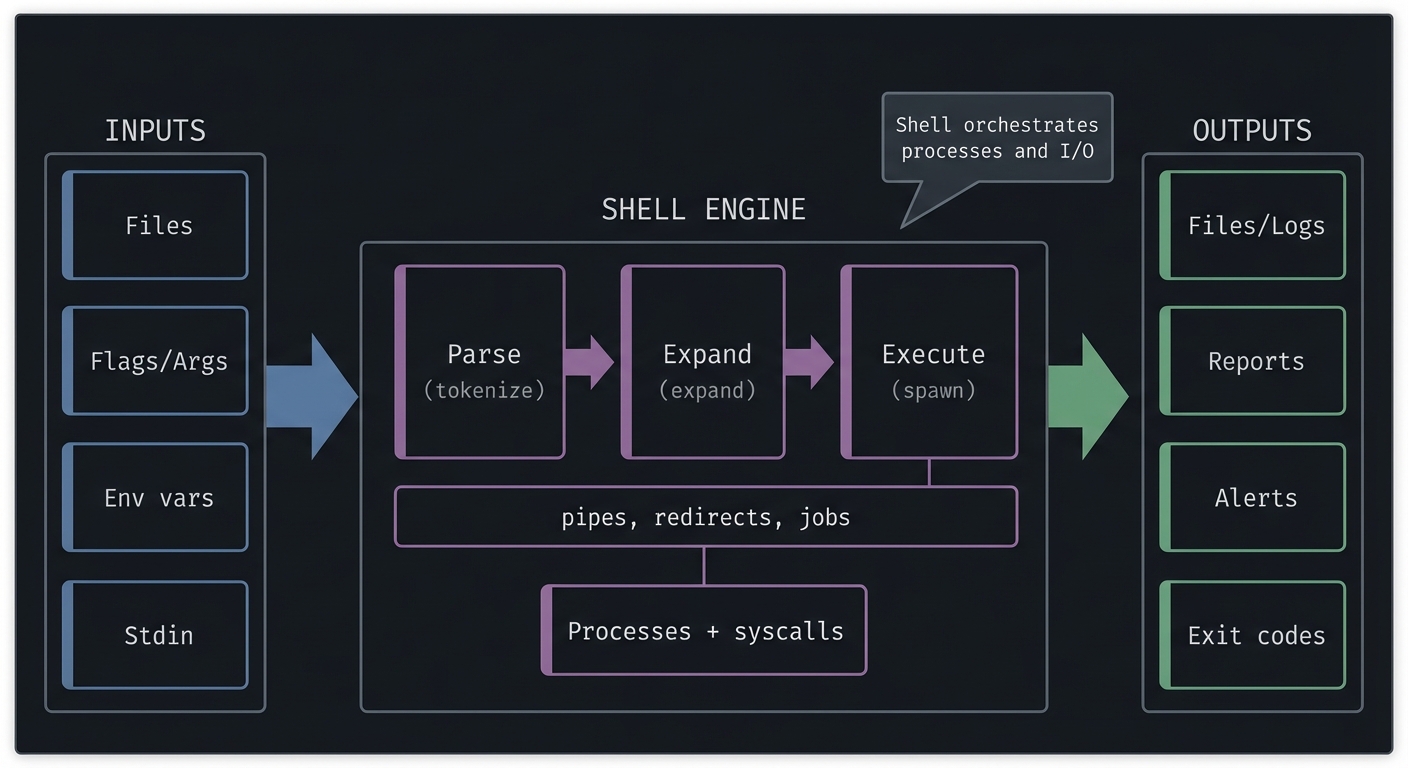
The Big Picture (Mental Model)
INPUTS            SHELL ENGINE                 OUTPUTS
---------         --------------------------   -----------------
Files             Parse -> Expand -> Execute   Files/Logs
Flags/Args  --->  (tokenize, expand, spawn) -> Reports
Env vars          |  pipes, redirects, jobs    Alerts
Stdin             v                           Exit codes
               Processes + syscalls
Key Terms You Will See Everywhere
- Shell: The command interpreter (bash, zsh, dash). It parses and executes commands.
- Script: A file containing shell commands and logic.
- Expansion: The rules the shell uses to transform text before running commands.
- Pipeline: A chain of commands connected by
|where stdout becomes stdin. - Redirection: Connecting stdin/stdout/stderr to files, pipes, or devices.
How to Use This Guide
- Read the Theory Primer first. It explains how shells actually behave so you can predict script behavior instead of guessing.
- Do projects in increasing complexity. Each one unlocks patterns you’ll reuse later.
- Keep a scratchpad. Write down mistakes, edge cases, and the fixes you discovered.
- Test as you go. Every project includes a Definition of Done; treat it as your checklist.
- Rebuild the small tools. Re-implement early projects after a few weeks. You’ll be surprised how much faster you are.
Prerequisites & Background Knowledge
Before starting these projects, you should have foundational understanding in these areas:
Essential Prerequisites (Must Have)
Programming Skills:
- Comfort with variables, functions, and control flow (in any language)
- Basic familiarity with the terminal (cd, ls, cp, mv, rm)
- Ability to read and modify files with a text editor
Linux/Unix Fundamentals:
- File paths, permissions, and ownership
- Basic process concepts (PID, foreground/background)
- Understanding what stdin/stdout/stderr are
- Recommended Reading: “The Linux Command Line” by William Shotts - Ch. 1-6
Helpful But Not Required
Text processing tools:
- grep, sed, awk, cut, sort, uniq
- Can learn during: Project 3 (Log Parser), Project 9 (Network Toolkit)
Git basics:
- branches, commits, hooks
- Can learn during: Project 4 (Git Hooks Framework)
Networking basics:
- IP, ports, and basic tools like curl
- Can learn during: Project 9 (Network Toolkit)
Self-Assessment Questions
Before starting, ask yourself:
- Can I explain the difference between a file and a directory?
- Do I know how to redirect output with
>and>>? - Can I read a simple shell script and predict its output?
- Do I know how to search files with
grep? - Have I used a terminal regularly for at least a few weeks?
If you answered “no” to questions 1-3: Spend 1-2 weeks with “The Linux Command Line” (Ch. 1-12). If you answered “yes” to all 5: You are ready to begin.
Development Environment Setup
Required Tools:
- A Linux machine (Ubuntu 22.04+ recommended) or macOS
- Bash 5.x+ (macOS users:
brew install bash) - Core Unix tools:
grep,sed,awk,find,xargs,tar,rsync - Git for version control
Recommended Tools:
shellcheckfor static analysisshfmtfor consistent formattingbatsfor testing (Projects 7 and 11)tmuxfor long-running sessions
Testing Your Setup:
$ bash --version
GNU bash, version 5.x

$ command -v awk sed grep
/usr/bin/awk
/usr/bin/sed
/usr/bin/grep
Time Investment
- Simple projects (1, 2, 14): Weekend (4-8 hours each)
- Moderate projects (3, 4, 5, 11): 1-2 weeks each
- Complex projects (6, 7, 8, 9, 10, 12, 13, 15): 2-4 weeks each
- Final capstone (DevOps Platform): 2-3 months
Important Reality Check
Shell scripting mastery is not about memorizing syntax. It is about learning to think in streams, predict expansion, and design reliable automation. Expect to:
- Build something that works
- Debug edge cases
- Refactor into clean, reusable functions
- Learn the true behavior of the shell
That cycle is the point.
Big Picture / Mental Model
A shell script is a process coordinator. It does not do heavy computation itself; it orchestrates other programs and the OS.
                 +-------------------------------+
User input ----> | Parse -> Expand -> Execute    | ----> Exit code
Files/Env vars ->| (tokens, quotes, vars, globs) | ----> Logs
Stdin ---------->| spawn processes, connect I/O  | ----> Files
                 +-------------------------------+
                         |           |
                         v           v
                   Processes      Pipelines
                   (fork/exec)    (fd plumbing)
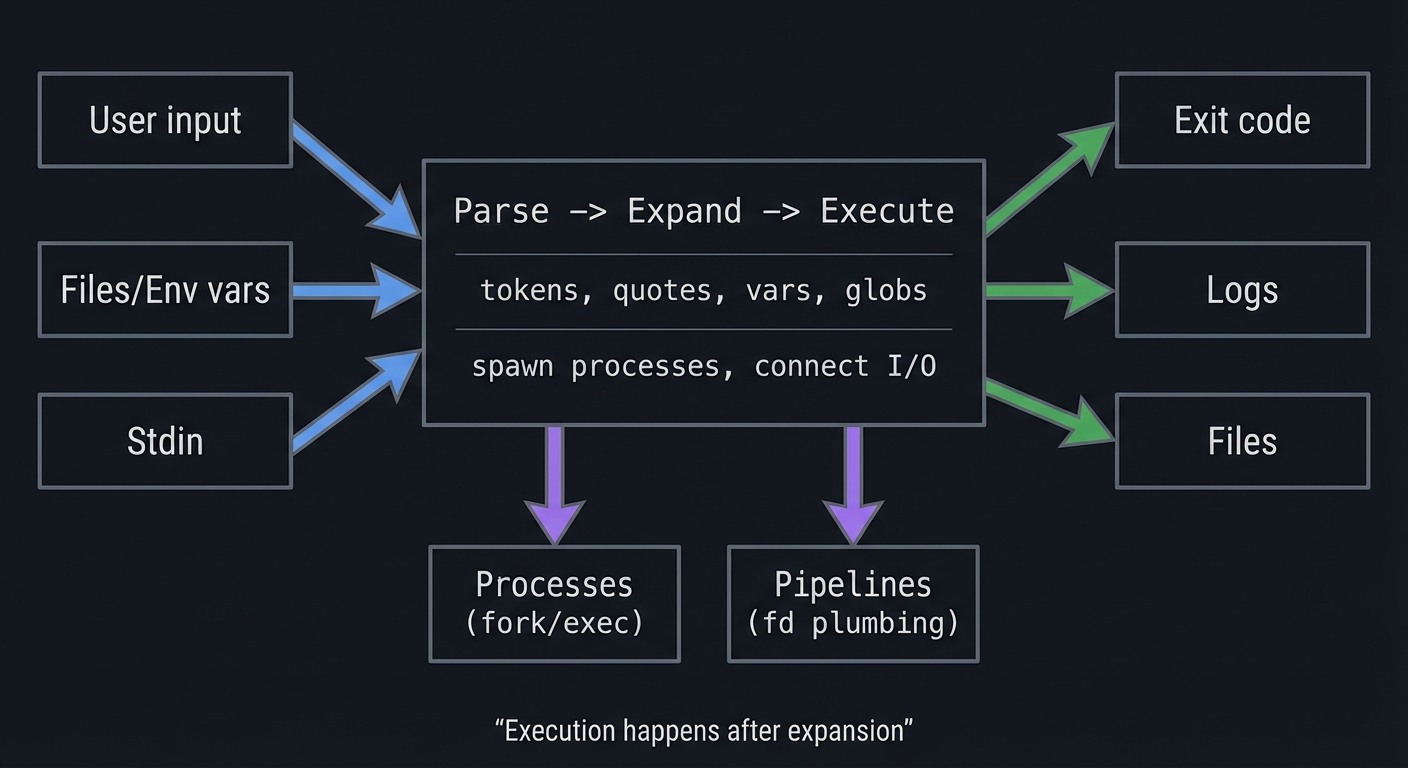
The mental model to keep in your head:
- Text becomes tokens (lexing)
- Tokens become words (expansion and splitting)
- Words become commands (execution)
- Commands become processes (fork/exec)
- Processes communicate via file descriptors (pipes/redirection)
Theory Primer
This section is the mini-book. Read it before you start coding. Every project is an application of one or more chapters below.
Chapter 1: Parsing, Quoting, and Expansion (The Language Engine)
Fundamentals
Shells do not execute the text you type directly. They first parse it into tokens and then run a fixed sequence of expansions that transform those tokens into the final arguments passed to a command. This is why the same script can behave correctly in one case and explode in another: it is not the command that is wrong, it is your assumptions about parsing that are wrong. At a high level, the shell reads characters, groups them into words, applies expansions, splits words into fields, and only then runs a command. That ordering matters. If you understand it, you stop fearing shell scripts; you can predict them.
Quoting is the single most important control you have over parsing. Unquoted variables are subject to word splitting and globbing. That means a variable that contains spaces, tabs, or newlines can explode into multiple arguments, and characters like * and ? can expand into filenames. The safe default is to quote variables: "$var". That simple habit prevents a majority of real-world shell bugs, including accidental file deletion and wrong command arguments. ShellCheck repeatedly flags unquoted variables because the risk is so high. The POSIX shell specification describes an ordered expansion process, and Bash adds extra expansion features that can change behavior if you are not deliberate. You will see this again and again in the projects.
Another fundamental is parameter expansion. This is the feature that lets you transform variables without calling external commands. It is both more efficient and more reliable because it happens before word splitting. If you know ${var%.*} to strip a file extension or ${var// /_} to replace spaces, you avoid invoking sed or awk inside loops. That makes your script faster, safer, and easier to read. The shell is not just a glue language; it has a real string manipulation toolkit.
Finally, the shell is not a general-purpose programming language. Its syntax is deeply tied to string expansion rules. That makes it powerful for text-based pipelines but dangerous for complex data structures. Learn the expansion rules well, and the shell becomes predictable. Treat it like Python, and it will punish you.
Deep Dive into the Concept
The POSIX shell command language defines expansions in a strict order. Bash follows this order with some Bash-specific features. The exact order matters because each phase changes the text that the next phase sees. The major steps are: brace expansion (Bash-specific), tilde expansion, parameter expansion, command substitution, arithmetic expansion, field splitting, pathname expansion (globbing), and quote removal. The key is that word splitting happens after parameter and command expansion, so the content of a variable can create multiple words if it is unquoted. Then pathname expansion happens on those words. This is why rm $files is dangerous: if $files is "*.log" unquoted, it can expand to every log file in the directory. If $files contains "report 2024", it becomes two arguments. The safest pattern is almost always rm -- "$files", which forces a single argument and prevents accidental option parsing.
Parsing also involves recognizing operators (|, &&, ;, >, <) before the shell looks at expansions. That means the character | inside quotes is just a literal pipe character in the argument, but outside quotes it splits the pipeline. Similarly, > outside quotes becomes a redirection operator; inside quotes it is literal text. Understanding this lets you intentionally construct commands that contain these characters without confusing the parser.
Quoting is subtle because it is not just “on” or “off”. Single quotes preserve literal text exactly (no expansion). Double quotes allow parameter, command, and arithmetic expansion but prevent word splitting and globbing. Backslash escapes the next character in many contexts. ANSI-C quotes ($'...') allow escape sequences in Bash but are not portable. The most reliable approach for scripts is: use double quotes around variables; use single quotes for literal strings; only use backslash escapes when you have to. Avoid unquoted strings unless you explicitly want word splitting or globbing. When you do want splitting, be explicit about it by setting IFS locally or using arrays.
Field splitting is governed by the IFS variable, which defaults to space, tab, and newline. If you read a file line by line with for line in $(cat file), you are not reading lines; you are splitting on whitespace. This is one of the most common beginner bugs. The safer pattern is while IFS= read -r line; do ...; done < file, which preserves whitespace and avoids backslash escapes. That single line demonstrates the intersection of parsing, quoting, and field splitting. If you deeply understand why it works, you will write correct shell scripts for the rest of your career.
Parameter expansion has default values, error checking, pattern removal, and substring extraction. ${var:-default} substitutes a default if var is unset or empty. ${var:?message} aborts the script with a message if var is missing. ${var#pattern} removes the shortest matching prefix, ${var##pattern} removes the longest. These are not just conveniences; they are safeguards. Using ${var:?} is a defensive programming pattern that turns missing configuration into a clear error rather than a subtle bug.
Command substitution ($(...)) is another source of errors. It captures the output of a command and then is subject to word splitting unless quoted. That means files=$(ls *.log) followed by rm $files is fragile. The correct approach is to avoid command substitution for file lists entirely: use globs directly, or populate arrays with mapfile/readarray, or iterate with find -print0 and xargs -0 or while IFS= read -r -d ''.
Finally, there is portability. POSIX shell does not have arrays, [[ ]], or ${var//pat/repl}. Bash does. If your scripts must run on /bin/sh (often dash on Ubuntu), you must restrict yourself to POSIX features. That decision should be explicit at the top of your script, usually by choosing the right shebang (#!/usr/bin/env bash vs #!/bin/sh). Portability is a design choice, not an accident.
How This Fits on Projects
This chapter powers Projects 1-5 (file-heavy automation), Project 7 (CLI parser), Project 11 (test framework), and Project 15 (mini shell). If you cannot predict expansion, you cannot correctly parse arguments or filenames. These projects force you to handle whitespace, globbing, and command substitution safely.
Definitions & Key Terms
- Token: A syntactic unit recognized by the parser (word, operator, redirection).
- Expansion: The transformation of text into its final form before execution.
- Field splitting: Breaking expanded text into separate words based on
IFS. - Globbing: Pathname expansion of patterns like
*.txt. - Quoting: The mechanism that controls which expansions apply.
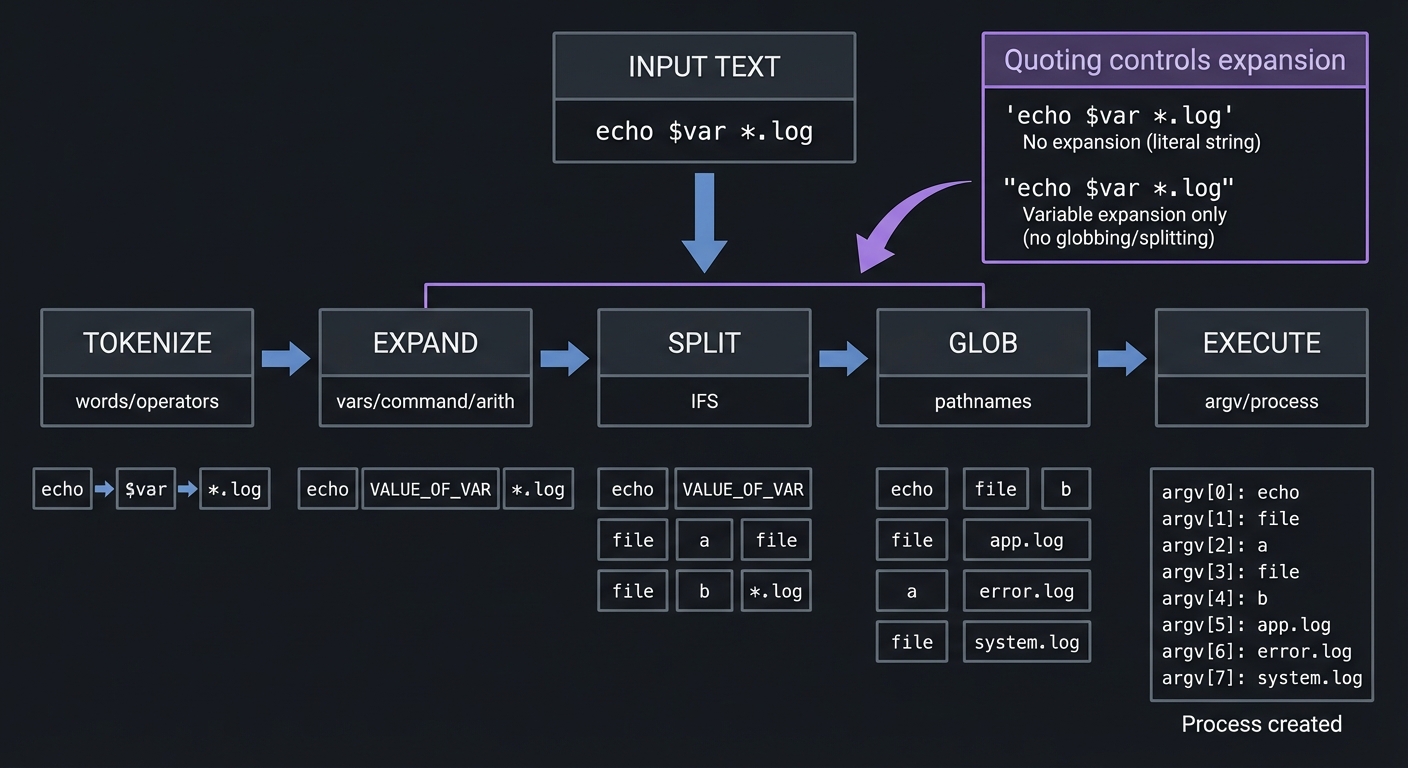
Mental Model Diagram
INPUT TEXT
  "echo $var *.log"
        |
        v
TOKENIZE -> EXPAND -> SPLIT -> GLOB -> EXECUTE
   words    vars      IFS     files   process
How It Works (Step-by-Step)
- Shell reads characters and identifies tokens and operators.
- Quoting is recorded; operators like
|and>are recognized. - Expansions run: parameter, command, arithmetic, tilde, brace (Bash).
- Field splitting occurs on unquoted expansions using
IFS. - Globbing expands patterns into file names.
- Quotes are removed; final argv is built and executed.
Minimal Concrete Example
name="Ada Lovelace"
files="*.log"

# Unsafe
rm $files            # expands to matching files
printf "%s\n" $name # splits into 2 words

# Safe
rm -- "$files"       # literal *.log unless globbed intentionally
printf "%s\n" "$name"
Common Misconceptions
- “Quotes are optional if my variables are simple.” -> They are not. You cannot guarantee future content.
- “Command substitution gives me lines.” -> It gives you words, split on
IFS. - “Globs are like regex.” -> They are simpler and match filenames, not strings.
Check-Your-Understanding Questions
- Why does
rm $filesometimes delete multiple files? - What is the difference between single and double quotes in Bash?
- Why is
for f in $(cat file)incorrect for line processing? - What does
${var:?}do and when should you use it?
Check-Your-Understanding Answers
- Because
$fileis unquoted, it is subject to word splitting and globbing. - Single quotes prevent all expansion; double quotes allow variable/command expansion but prevent splitting/globbing.
$(cat file)produces a single string that is then split on whitespace, not on lines.- It aborts with an error if
varis unset or empty, preventing silent failures.
Real-World Applications
- Safe file management tools (Projects 1 and 2)
- Parsing complex command lines (Project 7)
- Input validation and configuration handling (Project 10)
Where You Will Apply It
- Project 1: Dotfiles Manager
- Project 2: File Organizer
- Project 3: Log Parser
- Project 7: CLI Argument Parser
- Project 11: Test Framework
- Project 15: Mini Shell
References
- POSIX Shell Command Language - “Shell Expansions” (The Open Group): https://pubs.opengroup.org/onlinepubs/9699919799/utilities/V3_chap02.html
- GNU Bash Reference Manual - “Shell Expansions” and “Quoting”: https://www.gnu.org/software/bash/manual/bash.html
- ShellCheck Wiki - “SC2086: Double quote to prevent globbing and word splitting”: https://www.shellcheck.net/wiki/SC2086
Key Insight If you can predict how the shell expands text, you can predict almost every bug before it happens.
Summary Parsing and expansion are the core of shell behavior. Quoting controls expansion, and expansion determines what the command actually receives. Most shell bugs are not logic bugs; they are expansion bugs.
Homework / Exercises
- Write a script that lists files matching a user-supplied pattern safely.
- Demonstrate the difference between
"$@"and"$*". - Create a test file with spaces and newlines and handle it safely.
Solutions
- Use
printf '%s\n' -- "$pattern"andfor f in $patternonly if you intend globbing. "$@"preserves arguments;"$*"joins them into one string.- Use
while IFS= read -r line; do ...; done < fileto preserve whitespace.
Chapter 2: Streams, Redirection, and Pipelines (The Plumbing)
Fundamentals
Every process on Unix has three default file descriptors: stdin (0), stdout (1), and stderr (2). Shell scripts are powerful because they let you connect these file descriptors like LEGO bricks. Redirection lets you send output to files, read input from files, or merge streams. Pipelines let you feed the output of one command directly into another. This is the heart of the Unix philosophy: build small tools, connect them with pipes, and compose them into workflows.
Understanding file descriptors is not optional. If you send errors to stdout, you corrupt your data stream. If you forget to close a pipe, your script hangs waiting for EOF. If you redirect inside a loop, you can unintentionally truncate a file on every iteration. You must know which stream you are using and why. When your scripts get complex, you may create additional file descriptors (3, 4, 5) to manage logs, temporary files, or parallel streams. This is advanced, but it is often the difference between a hack and a robust tool.
Pipelines are also subtle: in many shells, each pipeline segment runs in a subshell. That means variable changes in one segment do not affect the parent shell. This is why cmd | while read line; do count=$((count+1)); done often leaves count unchanged. Knowing this leads you to safer patterns, such as process substitution or redirection into a loop. Bash has pipefail to detect failures in any segment of a pipeline, which is critical for reliability. Without it, a failing command can be masked by a successful last command.
Deep Dive into the Concept
Redirection is specified by the shell before the command runs. The shell opens files, creates pipes, and duplicates file descriptors so the process inherits the correct I/O setup. This means redirection errors happen before command execution. For example, cmd > /root/file fails because the shell cannot open the file, even if cmd itself would have worked. Understanding this helps you debug errors that look like they are in your command but are actually in the redirection.
The syntax is compact but exact: > truncates a file, >> appends, < reads, 2> redirects stderr, 2>&1 merges stderr into stdout, and &> redirects both (Bash). Here-documents (<<EOF) allow you to embed input directly in the script, and here-strings (<<<) pass a single string as stdin. Process substitution (<(cmd) or >(cmd)) creates a named pipe or /dev/fd entry so you can treat a command like a file. That unlocks patterns like diff <(cmd1) <(cmd2).
Pipelines are not just about speed; they are about structure. Each command should do one transformation. This is why grep | awk | sort | uniq remains the canonical example. But you must respect buffering: some commands buffer output when not connected to a terminal. Tools like stdbuf or grep --line-buffered can help in streaming scenarios. In monitoring scripts, a buffered command can look like a hang.
Exit status in pipelines is tricky. By default, most shells return the exit code of the last command in a pipeline. If grep fails (no matches) but sort succeeds, the pipeline returns success. That might be wrong for your script. Bash’s set -o pipefail changes this: the pipeline fails if any command fails. This is essential for reliable automation and is part of the recommended strict mode.
How This Fits on Projects
Pipelines and redirection power the log parser (Project 3), system monitor (Project 6), network toolkit (Project 9), and test framework (Project 11). Every project that transforms data streams depends on these concepts. If you do not understand how stdin/stdout/stderr flow, you cannot design correct tools.
Definitions & Key Terms
- File descriptor (fd): A numeric handle to an open file/stream.
- Redirection: Connecting a file descriptor to a file/pipe.
- Pipeline: A chain of commands connected with
|. - Here-document: Inline input provided to a command.
- Process substitution: Treating a command output as a file.
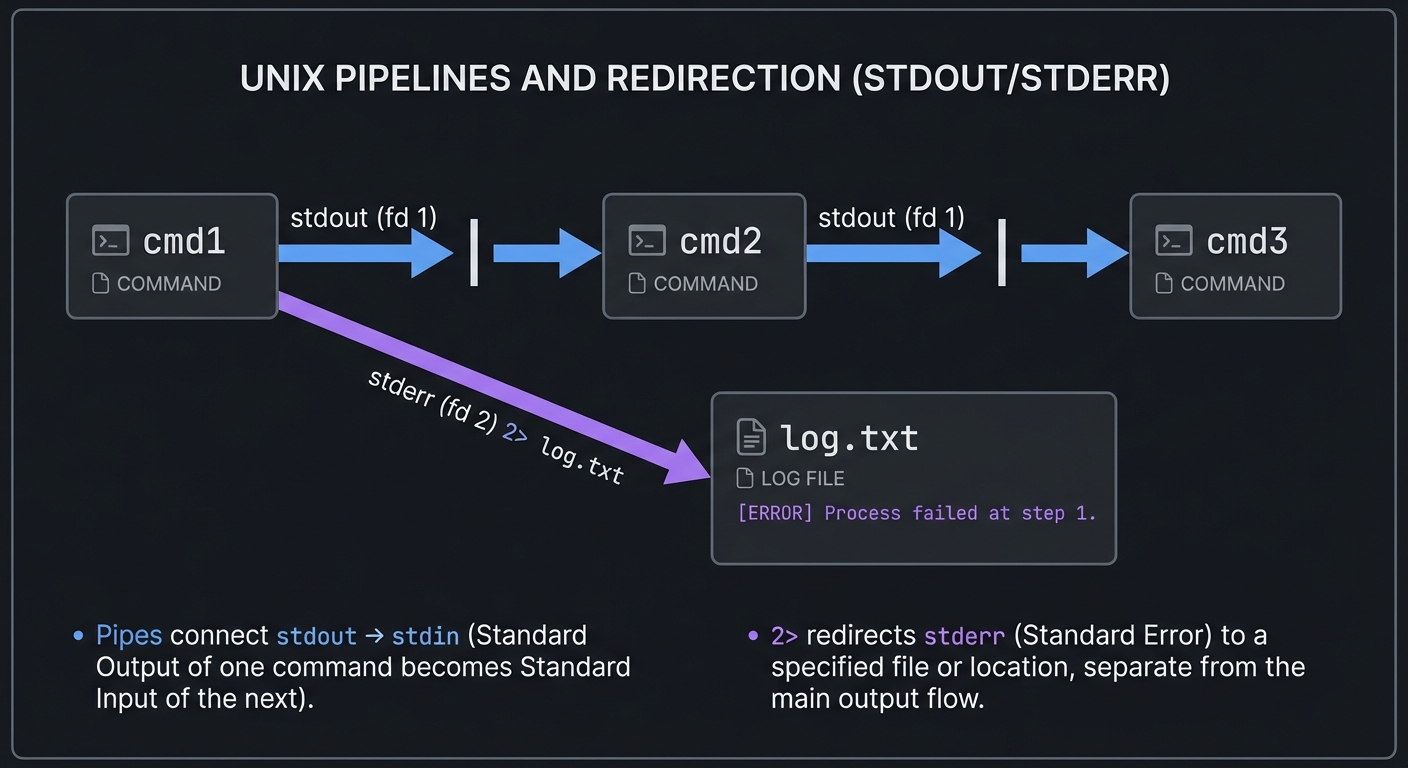
Mental Model Diagram
cmd1 --stdout--> pipe --stdin--> cmd2 --stdout--> cmd3
   \--stderr--------------------> log.txt
How It Works (Step-by-Step)
- Shell parses the command line and identifies redirection operators.
- It opens files and creates pipes before executing the command.
- It duplicates file descriptors (dup2) so the process inherits the new I/O.
- It forks processes for each pipeline segment and connects pipes.
- Each process executes its command with the modified descriptors.
Minimal Concrete Example
# Capture stdout and stderr separately
cmd > out.log 2> err.log

# Merge stderr into stdout for a single stream
cmd > all.log 2>&1

# Process a stream
tail -f app.log | grep --line-buffered ERROR | awk '{print $1, $5}'
Common Misconceptions
- “
2>&1and> fileare interchangeable.” -> The order matters. - “Pipelines preserve variables.” -> Most pipeline parts run in subshells.
- “
cat file | while read ...is always safe.” -> It can run in a subshell and lose state.
Check-Your-Understanding Questions
- Why does
cmd > file 2>&1differ fromcmd 2>&1 > file? - When do pipeline failures get masked?
- What problem does
set -o pipefailsolve? - Why might
while readin a pipeline not update variables?
Check-Your-Understanding Answers
- The first redirects stdout to file, then redirects stderr to stdout (file). The second redirects stderr to current stdout (terminal), then stdout to file.
- When a non-last command fails but the last command succeeds.
- It makes the pipeline fail if any component fails.
- Because the loop often runs in a subshell, so variable changes do not propagate.
Real-World Applications
- Log processing pipelines for incident response
- Streaming monitoring dashboards
- Automated ETL and report generation
Where You Will Apply It
- Project 3: Log Parser & Alert System
- Project 6: System Health Monitor
- Project 9: Network Diagnostic Toolkit
- Project 11: Test Framework & Runner
- Project 12: Task Runner
References
- GNU Bash Reference Manual - “Pipelines” and “Redirections”: https://www.gnu.org/software/bash/manual/bash.html
- Bash “set” builtin and pipefail: https://www.gnu.org/software/bash/manual/html_node/The-Set-Builtin.html
Key Insight Pipes and redirection are the shell’s circulatory system; if you can see the streams, you can debug almost anything.
Summary Redirection and pipelines turn isolated commands into data processing systems. Mastering file descriptors and pipeline semantics is mandatory for reliable automation.
Homework / Exercises
- Build a pipeline that extracts the top 5 IP addresses from a log file.
- Write a script that captures stdout and stderr to separate files.
- Use process substitution to compare two command outputs.
Solutions
grep -oE '([0-9]{1,3}\.){3}[0-9]{1,3}' access.log | sort | uniq -c | sort -nr | head -5cmd > out.log 2> err.logdiff <(cmd1) <(cmd2)
Chapter 3: Control Flow, Functions, and Exit Status (Program Structure)
Fundamentals
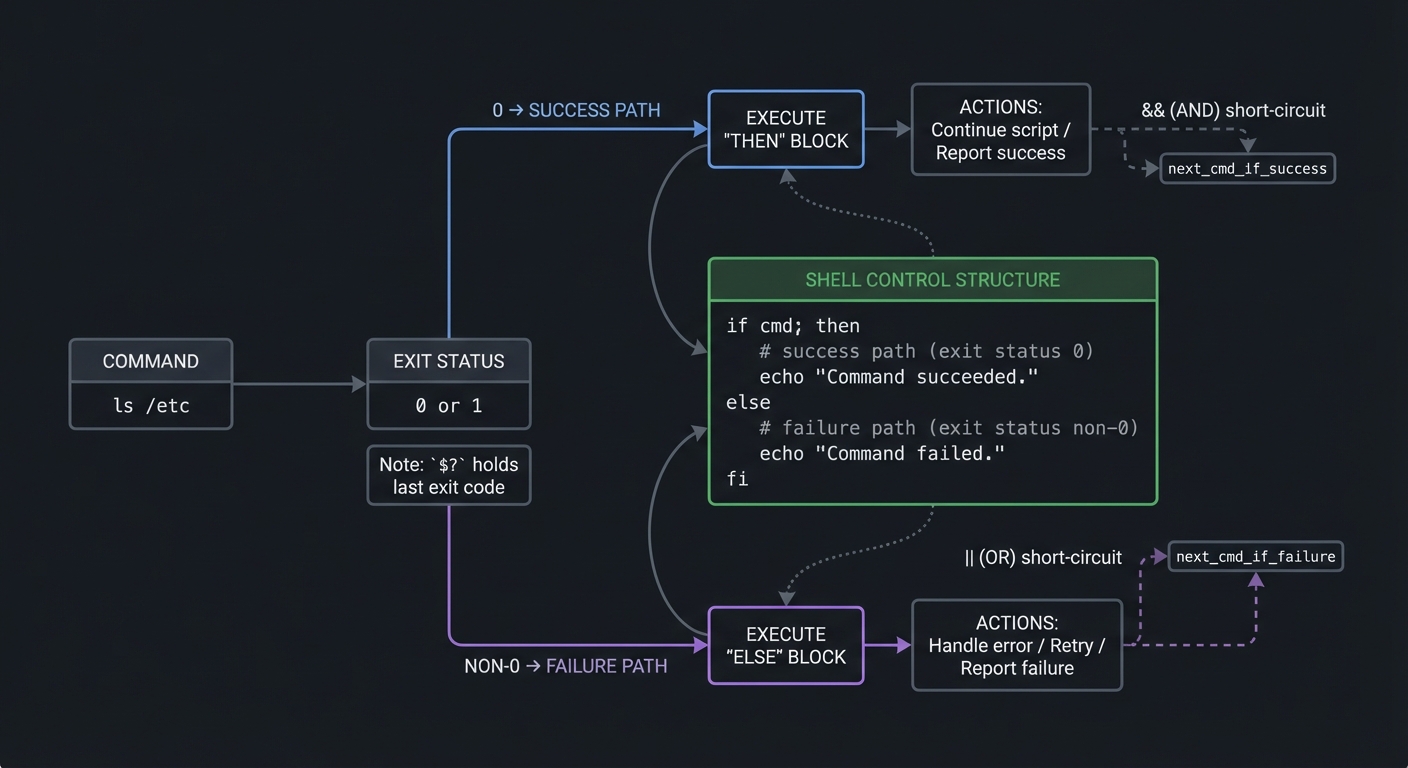
Shell scripts are programs. They have branches, loops, functions, and state. But shell control flow is built on exit status rather than Boolean types. Every command returns a numeric status: 0 means success, non-zero means failure. This is the core logic primitive of the shell. if cmd; then ...; fi does not ask if the command returned “true”; it asks if the command succeeded. Once you internalize this, you stop writing brittle if [ "$var" == true ] and start writing scripts that naturally compose with Unix commands.
The test command ([ ... ]) and Bash’s [[ ... ]] are the backbone of conditional logic. [[ ]] is safer because it avoids many word-splitting issues and supports pattern matching. The case statement is the most robust way to handle multiple command modes, especially for CLI tools. Loops (for, while, until) allow iteration, but their behavior depends on parsing rules covered in Chapter 1. If you iterate over for f in $(ls), you have already lost; if you iterate over globs or arrays, you are safe.
Functions in shell are simple but powerful. They allow modularity, reuse, and testing. But functions have subtle scoping rules: variables are global by default unless declared local (Bash). Return values are exit codes, not strings, so you typically print to stdout and capture with command substitution. This design encourages a pipeline model: functions emit data; callers capture and process it. That is different from many other languages and requires a shift in thinking.
Deep Dive into the Concept
Exit status rules are defined by POSIX. Most commands treat 0 as success, 1 as general failure, and 2 or higher for specific errors. But some tools use 1 to mean “no matches” (e.g., grep), which is not necessarily a failure in all contexts. This makes error handling nuanced. A robust script distinguishes between acceptable non-zero exit codes and fatal failures. For example, searching for a string that does not exist should not necessarily crash your script.
The set builtin controls shell behavior. set -e (errexit) causes the script to exit when a command fails, but this has exceptions: it does not trigger in all contexts, and it can be suppressed in conditional expressions. set -u (nounset) makes the shell treat unset variables as errors, which prevents silent bugs. set -o pipefail ensures pipeline failures are not masked. Together, these form the typical “strict mode” header, but you must understand their edge cases or they can backfire. Many advanced scripts implement explicit error checking rather than relying exclusively on set -e.
Function design in shell must account for global state, shared variables, and the fact that subshells receive copies. If you write count=0; cmd | while read; do count=$((count+1)); done, count will be updated in a subshell and lost. This is not a bug; it is the definition of pipeline execution. Instead, you can avoid the subshell by using redirection: while read; do ...; done < <(cmd) or while read; do ...; done < file.
case statements are the most reliable way to parse CLI arguments because they avoid nested if chains and are easy to extend. For more complex parsing, getopts or a custom parser (Project 7) is required. When you parse arguments, you must decide whether flags are global or command-specific. This design decision affects the architecture of your CLI tools.
Functions should follow a consistent contract: return status codes for success/failure and print human-readable output to stderr for errors. For reusable libraries, keep stdout clean and return data explicitly or via global variables. This distinction matters in larger tools where you want to compose functions as if they were commands.
How This Fits on Projects
Projects 1, 2, 4, 7, 11, 12, and 15 all depend on correct control flow and function design. Project 7 (CLI parser) is explicitly about control flow and argument routing, while Project 11 (test framework) depends on reliable exit status semantics.
Definitions & Key Terms
- Exit status: Numeric result of a command, used as the shell’s truth value.
- Short-circuit:
&&and||run commands based on exit status. - Function: A named block of shell code, optionally with local variables.
- Strict mode: Common combination of
set -euo pipefail.
Mental Model Diagram
[command] -> exit status
    0  => success path
 non-0 => failure path

if cmd; then
  success actions
else
  failure actions
fi
How It Works (Step-by-Step)
- Each command sets
$?to its exit status. - Conditionals and
&&/||check that status. set -ecan force an immediate exit on failure.- Functions return an exit status with
return. - Callers combine exit codes and outputs to control flow.
Minimal Concrete Example
backup_file() {
  local src="$1" dst="$2"
  cp -- "$src" "$dst" || return 1
  return 0
}

if backup_file "$f" "$f.bak"; then
  echo "backup ok"
else
  echo "backup failed" >&2
fi
Common Misconceptions
- “
if [ $var ]is safe.” -> Unquoted variables can break tests. - “
set -emakes my script safe.” -> It has exceptions and can hide errors. - “Functions can return strings.” -> They return exit codes; use stdout for data.
Check-Your-Understanding Questions
- Why does
grepreturning 1 sometimes not mean failure? - When can
set -ebe dangerous? - What is the difference between
returnandexit? - Why is
[[ ]]safer than[ ]in Bash?
Check-Your-Understanding Answers
grepuses 1 to mean “no matches” which may be acceptable.- It can exit unexpectedly in complex conditionals or be ignored in pipelines.
returnexits a function;exitterminates the script.[[ ]]prevents word splitting and supports safer pattern matching.
Real-World Applications
- Robust CLI tools with clear error codes
- Automation scripts that fail fast with meaningful messages
- Test frameworks that aggregate pass/fail results
Where You Will Apply It
- Project 4: Git Hooks Framework
- Project 7: CLI Argument Parser
- Project 11: Test Framework
- Project 12: Task Runner
References
- POSIX Shell Command Language - “Exit Status” and “Conditional Constructs”: https://pubs.opengroup.org/onlinepubs/9699919799/utilities/V3_chap02.html
- GNU Bash Reference Manual - “Conditional Constructs” and “Shell Functions”: https://www.gnu.org/software/bash/manual/bash.html
- Bash “set” builtin: https://www.gnu.org/software/bash/manual/html_node/The-Set-Builtin.html
Key Insight Shell control flow is not about booleans; it is about exit status. Treat success and failure as data.
Summary You structure shell scripts by composing commands, checking exit codes, and organizing logic into functions. The more deliberate your error handling, the more trustworthy your scripts become.
Homework / Exercises
- Write a script that retries a command up to 3 times with backoff.
- Implement a
case-based CLI withstart|stop|status. - Create a function library that returns exit codes and writes errors to stderr.
Solutions
- Use a loop with
sleepand check$?after each command. case "$1" in start) ... ;; stop) ... ;; status) ... ;; *) usage ;; esac- Use
returnfor status andecho "error" >&2for errors.
Chapter 4: Processes, Jobs, and Signals (The OS Interface)
Fundamentals
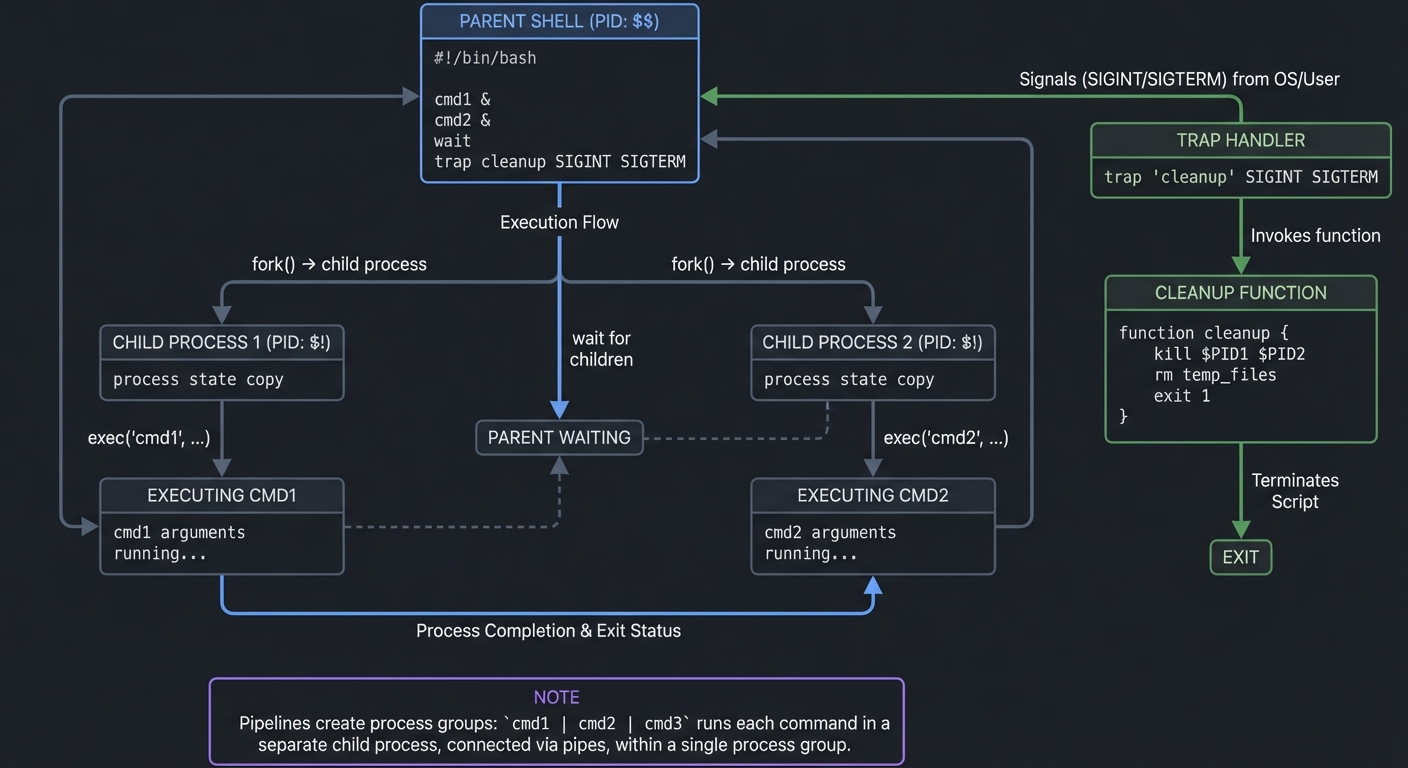
Shell scripts live in the operating system. Every command you run is a process. The shell creates processes using fork and exec, and it manages them through job control and signals. Understanding this is critical for building long-running automation, supervisors, and reliable cleanup. If you do not manage processes intentionally, your scripts will leak resources, leave zombies behind, or fail silently.
Signals are asynchronous notifications sent by the OS. SIGINT comes from Ctrl-C, SIGTERM requests graceful termination, SIGKILL is the forced kill, and SIGCHLD notifies about child process termination. trap lets you intercept these signals so you can clean up temporary files, stop child processes, and restore system state. This is essential for scripts that modify files, manage services, or run deployments.
Job control is the mechanism behind foreground/background tasks. cmd & runs a job in the background; wait blocks until a job finishes. If you start multiple background jobs, you must wait for them and track their exit codes. This is the foundation of parallel execution in shell, which you will use in the task runner and process supervisor projects.
Deep Dive into the Concept
When you run a pipeline, the shell typically creates a process group for the pipeline and sets the controlling terminal to that group. This is why Ctrl-C can interrupt the entire pipeline. Understanding process groups becomes important when you write supervisors or daemons. A daemon is just a process that detaches from the terminal, often with double-fork logic or with setsid. While you may not implement full daemonization in a beginner script, you will in the process supervisor project.
Subshells are another critical concept. Parentheses ( ... ) run commands in a subshell; braces { ...; } run in the current shell. The difference matters for state changes: cd inside a subshell does not affect the parent, but inside braces it does. Pipelines often run in subshells as well, which is why variable changes can vanish. Understanding when you are in a subshell determines whether your state changes persist.
Signals and traps are subtle. trap 'cleanup' EXIT runs when the script exits for any reason. trap '...' ERR runs when a command fails (in Bash, with set -E). You can trap SIGINT to handle Ctrl-C gracefully. But traps interact with subshells, functions, and set -e in non-obvious ways. The reliable pattern is: define cleanup in one place, set traps early, and ensure you kill child processes in the cleanup function.
Concurrency introduces race conditions. If two instances of a script run at once, they can clobber state, overwrite files, or produce corrupted output. This is why lock files exist. A common pattern is to use mkdir as an atomic lock or flock where available. You will see this in the backup and task runner projects.
How This Fits on Projects
Projects 6 (System Monitor), 8 (Process Supervisor), 9 (Network Toolkit), 10 (Deployment Tool), and the final DevOps Platform all require robust process management and signal handling.
Definitions & Key Terms
- Process: A running program with its own PID.
- Signal: An asynchronous notification to a process.
- Job control: Managing foreground/background tasks.
- Subshell: A child shell process with its own environment.
- Daemon: A long-running background process detached from the terminal.
Mental Model Diagram
Parent shell
  |-- fork -> child -> exec cmd1
  |-- fork -> child -> exec cmd2
  \-- wait for children

Signals -> trap -> cleanup -> exit
How It Works (Step-by-Step)
- Shell forks for each external command.
- The child process replaces itself via exec.
- The parent waits for children (unless backgrounded).
- Signals can interrupt; traps allow cleanup.
- Background jobs are tracked with
$!andwait.
Minimal Concrete Example
pids=()
for host in host1 host2 host3; do
  ping -c1 "$host" >/dev/null &
  pids+=("$!")
done

for pid in "${pids[@]}"; do
  wait "$pid" || echo "job failed" >&2
done
Common Misconceptions
- ”
&makes things safe.” -> Background jobs can fail silently. - “
traponly works on exit.” -> It works for signals too. - “Subshells are just syntax.” -> They create real processes with isolated state.
Check-Your-Understanding Questions
- What is the difference between
( ... )and{ ...; }? - Why do you need to
waitfor background jobs? - How do you ensure cleanup on Ctrl-C?
- What is a zombie process and how does it occur?
Check-Your-Understanding Answers
- Parentheses run in a subshell; braces run in the current shell.
- Without
wait, you lose exit status and can leave zombies. - Use
trap 'cleanup' INT TERM EXIT. - A zombie is a finished child not reaped by the parent.
Real-World Applications
- Process supervisors and service managers
- Parallelized network checks
- Reliable deployment scripts with cleanup
Where You Will Apply It
- Project 6: System Health Monitor
- Project 8: Process Supervisor
- Project 9: Network Toolkit
- Project 10: Deployment Automation
- Final Project: DevOps Platform
References
- GNU Bash Reference Manual - “Job Control” and “Signals”: https://www.gnu.org/software/bash/manual/bash.html
- Bash “trap” builtin (example docs): https://manned.org/trap.1p
Key Insight The shell is not just a scripting language; it is a process manager. If you control processes, you control automation.
Summary Process control, job management, and signal handling are the difference between brittle scripts and reliable tools. Mastering these concepts unlocks advanced automation.
Homework / Exercises
- Write a script that runs 3 commands in parallel and fails if any one fails.
- Add a
trapthat deletes temp files on exit. - Build a simple watchdog that restarts a process if it dies.
Solutions
- Start each command with
&, capture PIDs, thenwaitand check exit codes. tmp=$(mktemp); trap 'rm -f "$tmp"' EXIT.- Loop with
while true; do cmd; sleep 1; doneandtrapto stop.
Chapter 5: Robustness, Portability, and Tooling (Production Scripts)
Fundamentals
The difference between a toy script and a production script is not the feature set; it is robustness. A production script handles missing inputs, unexpected filenames, partial failures, and concurrency. It cleans up after itself. It produces useful logs. It is consistent in its output. This chapter gives you the mindset and tools to make that shift.
Portability is a design choice. If your script runs only on your workstation, you can use Bash-specific features like arrays, [[ ]], and mapfile. If it must run on /bin/sh across diverse systems, you must restrict yourself to POSIX features. That affects your choice of syntax, command options, and built-ins. The key is to decide early and document it in the shebang and README.
Security is also part of robustness. Shell scripts often run with elevated permissions or handle sensitive files. That means you must protect against unsafe expansion, malicious filenames, and command injection. A safe script always quotes variables, uses -- to terminate options, and never evaluates untrusted input with eval or backticks. It uses safe temporary files (mktemp) and avoids predictable filenames in /tmp.
Testing and linting are how you keep scripts correct as they grow. shellcheck catches real bugs (missing quotes, incorrect tests, shadowed variables). shfmt keeps formatting consistent. Test frameworks like bats or shunit2 let you verify behavior. A script that cannot be tested will eventually be replaced.
Deep Dive into the Concept
Portability is not just syntax. It is command behavior. For example, sed -i works differently on GNU and BSD; echo -e is not portable; read -a is Bash-only. A portable script chooses POSIX alternatives (printf instead of echo, sed with explicit temp files, getopts for flags). The right pattern is to build a small portability layer: a few helper functions that normalize differences (e.g., sed_inplace()), and then use those helpers everywhere. This is exactly what your CLI parser and task runner projects will teach you.
Strict mode (set -euo pipefail) is powerful but not magical. set -e does not apply to all contexts (e.g., within if tests or || chains), and pipefail is Bash-specific. A robust script often combines strict mode with explicit checks and a clear error-handling function. For example, you can centralize error reporting, increment error counters, and decide whether to continue or abort based on severity. That is a better model than a simple exit-on-first-error for complex workflows.
Defensive patterns include: validating inputs (case on allowed values), checking dependencies (command -v), requiring configuration (: "${VAR:?missing}"), and refusing to run as root unless required. Another pattern is idempotency: running the script twice should not break the system or duplicate work. Your dotfiles manager, backup tool, and deployment script depend on this.
Tooling is a force multiplier. ShellCheck has a catalog of common errors; using it early will save you days of debugging. The Google Shell Style Guide encourages consistent naming, quoting, and structure; following a style guide makes scripts readable by teams. For complex scripts, include a --dry-run mode and a --verbose mode. These improve user trust and make debugging simpler.
How This Fits on Projects
Every project after the first two depends on robustness. The deployment tool (Project 10) and final platform require safe error handling and logging. The security scanner (Project 13) depends on safe parsing and not running unsafe commands. The test framework (Project 11) is itself an enforcement mechanism for robustness.
Definitions & Key Terms
- Portability: Ability to run across different shells and OSes.
- Idempotency: Running a script multiple times produces the same result.
- Linting: Static analysis that finds bugs without running code.
- Strict mode:
set -euo pipefail(Bash). - Safe temp file: A unique temp file created securely with
mktemp.
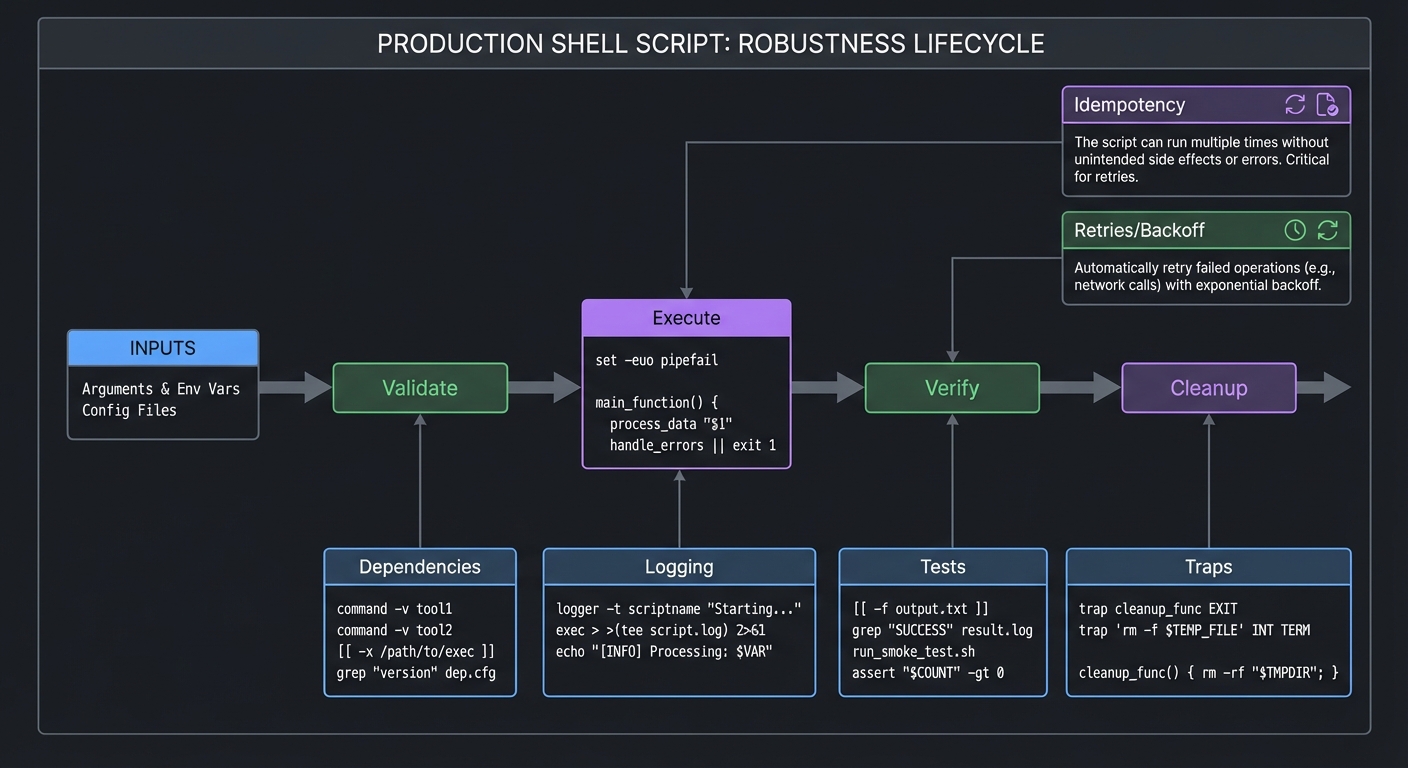
Mental Model Diagram
INPUTS -> Validate -> Execute -> Verify -> Cleanup
   ^          |           |          |
   |          v           v          v
Dependencies  Logging     Tests     Traps
How It Works (Step-by-Step)
- Decide shell target (Bash vs POSIX) and declare in shebang.
- Validate inputs and dependencies early.
- Enable strict mode where appropriate.
- Use logging and clear error handling.
- Add linting and tests to keep behavior stable.
Minimal Concrete Example
#!/usr/bin/env bash
set -euo pipefail

require_cmd() {
  command -v "$1" >/dev/null || { echo "missing $1" >&2; exit 1; }
}

require_cmd rsync
: "${BACKUP_DIR:?BACKUP_DIR is required}"
Common Misconceptions
- “Strict mode fixes all bugs.” -> It helps, but you still need explicit checks.
- “Portability is automatic.” -> It is a design choice and requires discipline.
- “Linting is optional.” -> It is the cheapest way to catch real errors.
Check-Your-Understanding Questions
- Why is
echo -enot portable? - What does
mktempprotect you against? - When should you not use
set -e? - What does idempotency mean in practice?
Check-Your-Understanding Answers
echobehavior varies across shells;printfis consistent.- Predictable filenames and race conditions in
/tmp. - In scripts that must tolerate controlled failures or complex pipelines.
- Running the script twice should not produce duplicate or destructive changes.
Real-World Applications
- Safe deployment scripts
- Cross-platform automation tools
- CI/CD tasks that must be deterministic
Where You Will Apply It
- Project 5: Backup System
- Project 10: Deployment Tool
- Project 11: Test Framework
- Project 13: Security Audit Scanner
- Final Project: DevOps Platform
References
- ShellCheck project and rules: https://www.shellcheck.net/
- Google Shell Style Guide: https://google.github.io/styleguide/shellguide.html
- GNU Coreutils
mktempdocumentation: https://www.gnu.org/software/coreutils/manual/html_node/mktemp-invocation.html
Key Insight Reliability is designed, not accidental. Robust scripts are predictable because they defend against failure.
Summary Robustness requires deliberate input validation, predictable behavior, and tooling. If you design for failure, your scripts become trustworthy automation.
Homework / Exercises
- Run ShellCheck on a script and fix all warnings.
- Add a
--dry-runmode to an existing script. - Create a portability checklist for one of your scripts.
Solutions
- Use
shellcheck script.shand address quoting, tests, and unused variables. - Guard destructive commands behind a
DRY_RUNflag that prints instead of executes. - Check for POSIX syntax, portable options, and avoid Bash-only features if using
/bin/sh.
Glossary
- Builtin: A command implemented by the shell itself (e.g.,
cd,echo). - External command: A program executed via
exec(e.g.,/bin/ls). - Shebang: The
#!line that declares the interpreter. - POSIX shell: The portable subset of shell features defined by POSIX.
- Bash: A popular shell with extensions beyond POSIX.
- IFS: Internal Field Separator, controls word splitting.
- Glob: Filename pattern (
*.log) expanded by the shell. - Trap: A handler function run on signals or exit.
- Subshell: A child shell process with isolated state.
- Here-doc: Multi-line input embedded in a script.
- Here-string: A single string passed to stdin (
<<<in Bash). - Idempotent: Running the script multiple times produces the same result.
Why Shell Scripting Matters
The Modern Problem It Solves
Modern infrastructure is built on automation. Servers are provisioned, logs are parsed, builds are executed, and deployments are performed by scripts. Even in cloud-native environments, the final control plane often runs shell under the hood. CI/CD systems typically execute build steps in shells, and most container images rely on shell-based entrypoints.
Real-world impact (recent data points):
- Linux dominates web hosting: W3Techs reported Linux on roughly 60.5% of websites in February 2026. This means shell scripts run on most internet-facing servers. Source (2026): https://w3techs.com/technologies/details/os-linux
- Shell is a mainstream developer tool: Stack Overflow’s 2024 Developer Survey reports Bash/Shell at 48.7% among professional developers. Source (2024): https://survey.stackoverflow.co/2024/technology#most-popular-technologies-language-prof
- CI defaults to shell on Unix runners:
- GitHub Actions uses
bashby default for non-Windows runners. Source: https://docs.github.com/en/actions/using-workflows/workflow-syntax-for-github-actions#defaultsrun - GitLab Runner uses
bashas the default shell on Unix systems. Source: https://docs.gitlab.com/runner/shells/
- GitHub Actions uses
In short: if you can script, you can automate the infrastructure that powers real systems.
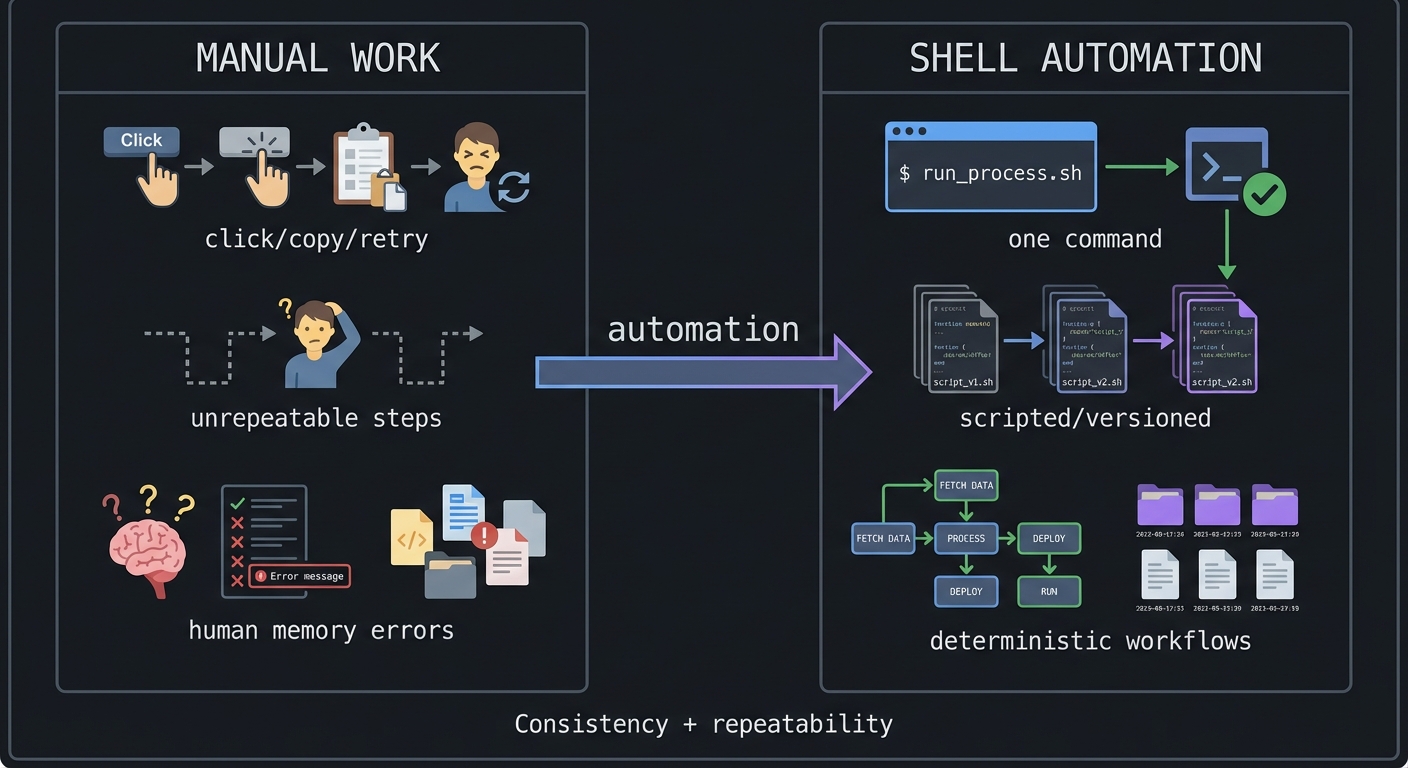
MANUAL WORK                    SHELL AUTOMATION
-----------                    -----------------
click, copy, retry             one command
unrepeatable steps     --->    scripted, versioned
human memory errors            deterministic workflows
Context & Evolution (History)
The first Unix shell was created by Ken Thompson at Bell Labs in 1971. The idea was not just to provide a command prompt, but to build a composable programming environment where small tools could be chained together. That design survives because it scales: the shell is still the glue of modern systems.
Concept Summary Table
| Concept Cluster | What You Need to Internalize |
|---|---|
| Parsing & Expansion | The shell expands text before execution. Quoting is how you control safety. |
| Streams & Redirection | File descriptors are the plumbing. Understand stdout/stderr and pipes. |
| Control Flow & Exit Status | Success/failure drives logic. Functions return exit codes, not strings. |
| Processes & Signals | Scripts manage processes. Job control and traps make scripts reliable. |
| Robustness & Tooling | Portability, linting, and testing are what make scripts production-grade. |
Project-to-Concept Map
| Project | What It Builds | Primer Chapters It Uses |
|---|---|---|
| 1. Dotfiles Manager | Safe file manipulation + CLI flags | Ch. 1, 3, 5 |
| 2. File Organizer | Globbing, arrays, safe loops | Ch. 1, 3 |
| 3. Log Parser | Pipelines and text transforms | Ch. 1, 2 |
| 4. Git Hooks Framework | Exit codes and control flow | Ch. 3, 5 |
| 5. Backup System | Idempotency and safe I/O | Ch. 2, 5 |
| 6. System Monitor | Process management + streaming | Ch. 2, 4 |
| 7. CLI Parser Library | Argument parsing & functions | Ch. 1, 3 |
| 8. Process Supervisor | Job control + signals | Ch. 4 |
| 9. Network Toolkit | Parallel tasks + pipelines | Ch. 2, 4 |
| 10. Deployment Tool | Robust scripts + rollback | Ch. 3, 5 |
| 11. Test Framework | Exit status + isolation | Ch. 3, 5 |
| 12. Task Runner | DAG execution + concurrency | Ch. 3, 4, 5 |
| 13. Security Scanner | Safe parsing + defensive coding | Ch. 1, 5 |
| 14. Menu System | Input handling + control flow | Ch. 3 |
| 15. Mini Shell | Parsing + execution model | Ch. 1, 2, 4 |
| Final. DevOps Platform | Integration of all concepts | Ch. 1-5 |
Deep Dive Reading by Concept
Parsing & Expansion
| Concept | Book & Chapter | Why This Matters |
|---|---|---|
| Quoting and expansion order | “Effective Shell” by Dave Kerr - Ch. 9-12 | Prevents 90% of shell bugs |
| Parameter expansion | “Learning the Bash Shell” - Ch. 4 | String manipulation without external tools |
| POSIX vs Bash differences | “Shell Programming in Unix, Linux and OS X” - Ch. 2 | Portability decisions |
Streams & Redirection
| Concept | Book & Chapter | Why This Matters |
|---|---|---|
| Redirection basics | “The Linux Command Line” - Ch. 6 | Connect stdin/stdout/stderr correctly |
| Pipes and filters | “How Linux Works” - Ch. 3 | Build composable pipelines |
| Advanced I/O | “The Linux Programming Interface” - Ch. 44 | Pipes and FIFOs for complex workflows |
Control Flow & Exit Status
| Concept | Book & Chapter | Why This Matters |
|---|---|---|
| Exit status semantics | “Bash Idioms” - Ch. 6 | Reliable error handling |
| Functions and scope | “Learning the Bash Shell” - Ch. 6 | Build reusable libraries |
| Case statements | “The Linux Command Line” - Ch. 27 | Clean CLI parsing |
Processes & Signals
| Concept | Book & Chapter | Why This Matters |
|---|---|---|
| Process lifecycle | “Advanced Programming in the UNIX Environment” - Ch. 8-9 | Understand fork/exec and job control |
| Signals and traps | “The Linux Programming Interface” - Ch. 20-22 | Safe cleanup and interrupt handling |
| Job control | “Learning the Bash Shell” - Ch. 8 | Parallelization basics |
Robustness & Tooling
| Concept | Book & Chapter | Why This Matters |
|---|---|---|
| Defensive scripting | “Wicked Cool Shell Scripts” - Ch. 1-2 | Safer production scripts |
| Testing shell scripts | “Effective Shell” - Ch. 28 | Build confidence with tests |
| Scripting for ops | “How Linux Works” - Ch. 6 | Real-world system automation |
Quick Start
Feeling overwhelmed? Start here instead of reading everything:
Day 1 (4 hours):
- Read Chapter 1 (Parsing & Expansion) and Chapter 2 (Streams).
- Watch a 15-minute video on “Bash quoting rules” (any reputable tutorial is fine).
- Start Project 1 (Dotfiles Manager) and get symlink creation working.
- Do not worry about logging or profile switching yet.
Day 2 (4 hours):
- Add error handling and a
statuscommand to Project 1. - Use
shellcheckonce and fix at least 5 warnings. - Read the “Core Question” section of Project 2.
- Build a minimal file organizer that moves
.txtfiles into a folder.
End of Weekend: You can explain quoting, word splitting, and basic redirection. That is 80% of shell scripting.
Recommended Learning Paths
Path 1: The Beginner (Recommended Start) Best for: New developers or those new to Unix
- Project 1 -> Project 2 -> Project 3
- Project 4 -> Project 11
- Project 5 -> Project 14
Path 2: The DevOps Engineer Best for: Ops and platform engineers
- Project 5 -> Project 10 -> Project 12
- Project 6 -> Project 8
- Final Project
Path 3: The Systems Deep Dive Best for: People who want to understand OS internals
- Project 8 -> Project 15
- Project 6 -> Project 9
- Final Project
Path 4: The Security Path Best for: Security engineers and auditors
- Project 3 -> Project 13
- Project 9 -> Project 10
- Final Project
Success Metrics
By the end of this guide, you should be able to:
- Predict how the shell will expand any given command line
- Build pipelines that correctly separate stdout and stderr
- Write scripts with clear exit codes and consistent error handling
- Implement traps for cleanup and safe termination
- Produce automated tools that are idempotent and safe to run repeatedly
- Run ShellCheck and fix warnings without guesswork
Optional Appendices
Appendix A: Portability Checklist (POSIX vs Bash)
- Decide your target shell and declare it in the shebang.
- Avoid Bash-only syntax (
[[ ]], arrays,${var//}) if using/bin/sh. - Use
printfinstead ofechofor portability. - Avoid
sed -iunless you handle GNU/BSD differences.
Appendix B: Debugging Toolkit
set -xfor tracingPS4='+ ${BASH_SOURCE}:${LINENO}:${FUNCNAME[0]}: 'for rich tracesbash -n script.shfor syntax checksshellcheck script.shfor static analysis
Appendix C: Safety Checklist
- Quote every variable unless you have a proven reason not to.
- Use
--to terminate options (rm -- "$file"). - Validate inputs and refuse to run with missing configuration.
- Use
mktempfor temporary files.
Project Overview Table
| # | Project | Difficulty | Time | Primary Outcome |
|---|---|---|---|---|
| 1 | Personal Dotfiles Manager | Beginner | Weekend | Reproducible machine setup with safe symlinks |
| 2 | Smart File Organizer | Beginner | Weekend | Rule-based folder normalization |
| 3 | Log Parser & Alert System | Intermediate | 1-2 weeks | Error detection + actionable alerting |
| 4 | Git Hooks Framework | Intermediate | 1-2 weeks | Enforced local quality gates |
| 5 | Intelligent Backup System | Intermediate | 1-2 weeks | Incremental backups with verification |
| 6 | System Health Monitor & Dashboard | Advanced | 2-3 weeks | Live system telemetry from shell |
| 7 | CLI Argument Parser Library | Advanced | 2-3 weeks | Reusable argument-parsing framework |
| 8 | Process Supervisor & Job Scheduler | Expert | 3-4 weeks | Daemonized process lifecycle control |
| 9 | Network Diagnostic Toolkit | Advanced | 2-3 weeks | Repeatable network triage workflow |
| 10 | Deployment & Release Automation | Advanced | 2-3 weeks | Atomic releases with rollback |
| 11 | Test Framework & Runner | Intermediate | 1-2 weeks | Automated shell test harness |
| 12 | Task Runner & Build System | Advanced | 2-3 weeks | Declarative task orchestration |
| 13 | Security Audit Scanner | Advanced | 2-3 weeks | Baseline security posture report |
| 14 | Interactive Menu System & Wizard | Intermediate | 1-2 weeks | Reusable TUI interaction components |
| 15 | Mini Shell Implementation | Master | 4-6 weeks | Core shell behavior from first principles |
| 16 | DevOps Automation Platform | Master | 2-3 months | Integrated multi-module automation platform |
Project List
Project 1: Personal Dotfiles Manager
- File: LEARN_SHELL_SCRIPTING_MASTERY.md
- Main Programming Language: Bash
- Alternative Programming Languages: Zsh, POSIX sh, Fish
- Coolness Level: Level 3: Genuinely Clever
- Business Potential: 1. The “Resume Gold”
- Difficulty: Level 1: Beginner
- Knowledge Area: File System, Symlinks, Configuration Management
- Software or Tool: GNU Stow alternative
- Main Book: “The Linux Command Line” by William Shotts
What you’ll build: A script that manages your dotfiles (.bashrc, .vimrc, .gitconfig, etc.) by creating symlinks from a central repository to their expected locations, with backup capabilities and profile switching.
Why it teaches shell scripting: This project forces you to understand paths, symlinks, conditionals, loops, and user interaction—the bread and butter of shell scripting. You’ll handle edge cases (files vs directories, existing configs) and learn defensive programming.
Core challenges you’ll face:
- Parsing command-line arguments → maps to positional parameters and getopts
- Creating and managing symlinks → maps to file operations and path handling
- Handling existing files gracefully → maps to conditionals and error handling
- Iterating over files in a directory → maps to loops and globbing
- Providing user feedback → maps to echo, printf, and colors
Key Concepts:
- Symbolic links: “The Linux Command Line” Ch. 4 - William Shotts
- Positional parameters: “Learning the Bash Shell” Ch. 4 - Cameron Newham
- Test operators: “Bash Cookbook” Recipe 6.1 - Carl Albing
- For loops and globbing: “The Linux Command Line” Ch. 27 - William Shotts
Difficulty: Beginner Time estimate: Weekend Prerequisites: Basic command line navigation, understanding of what dotfiles are, familiarity with a text editor
Real World Outcome
You’ll have a command-line tool that you run from your dotfiles git repository. When you set up a new machine or want to apply your configurations:
$ cd ~/dotfiles
$ ./dotfiles.sh install

[dotfiles] Starting installation...
[dotfiles] Backing up existing ~/.bashrc to ~/.bashrc.backup.20241222
[dotfiles] Creating symlink: ~/.bashrc -> ~/dotfiles/bash/.bashrc
[dotfiles] Creating symlink: ~/.vimrc -> ~/dotfiles/vim/.vimrc
[dotfiles] Creating symlink: ~/.gitconfig -> ~/dotfiles/git/.gitconfig
[dotfiles] Skipping ~/.config/nvim (already linked correctly)
[dotfiles] ERROR: ~/.tmux.conf is a directory, skipping

[dotfiles] Installation complete!
         4 symlinks created
         1 skipped (already correct)
         1 error (see above)
         1 backup created

$ ./dotfiles.sh status
~/.bashrc      -> ~/dotfiles/bash/.bashrc     [OK]
~/.vimrc       -> ~/dotfiles/vim/.vimrc       [OK]
~/.gitconfig   -> ~/dotfiles/git/.gitconfig   [OK]
~/.tmux.conf   -> (not a symlink)             [WARN]

$ ./dotfiles.sh uninstall
[dotfiles] Removing symlink ~/.bashrc
[dotfiles] Restoring ~/.bashrc from backup
...
You can also switch between “profiles” (work vs personal):
$ ./dotfiles.sh profile work
[dotfiles] Switching to 'work' profile...
[dotfiles] Updated ~/.gitconfig with work email
The Core Question You Are Answering
“How do I write a script that safely modifies the filesystem, handles errors gracefully, and gives clear feedback to the user?”
Before you write any code, sit with this question. Most beginner scripts assume everything will work. Real scripts anticipate what could go wrong: file doesn’t exist, file exists but is a directory, permission denied, disk full. Your dotfiles manager must be SAFE—it should never destroy data.
Concepts You Must Understand First
Stop and research these before coding:
- Symbolic Links vs Hard Links
- What happens when you delete the source of a symlink?
- Can symlinks cross filesystem boundaries?
- How does
ln -sdiffer fromln? - What does
readlinkdo? - Book Reference: “The Linux Command Line” Ch. 4 - William Shotts
- Exit Codes and Error Handling
- What does
$?contain after a command? - What’s the difference between
||and&&? - When should you use
set -e? When is it dangerous? - Book Reference: “Bash Cookbook” Ch. 6 - Carl Albing
- What does
- Path Manipulation
- How do you get the directory containing a script? (
dirname,$0,$BASH_SOURCE) - What’s the difference between
~and$HOME? - How do you resolve a relative path to absolute?
- Book Reference: “Learning the Bash Shell” Ch. 4 - Cameron Newham
- How do you get the directory containing a script? (
Questions to Guide Your Design
Before implementing, think through these:
- File Organization
- How will you structure the dotfiles repo? Flat? By category?
- Will you use a manifest file or infer from directory structure?
- How do you handle nested configs like
~/.config/nvim/init.lua?
- Safety
- What happens if the user runs
installtwice? - How do you detect if a file is already correctly linked?
- Should you prompt before overwriting, or use a
--forceflag? - How do you back up existing files?
- What happens if the user runs
- User Experience
- How do you show progress?
- How do you use colors without breaking non-terminal output?
- What information does
statusshow?
Thinking Exercise
Trace the Symlink Resolution
Before coding, trace what happens with this scenario:
~/dotfiles/
├── bash/
│   └── .bashrc
├── vim/
│   └── .vimrc
└── install.sh

Currently on system:
~/.bashrc       (regular file, user's old config)
~/.vimrc        (symlink -> ~/old-dotfiles/.vimrc)
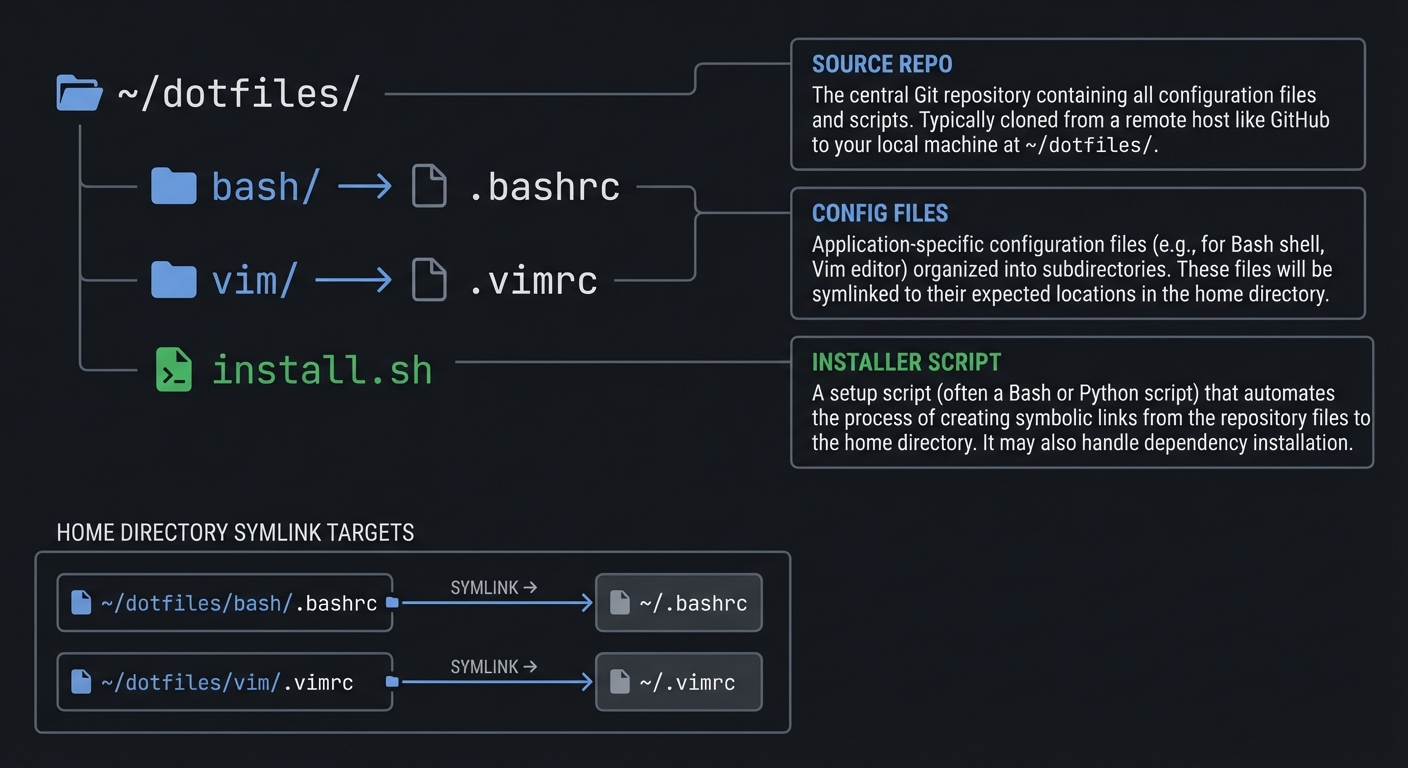
Questions while tracing:
- When you run
ln -s ~/dotfiles/bash/.bashrc ~/.bashrc, what error do you get? - How do you detect that
~/.vimrcis already a symlink? - How do you detect if it points to the RIGHT location?
- What’s the safest sequence: backup, remove, link? Or check, prompt, then act?
The Interview Questions They Will Ask
Prepare to answer these:
- “How would you handle the case where the target path doesn’t exist yet?” (e.g.,
~/.config/doesn’t exist) - “What’s the difference between
[ -L file ]and[ -e file ]?” (hint: broken symlinks) - “How do you make a script work regardless of where it’s called from?”
- “Explain what
${0%/*}does and when you’d use it.” - “How would you make this script idempotent?”
Hints in Layers
Hint 1: Start Simple First, make a script that just creates ONE symlink. Get that working, including error handling.
Hint 2: Check Before Acting
Use [[ -e target ]] to check if target exists, [[ -L target ]] to check if it’s a symlink, and readlink target to see where it points.
Hint 3: Safe Backup Pattern
if [[ -e "$target" && ! -L "$target" ]]; then
    backup="${target}.backup.$(date +%Y%m%d)"
    # Now you can move the file safely
fi
Hint 4: Getting Script Directory
script_dir="$(cd "$(dirname "${BASH_SOURCE[0]}")" && pwd)"
This works even if the script is called via symlink or from another directory.
Books That Will Help
| Topic | Book | Chapter |
|---|---|---|
| File test operators | “The Linux Command Line” by William Shotts | Ch. 27 |
| Symlinks explained | “How Linux Works” by Brian Ward | Ch. 2 |
| Command-line parsing | “Learning the Bash Shell” by Cameron Newham | Ch. 6 |
| Error handling patterns | “Bash Idioms” by Carl Albing | Ch. 6 |
Implementation Guide
Your script structure should follow this pattern:
- Header section: Set strict mode (
set -euo pipefail), define colors, set up paths - Function definitions:
log_info(),log_error(),backup_file(),create_link(),show_usage() - Argument parsing: Handle
install,uninstall,status,--help - Main logic: Loop through dotfiles, call appropriate functions
For the symlink logic, think in terms of states:
- Target doesn’t exist → create link
- Target exists and is correct symlink → skip
- Target exists and is wrong symlink → remove, create correct link
- Target exists and is regular file → backup, create link
- Target exists and is directory → error (or recurse?)
Use exit codes meaningfully: 0 for success, 1 for partial success with warnings, 2 for failure.
Learning milestones:
- Script creates symlinks → You understand
ln -sand path handling - Script handles existing files → You understand conditionals and file tests
- Script provides clear feedback → You understand user-facing scripting
- Script is idempotent (safe to run twice) → You understand defensive programming
Common Pitfalls and Debugging
Problem 1: “Symlink points to the wrong target”
- Why: You resolved paths relative to the current working directory instead of the script location.
- Fix: Use
script_dir="$(cd "$(dirname "${BASH_SOURCE[0]}")" && pwd)"and build absolute paths. - Quick test:
readlink ~/.bashrcshould point into your dotfiles repo.
Problem 2: “Files with spaces break the script”
- Why: Unquoted variables are being split by the shell.
- Fix: Quote every path:
cp -- "$src" "$dst". - Quick test: Add a file named
my configand runstatus.
Problem 3: “Permissions denied when linking”
- Why: You attempted to write into protected directories or ownership is wrong.
- Fix: Run on user-owned paths only; avoid
sudofor dotfiles. - Quick test:
touch ~/.testfileshould succeed.
Problem 4: “Accidentally overwrote existing config”
- Why: Missing backup logic or backup triggered after deletion.
- Fix: Backup before removal and only if target is not already a correct symlink.
- Quick test: Ensure backups are created with timestamped names.
Definition of Done
install,uninstall, andstatuscommands work on a clean system- The script is idempotent (running install twice is safe)
- Existing files are backed up before changes
- Paths with spaces are handled correctly
- Errors are printed to stderr with non-zero exit codes
Project 2: Smart File Organizer
- File: LEARN_SHELL_SCRIPTING_MASTERY.md
- Main Programming Language: Bash
- Alternative Programming Languages: Zsh, Python (for comparison), POSIX sh
- Coolness Level: Level 3: Genuinely Clever
- Business Potential: 2. The “Micro-SaaS / Pro Tool”
- Difficulty: Level 1: Beginner
- Knowledge Area: File System, Pattern Matching, Text Processing
- Software or Tool: File organization automation
- Main Book: “Wicked Cool Shell Scripts” by Dave Taylor
What you’ll build: A script that organizes files in a directory (like Downloads) by automatically sorting them into categorized folders based on file extension, date, size, or custom rules. Supports dry-run mode, undo functionality, and rule configuration.
Why it teaches shell scripting: This project exercises loops, conditionals, associative arrays, pattern matching, and date manipulation. You’ll learn to process files safely, handle edge cases (spaces in filenames!), and create user-friendly CLI tools.
Core challenges you’ll face:
- Iterating over files with special characters → maps to proper quoting and globbing
- Extracting file metadata (extension, size, date) → maps to parameter expansion and stat
- Implementing dry-run mode → maps to conditional execution patterns
- Storing undo information → maps to file I/O and data persistence
- Making rules configurable → maps to config file parsing
Key Concepts:
- Parameter expansion for extensions: “Bash Cookbook” Recipe 5.11 - Carl Albing
- Associative arrays: “Learning the Bash Shell” Ch. 6 - Cameron Newham
- File metadata with stat: “The Linux Command Line” Ch. 16 - William Shotts
- Safe filename handling: “Bash Idioms” Ch. 3 - Carl Albing
Difficulty: Beginner Time estimate: Weekend Prerequisites: Project 1 (dotfiles manager), understanding of file extensions, basic loops
Real World Outcome
You’ll have a tool that transforms a messy Downloads folder into organized bliss:
$ ls ~/Downloads/
IMG_2024.jpg    report.pdf    budget.xlsx    video.mp4
setup.exe       notes.txt     photo.png      archive.zip
song.mp3        data.csv      document.docx  presentation.pptx

$ organize ~/Downloads/ --dry-run

[organize] DRY RUN - no files will be moved
[organize] Analyzing 12 files in /home/douglas/Downloads/

Would move:
  IMG_2024.jpg      -> Images/IMG_2024.jpg
  photo.png         -> Images/photo.png
  report.pdf        -> Documents/report.pdf
  document.docx     -> Documents/document.docx
  presentation.pptx -> Documents/presentation.pptx
  budget.xlsx       -> Spreadsheets/budget.xlsx
  data.csv          -> Spreadsheets/data.csv
  video.mp4         -> Videos/video.mp4
  song.mp3          -> Music/song.mp3
  archive.zip       -> Archives/archive.zip
  setup.exe         -> Installers/setup.exe
  notes.txt         -> Text/notes.txt

Summary: 12 files would be organized into 7 folders

$ organize ~/Downloads/

[organize] Moving IMG_2024.jpg -> Images/
[organize] Moving photo.png -> Images/
[organize] Moving report.pdf -> Documents/
...
[organize] Complete! 12 files organized
[organize] Undo file created: ~/.organize_undo_20241222_143052

$ organize --undo ~/.organize_undo_20241222_143052
[organize] Reverting 12 file moves...
[organize] Undo complete!

$ organize ~/Downloads/ --by-date
[organize] Organizing by modification date...
  IMG_2024.jpg -> 2024/12/IMG_2024.jpg
  report.pdf   -> 2024/11/report.pdf
  ...
The Core Question You Are Answering
“How do I safely process an arbitrary number of files, handling all the edge cases that real-world filesystems throw at me?”
Before coding, understand that filenames can contain: spaces, newlines, quotes, dollar signs, asterisks, leading dashes. Your script must handle ALL of these. This is where most shell scripts fail.
Concepts You Must Understand First
Stop and research these before coding:
- Safe File Iteration
- Why is
for f in $(ls)dangerous? - What’s the correct way to iterate over files?
- How do you handle files starting with
-? - Book Reference: “Bash Cookbook” Recipe 7.4 - Carl Albing
- Why is
- Parameter Expansion for Path Components
- How do you extract just the filename from a path?
- How do you get the extension from
file.tar.gz? - What’s the difference between
${var%.*}and${var%%.*}? - Book Reference: “Learning the Bash Shell” Ch. 4 - Cameron Newham
- Associative Arrays
- How do you declare an associative array in Bash?
- How do you iterate over keys? Values?
- Can you have arrays of arrays in Bash? (Spoiler: no, workarounds exist)
- Book Reference: “Bash Cookbook” Recipe 6.15 - Carl Albing
Questions to Guide Your Design
Before implementing, think through these:
- Rule System
- How do you map extensions to categories? Hardcoded? Config file?
- What about files with no extension?
- What about case sensitivity (
.JPGvs.jpg)?
- Conflict Resolution
- What if
Images/photo.pngalready exists? - Do you skip, rename (
photo_1.png), or overwrite? - How do you handle the conflict in the undo file?
- What if
- Edge Cases
- What about hidden files (dotfiles)?
- What about directories inside the source folder?
- What about symlinks?
Thinking Exercise
Trace File Processing
Given this directory:
downloads/
├── .hidden.txt
├── my file.pdf
├── --verbose.txt
├── photo.JPG
├── data.tar.gz
└── readme
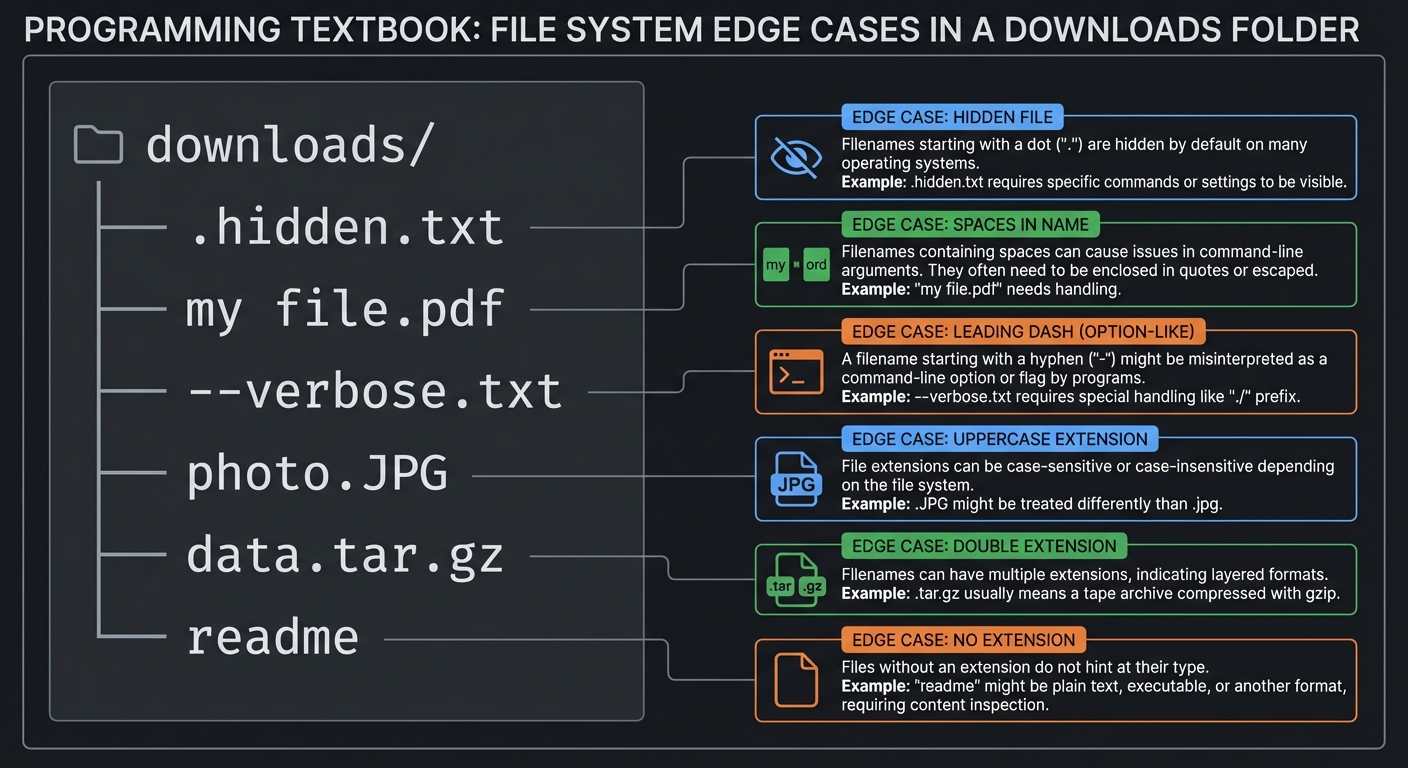
Questions to trace through:
- What extension should
.hidden.txtbe categorized as? (Hint: it’s a dotfile AND has .txt) - How do you safely
mva file named--verbose.txt? - For
data.tar.gz, do you extract.gzor.tar.gzas the extension? - What do you do with
readme(no extension)?
The Interview Questions They Will Ask
Prepare to answer these:
- “Why is
for f in *safer thanfor f in $(ls)?” - “How would you handle filenames containing newlines?”
- “Explain the globbing option
nullgloband when you’d use it.” - “What’s the difference between
${file,,}and${file,,.*}?” - “How would you make this script resume-able if interrupted?”
Hints in Layers
Hint 1: Safe Iteration Pattern
shopt -s nullglob  # Empty glob returns nothing, not literal '*'
for file in "$dir"/*; do
    [[ -f "$file" ]] || continue  # Skip non-files
    # process "$file"
done
Hint 2: Extension Extraction
For simple extensions: ext="${file##*.}"
For lowercase: ext="${ext,,}"
Handle no-extension: [[ "$file" == *"."* ]] || ext="noext"
Hint 3: Undo File Format Store moves as tab-separated original and destination:
/path/to/original.pdf /path/to/Documents/original.pdf
Undo by reading and reversing each line.
Hint 4: Dry Run Pattern
do_move() {
    if [[ "$DRY_RUN" == true ]]; then
        echo "Would move: $1 -> $2"
    else
        mv -- "$1" "$2"
    fi
}
Books That Will Help
| Topic | Book | Chapter |
|---|---|---|
| Safe file handling | “Bash Cookbook” by Carl Albing | Ch. 7 |
| Parameter expansion | “Learning the Bash Shell” by Cameron Newham | Ch. 4 |
| Real-world script examples | “Wicked Cool Shell Scripts” by Dave Taylor | Ch. 1-2 |
| Filename edge cases | “Effective Shell” by Dave Kerr | Ch. 8 |
Implementation Guide
Structure your script with clear separation:
- Configuration: Define extension-to-category mappings using associative arrays
- Core functions:
get_category(),get_target_path(),safe_move(),log_move() - Main loop: Iterate with proper quoting, call functions
- Undo system: Write moves to temp file, provide
--undocommand
Think about extensibility:
- What if someone wants to organize by file size? (small/medium/large)
- What if someone wants custom rules? (e.g., “all files from domain X go to folder Y”)
The key insight: your script should be PREDICTABLE. The --dry-run output should exactly match what organize does without the flag.
Learning milestones:
- Files move to correct folders → You understand extension extraction and moves
- Special filenames handled → You understand quoting and edge cases
- Dry-run matches actual run → You understand clean separation of logic
- Undo works perfectly → You understand data persistence and reversibility
Common Pitfalls and Debugging
Problem 1: “Files disappear or move incorrectly”
- Why: Unquoted globs or unsafe
mvpatterns. - Fix: Use
findor arrays and quote every path. - Quick test: Run in
--dry-runmode and compare output.
Problem 2: “Stat behaves differently on macOS”
- Why: BSD
statuses different flags than GNUstat. - Fix: Implement a portability layer (e.g.,
stat_size()function). - Quick test: Test on both Linux and macOS, or detect OS with
uname.
Problem 3: “Undo does not restore files”
- Why: Missing or corrupt undo log.
- Fix: Write a JSON/TSV log of moves and validate before undo.
- Quick test: Move 3 files, then
undoand verify location.
Problem 4: “Rules misclassify files”
- Why: Extension matching is too naive or case-sensitive.
- Fix: Normalize case and support fallback rules.
- Quick test: Ensure
.JPGfiles are handled the same as.jpg.
Definition of Done
- Organizes a test folder correctly by extension and date
--dry-runprints actions without moving filesundorestores all moved files- Handles filenames with spaces and newlines safely
- Configuration file overrides defaults
Project 3: Log Parser & Alert System
- File: LEARN_SHELL_SCRIPTING_MASTERY.md
- Main Programming Language: Bash
- Alternative Programming Languages: AWK (embedded), Perl, Python
- Coolness Level: Level 3: Genuinely Clever
- Business Potential: 3. The “Service & Support” Model
- Difficulty: Level 2: Intermediate
- Knowledge Area: Text Processing, Pattern Matching, System Administration
- Software or Tool: Log monitoring / Logwatch alternative
- Main Book: “Effective Shell” by Dave Kerr
What you’ll build: A log analysis tool that parses various log formats (syslog, Apache, nginx, application logs), extracts patterns, generates summaries, and sends alerts when error thresholds are exceeded. Supports real-time tailing and historical analysis.
Why it teaches shell scripting: Log processing is the bread-and-butter of shell scripting. You’ll master grep, awk, sed, pipelines, regular expressions, and stream processing. This is where shell scripting SHINES compared to other languages.
Core challenges you’ll face:
- Parsing different log formats → maps to regular expressions and awk
- Aggregating data (counts, percentages) → maps to awk and associative arrays
- Real-time processing → maps to tail -f and stream processing
- Sending notifications → maps to integrating external commands
- Handling large files efficiently → maps to streaming vs loading into memory
Key Concepts:
- Regular expressions in grep/awk: “Effective Shell” Ch. 15 - Dave Kerr
- AWK programming: “The AWK Programming Language” - Aho, Kernighan, Weinberger
- Stream processing with pipes: “The Linux Command Line” Ch. 20 - William Shotts
- Tailing and real-time monitoring: “Wicked Cool Shell Scripts” Ch. 4 - Dave Taylor
Difficulty: Intermediate Time estimate: 1-2 weeks Prerequisites: Project 2 (file organizer), basic regex understanding, familiarity with log files
Real World Outcome
You’ll have a powerful log analysis tool:
$ logparse /var/log/nginx/access.log --summary

╔══════════════════════════════════════════════════════════════╗
║                    NGINX ACCESS LOG SUMMARY                   ║
║               /var/log/nginx/access.log                       ║
║               Period: 2024-12-21 00:00 to 2024-12-22 14:30   ║
╠══════════════════════════════════════════════════════════════╣
║  Total Requests:     145,832                                  ║
║  Unique IPs:         12,456                                   ║
║  Total Bandwidth:    2.3 GB                                   ║
╠══════════════════════════════════════════════════════════════╣
║  STATUS CODE BREAKDOWN                                        ║
║  ─────────────────────────────────────────                   ║
║  200 OK            │████████████████████████│ 89.2% (130,123) ║
║  304 Not Modified  │███                     │  5.1%  (7,437)  ║
║  404 Not Found     │██                      │  3.2%  (4,667)  ║
║  500 Server Error  │▌                       │  0.8%  (1,167)  ║
║  Other             │▌                       │  1.7%  (2,438)  ║
╠══════════════════════════════════════════════════════════════╣
║  TOP 5 REQUESTED PATHS                                        ║
║  ─────────────────────────────────────────                   ║
║  1. /api/users           28,432 requests                      ║
║  2. /api/products        21,876 requests                      ║
║  3. /static/app.js       18,234 requests                      ║
║  4. /api/auth/login      12,456 requests                      ║
║  5. /images/logo.png     11,234 requests                      ║
╚══════════════════════════════════════════════════════════════╝

$ logparse /var/log/syslog --errors --last 1h

[ERROR] 14:23:45 systemd: Failed to start Docker service
[ERROR] 14:23:46 systemd: docker.service: Main process exited, code=exited
[ERROR] 14:25:12 kernel: Out of memory: Kill process 1234 (java)
[WARN]  14:28:33 sshd: Failed password for invalid user admin from 192.168.1.100

Summary: 3 errors, 1 warning in the last hour

$ logparse /var/log/nginx/access.log --watch --alert-on "500|502|503"

[logparse] Watching /var/log/nginx/access.log for patterns: 500|502|503
[logparse] Alert threshold: 10 matches per minute

14:32:15 [ALERT] 500 Internal Server Error - 192.168.1.50 - /api/checkout
14:32:17 [ALERT] 500 Internal Server Error - 192.168.1.51 - /api/checkout
14:32:18 [ALERT] 502 Bad Gateway - 192.168.1.52 - /api/payment
...
14:32:45 [THRESHOLD EXCEEDED] 15 errors in 30 seconds!
         Sending notification to admin@example.com...
         Notification sent.
The Core Question You Are Answering
“How do I efficiently extract structured information from unstructured text, and how do I process potentially gigabyte-sized files without loading them into memory?”
This is the question that makes shell scripting powerful. Languages like Python would read the whole file into memory. Shell tools process line-by-line, making them handle ANY file size.
Concepts You Must Understand First
Stop and research these before coding:
- Regular Expressions (Extended)
- What’s the difference between basic and extended regex?
- How do you capture groups in
grep -Evsawk? - What does
[[:alpha:]]mean vs[a-zA-Z]? - Book Reference: “Effective Shell” Ch. 15 - Dave Kerr
- AWK Fundamentals
- What are
$0,$1,$2in awk? - How do you define custom field separators?
- How do associative arrays work in awk?
- What’s the difference between
BEGIN, main, andENDblocks? - Book Reference: “The AWK Programming Language” Ch. 1-2 - Aho, Kernighan, Weinberger
- What are
- Stream Processing
- What’s the difference between
cat file | grepandgrep < file? - How does
tail -fwork? What abouttail -F? - What is
unbufferedoutput and why does it matter for pipelines? - Book Reference: “The Linux Command Line” Ch. 20 - William Shotts
- What’s the difference between
Questions to Guide Your Design
Before implementing, think through these:
- Log Format Detection
- How do you detect if it’s Apache, nginx, syslog, or custom?
- Do you auto-detect or require
--formatflag? - How do you handle logs that don’t match expected format?
- Performance
- What if the log file is 10GB?
- How do you efficiently count occurrences without multiple passes?
- When do you use
awkvsgrepvssed?
- Alerting
- How do you track “matches per minute” for threshold alerting?
- Do you alert on every match or batch them?
- How do you integrate with email, Slack, etc.?
Thinking Exercise
Parse This Log Line
Given this nginx access log line:
192.168.1.100 - - [22/Dec/2024:14:30:45 +0000] "GET /api/users?id=123 HTTP/1.1" 200 1234 "https://example.com" "Mozilla/5.0"
Trace through extracting:
- IP address
- Timestamp
- HTTP method
- Request path (without query string)
- Status code
- Response size
- Referrer
- User agent
Write the awk field references ($1, $2, etc.) for each.
Now think: what happens if the user agent contains spaces?
The Interview Questions They Will Ask
Prepare to answer these:
- “How would you find the top 10 IP addresses by request count from a 50GB log file?”
- “Explain the difference between
grep -E,egrep, andgrep -P.” - “How does
awk 'END{print NR}'work and when would you use it vswc -l?” - “What happens when you pipe to
tail -f? Why might output be delayed?” - “How would you implement rate limiting for alerts to avoid flooding?”
Hints in Layers
Hint 1: Basic Pipeline
grep "ERROR" logfile | wc -l # Count errors
Hint 2: AWK for Aggregation
awk '{count[$1]++} END {for (ip in count) print count[ip], ip}' access.log | sort -rn
Hint 3: Real-time with tail
tail -f access.log | grep --line-buffered "500" | while read line; do
    # Process each matching line
done
Hint 4: Multiple Stats in One Pass
awk '
    {total++}
    /200/ {ok++}
    /500/ {error++}
    END {print "Total:", total, "OK:", ok, "Errors:", error}
' access.log
Books That Will Help
| Topic | Book | Chapter |
|---|---|---|
| Regular expressions | “Effective Shell” by Dave Kerr | Ch. 15 |
| AWK programming | “The AWK Programming Language” | Ch. 1-3 |
| Log parsing examples | “Wicked Cool Shell Scripts” by Dave Taylor | Ch. 4 |
| Stream processing | “The Linux Command Line” by William Shotts | Ch. 20 |
Implementation Guide
Structure your tool around these components:
- Format parsers: Functions that extract fields from different log formats
- Aggregators: AWK scripts that count, sum, and group data
- Reporters: Functions that format output (ASCII tables, JSON, etc.)
- Watchers: Real-time monitoring with threshold tracking
Key insight: Don’t parse logs twice. Design your AWK scripts to collect multiple statistics in a single pass. AWK’s associative arrays are your best friend.
For real-time monitoring, use the pattern:
tail -F file | stdbuf -oL grep pattern | while read -r line; do
    # process
done
The stdbuf -oL ensures line-buffered output so you see matches immediately.
Learning milestones:
- Extract fields from log lines → You understand regex and awk basics
- Generate summary statistics → You understand aggregation with awk
- Real-time monitoring works → You understand tail and stream processing
- Alerts trigger correctly → You understand rate limiting and notifications
Common Pitfalls and Debugging
Problem 1: “No alerts even when logs contain errors”
- Why: Regex does not match the actual log format.
- Fix: Print the parsed fields and validate the regex with a sample line.
- Quick test: Use
grep -Ewith your regex on a sample log line.
Problem 2: “Pipeline returns success on failure”
- Why: Without
pipefail, only the last command’s status is checked. - Fix: Use
set -o pipefailand check each stage where needed. - Quick test: Intentionally break the first command and ensure the script fails.
Problem 3: “Log rotation breaks parsing”
- Why: The script only reads a single file name.
- Fix: Support
*.logpatterns or rotated file lists. - Quick test: Add
app.log.1and verify it is parsed.
Problem 4: “High memory usage on large logs”
- Why: Loading entire files into memory.
- Fix: Stream with
while reador pipeline tools. - Quick test: Process a 1GB log file and monitor memory.
Definition of Done
- Parses sample logs and produces expected summary output
- Supports streaming mode (stdin) and file mode
- Alerts trigger when thresholds are exceeded
- Handles rotated logs and large files
- Returns non-zero exit code on parse failures
Project 4: Git Hooks Framework
- File: LEARN_SHELL_SCRIPTING_MASTERY.md
- Main Programming Language: Bash
- Alternative Programming Languages: POSIX sh (for portability), Python, Ruby
- Coolness Level: Level 3: Genuinely Clever
- Business Potential: 2. The “Micro-SaaS / Pro Tool”
- Difficulty: Level 2: Intermediate
- Knowledge Area: Git Internals, DevOps, Code Quality
- Software or Tool: Husky/pre-commit alternative
- Main Book: “Bash Idioms” by Carl Albing
What you’ll build: A framework for managing Git hooks across a team—install hooks from a shared repository, run linters/formatters/tests before commits, enforce commit message conventions, and provide clear feedback when checks fail.
Why it teaches shell scripting: Git hooks are scripts, and they run in specific contexts with specific inputs (stdin, arguments). You’ll learn about subprocesses, exit codes for flow control, parsing stdin, and building tools that other developers use.
Core challenges you’ll face:
- Reading commit information from stdin → maps to stdin processing and parsing
- Running multiple checks and aggregating results → maps to subprocess management and exit codes
- Providing helpful error messages → maps to user-facing script design
- Making hooks portable → maps to POSIX compatibility concerns
- Allowing hook configuration → maps to config file parsing
Key Concepts:
- Git hooks lifecycle: “Pro Git” Ch. 8 - Scott Chacon (free online)
- Exit code handling: “Bash Idioms” Ch. 6 - Carl Albing
- Stdin processing: “Learning the Bash Shell” Ch. 7 - Cameron Newham
- Portable shell scripting: “Shell Scripting” by Steve Parker Ch. 11
Difficulty: Intermediate Time estimate: 1-2 weeks Prerequisites: Project 2 or 3, understanding of Git basics, familiarity with linters
Real World Outcome
You’ll have a hooks framework that makes code quality automatic:
$ hookmaster init
[hookmaster] Initializing in /path/to/project
[hookmaster] Created .hookmaster/
[hookmaster] Installed hooks: pre-commit, commit-msg, pre-push
[hookmaster] Configuration: .hookmaster/config.yaml

$ cat .hookmaster/config.yaml
hooks:
  pre-commit:
    - name: "Check for debug statements"
      run: "grep -r 'console.log\|debugger\|binding.pry' --include='*.js' --include='*.rb' ."
      on_fail: "block"

    - name: "Run ESLint"
      run: "npm run lint"
      on_fail: "warn"

    - name: "Check file size"
      run: "find . -size +1M -type f"
      on_fail: "warn"

  commit-msg:
    - name: "Conventional commits"
      pattern: "^(feat|fix|docs|style|refactor|test|chore)(\\(.+\\))?: .{10,}"
      on_fail: "block"

  pre-push:
    - name: "Run tests"
      run: "npm test"
      on_fail: "block"

$ git commit -m "added stuff"

╔══════════════════════════════════════════════════════════════╗
║                    PRE-COMMIT CHECKS                          ║
╚══════════════════════════════════════════════════════════════╝

✓ Check for debug statements                              [PASS]
✓ Run ESLint                                              [PASS]
⚠ Check file size                                         [WARN]
  └─ Found large files:
     ./data/sample.json (2.3MB)

╔══════════════════════════════════════════════════════════════╗
║                    COMMIT MESSAGE CHECK                       ║
╚══════════════════════════════════════════════════════════════╝

✗ Conventional commits                                    [FAIL]
  └─ Message: "added stuff"
  └─ Expected format: type(scope): description (min 10 chars)
  └─ Examples:
     feat(auth): add OAuth2 login support
     fix(api): handle null response from payment gateway
     docs: update README with installation steps

╔══════════════════════════════════════════════════════════════╗
║                         RESULT                                ║
╚══════════════════════════════════════════════════════════════╝

Commit BLOCKED - Please fix the issues above and try again.

$ git commit -m "feat(ui): add dark mode toggle to settings page"

✓ Check for debug statements                              [PASS]
✓ Run ESLint                                              [PASS]
⚠ Check file size                                         [WARN]
✓ Conventional commits                                    [PASS]

Commit ALLOWED (with 1 warning)
[main abc1234] feat(ui): add dark mode toggle to settings page
The Core Question You Are Answering
“How do I write scripts that integrate with external tools (like Git), receive input in specific formats, and control flow based on success/failure?”
Git hooks demonstrate a pattern you’ll see everywhere: your script is called by another program with specific inputs and must respond with exit codes. This is the essence of Unix composability.
Concepts You Must Understand First
Stop and research these before coding:
- Git Hooks Lifecycle
- What hooks exist? When does each run?
- What arguments/stdin does each hook receive?
- What does exit code 0 vs non-zero mean for each?
- Book Reference: “Pro Git” Ch. 8.3 - Scott Chacon
- Stdin in Different Contexts
- How do you read stdin line by line?
- What’s the difference between
read lineandread -r line? - How do you handle stdin when it might be empty?
- Book Reference: “Learning the Bash Shell” Ch. 7 - Cameron Newham
- Subprocess Exit Code Handling
- How do you capture the exit code of a command?
- What happens to exit code in a pipeline?
- How does
set -einteract with functions that can fail? - Book Reference: “Bash Idioms” Ch. 6 - Carl Albing
Questions to Guide Your Design
Before implementing, think through these:
- Hook Installation
- How do you handle existing hooks (user might have custom ones)?
- How do you update hooks when the framework updates?
- Should you symlink or copy the hooks?
- Configuration
- YAML is human-friendly but parsing in Bash is hard. Alternatives?
- How do you validate configuration?
- How do you handle missing config gracefully?
- Check Execution
- Do you run checks in parallel or sequentially?
- How do you handle a check that hangs forever?
- How do you distinguish “check failed” from “check crashed”?
Thinking Exercise
Trace the pre-push Hook
When you run git push, Git calls the pre-push hook with:
- Arguments:
$1= remote name,$2= remote URL - Stdin: lines of format
<local ref> <local sha> <remote ref> <remote sha>
Example stdin:
refs/heads/feature abc123 refs/heads/feature def456
refs/heads/main 111aaa refs/heads/main 000000
Questions to trace:
- How do you detect a new branch being pushed? (hint: remote sha is all zeros)
- How do you run tests only for changed files?
- How do you prevent force pushes to
main?
The Interview Questions They Will Ask
Prepare to answer these:
- “How would you prevent secrets from being committed?”
- “What’s the difference between client-side and server-side Git hooks?”
- “How do you handle the case where a hook needs user input but stdin is already used by Git?”
- “Explain how you’d implement a ‘skip hooks’ escape hatch safely.”
- “How would you make hooks work in CI/CD where there’s no tty?”
Hints in Layers
Hint 1: Reading stdin
while IFS=' ' read -r local_ref local_sha remote_ref remote_sha; do
    # Process each line
done
Hint 2: Running Commands and Capturing Output
output=$(command 2>&1)
status=$?
if [[ $status -ne 0 ]]; then
    echo "Failed: $output"
fi
Hint 3: Pattern Matching for commit-msg
commit_msg=$(cat "$1")  # $1 is the message file
if [[ ! $commit_msg =~ ^(feat|fix|docs): ]]; then
    echo "Invalid commit message format"
    exit 1
fi
Hint 4: Config Without YAML Parser Consider using a simple INI-like format or source a Bash file:
# .hookmaster/config.sh
PRE_COMMIT_CHECKS=(
    "lint:npm run lint"
    "test:npm test"
)
Books That Will Help
| Topic | Book | Chapter |
|---|---|---|
| Git hooks | “Pro Git” by Scott Chacon | Ch. 8.3 (free online) |
| Exit code handling | “Bash Idioms” by Carl Albing | Ch. 6 |
| Stdin processing | “Learning the Bash Shell” by Cameron Newham | Ch. 7 |
| Portable scripting | “Shell Scripting” by Steve Parker | Ch. 11 |
Implementation Guide
The framework has two main components:
- Installer (
hookmaster init):- Creates
.hookmaster/directory with config template - Installs thin wrapper scripts in
.git/hooks/ - The wrapper scripts source the framework and call the appropriate runner
- Creates
- Hook runners:
- Read configuration
- Execute each check in order
- Collect results
- Display formatted output
- Return appropriate exit code
The key insight: Git hooks are just shell scripts. Your framework is a shell script that manages and runs other shell scripts. It’s scripts all the way down!
For timeouts on hanging checks:
timeout 30 command || echo "Check timed out"
For parallel execution (advanced):
for check in "${checks[@]}"; do
    run_check "$check" &
    pids+=($!)
done
for pid in "${pids[@]}"; do
    wait "$pid" || failed=true
done
Learning milestones:
- Hooks install correctly → You understand Git hook mechanics
- Checks run and report results → You understand subprocess management
- Exit codes control Git behavior → You understand flow control via exit codes
- Framework is configurable → You understand config file patterns
Common Pitfalls and Debugging
Problem 1: “Hook does not run”
- Why: Hook file is not executable or not installed in
.git/hooks. - Fix: Set executable bit and verify the correct filename.
- Quick test:
ls -l .git/hooks/pre-commitshould show-rwx.
Problem 2: “Git reports hook failed but no output”
- Why: You are writing errors to stdout instead of stderr.
- Fix: Use
echo "error" >&2and return non-zero. - Quick test: Force a failure and confirm error message appears.
Problem 3: “Hook is too slow”
- Why: Running expensive checks on every commit.
- Fix: Add caching or allow
SKIP_HOOKS=1overrides. - Quick test: Measure runtime before and after caching.
Problem 4: “Hook loops or calls itself”
- Why: The hook triggers a git command that triggers the hook again.
- Fix: Use an environment guard to prevent recursion.
- Quick test: Ensure a nested git command does not re-run the hook.
Definition of Done
- Installs and removes hooks via a single script command
- Hooks run in all supported repositories
- Errors are clear and sent to stderr
- Hooks can be skipped with an environment flag
- Exit codes block commits correctly
Project 5: Intelligent Backup System
- File: LEARN_SHELL_SCRIPTING_MASTERY.md
- Main Programming Language: Bash
- Alternative Programming Languages: POSIX sh, Perl, Python
- Coolness Level: Level 3: Genuinely Clever
- Business Potential: 3. The “Service & Support” Model
- Difficulty: Level 2: Intermediate
- Knowledge Area: System Administration, File Systems, Scheduling
- Software or Tool: rsync wrapper / Time Machine alternative
- Main Book: “Wicked Cool Shell Scripts” by Dave Taylor
What you’ll build: A backup system that performs incremental backups using hard links (like Time Machine), supports multiple backup destinations (local, remote, cloud), sends notifications on success/failure, and provides easy restoration with a TUI browser.
Why it teaches shell scripting: Backups require understanding file metadata, rsync’s power, scheduling with cron, error handling for critical operations, and building robust tools that must NEVER fail silently.
Core challenges you’ll face:
- Implementing incremental backups with hard links → maps to understanding inodes and hard links
- Handling remote destinations securely → maps to SSH and rsync over network
- Managing backup rotation (keep last N backups) → maps to date manipulation and cleanup logic
- Providing progress feedback for large backups → maps to capturing and parsing command output
- Ensuring atomic operations → maps to temp files and move-based commits
Key Concepts:
- Hard links vs symlinks: “How Linux Works” Ch. 4 - Brian Ward
- rsync internals: “The Linux Command Line” Ch. 18 - William Shotts
- Cron scheduling: “Wicked Cool Shell Scripts” Ch. 10 - Dave Taylor
- Atomic file operations: “Advanced Programming in the UNIX Environment” Ch. 4 - Stevens
Difficulty: Intermediate Time estimate: 1-2 weeks Prerequisites: Project 1 (dotfiles), Project 3 (log parsing), understanding of file permissions
Real World Outcome
You’ll have a professional backup system:
$ backup init --dest /mnt/backup-drive --name "MacBook Pro"
[backup] Initialized backup destination: /mnt/backup-drive
[backup] Backup name: MacBook Pro
[backup] Configuration saved to ~/.config/backup/macbook-pro.conf

$ backup add ~/Documents ~/Projects ~/.config
[backup] Added 3 paths to backup profile 'macbook-pro':
         ~/Documents (12,456 files, 4.2 GB)
         ~/Projects (8,234 files, 2.1 GB)
         ~/.config (892 files, 45 MB)
         Total: 21,582 files, 6.3 GB

$ backup run

╔══════════════════════════════════════════════════════════════╗
║                    BACKUP: MacBook Pro                        ║
║              Started: 2024-12-22 15:30:00                     ║
╠══════════════════════════════════════════════════════════════╣
║                                                               ║
║  Source:      /Users/douglas                                  ║
║  Destination: /mnt/backup-drive/macbook-pro                   ║
║  Type:        Incremental (base: 2024-12-21_15-30-00)        ║
║                                                               ║
║  Progress: [████████████████████░░░░░░░░░░] 67%              ║
║  Files:    14,456 / 21,582                                   ║
║  Size:     4.2 GB / 6.3 GB                                   ║
║  Speed:    45 MB/s                                           ║
║  ETA:      2 min 30 sec                                      ║
║                                                               ║
╚══════════════════════════════════════════════════════════════╝

[backup] Backup completed successfully!
         Duration: 4 min 12 sec
         New files: 234
         Modified: 56
         Deleted: 12
         Hard links saved: 5.8 GB

$ backup list

Available backups for 'macbook-pro':
┌────────────────────┬──────────────┬───────────┬─────────┐
│ Date               │ Size         │ Files     │ Type    │
├────────────────────┼──────────────┼───────────┼─────────┤
│ 2024-12-22 15:30   │ 512 MB (new) │ 21,582    │ Increm. │
│ 2024-12-21 15:30   │ 498 MB (new) │ 21,348    │ Increm. │
│ 2024-12-20 15:30   │ 6.3 GB       │ 21,200    │ Full    │
│ ...                │ ...          │ ...       │ ...     │
└────────────────────┴──────────────┴───────────┴─────────┘

$ backup restore 2024-12-21 ~/Documents/important.docx
[backup] Restoring important.docx from 2024-12-21 backup...
[backup] Restored to: ~/Documents/important.docx.restored

$ backup browse 2024-12-21
# Opens TUI file browser showing backup contents
The Core Question You Are Answering
“How do I build a system that MUST be reliable, where failure means data loss, and where efficiency (incremental backups) is essential for practical use?”
Backups are the ultimate test of defensive programming. Silent failures are catastrophic. You need verification, logging, notification, and atomic operations.
Concepts You Must Understand First
Stop and research these before coding:
- Hard Links and Inodes
- What is an inode?
- How do hard links share inodes?
- Why can’t hard links cross filesystem boundaries?
- How does this enable space-efficient incremental backups?
- Book Reference: “How Linux Works” Ch. 4 - Brian Ward
- rsync’s –link-dest Option
- How does
--link-destcreate incremental backups? - What’s the difference between
--link-destand--backup-dir? - How do you verify rsync completed successfully?
- Book Reference: rsync man page, “The Linux Command Line” Ch. 18
- How does
- Atomic Operations
- What makes an operation “atomic”?
- Why do you backup to a temp directory then rename?
- What happens if power fails mid-backup?
- Book Reference: “Advanced Programming in the UNIX Environment” Ch. 4
Questions to Guide Your Design
Before implementing, think through these:
- Backup Strategy
- How do you handle the first backup (full) vs subsequent (incremental)?
- How do you know which backup to use as
--link-dest? - What if the previous backup is corrupt?
- Error Recovery
- What if rsync fails halfway through?
- How do you detect and clean up incomplete backups?
- What if the destination runs out of space?
- Restoration
- How do you show users what’s in a backup without extracting?
- How do you handle restoring a file that already exists?
- How do you restore an entire directory tree?
Thinking Exercise
Trace the Incremental Backup
Given this backup history:
/backup/
├── 2024-12-20_full/
│   ├── file1.txt (inode 100, content: "hello")
│   └── file2.txt (inode 101, content: "world")
└── 2024-12-21_incr/
    ├── file1.txt (inode ???)
    └── file2.txt (inode ???)
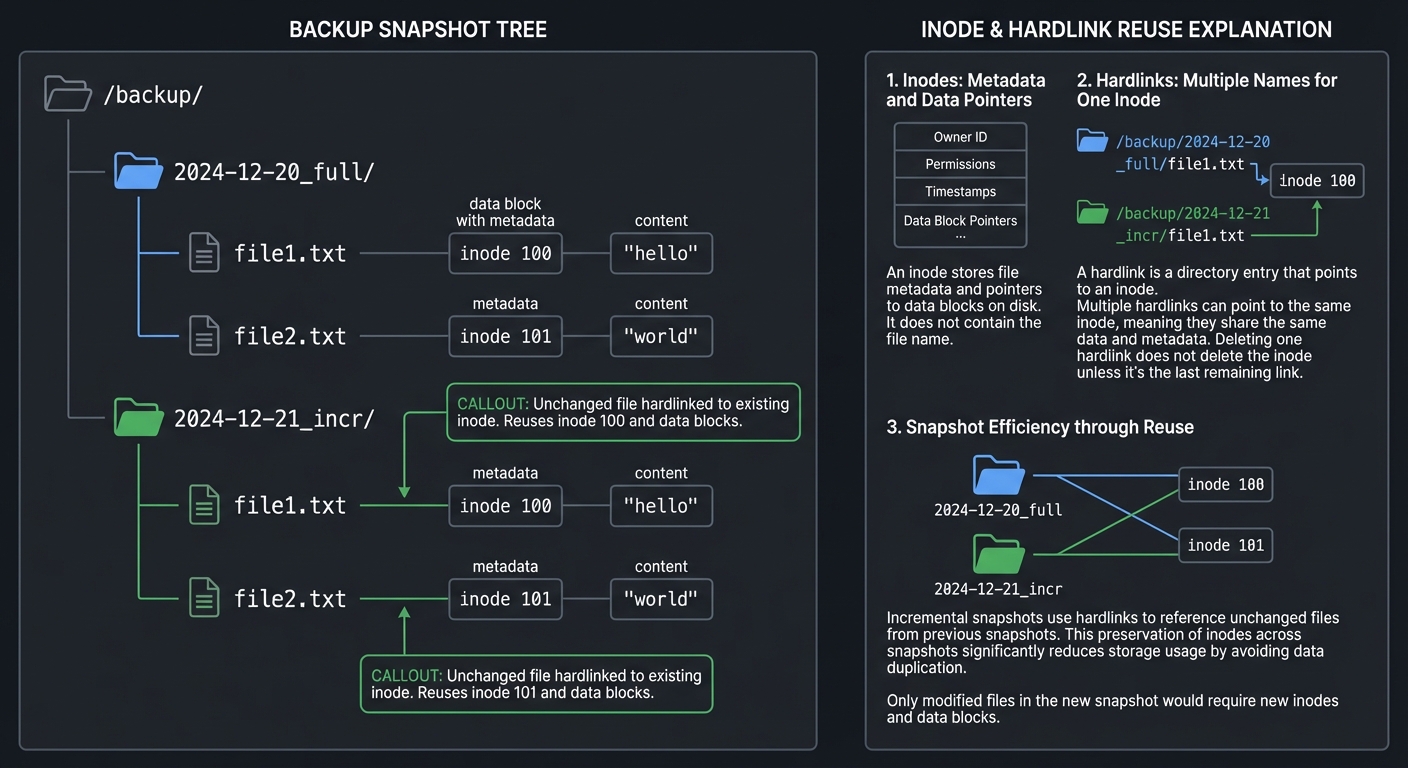
If file1.txt was modified on Dec 21 but file2.txt wasn’t:
- What inode does 2024-12-21_incr/file1.txt have?
- What inode does 2024-12-21_incr/file2.txt have?
- If you delete 2024-12-20_full, what happens to the 21st backup?
The Interview Questions They Will Ask
Prepare to answer these:
- “Explain how you’d implement incremental backups without duplicating unchanged files.”
- “What happens if the backup script is killed mid-execution? How do you recover?”
- “How would you verify backup integrity without comparing every byte?”
- “How do you handle backing up files that change while the backup is running?”
- “Design a retention policy that keeps daily backups for a week, weekly for a month, monthly for a year.”
Hints in Layers
Hint 1: Basic rsync
rsync -av --delete source/ dest/
Hint 2: Incremental with link-dest
rsync -av --delete --link-dest="$PREV_BACKUP" source/ "$NEW_BACKUP/"
Hint 3: Atomic Backup Pattern
rsync ... source/ "$DEST/in-progress-$timestamp/"
# Only if rsync succeeds:
mv "$DEST/in-progress-$timestamp" "$DEST/$timestamp"
Hint 4: Finding Latest Backup
latest=$(ls -1d "$DEST"/????-??-??_* 2>/dev/null | sort | tail -1)
Books That Will Help
| Topic | Book | Chapter |
|---|---|---|
| Inodes and hard links | “How Linux Works” by Brian Ward | Ch. 4 |
| rsync mastery | “The Linux Command Line” by William Shotts | Ch. 18 |
| Backup strategies | “Wicked Cool Shell Scripts” by Dave Taylor | Ch. 10 |
| Atomic operations | “Advanced Programming in the UNIX Environment” | Ch. 4 |
Implementation Guide
Structure around these components:
- Configuration: Store backup profiles in
~/.config/backup/ - Core functions:
do_backup(),restore_file(),list_backups(),verify_backup() - Safety measures: Lock files to prevent concurrent runs, temp directory for in-progress backups
- Notifications: Email, Slack, or desktop notification on completion/failure
Key insight: The backup MUST be atomic. If the script crashes, you should have either the old backup or the new one—never a partial state. The pattern is:
- Create in-progress directory
- rsync to in-progress
- Verify rsync exit code
- Move in-progress to final name
Learning milestones:
- Basic rsync backup works → You understand rsync fundamentals
- Incremental backups save space → You understand hard links and –link-dest
- Failures are handled gracefully → You understand atomic operations and cleanup
- Restore works reliably → You understand the full backup lifecycle
Common Pitfalls and Debugging
Problem 1: “Backups are larger than expected”
- Why: Hard links are not used correctly or rsync flags are wrong.
- Fix: Use
--link-destand verify target paths. - Quick test: Compare disk usage between two backups.
Problem 2: “Trailing slash changes rsync behavior”
- Why:
rsync /src /dstvsrsync /src/ /dstdiffer. - Fix: Normalize source paths and document behavior.
- Quick test: Backup the same folder with and without trailing slash.
Problem 3: “Backup fails on permission errors”
- Why: Files owned by root or restricted permissions.
- Fix: Use
--chmodor skip unreadable files with logging. - Quick test: Include a file with 000 permissions and ensure script handles it.
Problem 4: “Restore does not match original”
- Why: Metadata like permissions or timestamps not preserved.
- Fix: Use
-a(archive) and verify metadata. - Quick test: Compare
statoutput before and after restore.
Definition of Done
- Performs incremental backups with hard links
- Supports retention policy and pruning
- Restores a backup to a test directory correctly
- Logs errors and skipped files
- Handles concurrent runs with a lock file
Project 6: System Health Monitor & Dashboard
- File: LEARN_SHELL_SCRIPTING_MASTERY.md
- Main Programming Language: Bash
- Alternative Programming Languages: POSIX sh, Python, Go
- Coolness Level: Level 4: Hardcore Tech Flex
- Business Potential: 3. The “Service & Support” Model
- Difficulty: Level 3: Advanced
- Knowledge Area: System Administration, Performance Monitoring, Visualization
- Software or Tool: htop/glances alternative
- Main Book: “The Linux Programming Interface” by Michael Kerrisk
What you’ll build: A real-time system monitor that displays CPU, memory, disk, network, and process information in a TUI dashboard. Includes alerting, history graphing, and the ability to kill runaway processes.
Why it teaches shell scripting: This project requires reading from /proc filesystem, handling real-time updates, building TUI interfaces with ANSI escape codes, and understanding how the kernel exposes system information.
Core challenges you’ll face:
- Reading system metrics from /proc → maps to understanding the proc filesystem
- Building a TUI with ANSI escape codes → maps to terminal control sequences
- Updating display without flicker → maps to cursor positioning and screen buffers
- Handling signals for clean exit → maps to trap and signal handling
- Calculating rates (bytes/sec, CPU%) → maps to stateful computation across iterations
Key Concepts:
- The /proc filesystem: “The Linux Programming Interface” Ch. 12 - Michael Kerrisk
- ANSI escape codes: “The Linux Command Line” Ch. 32 - William Shotts
- Signal handling: “Advanced Programming in the UNIX Environment” Ch. 10 - Stevens
- Process management: “How Linux Works” Ch. 8 - Brian Ward
Difficulty: Advanced Time estimate: 2-3 weeks Prerequisites: Projects 3-5, understanding of how OS works, familiarity with /proc
Real World Outcome
You’ll have a comprehensive system monitor:
$ sysmon

┌─────────────────────────────────────────────────────────────────────┐
│                    SYSTEM MONITOR v1.0                               │
│                    Host: macbook-pro | Uptime: 5 days, 3:24:15      │
├─────────────────────────────────────────────────────────────────────┤
│ CPU ████████████████░░░░░░░░░░░░░░ 52%  │ MEM ██████████████████░░░░ 72% │
│     user: 35%  sys: 12%  idle: 48%      │     8.2 / 16.0 GB              │
│     load: 2.45  2.12  1.89              │     swap: 0.0 / 2.0 GB         │
├─────────────────────────────────────────────────────────────────────┤
│ DISK                                                                 │
│ /        ████████████████░░░░░░░░░░ 62%   124 GB / 200 GB           │
│ /home    ██████████░░░░░░░░░░░░░░░░ 38%    76 GB / 200 GB           │
│ /backup  ████████████████████████░░ 92%   184 GB / 200 GB  ⚠ WARN  │
├─────────────────────────────────────────────────────────────────────┤
│ NETWORK                                 │ PROCESSES                      │
│ eth0: ↓ 12.5 MB/s  ↑ 2.3 MB/s          │ Total: 312  Running: 4         │
│ wlan0: ↓ 0 B/s     ↑ 0 B/s             │ Sleeping: 298  Zombie: 0       │
│                                         │                                │
├─────────────────────────────────────────────────────────────────────┤
│ TOP PROCESSES BY CPU                                                 │
│ PID      USER     CPU%   MEM%   TIME      COMMAND                    │
│ 1234     douglas  45.2   3.4    02:34:56  node server.js            │
│ 5678     douglas  12.1   8.2    00:45:12  chrome                    │
│ 9012     root      8.4   1.2    12:34:00  Xorg                      │
│ 3456     douglas   5.6   2.1    00:12:34  vim                       │
│ 7890     douglas   3.2   0.8    00:05:23  bash                      │
├─────────────────────────────────────────────────────────────────────┤
│ [q]uit  [k]ill process  [s]ort by (c)pu/(m)em  [r]efresh: 1s       │
└─────────────────────────────────────────────────────────────────────┘

$ sysmon --alert "cpu > 90" --alert "disk / > 95" --notify slack
[sysmon] Monitoring with alerts enabled...
[sysmon] Alert will be sent to Slack webhook

# When threshold exceeded:
[ALERT] 2024-12-22 15:45:32 - CPU usage exceeded 90% (currently 94%)
[ALERT] Sent notification to Slack
The Core Question You Are Answering
“How do I read system state directly from the kernel and display it in a way that’s both informative and beautiful, updating in real-time?”
This is where shell scripting meets systems programming. You’re reading raw kernel data and transforming it into actionable information.
Concepts You Must Understand First
Stop and research these before coding:
- The /proc Filesystem
- What is
/proc/cpuinfo?/proc/meminfo?/proc/stat? - How do you calculate CPU percentage from
/proc/stat? - What’s in
/proc/[pid]/statfor each process? - Book Reference: “The Linux Programming Interface” Ch. 12 - Michael Kerrisk
- What is
- ANSI Escape Codes
- How do you move the cursor to position (row, col)?
- How do you clear the screen? Clear a line?
- How do you set colors and styles?
- What’s the difference between
\e[and\033[? - Book Reference: “The Linux Command Line” Ch. 32 - William Shotts
- Terminal Raw Mode
- How do you read single keystrokes without waiting for Enter?
- How do you disable echo for password-like input?
- What’s
sttyand how do you use it? - Book Reference: “Advanced Programming in the UNIX Environment” Ch. 18
Questions to Guide Your Design
Before implementing, think through these:
- Data Collection
- How often do you sample metrics? (affects CPU % accuracy)
- How do you calculate “per second” rates from cumulative counters?
- What happens on systems with different /proc layouts?
- Display
- How do you handle terminal resize?
- How do you update without flicker?
- How do you handle terminals that don’t support colors?
- Interaction
- How do you read keypresses while updating the display?
- How do you confirm before killing a process?
- How do you handle Ctrl+C gracefully?
Thinking Exercise
Calculate CPU Usage
Given these readings from /proc/stat (times in jiffies):
# Time T1:
cpu  4000 100 1000 50000 200 0 100 0 0 0

# Time T2 (1 second later):
cpu  4050 102 1010 50080 202 0 102 0 0 0
Fields: user, nice, system, idle, iowait, irq, softirq, steal, guest, guest_nice
Calculate:
- Total CPU time between T1 and T2
- Time spent NOT idle
- CPU usage percentage
The Interview Questions They Will Ask
Prepare to answer these:
- “How do you calculate CPU usage percentage from /proc/stat?”
- “What’s the difference between RSS and VSZ memory?”
- “How would you detect a process that’s consuming too much memory and automatically kill it?”
- “Explain how you’d handle terminal resize signals.”
- “How do you read keyboard input without blocking the display refresh loop?”
Hints in Layers
Hint 1: Reading /proc/stat
read -r _ user nice system idle _ < /proc/stat
total=$((user + nice + system + idle))
Hint 2: ANSI Cursor Positioning
# Move to row 5, column 10
printf '\e[5;10H'
# Clear from cursor to end of line
printf '\e[K'
Hint 3: Non-blocking Key Read
# Save terminal settings
old_stty=$(stty -g)
stty -echo -icanon time 0 min 0
read -r key
stty "$old_stty"
Hint 4: Main Loop Pattern
trap cleanup EXIT
while true; do
    collect_metrics
    draw_screen
    handle_input
    sleep "$REFRESH_INTERVAL"
done
Books That Will Help
| Topic | Book | Chapter |
|---|---|---|
| The /proc filesystem | “The Linux Programming Interface” | Ch. 12 |
| Terminal control | “Advanced Programming in the UNIX Environment” | Ch. 18 |
| ANSI escape codes | “The Linux Command Line” | Ch. 32 |
| Process information | “How Linux Works” | Ch. 8 |
Implementation Guide
Architecture:
- Data layer: Functions that read from /proc and return parsed data
- Calculation layer: Functions that compute rates and percentages
- Display layer: Functions that render specific UI components
- Input layer: Non-blocking keyboard handling
- Main loop: Orchestrates collection, calculation, display, input
Key insight: CPU percentage requires TWO readings. You can’t calculate “percentage” from a single snapshot—you need the delta over time. Same for network throughput. Design your architecture to handle stateful metrics.
For flicker-free updates: Either redraw only changed portions, or use double-buffering (build entire screen in a variable, then output at once).
Learning milestones:
- Read and parse /proc files → You understand kernel information exposure
- Calculate CPU/memory percentages → You understand delta calculations
- TUI displays without flicker → You understand terminal control
- Interactive features work → You understand non-blocking I/O
Common Pitfalls and Debugging
Problem 1: “CPU usage shows 0% or 100% constantly”
- Why: Incorrect /proc parsing or missing sampling interval.
- Fix: Calculate deltas between two readings.
- Quick test: Compare with
topoutput.
Problem 2: “Dashboard flickers or scrolls”
- Why: Not clearing the screen or not using ANSI cursor moves.
- Fix: Use
tput clearor ANSI escape sequences carefully. - Quick test: Resize terminal and ensure layout still fits.
Problem 3: “Permission denied reading /proc”
- Why: Some files require elevated access.
- Fix: Document required permissions or degrade gracefully.
- Quick test: Run as normal user and ensure errors are handled.
Problem 4: “Alerts spam repeatedly”
- Why: No debounce or cooldown logic.
- Fix: Implement throttling and state tracking.
- Quick test: Simulate sustained high CPU and verify alerts are rate-limited.
Definition of Done
- Live dashboard updates every N seconds
- CPU, memory, disk, and load metrics display correctly
- Alerts trigger at configurable thresholds with cooldowns
- Clean exit restores terminal state
- Logging mode writes to a file without ANSI codes
Project 7: CLI Argument Parser Library
- File: LEARN_SHELL_SCRIPTING_MASTERY.md
- Main Programming Language: Bash
- Alternative Programming Languages: POSIX sh, Zsh
- Coolness Level: Level 3: Genuinely Clever
- Business Potential: 4. The “Open Core” Infrastructure
- Difficulty: Level 3: Advanced
- Knowledge Area: API Design, Parsing, Library Development
- Software or Tool: argparse/commander alternative for Bash
- Main Book: “Bash Idioms” by Carl Albing
What you’ll build: A reusable library for parsing command-line arguments in shell scripts—supporting flags, options with values, positional arguments, subcommands, automatic help generation, and validation.
Why it teaches shell scripting: Building a library forces you to think about API design, variable scoping, avoiding global state pollution, and making code truly reusable. You’ll understand getopts, its limitations, and how to build something better.
Core challenges you’ll face:
- Parsing complex argument patterns → maps to string manipulation and state machines
- Generating help text automatically → maps to metadata and formatting
- Handling subcommands → maps to function dispatch and scoping
- Making a library that doesn’t pollute global namespace → maps to naming conventions and encapsulation
- Supporting both short and long options → maps to getopt vs getopts vs custom parsing
Key Concepts:
- getopts limitations: “Learning the Bash Shell” Ch. 6 - Cameron Newham
- Function libraries: “Bash Idioms” Ch. 8 - Carl Albing
- Variable scoping: “Bash Cookbook” Ch. 10 - Carl Albing
- API design principles: General software engineering
Difficulty: Advanced Time estimate: 2-3 weeks Prerequisites: Projects 1-4, strong understanding of functions and scoping
Real World Outcome
You’ll have a library that makes CLI parsing trivial:
#!/usr/bin/env bash
source /path/to/argparse.sh

argparse_init "myapp" "My awesome application"
argparse_add_flag    "-v" "--verbose"  "Enable verbose output"
argparse_add_option  "-o" "--output"   "Output file" "FILE" "output.txt"
argparse_add_option  "-n" "--count"    "Number of items" "NUM" "" "required"
argparse_add_positional "input" "Input file to process" "required"
argparse_parse "$@"

# Now variables are set:
# ARGPARSE_verbose=true/false
# ARGPARSE_output="output.txt" or user value
# ARGPARSE_count=<user value>
# ARGPARSE_input=<user value>

if [[ "$ARGPARSE_verbose" == true ]]; then
    echo "Processing $ARGPARSE_input..."
fi
Usage:
$ myapp --help

Usage: myapp [OPTIONS] <input>

My awesome application

Arguments:
  input                Input file to process (required)

Options:
  -v, --verbose        Enable verbose output
  -o, --output FILE    Output file (default: output.txt)
  -n, --count NUM      Number of items (required)
  -h, --help           Show this help message

$ myapp -v --count 5 data.csv
Processing data.csv...

$ myapp
Error: Missing required argument: input
Error: Missing required option: --count

Usage: myapp [OPTIONS] <input>
Try 'myapp --help' for more information.

$ myapp --invalid
Error: Unknown option: --invalid

$ myapp --count notanumber file.txt
Error: Option --count requires a numeric value
Subcommand support:
argparse_subcommand "add"    "Add a new item"    cmd_add
argparse_subcommand "remove" "Remove an item"    cmd_remove
argparse_subcommand "list"   "List all items"    cmd_list

$ myapp add --name "Test"     # Calls cmd_add with remaining args
$ myapp list --all            # Calls cmd_list with remaining args
The Core Question You Are Answering
“How do I build reusable code in a language that wasn’t designed for libraries, avoiding the pitfalls of global state and namespace pollution?”
Bash wasn’t designed for large programs or libraries. Building a good library teaches you to work around its limitations elegantly.
Concepts You Must Understand First
Stop and research these before coding:
- getopts and Its Limitations
- How does
getoptswork? - Why doesn’t
getoptssupport long options? - What’s the difference between
getoptsandgetopt? - Book Reference: “Learning the Bash Shell” Ch. 6 - Cameron Newham
- How does
- Variable Scoping in Functions
- What does
localdo? - How do you return values from functions? (exit code, stdout, global var)
- What happens when a sourced script defines variables?
- Book Reference: “Bash Cookbook” Ch. 10 - Carl Albing
- What does
- Nameref Variables (Bash 4.3+)
- What is
declare -n? - How do namerefs help with “return by reference”?
- What are the gotchas with namerefs?
- Book Reference: Bash manual, “Bash Idioms” - Carl Albing
- What is
Questions to Guide Your Design
Before implementing, think through these:
- API Design
- How does the user define their CLI interface?
- How do they access parsed values?
- How do you handle errors and validation?
- State Management
- Where do you store option definitions?
- How do you avoid polluting the user’s namespace?
- What prefix do you use for internal variables?
- Edge Cases
- What if an option value starts with
-? - How do you handle
--(end of options)? - What about combined short flags (
-abcvs-a -b -c)?
- What if an option value starts with
Thinking Exercise
Trace the Parsing
Given this CLI definition:
argparse_add_flag    "-v" "--verbose"
argparse_add_option  "-o" "--output" "desc" "FILE" "out.txt"
argparse_add_positional "file"
Trace parsing for these inputs:
-v -o result.txt input.txt--output=result.txt input.txt-vo result.txt input.txtinput.txt -v-o -v input.txt(what is the value of –output?)
The Interview Questions They Will Ask
Prepare to answer these:
- “How would you implement long option support since getopts doesn’t have it?”
- “Explain how you’d handle mutually exclusive options.”
- “How do you generate help text that shows defaults and required fields?”
- “What’s the difference between
--output valueand--output=valueparsing?” - “How would you validate that a numeric option is actually a number?”
Hints in Layers
Hint 1: Store Definitions in Arrays
declare -a _ARGPARSE_FLAGS
declare -a _ARGPARSE_OPTIONS
# Each entry: "short|long|description|default|required"
Hint 2: Parse Loop Pattern
while [[ $# -gt 0 ]]; do
    case "$1" in
        -h|--help) _argparse_show_help; exit 0 ;;
        --) shift; break ;;  # Remaining are positional
        --*=*) _argparse_parse_long_with_value "$1" ;;
        --*) _argparse_parse_long "$1" "${2:-}" && shift ;;
        -*) _argparse_parse_short "$1" "${2:-}" && shift ;;
        *) _argparse_parse_positional "$1" ;;
    esac
    shift
done
Hint 3: Dynamic Variable Setting
# Set variable named ARGPARSE_${name} to value
declare -g "ARGPARSE_${name}=${value}"
Hint 4: Help Generation
printf " %-4s %-15s %s\n" "$short" "$long $meta" "$desc"
Books That Will Help
| Topic | Book | Chapter |
|---|---|---|
| getopts | “Learning the Bash Shell” | Ch. 6 |
| Function libraries | “Bash Idioms” | Ch. 8 |
| Variable scoping | “Bash Cookbook” | Ch. 10 |
| Advanced parsing | “Effective Shell” | Ch. 12 |
Implementation Guide
Architecture:
- Definition API:
argparse_add_flag(),argparse_add_option(),argparse_add_positional(),argparse_subcommand() - Internal storage: Arrays to store definitions, using a prefix like
_ARGPARSE_ - Parser:
argparse_parse()that processes$@and sets result variables - Help generator: Reads from definitions, formats nicely
- Validators: Type checking, required field checking
Key insight: Design the API first, then implement. What’s the simplest way for users to define and use arguments? Look at argparse (Python), commander (Node.js), and clap (Rust) for inspiration.
Use a consistent naming convention: ARGPARSE_* for user-visible results, _ARGPARSE_* for internal state.
Learning milestones:
- Basic parsing works → You understand argument processing
- Help is auto-generated → You understand metadata storage
- Subcommands work → You understand function dispatch
- Library doesn’t pollute namespace → You understand encapsulation in Bash
Common Pitfalls and Debugging
Problem 1: “Flags with spaces break parsing”
- Why: Incorrect handling of quoted arguments.
- Fix: Preserve arguments with
"$@"and avoid word splitting. - Quick test: Pass
--name "Ada Lovelace"and verify parsing.
Problem 2: “Unknown flags are silently ignored”
- Why: Parser defaults to skipping errors.
- Fix: Enforce strict validation and return non-zero on unknown flags.
- Quick test: Provide
--typoand confirm an error.
Problem 3: “Short flags with values misbehave”
- Why:
-n 5vs-n5not handled. - Fix: Support both forms or document limitations.
- Quick test: Use both forms and verify results.
Problem 4: “Help output is inconsistent”
- Why: Help text is duplicated or manually updated.
- Fix: Generate help from a single spec.
- Quick test: Add a new flag and ensure help updates automatically.
Definition of Done
- Parses short and long flags with values
- Supports
--to stop parsing - Generates consistent help output
- Returns non-zero on invalid arguments
- Includes unit tests for at least 10 cases
Project 8: Process Supervisor & Job Scheduler
- File: LEARN_SHELL_SCRIPTING_MASTERY.md
- Main Programming Language: Bash
- Alternative Programming Languages: POSIX sh, Python, Go
- Coolness Level: Level 4: Hardcore Tech Flex
- Business Potential: 4. The “Open Core” Infrastructure
- Difficulty: Level 4: Expert
- Knowledge Area: Process Management, Signals, Daemons
- Software or Tool: supervisord/pm2 alternative
- Main Book: “Advanced Programming in the UNIX Environment” by Stevens
What you’ll build: A process supervisor that manages long-running processes—starting them, monitoring health, restarting on crash, logging output, and providing a CLI for control. Like a mini systemd or supervisord.
Why it teaches shell scripting: This is advanced process management: daemonization, signal handling, process groups, file locking, IPC. You’ll understand how supervisors like systemd work under the hood.
Core challenges you’ll face:
- Daemonizing a process → maps to fork, setsid, and file descriptors
- Monitoring child processes → maps to wait, SIGCHLD, and process status
- Implementing graceful shutdown → maps to signal propagation and cleanup
- IPC between CLI and daemon → maps to named pipes, sockets, or files
- Preventing duplicate instances → maps to file locking with flock
Key Concepts:
- Daemonization: “Advanced Programming in the UNIX Environment” Ch. 13 - Stevens
- Process groups and sessions: “The Linux Programming Interface” Ch. 34 - Kerrisk
- Signal handling: “Advanced Programming in the UNIX Environment” Ch. 10 - Stevens
- File locking: “The Linux Programming Interface” Ch. 55 - Kerrisk
Difficulty: Expert Time estimate: 3-4 weeks Prerequisites: All previous projects, deep understanding of Unix processes
Real World Outcome
You’ll have a complete process supervisor:
$ supervisor init
[supervisor] Initialized supervisor in ~/.supervisor/
[supervisor] Config: ~/.supervisor/supervisor.conf
[supervisor] Logs: ~/.supervisor/logs/

$ supervisor add myapp "node /path/to/app.js" \
    --restart always \
    --max-restarts 5 \
    --restart-delay 5 \
    --env "NODE_ENV=production"

[supervisor] Added process 'myapp'

$ supervisor start
[supervisor] Starting supervisor daemon...
[supervisor] Daemon started (PID: 12345)
[supervisor] Starting managed processes...
[supervisor] myapp: started (PID: 12346)

$ supervisor status

╔══════════════════════════════════════════════════════════════╗
║                    SUPERVISOR STATUS                          ║
║                    Daemon PID: 12345                          ║
╠═══════════════════════════════════════════════════════════════╣
║ NAME      STATE     PID     UPTIME      RESTARTS  CPU   MEM  ║
╠═══════════════════════════════════════════════════════════════╣
║ myapp     RUNNING   12346   2h 34m 12s  0         2.3%  120M ║
║ worker    RUNNING   12347   2h 34m 10s  1         0.5%   45M ║
║ cron      STOPPED   -       -           -         -      -   ║
╚═══════════════════════════════════════════════════════════════╝

$ supervisor logs myapp --follow
[myapp] 2024-12-22 15:30:45 Server started on port 3000
[myapp] 2024-12-22 15:30:46 Connected to database
[myapp] 2024-12-22 15:32:12 Request: GET /api/users
...

$ supervisor stop myapp
[supervisor] Sending SIGTERM to myapp (PID: 12346)...
[supervisor] myapp stopped (exit code: 0)

$ supervisor restart myapp
[supervisor] Stopping myapp...
[supervisor] Starting myapp...
[supervisor] myapp: started (PID: 12400)

# Process crashes - supervisor auto-restarts:
[supervisor] myapp exited unexpectedly (code: 1)
[supervisor] Restarting myapp (attempt 1/5)...
[supervisor] myapp: started (PID: 12450)

$ supervisor shutdown
[supervisor] Stopping all processes...
[supervisor] myapp: stopped
[supervisor] worker: stopped
[supervisor] Daemon stopped
The Core Question You Are Answering
“How do I build a program that manages other programs, survives terminal disconnection, handles crashes gracefully, and provides a clean interface for control?”
This is systems programming in shell. You’re building infrastructure that other processes depend on.
Concepts You Must Understand First
Stop and research these before coding:
- Daemonization
- What does a daemon do differently than a regular process?
- What’s the double-fork technique?
- Why do daemons close stdin/stdout/stderr?
- What’s a PID file and why is it important?
- Book Reference: “Advanced Programming in the UNIX Environment” Ch. 13
- Process Groups and Sessions
- What’s a process group?
- What’s a session?
- What happens when you close a terminal?
- How does
setsidwork? - Book Reference: “The Linux Programming Interface” Ch. 34
- Signal Handling for Child Processes
- What is SIGCHLD?
- How do you detect when a child exits?
- What’s a zombie process and how do you avoid them?
- How do you forward signals to children?
- Book Reference: “Advanced Programming in the UNIX Environment” Ch. 10
Questions to Guide Your Design
Before implementing, think through these:
- Architecture
- Does the supervisor daemon fork children directly, or via a manager process?
- How does the CLI communicate with the daemon?
- Where do you store runtime state (PIDs, status)?
- Reliability
- What if the supervisor itself crashes?
- How do you recover state after a restart?
- How do you prevent two supervisors from running?
- Shutdown Handling
- SIGTERM: graceful shutdown
- SIGKILL: what can you do?
- How long do you wait for graceful shutdown before forcing?
Thinking Exercise
Trace Process Lifecycle
Given this scenario:
- User runs
supervisor start - Supervisor starts as daemon
- Supervisor starts
myapp - User closes terminal
myappcrashes- User runs
supervisor statusfrom new terminal
Questions to trace:
- After step 2, what is the parent PID of the daemon?
- After step 4, why doesn’t the daemon die?
- After step 5, how does the daemon know myapp crashed?
- In step 6, how does the CLI find and communicate with the daemon?
The Interview Questions They Will Ask
Prepare to answer these:
- “Explain the double-fork technique for daemonization.”
- “How do you handle SIGCHLD to avoid zombie processes?”
- “What’s the difference between SIGTERM and SIGKILL, and how should a supervisor handle each?”
- “How would you implement graceful shutdown with a timeout?”
- “How do you prevent race conditions when multiple CLIs try to control the same process?”
Hints in Layers
Hint 1: Simple Daemonization
# Redirect and background
exec > /dev/null 2>&1
nohup run_supervisor &
Hint 2: PID File Locking
exec 200>"$PID_FILE"
flock -n 200 || { echo "Already running"; exit 1; }
echo $$ >&200
Hint 3: Monitoring Children
trap 'child_died=true' SIGCHLD
while true; do
    if [[ "$child_died" == true ]]; then
        wait -n  # Wait for any child
        handle_child_exit
        child_died=false
    fi
    sleep 1
done
Hint 4: IPC via File
# CLI writes command to file, daemon polls
echo "stop myapp" > ~/.supervisor/commands
# Daemon reads and processes
Books That Will Help
| Topic | Book | Chapter |
|---|---|---|
| Daemon processes | “Advanced Programming in the UNIX Environment” | Ch. 13 |
| Process groups | “The Linux Programming Interface” | Ch. 34 |
| Signal handling | “Advanced Programming in the UNIX Environment” | Ch. 10 |
| File locking | “The Linux Programming Interface” | Ch. 55 |
Implementation Guide
Architecture components:
- Daemon: The long-running process that manages children
- CLI: The tool users interact with, communicates with daemon
- Config: Process definitions and settings
- State: Runtime information (PIDs, status, restart counts)
- Logs: Per-process log files
IPC options (from simplest to most robust):
- File-based: CLI writes commands to a file, daemon polls
- Named pipe (FIFO): More responsive, one-way communication
- Unix socket: Full two-way communication, most complex
Key insight: The daemon must be crash-resilient. Store enough state that if the daemon crashes and restarts, it can recover. Consider: What if a managed process is still running but you lost track of its PID?
Learning milestones:
- Daemon starts and stays running → You understand daemonization
- Child processes are monitored → You understand SIGCHLD and wait
- CLI can control daemon → You understand IPC
- Crashes trigger automatic restart → You understand the full supervision lifecycle
Common Pitfalls and Debugging
Problem 1: “Zombie processes accumulate”
- Why: Child processes are not reaped.
- Fix: Use
waitand handleSIGCHLDproperly. - Quick test: Run supervisor and check
psfor defunct processes.
Problem 2: “Processes restart in a tight loop”
- Why: No backoff logic after failure.
- Fix: Add exponential backoff or max retries.
- Quick test: Force a crash and verify delay increases.
Problem 3: “PID file is stale”
- Why: PID file not removed on exit.
- Fix: Use
trapto clean up PID files. - Quick test: Kill supervisor and ensure PID file is removed.
Problem 4: “Signals not forwarded to children”
- Why: Parent exits without signaling the process group.
- Fix: Send signals to the process group with
kill -- -$pid. - Quick test: Ctrl-C should stop all child processes.
Definition of Done
- Starts and monitors a managed process
- Restarts on failure with backoff
- Supports stop/status commands
- Cleans PID files and temp state on exit
- Handles SIGTERM and SIGINT gracefully
Project 9: Network Diagnostic Toolkit
- File: LEARN_SHELL_SCRIPTING_MASTERY.md
- Main Programming Language: Bash
- Alternative Programming Languages: Python, Go, POSIX sh
- Coolness Level: Level 4: Hardcore Tech Flex
- Business Potential: 2. The “Micro-SaaS / Pro Tool”
- Difficulty: Level 3: Advanced
- Knowledge Area: Networking, Diagnostics, System Administration
- Software or Tool: Network troubleshooting suite
- Main Book: “TCP/IP Illustrated” by W. Richard Stevens
What you’ll build: A comprehensive network diagnostic tool that combines ping, traceroute, DNS lookup, port scanning, bandwidth testing, and connection monitoring into a unified CLI with a TUI dashboard showing network health over time.
Why it teaches shell scripting: Networking is where shell scripting shines as a “glue” language—orchestrating system tools like ping, dig, netstat, ss, and parsing their varied outputs into a coherent interface.
Core challenges you’ll face:
- Parsing output from multiple network tools → maps to text processing with awk/sed
- Running diagnostics in parallel → maps to background jobs and process management
- Implementing timeout handling → maps to signals and the timeout command
- Building a live dashboard → maps to ANSI escape codes and real-time updates
- Detecting network issues automatically → maps to pattern matching and heuristics
Key Concepts:
- TCP/IP fundamentals: “TCP/IP Illustrated” Vol. 1 - W. Richard Stevens
- Network tool usage: “The Linux Command Line” Ch. 16 - William Shotts
- Parallel execution: “Bash Cookbook” Ch. 12 - Carl Albing
- Output parsing: “Effective Shell” Ch. 10 - Dave Kerr
Difficulty: Advanced Time estimate: 2-3 weeks Prerequisites: Projects 3 and 6, basic networking knowledge, familiarity with ping/traceroute/dig
Real World Outcome
You’ll have a powerful network diagnostic suite:
$ netdiag check google.com

╔══════════════════════════════════════════════════════════════╗
║                  NETWORK DIAGNOSTICS                          ║
║                  Target: google.com                           ║
╠══════════════════════════════════════════════════════════════╣
║ DNS RESOLUTION                                                ║
║ ───────────────────────────────────────                      ║
║ google.com -> 142.250.80.46 (23ms via 8.8.8.8)              ║
║ Reverse DNS: lax17s55-in-f14.1e100.net                       ║
║ Status: ✓ OK                                                 ║
╠══════════════════════════════════════════════════════════════╣
║ CONNECTIVITY                                                  ║
║ ───────────────────────────────────────                      ║
║ ICMP Ping:  ✓ 15.3ms avg (10 packets, 0% loss)              ║
║ TCP 80:     ✓ Connected (12ms)                               ║
║ TCP 443:    ✓ Connected (14ms)                               ║
║ Status: ✓ All ports reachable                                ║
╠══════════════════════════════════════════════════════════════╣
║ ROUTE                                                         ║
║ ───────────────────────────────────────                      ║
║  1  192.168.1.1      1.2ms   (gateway)                       ║
║  2  10.0.0.1         5.4ms   (ISP)                           ║
║  3  72.14.215.85     8.1ms   (Google)                        ║
║  4  142.250.80.46   15.2ms   (destination)                   ║
║ Hops: 4 | Total latency: 15.2ms                              ║
╚══════════════════════════════════════════════════════════════╝

Overall: ✓ HEALTHY (all checks passed)

$ netdiag scan 192.168.1.0/24

Scanning 254 hosts...

╔═══════════════════════════════════════════════════════════════╗
║                  NETWORK SCAN RESULTS                         ║
║                  192.168.1.0/24                               ║
╠═══════════════════════════════════════════════════════════════╣
║ IP              HOSTNAME            MAC                VENDOR ║
╠═══════════════════════════════════════════════════════════════╣
║ 192.168.1.1     router.local        aa:bb:cc:dd:ee:ff  Cisco  ║
║ 192.168.1.50    macbook-pro.local   11:22:33:44:55:66  Apple  ║
║ 192.168.1.100   printer.local       77:88:99:aa:bb:cc  HP     ║
╚═══════════════════════════════════════════════════════════════╝

Found: 3 active hosts

$ netdiag monitor --interval 5

[15:30:00] Monitoring network health (Ctrl+C to stop)

╔════════════════════════════════════════════════════════════════╗
║  LATENCY (google.com)        PACKET LOSS           BANDWIDTH   ║
║  ─────────────────────       ───────────           ─────────   ║
║  Now: 15ms                   0%                    45 Mbps ↓   ║
║  Avg: 18ms                   ███████████░░░ 0%     12 Mbps ↑   ║
║  Max: 45ms                                                     ║
║                                                                ║
║  History (last 5 min):                                         ║
║  ▂▃▂▂▄▆▃▂▂▁▂▂▃▂▂▂▂▃▂▂▃▂▂▂▂▂▃▂▂                               ║
╚════════════════════════════════════════════════════════════════╝
The Core Question You Are Answering
“How do I orchestrate multiple system tools, parse their heterogeneous outputs, and present unified, actionable information?”
This is the essence of shell scripting: being the “glue” that combines specialized tools into something greater than the sum of parts.
Concepts You Must Understand First
Stop and research these before coding:
- Network Diagnostic Tools
- What’s the difference between
pingandping -c? - How do you read traceroute output?
- What’s the difference between
dig,nslookup, andhost? - How do
netstatandssdiffer? - Book Reference: “TCP/IP Illustrated” Vol. 1 - Stevens
- What’s the difference between
- Parallel Execution Patterns
- How do you run commands in parallel?
- How do you wait for multiple background jobs?
- How do you capture output from parallel processes?
- Book Reference: “Bash Cookbook” Ch. 12 - Carl Albing
- Timeout Handling
- How does the
timeoutcommand work? - How do you handle commands that hang forever?
- What’s the difference between SIGTERM and SIGKILL for timeouts?
- Book Reference: timeout man page, shell scripting guides
- How does the
Questions to Guide Your Design
Before implementing, think through these:
- Tool Integration
- Which tools are available on all systems vs Linux-specific?
- How do you detect which tools are installed?
- How do you handle missing dependencies gracefully?
- Output Parsing
- How do you extract latency from ping output?
- How do you parse traceroute’s variable format?
- How do you handle tool output that changes between versions?
- Performance
- How do you scan 254 hosts without taking forever?
- How do you show progress during long operations?
- How do you cancel operations cleanly?
Thinking Exercise
Parse Network Tool Output
Given this ping output:
PING google.com (142.250.80.46): 56 data bytes
64 bytes from 142.250.80.46: icmp_seq=0 ttl=117 time=15.234 ms
64 bytes from 142.250.80.46: icmp_seq=1 ttl=117 time=14.892 ms
64 bytes from 142.250.80.46: icmp_seq=2 ttl=117 time=16.102 ms

--- google.com ping statistics ---
3 packets transmitted, 3 packets received, 0.0% packet loss
round-trip min/avg/max/stddev = 14.892/15.409/16.102/0.501 ms
Extract using shell tools:
- Target IP address
- Individual latencies
- Average latency
- Packet loss percentage
Write the grep/awk/sed commands to extract each.
The Interview Questions They Will Ask
Prepare to answer these:
- “How would you detect if a host is up without using ICMP (ping might be blocked)?”
- “Explain how traceroute works at the protocol level.”
- “How would you implement parallel port scanning efficiently?”
- “What’s the difference between TCP and UDP connectivity checks?”
- “How would you detect DNS spoofing in your diagnostic tool?”
Hints in Layers
Hint 1: Extract Ping Latency
ping -c 1 host | grep 'time=' | awk -F'time=' '{print $2}' | cut -d' ' -f1
Hint 2: Parallel Scanning
for ip in 192.168.1.{1..254}; do
    ping -c 1 -W 1 "$ip" &>/dev/null && echo "$ip is up" &
done
wait
Hint 3: Timeout Pattern
timeout 5 ping -c 10 host || echo "Ping timed out or failed"
Hint 4: Parse Traceroute
traceroute -n host 2>/dev/null | awk 'NR>1 {print NR-1, $2, $3}'
Books That Will Help
| Topic | Book | Chapter |
|---|---|---|
| TCP/IP fundamentals | “TCP/IP Illustrated” by Stevens | Vol. 1 |
| Linux networking | “The Linux Command Line” | Ch. 16 |
| Parallel execution | “Bash Cookbook” | Ch. 12 |
| Network tools | “How Linux Works” | Ch. 9 |
Implementation Guide
Modular structure:
- dns.sh: DNS resolution, reverse lookup, DNS server testing
- connectivity.sh: Ping, TCP connect, port checking
- route.sh: Traceroute, path analysis
- scan.sh: Host discovery, port scanning
- monitor.sh: Continuous monitoring with history
- report.sh: Output formatting, TUI generation
Key insight: Different systems have different tool versions with different output formats. Build flexible parsers that handle variations, or detect the version and switch parsing strategies.
For the live monitor, calculate delta values: store previous readings, compute differences, display rates.
Learning milestones:
- Basic diagnostics work → You understand network tools
- Multiple tools integrated → You understand parsing and orchestration
- Parallel operations work → You understand background jobs
- Live monitoring works → You understand real-time updates and TUI
Common Pitfalls and Debugging
Problem 1: “Commands hang on slow networks”
- Why: No timeouts set for
curl,dig, orping. - Fix: Add timeout flags and abort logic.
- Quick test: Test against an unreachable IP and ensure timeout occurs.
Problem 2: “Parallel checks overload the system”
- Why: Spawning too many background jobs.
- Fix: Implement a worker pool limit.
- Quick test: Run against 100 hosts and monitor CPU load.
Problem 3: “Output parsing fails across OSes”
- Why: Tool output varies between Linux and macOS.
- Fix: Normalize parsing or detect OS.
- Quick test: Run
pingon both systems and parse results.
Problem 4: “Permission denied for certain tools”
- Why: Some diagnostics require root.
- Fix: Detect and warn or skip restricted commands.
- Quick test: Run as non-root and ensure graceful degradation.
Definition of Done
- Provides
ping,dns,http, andportchecks - Supports batch mode for multiple hosts
- Limits concurrency to a safe number
- Output can be JSON or human-readable
- Errors and timeouts are reported clearly
Project 10: Deployment & Release Automation
- File: LEARN_SHELL_SCRIPTING_MASTERY.md
- Main Programming Language: Bash
- Alternative Programming Languages: Python, Ruby, Make
- Coolness Level: Level 3: Genuinely Clever
- Business Potential: 3. The “Service & Support” Model
- Difficulty: Level 3: Advanced
- Knowledge Area: DevOps, CI/CD, Server Administration
- Software or Tool: Capistrano/Fabric alternative
- Main Book: “Wicked Cool Shell Scripts” by Dave Taylor
What you’ll build: A deployment tool that handles the full release lifecycle: building, testing, deploying to multiple servers, running database migrations, managing rollbacks, and providing a clean interface for the entire workflow.
Why it teaches shell scripting: Deployment scripts are where shell scripting proves its worth in DevOps. You’ll learn SSH automation, atomic deployments, rollback strategies, and orchestrating complex multi-step processes.
Core challenges you’ll face:
- SSH automation and remote command execution → maps to SSH multiplexing and escaping
- Atomic deployments with instant rollback → maps to symlink-based releases
- Handling deployment failures gracefully → maps to error handling and cleanup
- Managing secrets securely → maps to environment variables and encryption
- Coordinating multiple servers → maps to parallel SSH and synchronization
Key Concepts:
- SSH automation: “SSH, The Secure Shell” by Barrett & Silverman
- Atomic deployments: Capistrano-style release structure
- Error handling in scripts: “Bash Idioms” Ch. 6 - Carl Albing
- DevOps practices: “The Phoenix Project” by Gene Kim (concepts)
Difficulty: Advanced Time estimate: 2-3 weeks Prerequisites: Projects 4-5, SSH key setup, basic server administration
Real World Outcome
You’ll have a professional deployment tool:
$ deploy init myproject
[deploy] Initialized deployment for 'myproject'
[deploy] Config: deploy.conf

$ cat deploy.conf
APP_NAME=myproject
DEPLOY_TO=/var/www/myproject
SERVERS=(web1.example.com web2.example.com)
BRANCH=main
BUILD_CMD="npm run build"
MIGRATE_CMD="npm run migrate"
KEEP_RELEASES=5

$ deploy check

╔══════════════════════════════════════════════════════════════╗
║                  DEPLOYMENT CHECK                             ║
╠══════════════════════════════════════════════════════════════╣
║ Server                 SSH      Directory    Disk     Status  ║
╠══════════════════════════════════════════════════════════════╣
║ web1.example.com       ✓        ✓            85%      Ready   ║
║ web2.example.com       ✓        ✓            72%      Ready   ║
╚══════════════════════════════════════════════════════════════╝

All servers ready for deployment.

$ deploy release

╔══════════════════════════════════════════════════════════════╗
║              DEPLOYING: myproject                             ║
║              Branch: main @ abc1234                           ║
║              Started: 2024-12-22 16:00:00                    ║
╠══════════════════════════════════════════════════════════════╣

[1/6] Building locally...
      Running: npm run build
      ✓ Build complete (45s)

[2/6] Creating release directory...
      Release: 20241222160000
      ✓ Created on all servers

[3/6] Uploading build artifacts...
      web1.example.com: ████████████████████ 100% (12MB)
      web2.example.com: ████████████████████ 100% (12MB)
      ✓ Upload complete

[4/6] Running migrations...
      ✓ Migrations complete (web1)

[5/6] Switching symlinks...
      web1: current -> releases/20241222160000
      web2: current -> releases/20241222160000
      ✓ Symlinks updated

[6/6] Restarting services...
      ✓ Services restarted

╠══════════════════════════════════════════════════════════════╣
║ ✓ DEPLOYMENT SUCCESSFUL                                       ║
║   Duration: 2m 34s                                            ║
║   Release: 20241222160000                                     ║
╚══════════════════════════════════════════════════════════════╝

$ deploy rollback

[deploy] Current release: 20241222160000
[deploy] Previous release: 20241222140000
[deploy] Rolling back to 20241222140000...
[deploy] Updating symlinks...
[deploy] Restarting services...
[deploy] ✓ Rollback complete

$ deploy releases

Available releases:
┌─────────────────┬─────────────────────┬──────────┐
│ Release         │ Deployed            │ Status   │
├─────────────────┼─────────────────────┼──────────┤
│ 20241222160000  │ 2024-12-22 16:02    │ Previous │
│ 20241222140000  │ 2024-12-22 14:05    │ Current  │
│ 20241221150000  │ 2024-12-21 15:12    │          │
│ 20241220120000  │ 2024-12-20 12:45    │          │
│ 20241219100000  │ 2024-12-19 10:30    │          │
└─────────────────┴─────────────────────┴──────────┘
The Core Question You Are Answering
“How do I automate complex, multi-step processes that must work reliably across multiple servers, with the ability to recover from failures?”
Deployment is high-stakes scripting. A bug means downtime. You need atomic operations, comprehensive error handling, and always-working rollback.
Concepts You Must Understand First
Stop and research these before coding:
- SSH Automation
- How do you run commands on remote servers via SSH?
- What’s SSH multiplexing and why does it matter?
- How do you handle SSH key passphrases in scripts?
- How do you escape commands properly for remote execution?
- Book Reference: “SSH, The Secure Shell” - Barrett & Silverman
- Atomic Deployment Structure
- What’s the Capistrano-style release structure?
- Why use symlinks for the “current” release?
- How do you share persistent data between releases?
- Book Reference: Capistrano documentation, deployment guides
- Failure Handling
- What happens if deployment fails halfway?
- How do you ensure you can always rollback?
- What state needs to be tracked for recovery?
- Book Reference: “Bash Idioms” Ch. 6 - Carl Albing
Questions to Guide Your Design
Before implementing, think through these:
- Release Structure
- Where do releases live? (
/var/www/app/releases/TIMESTAMP) - What gets symlinked? (
current -> releases/TIMESTAMP) - What’s shared between releases? (uploads, logs, config)
- Where do releases live? (
- Failure Scenarios
- Build fails: what’s the state? (nothing deployed)
- Upload fails: what’s the state? (partial upload)
- Migration fails: what’s the state? (new code, old DB)
- Symlink fails: what’s the state? (inconsistent)
- Multi-Server Coordination
- Do you deploy to all servers simultaneously or sequentially?
- How do you handle one server failing while others succeed?
- How do you ensure all servers have the same release?
Thinking Exercise
Trace a Failed Deployment
Scenario: You’re deploying to two servers. The sequence is:
- Build locally ✓
- Create release dir on both servers ✓
- Upload to server1 ✓
- Upload to server2 ✗ (network error)
- ???
Questions:
- What’s the state of each server now?
- Is it safe to retry just the failed step?
- Should you clean up server1’s uploaded files?
- How do you resume vs restart the deployment?
The Interview Questions They Will Ask
Prepare to answer these:
- “How do you ensure zero-downtime deployments?”
- “What’s the difference between blue-green and rolling deployments?”
- “How do you handle database migrations that can’t be rolled back?”
- “Explain how you’d implement deployment locking to prevent concurrent deploys.”
- “How do you securely handle secrets during deployment?”
Hints in Layers
Hint 1: SSH Remote Execution
ssh user@server "cd /path && command"
Hint 2: Atomic Symlink Switch
# Create new symlink with temp name, then atomic rename
ln -sfn "$release_path" "$deploy_to/current_tmp"
mv -Tf "$deploy_to/current_tmp" "$deploy_to/current"
Hint 3: Parallel SSH
for server in "${SERVERS[@]}"; do
    ssh "$server" "command" &
    pids+=($!)
done
for pid in "${pids[@]}"; do
    wait "$pid" || failed=true
done
Hint 4: Deploy Lock
ssh server "flock -n /tmp/deploy.lock -c 'deploy commands'" || echo "Deploy in progress"
Books That Will Help
| Topic | Book | Chapter |
|---|---|---|
| SSH automation | “SSH, The Secure Shell” | Ch. 7-8 |
| DevOps practices | “The Phoenix Project” | Throughout |
| Error handling | “Bash Idioms” | Ch. 6 |
| Deployment patterns | Capistrano guides | Online |
Implementation Guide
The Capistrano-style directory structure:
/var/www/myapp/
├── current -> releases/20241222160000
├── releases/
│   ├── 20241222160000/
│   ├── 20241222140000/
│   └── ...
├── shared/
│   ├── config/
│   ├── log/
│   └── uploads/
└── repo/  (optional: git clone for server-side builds)
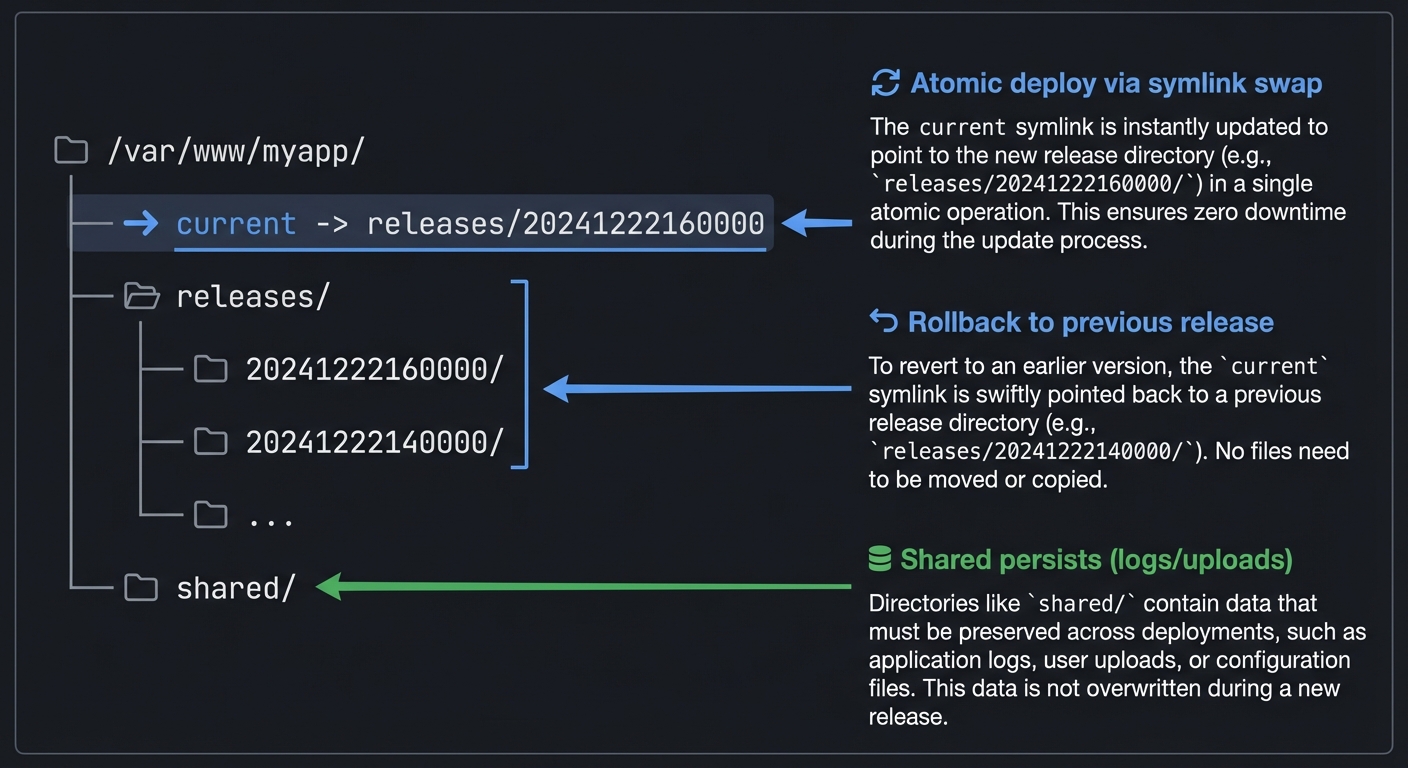
Deploy sequence:
- Lock deployment (prevent concurrent deploys)
- Build/prepare locally
- Create release directory on servers
- Upload artifacts (rsync is great here)
- Link shared directories into release
- Run migrations (on one server only!)
- Switch
currentsymlink atomically - Restart services
- Cleanup old releases
- Unlock
Key insight: The symlink switch is what makes rollback instant. To rollback, just change the symlink back. No file copying needed.
Learning milestones:
- Basic deploy works → You understand SSH automation
- Rollback works instantly → You understand atomic symlink deployments
- Multi-server works → You understand coordination
- Failures are handled gracefully → You understand comprehensive error handling
Common Pitfalls and Debugging
Problem 1: “SSH authentication fails in CI”
- Why: Missing SSH keys or wrong permissions.
- Fix: Ensure
~/.ssh/id_rsapermissions and known_hosts setup. - Quick test:
ssh -o BatchMode=yes user@host trueshould succeed.
Problem 2: “Partial deploy leaves system inconsistent”
- Why: No atomic deploy strategy.
- Fix: Use release directories and symlink swaps.
- Quick test: Interrupt deploy mid-way and verify rollback.
Problem 3: “Rollback does not restore state”
- Why: No capture of previous release state.
- Fix: Store previous release pointer before switching.
- Quick test: Deploy and rollback, then compare hashes.
Problem 4: “Hooks run in wrong order”
- Why: Missing lifecycle phases.
- Fix: Enforce pre-deploy, deploy, post-deploy phases.
- Quick test: Add echo statements and verify order.
Definition of Done
- Deploys to a staging host via SSH
- Supports atomic release with symlink switch
- Rollback restores previous release
- Pre/post hooks execute in order
- Logs and exit codes are correct
Project 11: Test Framework & Runner
- File: LEARN_SHELL_SCRIPTING_MASTERY.md
- Main Programming Language: Bash
- Alternative Programming Languages: POSIX sh, Bats (Bash testing framework)
- Coolness Level: Level 3: Genuinely Clever
- Business Potential: 4. The “Open Core” Infrastructure
- Difficulty: Level 2: Intermediate
- Knowledge Area: Testing, Quality Assurance, CI/CD
- Software or Tool: Bats/shunit2 alternative
- Main Book: “Bash Cookbook” by Carl Albing
What you’ll build: A testing framework specifically for shell scripts—supporting test discovery, assertions, setup/teardown, mocking, test isolation, and generating reports compatible with CI systems (JUnit XML, TAP).
Why it teaches shell scripting: Testing shell scripts is notoriously tricky. Building a test framework teaches you about subshells, process isolation, capturing output, and the challenges of testing stateful commands.
Core challenges you’ll face:
- Isolating tests from each other → maps to subshells and environment management
- Capturing and comparing output → maps to command substitution and diff
- Implementing assertions → maps to function design and exit codes
- Mocking commands → maps to PATH manipulation and function override
- Generating test reports → maps to structured output formats
Key Concepts:
- Subshell isolation: “Learning the Bash Shell” Ch. 8 - Cameron Newham
- Function testing patterns: “Bash Cookbook” Ch. 19 - Carl Albing
- Exit code conventions: “Bash Idioms” - Carl Albing
- TAP format: Test Anything Protocol specification
Difficulty: Intermediate Time estimate: 1-2 weeks Prerequisites: Projects 1-3, understanding of testing concepts, familiarity with any testing framework
Real World Outcome
You’ll have a complete testing framework:
$ cat tests/test_utils.sh
#!/usr/bin/env bash
source ./testing.sh

setup() {
    TEST_DIR=$(mktemp -d)
    cd "$TEST_DIR"
}

teardown() {
    cd /
    rm -rf "$TEST_DIR"
}

test_string_functions() {
    source ../utils.sh

    result=$(to_uppercase "hello")
    assert_equals "HELLO" "$result" "to_uppercase should convert to uppercase"

    result=$(trim "  hello  ")
    assert_equals "hello" "$result" "trim should remove whitespace"
}

test_file_operations() {
    source ../utils.sh

    echo "test content" > testfile.txt
    assert_file_exists "testfile.txt" "File should exist after creation"
    assert_file_contains "testfile.txt" "test content"

    rm testfile.txt
    assert_file_not_exists "testfile.txt" "File should not exist after deletion"
}

test_exit_codes() {
    source ../utils.sh

    # Test that function returns correct exit code
    validate_email "user@example.com"
    assert_success "Valid email should return 0"

    validate_email "invalid-email"
    assert_failure "Invalid email should return non-zero"
}

test_with_mock() {
    # Mock the 'curl' command
    mock_command curl 'echo "mocked response"'

    source ../api.sh
    result=$(fetch_data)

    assert_equals "mocked response" "$result"
    assert_mock_called curl

    unmock_command curl
}

$ test tests/

╔══════════════════════════════════════════════════════════════╗
║                    TEST RESULTS                               ║
║                    tests/test_utils.sh                        ║
╠══════════════════════════════════════════════════════════════╣
║                                                               ║
║ test_string_functions                                         ║
║   ✓ to_uppercase should convert to uppercase                 ║
║   ✓ trim should remove whitespace                            ║
║                                                               ║
║ test_file_operations                                          ║
║   ✓ File should exist after creation                         ║
║   ✓ assert_file_contains passed                              ║
║   ✓ File should not exist after deletion                     ║
║                                                               ║
║ test_exit_codes                                               ║
║   ✓ Valid email should return 0                              ║
║   ✓ Invalid email should return non-zero                     ║
║                                                               ║
║ test_with_mock                                                ║
║   ✓ assert_equals passed                                     ║
║   ✓ assert_mock_called passed                                ║
║                                                               ║
╠══════════════════════════════════════════════════════════════╣
║ PASSED: 9  FAILED: 0  SKIPPED: 0                             ║
║ Duration: 0.234s                                              ║
╚══════════════════════════════════════════════════════════════╝

$ test tests/ --format junit > results.xml
$ test tests/ --format tap
TAP version 13
1..9
ok 1 - test_string_functions: to_uppercase should convert to uppercase
ok 2 - test_string_functions: trim should remove whitespace
...
The Core Question You Are Answering
“How do I test code in a language where global state is the norm and side effects are everywhere?”
Shell scripts are notoriously hard to test. Building a test framework forces you to understand isolation, mocking, and the boundaries between shell environments.
Concepts You Must Understand First
Stop and research these before coding:
- Subshell Isolation
- What happens when you run code in a subshell?
- How do environment changes in a subshell affect the parent?
- How do you isolate tests from each other?
- Book Reference: “Learning the Bash Shell” Ch. 8
- Command Mocking
- How does PATH affect which command runs?
- Can you override a command with a function?
- What’s the order of precedence: alias, function, builtin, external?
- Book Reference: “Bash Cookbook” Ch. 19
- Output Capture
- How do you capture stdout? stderr? Both?
- How do you capture the exit code while also capturing output?
- What about commands that write directly to /dev/tty?
- Book Reference: “Learning the Bash Shell” Ch. 7
Questions to Guide Your Design
Before implementing, think through these:
- Test Discovery
- How do you find test files? (convention:
test_*.sh?) - How do you find test functions within a file?
- How do you support focused tests (run only specific tests)?
- How do you find test files? (convention:
- Isolation
- Each test in its own subshell?
- How do you handle setup/teardown?
- What about tests that need to modify global state?
- Assertions
- What assertions do you need? (equals, contains, file exists, exit code…)
- How do you report failures with useful context?
- Should failed assertions stop the test or continue?
Thinking Exercise
Test This Function
Given this function to test:
# utils.sh
create_temp_file() {
    local prefix="${1:-tmp}"
    local dir="${2:-/tmp}"
    mktemp "$dir/${prefix}.XXXXXX"
}
Write tests that check:
- Default behavior (no args)
- Custom prefix
- Custom directory
- What happens with invalid directory?
- Does the file actually exist after creation?
- Is the filename pattern correct?
Think about: What cleanup do you need? What could make this test flaky?
The Interview Questions They Will Ask
Prepare to answer these:
- “How do you test a function that calls
exit?” - “Explain how you’d mock the
datecommand to return a fixed value.” - “How do you ensure tests don’t interfere with each other?”
- “What’s the difference between testing in a subshell vs the current shell?”
- “How would you test a script that requires user input?”
Hints in Layers
Hint 1: Basic Assertion
assert_equals() {
    local expected="$1" actual="$2" msg="${3:-}"
    if [[ "$expected" != "$actual" ]]; then
        echo "FAIL: $msg"
        echo "  Expected: $expected"
        echo "  Actual:   $actual"
        return 1
    fi
    echo "PASS: $msg"
    return 0
}
Hint 2: Run Test in Subshell
run_test() {
    local test_func="$1"
    (
        setup 2>/dev/null || true
        "$test_func"
        local result=$?
        teardown 2>/dev/null || true
        exit $result
    )
}
Hint 3: Mock Command
mock_command() {
    local cmd="$1" response="$2"
    eval "$cmd() { echo '$response'; }"
    export -f "$cmd"
}
Hint 4: Discover Test Functions
# Find all functions starting with 'test_'
declare -F | awk '{print $3}' | grep '^test_'
Books That Will Help
| Topic | Book | Chapter |
|---|---|---|
| Subshells | “Learning the Bash Shell” | Ch. 8 |
| Testing patterns | “Bash Cookbook” | Ch. 19 |
| Function design | “Bash Idioms” | Ch. 4-5 |
| TAP format | Test Anything Protocol | Spec |
Implementation Guide
Core components:
-
Assertions:
assert_equals,assert_not_equals,assert_contains,assert_matches(regex),assert_success,assert_failure,assert_file_exists,assert_file_contains -
Test lifecycle:
setup(),teardown(),setup_once()(per file),teardown_once() -
Mocking:
mock_command,mock_function,unmock,assert_mock_called,assert_mock_called_with -
Runner: Discovers tests, runs in isolation, collects results, generates reports
Key insight: Every test should run in a subshell for isolation. But the setup/teardown might need to affect the test’s environment, so they should run IN that subshell.
For mocking: Functions take precedence over external commands, so you can override curl with a function. But builtins can’t be overridden this way—you’d need to use enable -n (if available) or work around it.
Learning milestones:
- Basic assertions work → You understand comparison and exit codes
- Tests are isolated → You understand subshells and cleanup
- Mocking works → You understand command precedence
- CI-compatible output → You understand TAP/JUnit formats
Common Pitfalls and Debugging
Problem 1: “Tests pass alone but fail in suite”
- Why: Shared state or temp files between tests.
- Fix: Use isolated temp dirs per test.
- Quick test: Run tests in random order.
Problem 2: “Output capture is incomplete”
- Why: Not capturing stderr separately.
- Fix: Redirect stdout/stderr into temp files per test.
- Quick test: Assert both outputs in a failing test.
Problem 3: “Exit codes are ignored”
- Why: The framework only checks output text.
- Fix: Check
$?for each test command. - Quick test: Use a command that exits 1 with no output.
Problem 4: “Slow tests make the runner unusable”
- Why: No parallel execution or filtering.
- Fix: Add tag filtering and selective runs.
- Quick test: Run
--tags unitand verify subset.
Definition of Done
- Runs tests and reports pass/fail summary
- Captures stdout and stderr separately
- Supports filtering by tag or pattern
- Fails with non-zero exit status on failures
- Produces a machine-readable report (JSON or TAP)
Project 12: Task Runner & Build System
- File: LEARN_SHELL_SCRIPTING_MASTERY.md
- Main Programming Language: Bash
- Alternative Programming Languages: POSIX sh, Make, Python
- Coolness Level: Level 3: Genuinely Clever
- Business Potential: 4. The “Open Core” Infrastructure
- Difficulty: Level 3: Advanced
- Knowledge Area: Build Systems, Task Automation, Dependency Management
- Software or Tool: Make/npm scripts/Just alternative
- Main Book: “The GNU Make Book” by John Graham-Cumming
What you’ll build: A task runner that defines and executes project tasks—supporting dependencies between tasks, parallel execution, file-based change detection, environment management, and a clean DSL for task definition.
Why it teaches shell scripting: Build systems require understanding dependency graphs, change detection, parallel execution, and creating clean abstractions. You’ll learn to think about tasks as functions with inputs and outputs.
Core challenges you’ll face:
- Parsing task definitions → maps to DSL design and parsing
- Resolving task dependencies → maps to graph traversal algorithms
- Detecting what needs to rebuild → maps to file timestamps and hashing
- Running tasks in parallel → maps to job control and synchronization
- Providing a clean CLI → maps to everything from Project 7
Key Concepts:
- Dependency graphs: Basic graph theory, topological sort
- File change detection: “The GNU Make Book” - Graham-Cumming
- Parallel execution: “Bash Cookbook” Ch. 12 - Carl Albing
- DSL design: General programming concepts
Difficulty: Advanced Time estimate: 2-3 weeks Prerequisites: Projects 7-8, understanding of Make, graph algorithms
Real World Outcome
You’ll have a flexible task runner:
$ cat Taskfile
# Taskfile - define your project tasks

task:clean "Remove build artifacts"
clean() {
    rm -rf build/ dist/
}

task:deps "Install dependencies"
deps() {
    npm install
}

task:lint "Run linter" deps
lint() {
    npm run lint
}

task:test "Run tests" deps
test() {
    npm test
}

task:build "Build the project" deps lint test
build() {
    npm run build
}

task:deploy "Deploy to production" build
deploy() {
    rsync -av dist/ server:/var/www/app/
}

# File-based task - only runs if sources changed
task:compile "Compile TypeScript" --sources "src/**/*.ts" --output "dist/"
compile() {
    tsc
}

$ run --list

Available tasks:
  clean     Remove build artifacts
  deps      Install dependencies
  lint      Run linter (depends: deps)
  test      Run tests (depends: deps)
  build     Build the project (depends: deps, lint, test)
  deploy    Deploy to production (depends: build)
  compile   Compile TypeScript (file-based)

$ run build

╔══════════════════════════════════════════════════════════════╗
║                    TASK RUNNER                                ║
║                    Target: build                              ║
╠══════════════════════════════════════════════════════════════╣

[1/4] deps
      Installing dependencies...
      ✓ Complete (12.3s)

[2/4] lint (parallel with test)
      Running linter...
      ✓ Complete (3.2s)

[3/4] test (parallel with lint)
      Running tests...
      ✓ Complete (8.1s)

[4/4] build
      Building project...
      ✓ Complete (15.4s)

╠══════════════════════════════════════════════════════════════╣
║ ✓ ALL TASKS COMPLETE                                          ║
║   Duration: 27.8s (23.1s parallel savings)                   ║
╚══════════════════════════════════════════════════════════════╝

$ run build
[run] build is up-to-date (no source changes)

$ run lint test --parallel
Running lint and test in parallel...
✓ lint (3.2s)
✓ test (8.1s)
Total: 8.1s (parallel)

$ run deploy --dry-run
Would execute:
  1. deps (skip: up-to-date)
  2. lint (skip: up-to-date)
  3. test (skip: up-to-date)
  4. build (skip: up-to-date)
  5. deploy
The Core Question You Are Answering
“How do I model tasks with dependencies, execute them in the right order (or in parallel when possible), and avoid unnecessary work?”
This is the essence of build systems: dependency resolution and incremental execution. Understanding this teaches you to think in graphs.
Concepts You Must Understand First
Stop and research these before coding:
- Dependency Graphs
- What’s a directed acyclic graph (DAG)?
- What’s topological sorting?
- How do you detect cycles?
- Book Reference: “Algorithms” by Sedgewick, basic graph theory
- Make’s Model
- How does Make decide what to rebuild?
- What’s the difference between prerequisites and order-only prerequisites?
- How does Make handle phony targets?
- Book Reference: “The GNU Make Book” - Graham-Cumming
- File Timestamps vs Hashing
- How do you compare file modification times?
- When are timestamps unreliable?
- How would hashing improve accuracy?
- Book Reference: Build system documentation (Bazel, Buck)
Questions to Guide Your Design
Before implementing, think through these:
- Task Definition
- How do users define tasks? (Bash file? YAML? Custom DSL?)
- How do they specify dependencies?
- How do they mark tasks as file-based?
- Execution Strategy
- When can tasks run in parallel?
- How do you maximize parallelism while respecting dependencies?
- How do you handle task failure?
- Change Detection
- How do you know if a task needs to run?
- For file-based tasks, how do you track inputs and outputs?
- How do you handle tasks that always need to run?
Thinking Exercise
Resolve This Dependency Graph
Given these tasks:
A depends on: B, C
B depends on: D
C depends on: D
D depends on: (nothing)
Questions:
- What’s the execution order?
- Which tasks can run in parallel?
- If D changes, which tasks need to re-run?
- If you add E→A, what changes?
- If you add A→D, what happens? (hint: cycle)
Draw the graph and trace execution with 2 parallel workers.
The Interview Questions They Will Ask
Prepare to answer these:
- “Explain how you’d implement topological sort for task dependencies.”
- “How does Make determine that a target is out of date?”
- “What’s the difference between a task runner and a build system?”
- “How would you handle tasks that produce multiple output files?”
- “How do you parallelize a DAG while respecting dependencies?”
Hints in Layers
Hint 1: Parse Task Definitions
task:build() {
    # Everything after ':' is the task name
    # Dependencies can be parsed from function attributes or comments
}
Hint 2: Build Dependency Graph
declare -A TASK_DEPS
TASK_DEPS[build]="deps lint test"
TASK_DEPS[lint]="deps"
TASK_DEPS[test]="deps"
Hint 3: Topological Sort (DFS)
visit() {
    local task="$1"
    [[ -n "${VISITED[$task]}" ]] && return
    VISITED[$task]=1
    for dep in ${TASK_DEPS[$task]}; do
        visit "$dep"
    done
    SORTED+=("$task")
}
Hint 4: Check if Outdated
is_outdated() {
    local output="$1" sources="$2"
    [[ ! -f "$output" ]] && return 0
    for src in $sources; do
        [[ "$src" -nt "$output" ]] && return 0
    done
    return 1
}
Books That Will Help
| Topic | Book | Chapter |
|---|---|---|
| Make concepts | “The GNU Make Book” | Ch. 1-4 |
| Graph algorithms | “Algorithms” by Sedgewick | Ch. 4 (Graphs) |
| Parallel execution | “Bash Cookbook” | Ch. 12 |
| Build systems | Various build tool docs | Online |
Implementation Guide
Architecture:
- Parser: Read Taskfile, extract task definitions and dependencies
- Graph builder: Create dependency graph, detect cycles
- Scheduler: Topological sort, identify parallelization opportunities
- Executor: Run tasks, handle failures, track state
- Reporter: Show progress, timing, results
Key insight: The scheduler produces an execution plan—a sequence of “rounds” where each round contains tasks that can run in parallel. For example:
- Round 1: D (the only task with no deps)
- Round 2: B, C (both depend only on D, which is done)
- Round 3: A (depends on B and C, both done)
For file-based tasks, track which files were inputs and outputs. On the next run, check if any input is newer than any output.
Learning milestones:
- Tasks run in correct order → You understand topological sort
- Parallel execution works → You understand dependency-respecting parallelism
- Incremental builds work → You understand change detection
- Clean DSL is usable → You understand abstraction design
Common Pitfalls and Debugging
Problem 1: “Dependency cycles cause infinite loops”
- Why: DAG validation missing.
- Fix: Detect cycles with DFS and report them.
- Quick test: Create a cycle and ensure it errors.
Problem 2: “Tasks run out of order”
- Why: Incorrect topological sort.
- Fix: Implement a proper topo sort and verify output.
- Quick test: Small graph should produce deterministic ordering.
Problem 3: “Parallel tasks clobber outputs”
- Why: Shared directories or files are written concurrently.
- Fix: Use locks or separate output dirs.
- Quick test: Run with
-j 4and check outputs.
Problem 4: “Caching uses stale artifacts”
- Why: Hash input changes not tracked.
- Fix: Include file mtimes or hashes in cache keys.
- Quick test: Modify a source file and verify rebuild.
Definition of Done
- Executes tasks in correct dependency order
- Detects and reports cycles
- Supports parallel execution with limits
- Implements caching and invalidation
- Provides
--dry-runand--listmodes
Project 13: Security Audit Scanner
- File: LEARN_SHELL_SCRIPTING_MASTERY.md
- Main Programming Language: Bash
- Alternative Programming Languages: Python, Go, POSIX sh
- Coolness Level: Level 4: Hardcore Tech Flex
- Business Potential: 3. The “Service & Support” Model
- Difficulty: Level 3: Advanced
- Knowledge Area: Security, System Administration, Compliance
- Software or Tool: Lynis/OpenSCAP alternative
- Main Book: “Linux Basics for Hackers” by OccupyTheWeb
What you’ll build: A security auditing tool that scans systems for misconfigurations, weak permissions, exposed credentials, outdated software, and common vulnerabilities. Generates compliance reports and remediation scripts.
Why it teaches shell scripting: Security tools require deep understanding of file permissions, system configuration, process inspection, and pattern matching. You’ll explore every corner of Unix system administration.
Core challenges you’ll face:
- Checking file permissions recursively → maps to find with -perm and stat
- Detecting credentials in files → maps to pattern matching and grep
- Parsing system configurations → maps to awk/sed and config file formats
- Generating actionable reports → maps to structured output and severity levels
- Avoiding false positives → maps to context-aware checking
Key Concepts:
- Unix permissions model: “The Linux Command Line” Ch. 9 - William Shotts
- Security best practices: “Linux Basics for Hackers” - OccupyTheWeb
- System auditing: “Practical System Administration” - various
- Pattern matching for secrets: Various security guides
Difficulty: Advanced Time estimate: 2-3 weeks Prerequisites: Projects 3 and 6, understanding of Unix permissions, security awareness
Real World Outcome
You’ll have a comprehensive security scanner:
$ secaudit scan

╔══════════════════════════════════════════════════════════════╗
║                  SECURITY AUDIT REPORT                        ║
║                  Host: macbook-pro                            ║
║                  Date: 2024-12-22 16:30:00                    ║
╠══════════════════════════════════════════════════════════════╣

[CRITICAL] Found 2 issues
────────────────────────────────────────────────────────────────
[!] /etc/shadow is world-readable (should be 000 or 600)
    Current: -rw-r--r-- root root
    Fix: chmod 600 /etc/shadow

[!] SSH password authentication enabled
    File: /etc/ssh/sshd_config
    Line: PasswordAuthentication yes
    Fix: Set PasswordAuthentication to 'no'

[HIGH] Found 5 issues
────────────────────────────────────────────────────────────────
[!] Private key without passphrase: ~/.ssh/id_rsa
    Risk: Key can be used if file is compromised
    Fix: Add passphrase with 'ssh-keygen -p -f ~/.ssh/id_rsa'

[!] Potential credentials in: ~/project/.env
    Line 12: API_KEY=sk-live-...
    Risk: Hardcoded secrets in plaintext
    Fix: Use environment variables or secrets manager

[!] SUID binary with write permission: /usr/local/bin/custom
    Permissions: -rwsr-xrwx root root
    Risk: Privilege escalation vector
    Fix: chmod 4755 /usr/local/bin/custom

[!] Outdated packages with known CVEs: 3 found
    - openssl 1.1.1 (CVE-2023-XXXX)
    - nginx 1.18 (CVE-2023-YYYY)
    - curl 7.68 (CVE-2023-ZZZZ)

[!] Firewall disabled
    Fix: Enable with 'sudo ufw enable'

[MEDIUM] Found 8 issues
────────────────────────────────────────────────────────────────
[!] World-writable directories: 3 found
    /tmp, /var/tmp, /home/douglas/shared

[!] Users with empty passwords: 1 found
    - testuser

[!] Services running as root unnecessarily: 2 found
    - nginx, redis

... (more medium/low findings)

╠══════════════════════════════════════════════════════════════╣
║ SUMMARY                                                       ║
╠══════════════════════════════════════════════════════════════╣
║ Critical:  2   │   Score: 45/100 (NEEDS ATTENTION)           ║
║ High:      5   │                                              ║
║ Medium:    8   │   Full report: ~/.secaudit/report_20241222  ║
║ Low:      12   │   Fix script:  ~/.secaudit/fix_20241222.sh  ║
╚══════════════════════════════════════════════════════════════╝

$ secaudit fix --dry-run
Would execute:
  chmod 600 /etc/shadow
  sed -i 's/PasswordAuthentication yes/PasswordAuthentication no/' /etc/ssh/sshd_config
  ...

$ secaudit check passwords
Checking password policies...
- Minimum length: 8 (should be 12+)     [WARN]
- Complexity required: No              [FAIL]
- Max age: 99999 (no expiry)           [WARN]
The Core Question You Are Answering
“How do I systematically examine a system’s security posture, finding misconfigurations that humans would miss, while minimizing false positives?”
Security auditing requires thoroughness, precision, and understanding of what “secure” actually means in different contexts.
Concepts You Must Understand First
Stop and research these before coding:
- Unix Permission Model
- What do the permission bits mean? (rwx, setuid, setgid, sticky)
- What’s the difference between symbolic and octal notation?
- Why is 777 dangerous? What about 666?
- What are the implications of SUID/SGID binaries?
- Book Reference: “The Linux Command Line” Ch. 9 - William Shotts
- Common Security Misconfigurations
- What files should never be world-readable?
- What are the signs of exposed credentials?
- What system services should not run as root?
- What SSH configurations are insecure?
- Book Reference: “Linux Basics for Hackers” - OccupyTheWeb
- Finding Files by Attributes
- How do you find files with specific permissions?
- How do you find SUID/SGID binaries?
- How do you find world-writable files?
- How do you search file contents for patterns?
- Book Reference:
findman page, “The Linux Command Line”
Questions to Guide Your Design
Before implementing, think through these:
- Check Categories
- What checks do you perform? (files, network, users, services, etc.)
- How do you prioritize findings? (critical, high, medium, low)
- How do you handle checks that don’t apply to all systems?
- False Positive Handling
- How do you distinguish intentional from accidental configurations?
- How do you allow exceptions (whitelisting)?
- How do you provide context for findings?
- Remediation
- Can you generate fix scripts?
- How do you handle fixes that might break things?
- How do you verify fixes worked?
Thinking Exercise
Analyze This System State
$ ls -la /etc/passwd /etc/shadow
-rw-r--r-- 1 root root 2048 Dec 22 10:00 /etc/passwd
-rw-r----- 1 root shadow 1536 Dec 22 10:00 /etc/shadow

$ find /usr/bin -perm -4000 -ls
-rwsr-xr-x 1 root root 63960 Dec 22 /usr/bin/passwd
-rwsr-xr-x 1 root root 44664 Dec 22 /usr/bin/chsh
-rwsr-xr-x 1 root root 88464 Dec 22 /usr/bin/sudo
-rwsr-sr-x 1 root root 12345 Dec 22 /usr/local/bin/mystery

$ grep -r "password" ~/projects/
~/projects/app/.env:DB_PASSWORD=supersecret123
~/projects/app/config.py:# TODO: remove hardcoded password
For each finding, determine:
- Is this a real security issue or expected?
- What’s the severity?
- What’s the remediation?
The Interview Questions They Will Ask
Prepare to answer these:
- “Explain the Unix permission model including setuid and setgid.”
- “How would you find all world-writable directories that aren’t in /tmp?”
- “What’s the security implication of a process running as root vs a dedicated user?”
- “How would you detect if SSH keys are being used without passphrases?”
- “What regex would you use to find potential API keys or passwords in files?”
Hints in Layers
Hint 1: Find SUID Binaries
find / -perm -4000 -type f 2>/dev/null
Hint 2: Check File Permissions
stat -c '%a %U %G %n' /etc/shadow
# Output: 640 root shadow /etc/shadow
Hint 3: Search for Credentials
grep -rE '(password|api_key|secret|token)\s*[=:]\s*["\x27]?[A-Za-z0-9_-]+' --include='*.{py,js,env,conf}'
Hint 4: Check SSH Config
sshd -T | grep -i passwordauthentication
Books That Will Help
| Topic | Book | Chapter |
|---|---|---|
| Unix permissions | “The Linux Command Line” | Ch. 9 |
| Security basics | “Linux Basics for Hackers” | Ch. 5-7 |
| System hardening | “Practical Unix & Internet Security” | Throughout |
| Finding files | “The Linux Command Line” | Ch. 17 |
Implementation Guide
Structure around check categories:
- filesystem.sh: File permissions, ownership, SUID/SGID, world-writable
- credentials.sh: Hardcoded secrets, SSH keys, password files
- network.sh: Open ports, firewall rules, listening services
- users.sh: Empty passwords, sudo access, shell access
- services.sh: Running services, unnecessary daemons, outdated software
- report.sh: Aggregate findings, generate reports, create fix scripts
Key insight: Not every finding is critical. A world-writable /tmp is expected. A world-writable /etc is catastrophic. Build context-awareness into your checks.
For credential detection, use conservative patterns to minimize false positives, but provide surrounding context so users can evaluate.
Learning milestones:
- Basic checks work → You understand Unix security fundamentals
- Findings are categorized → You understand risk assessment
- False positives are minimized → You understand context-aware checking
- Fix scripts are generated → You understand remediation automation
Common Pitfalls and Debugging
Problem 1: “False positives from grep”
- Why: Regex matches commented code or strings.
- Fix: Add context-aware filters and ignore lists.
- Quick test: Include sample code with comments and verify output.
Problem 2: “Permission denied errors stop scanning”
- Why: Script exits on unreadable files.
- Fix: Skip with warnings and continue.
- Quick test: Scan
/rootas non-root and ensure graceful handling.
Problem 3: “Binary files cause garbled output”
- Why: Grep reads binary data.
- Fix: Skip binary files with
-Ior file-type checks. - Quick test: Include a binary file and ensure it is skipped.
Problem 4: “Unsafe input is evaluated”
- Why: Using
evalor unquoted expansions. - Fix: Avoid
evalentirely and quote all variables. - Quick test: Scan a path containing shell metacharacters.
Definition of Done
- Scans a directory tree and reports findings
- Supports ignore patterns and allowlists
- Outputs a summary report with counts by severity
- Handles permission errors without crashing
- Never evaluates untrusted input
Project 14: Interactive Menu System & Wizard
- File: LEARN_SHELL_SCRIPTING_MASTERY.md
- Main Programming Language: Bash
- Alternative Programming Languages: dialog/whiptail-based, Python curses, Go
- Coolness Level: Level 3: Genuinely Clever
- Business Potential: 2. The “Micro-SaaS / Pro Tool”
- Difficulty: Level 2: Intermediate
- Knowledge Area: User Interface, Input Handling, Configuration
- Software or Tool: TUI wizard builder
- Main Book: “Learning the Bash Shell” by Cameron Newham
What you’ll build: A library/framework for creating interactive terminal menus, setup wizards, configuration editors, and multi-step workflows. Think of it as a TUI toolkit for shell scripts.
Why it teaches shell scripting: Interactive terminal applications require understanding terminal control sequences, input handling (including arrow keys), state management, and creating abstractions that other developers can use.
Core challenges you’ll face:
- Reading special keys (arrows, escape sequences) → maps to terminal input handling
- Drawing and updating menus → maps to ANSI escape codes
- Managing state across screens → maps to variable management and data passing
- Providing a clean API → maps to function design and library patterns
- Handling terminal resize and signals → maps to signal handling
Key Concepts:
- Terminal input modes: “Advanced Programming in the UNIX Environment” Ch. 18
- ANSI escape codes: “The Linux Command Line” Ch. 32
- Dialog/whiptail: man pages and examples
- Function libraries: “Bash Idioms” Ch. 8
Difficulty: Intermediate Time estimate: 1-2 weeks Prerequisites: Projects 1-3, understanding of ANSI codes, terminal experience
Real World Outcome
You’ll have a TUI framework for building interactive scripts:
#!/usr/bin/env bash
source ./tuikit.sh

# Simple selection menu
choice=$(tui_menu "Select your OS:" \
    "linux:Linux" \
    "macos:macOS" \
    "windows:Windows")
echo "You selected: $choice"

# Multi-select checklist
features=$(tui_checklist "Select features to install:" \
    "docker:Docker:on" \
    "nodejs:Node.js:off" \
    "python:Python:on" \
    "rust:Rust:off")
echo "Selected features: $features"

# Input field
name=$(tui_input "Enter your name:" "default value")

# Password (hidden input)
password=$(tui_password "Enter password:")

# Confirmation dialog
if tui_confirm "Proceed with installation?"; then
    echo "Installing..."
fi

# Progress bar
for i in {1..100}; do
    tui_progress "$i" "Installing packages..."
    sleep 0.05
done

# Multi-step wizard
tui_wizard_start "Server Setup Wizard"
tui_wizard_step "hostname" "Enter hostname:" input
tui_wizard_step "region" "Select region:" menu "us-east:US East" "eu-west:EU West"
tui_wizard_step "size" "Select instance size:" menu "small:Small" "medium:Medium" "large:Large"
tui_wizard_step "confirm" "Review and confirm" summary
results=$(tui_wizard_run)
Visual output:
╔══════════════════════════════════════════════════════════════╗
║                    Select your OS:                            ║
╠══════════════════════════════════════════════════════════════╣
║                                                               ║
║    ○ Linux                                                    ║
║  ▶ ● macOS                                                    ║
║    ○ Windows                                                  ║
║                                                               ║
╠══════════════════════════════════════════════════════════════╣
║          [↑/↓] Navigate   [Enter] Select   [q] Quit          ║
╚══════════════════════════════════════════════════════════════╝
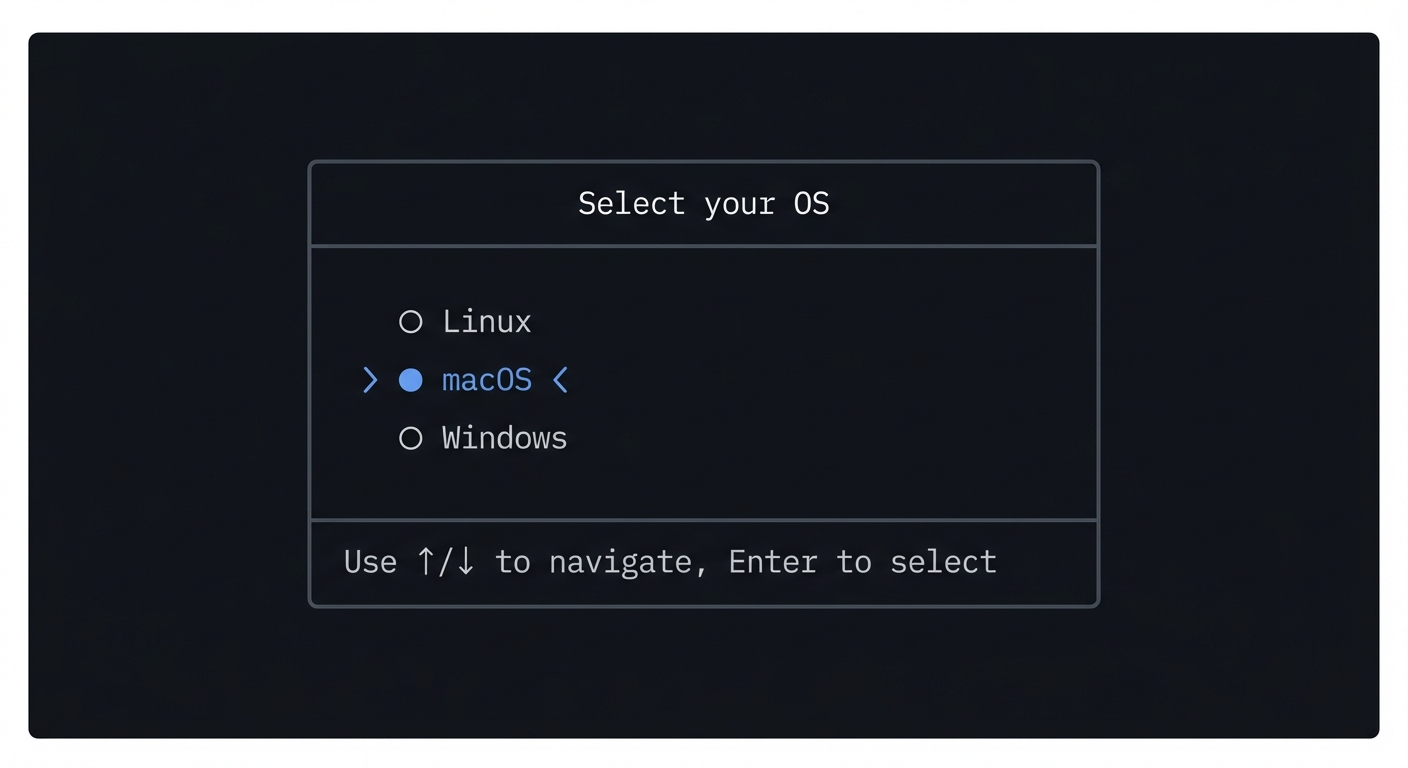
The Core Question You Are Answering
“How do I create user-friendly interactive interfaces in the terminal, making complex workflows approachable for non-technical users?”
TUI applications bridge the gap between CLI and GUI, providing discoverability and guidance while staying in the terminal.
Concepts You Must Understand First
Stop and research these before coding:
- Terminal Raw Mode
- How do you read single keystrokes?
- What are escape sequences for arrow keys?
- How do you disable echo and canonical mode?
- Book Reference: “Advanced Programming in the UNIX Environment” Ch. 18
- Cursor and Screen Control
- How do you position the cursor?
- How do you clear portions of the screen?
- How do you draw boxes with Unicode characters?
- Book Reference: “The Linux Command Line” Ch. 32
- Dialog and Whiptail
- What does
dialogdo? What aboutwhiptail? - How do they handle the return value problem?
- What are their limitations?
- Book Reference: man pages for dialog/whiptail
- What does
Questions to Guide Your Design
Before implementing, think through these:
- Input Handling
- How do you read arrow keys (multi-byte escape sequences)?
- How do you handle timeouts (distinguish Escape key from escape sequence)?
- How do you handle Ctrl+C gracefully?
- Drawing
- How do you update only what changed vs redraw everything?
- How do you handle menus longer than the screen?
- How do you support both color and non-color terminals?
- API Design
- How do functions return values? (stdout? exit code? variable?)
- How do you pass options? (arguments? environment?)
- Can components be nested/composed?
Thinking Exercise
Handle These Inputs
When the user presses the up arrow, the terminal sends: \e[A (ESC, [, A)
Trace through:
- How do you distinguish “user pressed Escape” from “user pressed up arrow”?
- What if the user types fast and you read
\e[A\e[B(up, down) in one read? - How do you handle terminals that send different sequences for the same key?
The Interview Questions They Will Ask
Prepare to answer these:
- “How do you read arrow keys in Bash?”
- “What’s the difference between cooked and raw terminal mode?”
- “How do you ensure the terminal is restored on script exit?”
- “Explain how
dialogreturns values to calling scripts.” - “How would you implement scroll in a menu longer than the terminal height?”
Hints in Layers
Hint 1: Read Single Keys
read_key() {
    local key
    IFS= read -rsn1 key
    if [[ $key == $'\e' ]]; then
        read -rsn2 -t 0.1 key2
        key+="$key2"
    fi
    printf '%s' "$key"
}
Hint 2: Arrow Key Detection
case "$key" in
    $'\e[A') echo "up" ;;
    $'\e[B') echo "down" ;;
    $'\e[C') echo "right" ;;
    $'\e[D') echo "left" ;;
esac
Hint 3: Save/Restore Terminal
old_stty=$(stty -g)
trap 'stty "$old_stty"' EXIT
stty -echo -icanon
Hint 4: Return Values
# Use stdout for return value, stderr for display
tui_menu() {
    # Draw to stderr
    echo "Menu..." >&2
    # Return selection to stdout
    echo "$selection"
}
Books That Will Help
| Topic | Book | Chapter |
|---|---|---|
| Terminal control | “Advanced Programming in the UNIX Environment” | Ch. 18 |
| ANSI sequences | “The Linux Command Line” | Ch. 32 |
| Function design | “Bash Idioms” | Ch. 4-5 |
| Input handling | “Learning the Bash Shell” | Ch. 7 |
Implementation Guide
Component types:
- tui_menu: Single-select from list
- tui_checklist: Multi-select with checkboxes
- tui_input: Text input field
- tui_password: Hidden input
- tui_confirm: Yes/No dialog
- tui_progress: Progress bar
- tui_message: Information display
- tui_wizard: Multi-step guided flow
Key insight: Separate display from logic. Have internal functions that track state (current selection, checkbox states) and separate functions that render the current state. This makes the code cleaner and updates easier.
For the return value problem: dialog/whiptail use file descriptors. A simpler approach is to print the result to stdout and all UI to stderr, letting callers capture stdout.
Learning milestones:
- Read special keys → You understand terminal input
- Menus navigate correctly → You understand state management
- UI looks good → You understand drawing with ANSI codes
- API is clean → You understand library design
Common Pitfalls and Debugging
Problem 1: “Menu input is delayed or doubled”
- Why: Terminal is left in canonical mode or mixed with buffered reads.
- Fix: Enter/exit raw mode explicitly and restore settings with
trap. - Quick test: Press arrow keys quickly for 20 seconds; selection should remain stable.
Problem 2: “Screen artifacts remain after redraw”
- Why: Partial line clears or cursor positioning errors.
- Fix: Always clear the intended region (
\033[K,\033[2J) before redraw. - Quick test: Resize terminal repeatedly while moving through menu options.
Problem 3: “Function output breaks command substitution”
- Why: UI rendering and return value both written to stdout.
- Fix: Render UI to stderr and emit only return values on stdout.
- Quick test:
choice=$(tui_menu ...)should capture a clean value with no escape codes.
Definition of Done
- Supports single-select, multi-select, input, password, and confirm dialogs
- Restores terminal state on normal exit and interrupts (
CTRL+C) - Produces clean stdout return values for caller scripts
- Handles invalid key input without corrupting UI state
- Wizard mode supports multi-step navigation with back/next actions
Project 15: Mini Shell Implementation
- File: LEARN_SHELL_SCRIPTING_MASTERY.md
- Main Programming Language: Bash
- Alternative Programming Languages: C (for a real implementation), Python
- Coolness Level: Level 5: Pure Magic
- Business Potential: 1. The “Resume Gold”
- Difficulty: Level 5: Master
- Knowledge Area: Operating Systems, Parsing, Process Management
- Software or Tool: Educational shell implementation
- Main Book: “Operating Systems: Three Easy Pieces” by Arpaci-Dusseau
What you’ll build: A minimal shell interpreter written IN shell—handling command parsing, pipelines, redirections, background jobs, signal handling, and builtins. This is the ultimate shell scripting project: a shell that runs shells.
Why it teaches shell scripting: There’s no better way to understand shell scripting than to implement a shell itself. You’ll deeply understand command parsing, process management, and all the Unix primitives that shells are built on.
Core challenges you’ll face:
- Parsing command lines → maps to lexing, quoting, escaping
- Implementing pipelines → maps to file descriptors and fork
- Handling redirections → maps to fd manipulation
- Job control → maps to process groups and signals
- Builtins (cd, export) → maps to understanding why some commands must be builtins
Key Concepts:
- Process creation: “Operating Systems: Three Easy Pieces” - Arpaci-Dusseau
- File descriptors: “Advanced Programming in the UNIX Environment” Ch. 3
- Signal handling: “The Linux Programming Interface” Ch. 20-22
- Lexical analysis: Compiler textbooks (simplified)
Difficulty: Master Time estimate: 4-6 weeks Prerequisites: All previous projects, deep understanding of Unix
Real World Outcome
You’ll have a working mini shell:
$ ./minish
minish$ echo hello world
hello world

minish$ ls -la | grep ".sh" | head -5
-rwxr-xr-x 1 douglas staff 1234 Dec 22 minish.sh
-rwxr-xr-x 1 douglas staff 5678 Dec 22 utils.sh
...

minish$ echo "hello" > output.txt
minish$ cat < output.txt
hello

minish$ cat < input.txt | sort | uniq > output.txt

minish$ sleep 10 &
[1] 12345
minish$ jobs
[1]+ Running    sleep 10 &

minish$ fg 1
sleep 10
^C
minish$

minish$ export MY_VAR="hello"
minish$ echo $MY_VAR
hello

minish$ cd /tmp
minish$ pwd
/tmp

minish$ history
  1  echo hello world
  2  ls -la | grep ".sh" | head -5
  3  echo "hello" > output.txt
  ...

minish$ exit
$
The Core Question You Are Answering
“What IS a shell? How does it work at the fundamental level?”
This project removes all abstraction. You’ll understand every step from reading input to executing commands. After this, shell scripting will never be mysterious again.
Concepts You Must Understand First
Stop and research these before coding:
- Process Creation
- What does
fork()do? - What does
exec()do? - Why does a shell fork before exec?
- What’s the relationship between parent and child PIDs?
- Book Reference: “Operating Systems: Three Easy Pieces” - Arpaci-Dusseau
- What does
- File Descriptors
- What are file descriptors 0, 1, 2?
- How does
dup2()work? - How do pipes work at the fd level?
- Book Reference: “Advanced Programming in the UNIX Environment” Ch. 3
- Command Parsing
- How do you handle quotes? (“hello world” is one argument)
- How do you handle escapes? (hello\ world)
-
How do you handle special characters? ( , >, <, &) - Book Reference: Bash manual, lexical analysis sections
Questions to Guide Your Design
Before implementing, think through these:
- Parsing
- How do you tokenize
echo "hello | world" | cat? (tricky!) - What’s your representation of a parsed command?
- How do you handle nested quotes?
- How do you tokenize
- Execution
- Why must
cdbe a builtin? - How do you set up a pipeline with multiple commands?
- How do you wait for all pipeline processes?
- Why must
- Job Control
- How do you track background jobs?
- How do you bring a job to foreground?
- How do you handle SIGCHLD for background job completion?
Thinking Exercise
Trace Pipeline Execution
For the command: cat file.txt | sort | head -5
Trace through:
- How many processes are created?
- What file descriptors does each process have?
- In what order do you create the processes?
- How do you wait for completion?
- What if
sortexits beforecatfinishes?
Draw the process tree and file descriptor connections.
The Interview Questions They Will Ask
Prepare to answer these:
- “Why does a shell fork before exec?”
- “Explain how pipelines are implemented at the system call level.”
- “Why is
cda builtin command and not an external program?” - “How do you implement output redirection?”
- “What happens to file descriptors when you fork?”
Hints in Layers
Hint 1: Basic Execution
execute_simple() {
    local cmd="$1"; shift
    local args=("$@")
    "$cmd" "${args[@]}"
}
Hint 2: Pipeline Setup
# For cmd1 | cmd2:
# 1. Create pipe: pipe_fd
# 2. Fork for cmd1, redirect stdout to pipe_fd[1]
# 3. Fork for cmd2, redirect stdin to pipe_fd[0]
# 4. Close pipe in parent
# 5. Wait for both
Hint 3: Redirection
# For cmd > file:
# 1. Fork
# 2. In child: exec 1>file (redirect stdout)
# 3. Exec command
Hint 4: Tokenizing
tokenize() {
    local input="$1"
    local tokens=()
    local current=""
    local in_quotes=false
    # Character by character...
}
Books That Will Help
| Topic | Book | Chapter |
|---|---|---|
| Process creation | “Operating Systems: Three Easy Pieces” | Ch. 5 (Process API) |
| File descriptors | “Advanced Programming in the UNIX Environment” | Ch. 3 |
| Pipes | “The Linux Programming Interface” | Ch. 44 |
| Shell implementation | “Advanced Programming in the UNIX Environment” | Ch. 9 |
Implementation Guide
Build incrementally:
- Version 1: Execute simple commands (
ls,echo hello) - Version 2: Add argument handling (
ls -la /tmp) - Version 3: Add builtins (
cd,exit,export) - Version 4: Add redirections (
>,<,>>,2>) - Version 5: Add pipes (
cmd1 | cmd2) - Version 6: Add background jobs (
&,jobs,fg,bg) - Version 7: Add quotes and escaping
- Version 8: Add history and line editing
Key insight: The core loop is simple:
- Print prompt
- Read line
- Parse into commands
- Execute
- Repeat
The complexity is in steps 3 and 4, especially handling all the edge cases.
WARNING: Implementing a shell in shell has limitations. You can’t truly fork/exec from Bash the way you would in C. You’ll need to use subshells and command execution as your primitives. This is still educational but not how a “real” shell works.
Learning milestones:
- Simple commands work → You understand basic execution
- Pipelines work → You understand file descriptors and process coordination
- Redirections work → You understand fd manipulation
- Job control works → You understand process groups and signals
- Quoting works → You understand the parser
Common Pitfalls and Debugging
Problem 1: “Quoting and spaces break parsing”
- Why: Tokenizer does not respect quotes.
- Fix: Implement a proper lexer that tracks quote state.
- Quick test:
echo "hello world"should output one argument.
Problem 2: “Pipelines hang”
- Why: File descriptors are not closed in parent or child.
- Fix: Close unused pipe ends in every process.
- Quick test:
yes | head -n 1should terminate quickly.
Problem 3: “Builtins run in subshell”
- Why: Executing builtins as external commands.
- Fix: Detect builtins and run them in the parent shell.
- Quick test:
cd /tmpshould change the shell directory.
Problem 4: “Redirections override each other”
- Why: Only one redirection applied.
- Fix: Apply all redirections in order.
- Quick test:
cmd > out 2> errshould separate streams.
Definition of Done
- Supports command execution with arguments
- Implements pipelines and redirections
- Builtins:
cd,exit,pwd,export - Handles quotes and escaped characters
- Returns correct exit status for commands
Project 16: DevOps Automation Platform
After completing the individual projects above, you’re ready for the ultimate challenge: combining everything into a comprehensive DevOps automation platform.
- File: LEARN_SHELL_SCRIPTING_MASTERY.md
- Main Programming Language: Bash
- Alternative Programming Languages: Python, Go, Make
- Coolness Level: Level 5: Pure Magic
- Business Potential: 5. The “Industry Disruptor”
- Difficulty: Level 5: Master
- Knowledge Area: DevOps, Platform Engineering, Full-Stack Automation
- Software or Tool: Platform combining all previous tools
- Main Book: “The Phoenix Project” by Gene Kim (for philosophy)
What you’ll build: A unified platform that integrates configuration management (Project 1), file organization (Project 2), log analysis (Project 3), Git hooks (Project 4), backups (Project 5), monitoring (Project 6), CLI framework (Project 7), process management (Project 8), network diagnostics (Project 9), deployments (Project 10), testing (Project 11), task running (Project 12), security scanning (Project 13), and interactive setup (Project 14).
Why this is the ultimate project: This isn’t just a bigger project—it’s an exercise in integration, architecture, and building systems that work together. Real-world automation platforms are the combination of many specialized tools.
Core components:
devops-platform/
├── lib/                    # Shared libraries
│   ├── core.sh            # Core functions (logging, config, errors)
│   ├── argparse.sh        # CLI argument parsing (Project 7)
│   ├── tui.sh             # Terminal UI components (Project 14)
│   └── testing.sh         # Test framework (Project 11)
│
├── modules/               # Individual tools
│   ├── config/           # Configuration management (Project 1)
│   ├── backup/           # Backup system (Project 5)
│   ├── monitor/          # System monitoring (Project 6)
│   ├── deploy/           # Deployment automation (Project 10)
│   ├── secure/           # Security scanning (Project 13)
│   ├── logs/             # Log analysis (Project 3)
│   ├── network/          # Network diagnostics (Project 9)
│   └── tasks/            # Task runner (Project 12)
│
├── hooks/                 # Git hooks (Project 4)
│
├── supervisor/            # Process manager (Project 8)
│
├── tests/                 # Platform tests
│
├── Taskfile              # Build/test tasks
│
└── devops                # Main CLI entry point
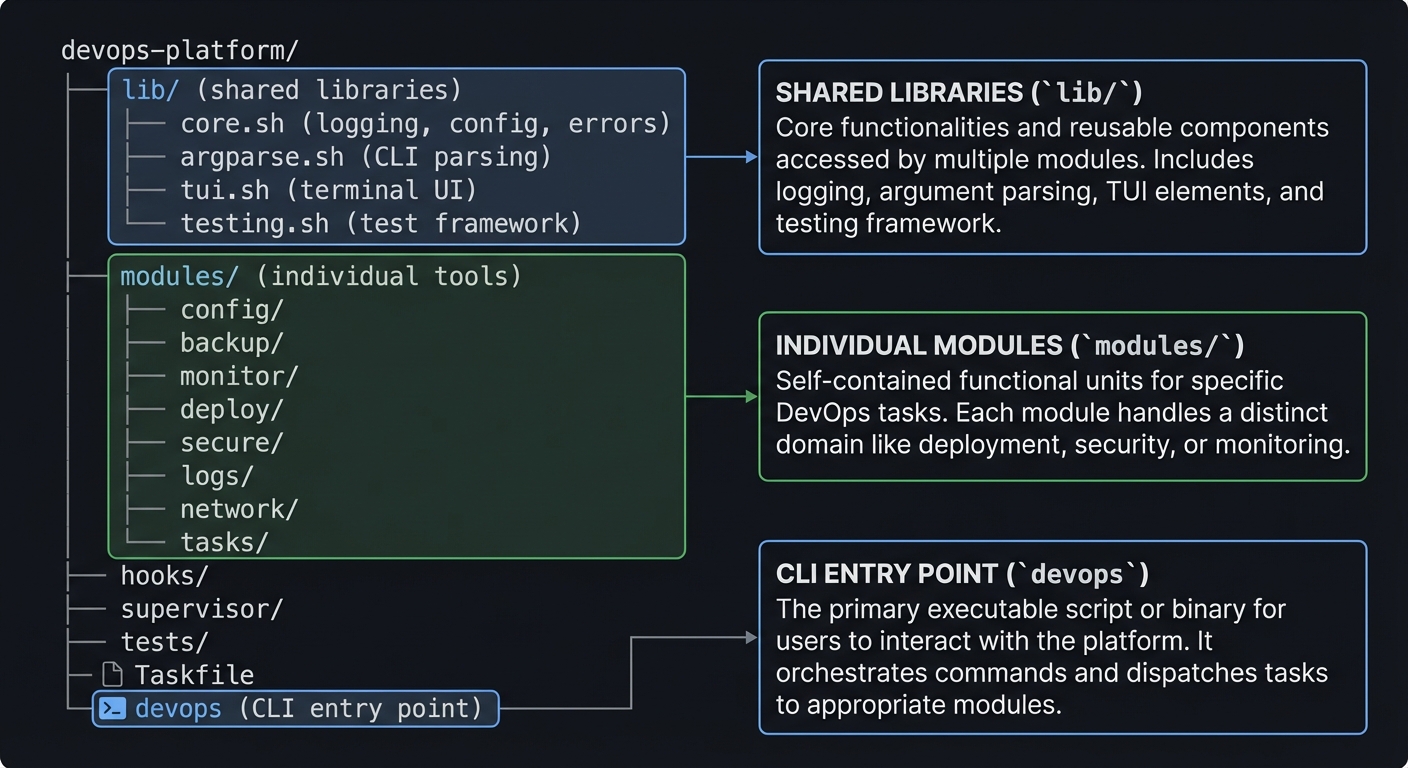
Real World Outcome
$ devops setup
# Interactive wizard walks through initial configuration

$ devops status

╔══════════════════════════════════════════════════════════════════╗
║                    DEVOPS PLATFORM STATUS                         ║
║                    Host: production-web-01                        ║
╠══════════════════════════════════════════════════════════════════╣
║ SYSTEM HEALTH                                                     ║
║   CPU: 45% ████████░░░░░░░░  Memory: 72% ██████████████░░        ║
║   Disk: 65% ████████████░░░  Network: Normal                     ║
╠══════════════════════════════════════════════════════════════════╣
║ SERVICES                                                          ║
║   ✓ nginx (running, 5 days)  ✓ postgres (running, 5 days)       ║
║   ✓ redis (running, 5 days)  ✓ app (running, 2 hours)           ║
╠══════════════════════════════════════════════════════════════════╣
║ RECENT ACTIVITY                                                   ║
║   [12:30] Deployment completed: v2.1.5                           ║
║   [12:25] Backup completed: 2.3 GB                               ║
║   [10:00] Security scan: 0 critical, 2 warnings                  ║
╠══════════════════════════════════════════════════════════════════╣
║ ALERTS (1)                                                        ║
║   ⚠ Disk usage on /var/log approaching 80%                       ║
╚══════════════════════════════════════════════════════════════════╝

$ devops deploy production
# Full deployment with all checks, tests, and rollback capability

$ devops secure scan
# Security audit with remediation recommendations

$ devops logs analyze --last 1h --errors
# Log analysis with pattern detection and alerting

$ devops backup create --notify
# Backup with progress, verification, and notification
This project is your graduation project. It demonstrates mastery of shell scripting and the ability to architect large, maintainable systems.
The Core Question You Are Answering
“How do I architect a unified platform that integrates dozens of specialized tools into a cohesive, maintainable system where components work together seamlessly?”
This is the ultimate test of software architecture in shell. You’re not just writing scripts—you’re designing a platform with consistent interfaces, shared libraries, plugin architecture, and cross-component communication. The question isn’t “can I automate this task?” but “can I build systems that other systems depend on?”
Concepts You Must Understand First
Stop and research these before coding:
- Plugin Architecture and Module Loading
- How do you dynamically discover and load modules?
- What interface contract should all modules follow?
- How do you handle module dependencies and initialization order?
- What’s the difference between tight coupling and loose coupling?
- Book Reference: “The Phoenix Project” (for philosophical understanding of DevOps tooling)
- Shared State and Configuration
- How do multiple modules share configuration?
- Where does global state live vs. module-specific state?
- How do you prevent configuration drift between modules?
- What happens when two modules need conflicting settings?
- Book Reference: “Bash Idioms” Ch. on configuration patterns
- Inter-Module Communication
- How does the monitoring module trigger the backup module?
- How do you pass data between modules without tight coupling?
- What’s an event bus vs. direct function calls?
- How do you handle async operations across modules?
- Book Reference: “The Linux Programming Interface” Ch. 43-44 (IPC mechanisms)
- Error Propagation Across Systems
- If the backup fails during a deployment, what happens?
- How do you roll back changes across multiple modules?
- What’s the difference between recoverable and fatal errors?
- How do you maintain system consistency after partial failures?
- Book Reference: “Advanced Programming in the UNIX Environment” Ch. 10 (signal handling across processes)
- API Design for Shell Libraries
- What naming conventions make functions discoverable?
- How do you version your internal APIs?
- What’s the principle of least surprise in API design?
- How do you document shell APIs effectively?
- Book Reference: “Wicked Cool Shell Scripts” Ch. 10 (for practical patterns)
Questions to Guide Your Design
Before implementing, think through these:
- Architecture & Integration
- How do modules register themselves with the platform?
- What’s the lifecycle of a module (init, run, cleanup)?
- How does the main CLI route commands to appropriate modules?
- If you add a new module, what files do you need to touch?
- State Management
- Where is the single source of truth for platform state?
- How do you persist state across platform restarts?
- What happens if state becomes corrupted?
- How do you handle concurrent access to shared state?
- User Experience
- How do users discover what commands are available?
- What’s the help system architecture?
- How do you provide consistent output formatting across modules?
- How do you handle verbose/quiet modes platform-wide?
Thinking Exercise
Trace a Full Deployment with All Components
For the command: devops deploy production --backup-first --run-tests --notify
Trace through these phases:
- Argument Parsing (CLI Framework - Project 7)
- How does the CLI parser route to the deploy module?
- How are global flags vs. command-specific flags handled?
- What validation occurs before any action starts?
- Pre-Deployment Backup (Backup System - Project 5)
- How does the deploy module invoke the backup module?
- What happens if the backup fails?
- Where is the backup stored, and how is it tagged for rollback?
- Test Suite Execution (Test Framework - Project 11)
- How do you run tests before deployment?
- What test failures should abort deployment vs. warn?
- How do you cache test results?
- Deployment Execution (Deployment Tool - Project 10)
- How does atomic deployment work?
- What state is tracked during deployment?
- At what point is rollback no longer possible?
- Health Checks (Monitoring - Project 6)
- How do you verify the deployment succeeded?
- What metrics trigger automatic rollback?
- How long do you wait for health verification?
- Notification (Integration point)
- How do you aggregate results from all phases?
- What’s the notification payload format?
- How do you handle notification failures?
Draw a sequence diagram showing the module interactions and data flow.
The Interview Questions They Will Ask
Prepare to answer these:
- “How did you design the plugin architecture? How would you add a new module to the platform?”
- “Explain how you handle failures that span multiple components—for example, a failed deployment that needs backup restoration.”
- “How do you ensure consistency when multiple tools modify shared state?”
- “Walk me through your testing strategy for an integrated platform like this.”
- “How did you design the CLI so that commands are discoverable and consistent across all modules?”
Hints in Layers
Hint 1: Module Interface Contract
# Every module must implement these functions:
# module_name::init - Initialize module state
# module_name::help - Return help text
# module_name::run - Main entry point
# module_name::cleanup - Cleanup on exit

# Discovery: source all files matching modules/*/module.sh
for module_dir in modules/*/; do
    source "$module_dir/module.sh"
done
Hint 2: Event-Based Communication
# Simple event bus using file-based pub/sub
publish_event() {
    local event="$1" data="$2"
    echo "$data" >> "$STATE_DIR/events/$event"
    # Notify subscribers
    for handler in "${EVENT_HANDLERS[$event]:-}"; do
        $handler "$data"
    done
}

subscribe_event() {
    local event="$1" handler="$2"
    EVENT_HANDLERS[$event]+=" $handler"
}
Hint 3: Unified Error Handling
# Platform-wide error handling with context
platform_error() {
    local module="$1" operation="$2" message="$3" code="${4:-1}"

    log_error "[$module] $operation failed: $message"

    # Trigger platform-wide error recovery
    publish_event "error" "$module:$operation:$code"

    # Module-specific cleanup
    if declare -f "${module}::on_error" > /dev/null; then
        "${module}::on_error" "$operation" "$code"
    fi

    return "$code"
}
Hint 4: Configuration Hierarchy
# Three-tier configuration: defaults < global < module
load_config() {
    local module="$1"

    # Load in order (later overrides earlier)
    [[ -f "$PLATFORM_DIR/config/defaults.conf" ]] && source "$_"
    [[ -f "$PLATFORM_DIR/config/platform.conf" ]] && source "$_"
    [[ -f "$PLATFORM_DIR/modules/$module/config.conf" ]] && source "$_"

    # Environment overrides all
    # DEVOPS_BACKUP_DIR overrides BACKUP_DIR from config
}
Books That Will Help
| Topic | Book | Chapter/Section |
|---|---|---|
| Platform architecture | “The Phoenix Project” | Entire book (philosophy) |
| Integration patterns | “The Linux Programming Interface” | Ch. 43-44 (IPC) |
| DevOps philosophy | “The DevOps Handbook” | Part II (Practices) |
| Error handling across systems | “Advanced Programming in the UNIX Environment” | Ch. 10 (Signals) |
| Shell design patterns | “Bash Idioms” | Ch. on modules and libraries |
| Practical shell patterns | “Wicked Cool Shell Scripts” | Ch. 10 (System Administration) |
Implementation Guide
Build incrementally in this order:
Phase 1: Foundation (Week 1-2)
- Core library (
lib/core.sh)- Logging functions with levels (debug, info, warn, error)
- Configuration loading with hierarchy
- Error handling with context
- Common utilities (path manipulation, validation)
- CLI framework (
lib/argparse.sh)- Command routing to modules
- Global option handling
- Help generation from module metadata
- Module loader
- Module discovery and registration
- Dependency resolution
- Initialization order
Phase 2: Integration Layer (Week 3-4)
- Event system
- Event publication and subscription
- Async event handling
- Event persistence for reliability
- State management
- Centralized state store
- State persistence and recovery
- Locking for concurrent access
- Output formatting
- Consistent status displays
- Progress indicators
- Quiet/verbose modes
Phase 3: Module Integration (Week 5-8)
- Migrate existing projects as modules
- Adapt each project to the module interface
- Extract shared functionality to core library
- Wire up inter-module communication
- Cross-module workflows
- Deploy with backup and tests
- Monitor with alert and notify
- Security scan with report generation
Phase 4: Polish (Week 9-12)
- Interactive setup wizard
- Platform self-testing
- Documentation generation
- Performance optimization
Key architectural decisions:
┌──────────────────────────────────────────────────────────────────┐
│                         PLATFORM ARCHITECTURE                     │
├──────────────────────────────────────────────────────────────────┤
│                                                                   │
│  ┌─────────────────────────────────────────────────────────────┐ │
│  │                        CLI LAYER                            │ │
│  │   devops [global-opts] <command> [command-opts] [args]     │ │
│  └─────────────────────────────────────────────────────────────┘ │
│                              │                                    │
│                              ▼                                    │
│  ┌─────────────────────────────────────────────────────────────┐ │
│  │                     ROUTING LAYER                           │ │
│  │   Command → Module mapping, auth, validation                │ │
│  └─────────────────────────────────────────────────────────────┘ │
│                              │                                    │
│       ┌──────────────────────┼──────────────────────┐            │
│       ▼                      ▼                      ▼            │
│  ┌─────────┐           ┌─────────┐            ┌─────────┐       │
│  │ Module  │           │ Module  │            │ Module  │       │
│  │ backup  │◄─────────►│ deploy  │◄──────────►│ monitor │       │
│  └─────────┘           └─────────┘            └─────────┘       │
│       │                      │                      │            │
│       └──────────────────────┼──────────────────────┘            │
│                              ▼                                    │
│  ┌─────────────────────────────────────────────────────────────┐ │
│  │                     SHARED SERVICES                         │ │
│  │   Event Bus │ State Store │ Config │ Logging │ Utils        │ │
│  └─────────────────────────────────────────────────────────────┘ │
│                                                                   │
└──────────────────────────────────────────────────────────────────┘
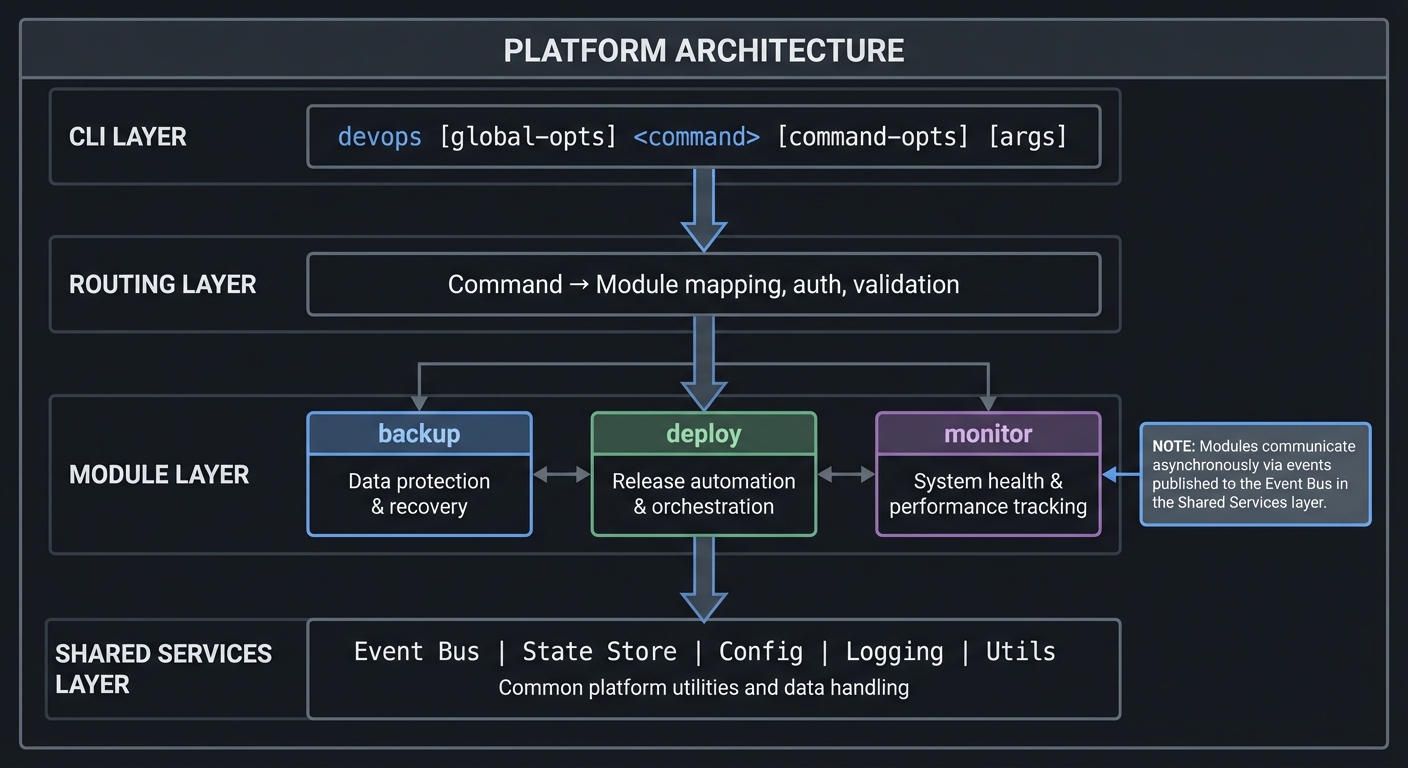
Testing strategy for integrated systems:
- Unit tests: Each module tested in isolation with mocked dependencies
- Integration tests: Pairs of modules tested together
- End-to-end tests: Full workflows (
deploy production --backup-first) - Chaos tests: What happens when modules fail mid-operation?
Learning milestones:
- Core loads all modules → You understand dynamic loading
- Modules can call each other → You understand the event system
- Errors propagate correctly → You understand platform-wide error handling
- Full deploy workflow works → You understand integration
- Adding a new module is trivial → You’ve achieved good architecture
Common Pitfalls and Debugging
Problem 1: “Modules cannot find shared config”
- Why: Configuration loading is inconsistent.
- Fix: Centralize config loading and document precedence.
- Quick test: Change a global config value and confirm every module sees it.
Problem 2: “Module failures leave system in partial state”
- Why: No cross-module rollback logic.
- Fix: Implement transactional phases and rollback hooks.
- Quick test: Force a failure mid-deploy and ensure rollback triggers.
Problem 3: “Event bus loses events”
- Why: Events are not persisted or handlers are not registered.
- Fix: Add an event log and registration validation.
- Quick test: Emit a test event and verify handlers fire.
Problem 4: “Plugins break due to interface drift”
- Why: No versioned contract or validation.
- Fix: Add a module interface spec and version check.
- Quick test: Load an incompatible plugin and ensure it fails gracefully.
Definition of Done
- Core CLI loads modules dynamically
- Shared config, logging, and state work across modules
- End-to-end workflows complete (backup + deploy + monitor)
- Platform can be extended with a new module in under 30 minutes
- Integration tests cover at least 3 multi-module workflows
Project Comparison Table
| # | Project | Difficulty | Time | Concepts Covered | Coolness |
|---|---|---|---|---|---|
| 1 | Dotfiles Manager | Beginner | Weekend | Symlinks, paths, conditionals | ★★★☆☆ |
| 2 | File Organizer | Beginner | Weekend | Loops, arrays, pattern matching | ★★★☆☆ |
| 3 | Log Parser | Intermediate | 1-2 weeks | grep, awk, streams, regex | ★★★☆☆ |
| 4 | Git Hooks Framework | Intermediate | 1-2 weeks | Exit codes, stdin, subprocess | ★★★☆☆ |
| 5 | Backup System | Intermediate | 1-2 weeks | rsync, hard links, atomicity | ★★★☆☆ |
| 6 | System Monitor | Advanced | 2-3 weeks | /proc, ANSI, signals, TUI | ★★★★☆ |
| 7 | CLI Parser Library | Advanced | 2-3 weeks | API design, scoping, parsing | ★★★☆☆ |
| 8 | Process Supervisor | Expert | 3-4 weeks | Daemons, signals, IPC | ★★★★☆ |
| 9 | Network Toolkit | Advanced | 2-3 weeks | Networking tools, parallel | ★★★★☆ |
| 10 | Deployment Tool | Advanced | 2-3 weeks | SSH, atomic deploy, rollback | ★★★☆☆ |
| 11 | Test Framework | Intermediate | 1-2 weeks | Subshells, mocking, isolation | ★★★☆☆ |
| 12 | Task Runner | Advanced | 2-3 weeks | Graphs, dependencies, parallel | ★★★☆☆ |
| 13 | Security Scanner | Advanced | 2-3 weeks | Permissions, auditing, patterns | ★★★★☆ |
| 14 | Menu System | Intermediate | 1-2 weeks | Terminal input, ANSI, state | ★★★☆☆ |
| 15 | Mini Shell | Master | 4-6 weeks | Parsing, fork, exec, pipes | ★★★★★ |
| Final | DevOps Platform | Master | 2-3 months | All of the above | ★★★★★ |
Recommendation
For Complete Beginners
Start with Project 1 (Dotfiles Manager), then Project 2 (File Organizer). These introduce core concepts without overwhelming complexity. Then proceed to Project 3 (Log Parser) to learn text processing.
Suggested path: 1 → 2 → 3 → 4 → 11 → 5 → 14
For Intermediate Programmers
If you’re comfortable with basic shell scripting, start with Project 3 (Log Parser) to solidify text processing, then jump to Project 6 (System Monitor) for a challenging TUI project.
Suggested path: 3 → 6 → 7 → 8 → 10 → 12
For Advanced Programmers
Go straight to Project 8 (Process Supervisor) or Project 15 (Mini Shell) if you want deep systems understanding. These are the most educational for experienced developers.
Suggested path: 8 → 15 → Final Project
For DevOps Engineers
Focus on the operations-heavy projects: Project 5 (Backup), Project 10 (Deployment), Project 13 (Security), and Project 12 (Task Runner).
Suggested path: 3 → 5 → 10 → 12 → 13 → Final Project
Final Overall Project
If you are ready to integrate everything: Build Project 16: DevOps Automation Platform.
- Unify your reusable libraries (
logging,argparse,config,state) from Projects 7, 11, and 12. - Convert Projects 5, 6, 10, and 13 into pluggable modules with a stable module contract.
- Implement end-to-end workflows (
backup -> deploy -> verify -> notify) with rollback paths.
Success criteria: One CLI can coordinate deployment, monitoring, backup, and security scanning with deterministic logs and reproducible outcomes.
From Learning to Production
| Your Learning Project | Production Equivalent | Gap to Fill |
|---|---|---|
| Dotfiles Manager | Ansible/Chezmoi | Remote state, fleet-scale rollout |
| Backup System | Restic/Borg/Velero | Encrypted storage, retention policy controls |
| Deployment Automation | Argo CD/GitHub Actions/GitLab CI | Multi-env promotion, secret management |
| Process Supervisor | systemd/supervisord | Service hardening, observability integration |
| Security Audit Scanner | Lynis/OpenSCAP | Compliance mapping, signed reports |
| DevOps Platform Capstone | Internal Platform CLI | Access control, SLOs, operational ownership |
Summary
This learning path covers shell scripting through 15 hands-on projects plus a final capstone project. Here’s the complete list:
| # | Project Name | Main Language | Difficulty | Time Estimate |
|---|---|---|---|---|
| 1 | Personal Dotfiles Manager | Bash | Beginner | Weekend |
| 2 | Smart File Organizer | Bash | Beginner | Weekend |
| 3 | Log Parser & Alert System | Bash | Intermediate | 1-2 weeks |
| 4 | Git Hooks Framework | Bash | Intermediate | 1-2 weeks |
| 5 | Intelligent Backup System | Bash | Intermediate | 1-2 weeks |
| 6 | System Health Monitor | Bash | Advanced | 2-3 weeks |
| 7 | CLI Argument Parser Library | Bash | Advanced | 2-3 weeks |
| 8 | Process Supervisor | Bash | Expert | 3-4 weeks |
| 9 | Network Diagnostic Toolkit | Bash | Advanced | 2-3 weeks |
| 10 | Deployment & Release Automation | Bash | Advanced | 2-3 weeks |
| 11 | Test Framework & Runner | Bash | Intermediate | 1-2 weeks |
| 12 | Task Runner & Build System | Bash | Advanced | 2-3 weeks |
| 13 | Security Audit Scanner | Bash | Advanced | 2-3 weeks |
| 14 | Interactive Menu System | Bash | Intermediate | 1-2 weeks |
| 15 | Mini Shell Implementation | Bash | Master | 4-6 weeks |
| Final | DevOps Automation Platform | Bash | Master | 2-3 months |
Recommended Learning Path
For beginners: Start with projects #1, #2, #3 For intermediate: Jump to projects #3, #6, #7, #8 For advanced: Focus on projects #8, #15, #Final
Expected Outcomes
After completing these projects, you will:
- Deeply understand shell fundamentals: Expansion order, quoting, word splitting—the concepts that prevent 90% of shell bugs
- Master text processing: grep, awk, sed, and pipelines will feel natural
- Build robust automation: Error handling, logging, and defensive programming will be second nature
- Understand Unix systems: Process management, signals, file descriptors, and the /proc filesystem
- Create reusable tools: Library design, API patterns, and clean abstractions
- Automate anything: From simple file organization to complex multi-server deployments
- Debug with confidence: You’ll know exactly what’s happening at every step
- Ace technical interviews: The concepts from these projects map directly to systems programming questions
You’ll have built 16 working projects that demonstrate deep understanding of shell scripting from first principles. Each project produces a real, useful tool—not just toy examples.
Total estimated time: 6-12 months depending on pace and prior experience.
The journey from “copy-pasting shell commands” to “shell scripting master” is challenging but transformative. Shell scripting is the universal glue of Unix systems, and mastering it unlocks capabilities that make everything else easier.
Additional Resources and References
Standards and Specifications
- POSIX Shell Command Language: https://pubs.opengroup.org/onlinepubs/9699919799/utilities/V3_chap02.html
- GNU Bash Reference Manual: https://www.gnu.org/software/bash/manual/bash.html
- GitHub Actions Workflow Syntax (
defaults.run.shell): https://docs.github.com/en/actions/using-workflows/workflow-syntax-for-github-actions#defaultsrun - GitLab Runner Shells: https://docs.gitlab.com/runner/shells/
Industry Analysis and Adoption
- W3Techs Linux Usage Trends (Feb 2026): https://w3techs.com/technologies/details/os-linux
- Stack Overflow Developer Survey 2024 (Bash/Shell usage): https://survey.stackoverflow.co/2024/technology#most-popular-technologies-language-prof
Books
- “The Linux Command Line” by William Shotts - command-line and shell fundamentals
- “Learning the Bash Shell” by Cameron Newham - Bash language internals and patterns
- “Advanced Programming in the UNIX Environment” by Stevens/Rago - processes, signals, and file descriptors
- “The Linux Programming Interface” by Michael Kerrisk - production-level Unix systems behavior