Project 6: Chore Tracker with Parent Zone
Build a local-only chore tracker with a gated parent dashboard.
Quick Reference
| Attribute | Value |
|---|---|
| Difficulty | Level 2 (Intermediate) |
| Time Estimate | 1-2 weeks |
| Main Programming Language | Swift (Alternatives: Objective-C, JavaScript React Native, C# Unity) |
| Alternative Programming Languages | Objective-C, JavaScript React Native, C# Unity |
| Coolness Level | Level 2 (Practical but Forgettable) |
| Business Potential | Level 2 (Micro-SaaS / Pro Tool) |
| Prerequisites | Basic UI state, local storage |
| Key Topics | Parental gate design, local persistence, privacy |
1. Learning Objectives
By completing this project, you will:
- Design a parent zone protected by a gate.
- Store child progress locally without personal identifiers.
- Separate child-facing and parent-facing UX flows.
- Build simple progress summaries that parents can understand quickly.
2. All Theory Needed (Per-Concept Breakdown)
Parental Gate and Privacy-First Progress Tracking
Fundamentals
Kids apps require a clear boundary between the child experience and the parent controls. A parental gate is a mechanism that blocks access to settings, purchases, and external links. It should be solvable by an adult quickly and reliably, but not by a young child. The simplest patterns are a two-corner press-and-hold or a short math question. The gate is not parental consent under law, but it is a required safety feature for Kids Category apps.
A chore tracker introduces progress tracking. In a kids app, progress must be local and anonymous. That means you store only what is needed to show progress: which chores are done and when. You should not store names, addresses, or any personal identifiers. If multiple children share a device, you can use anonymous profiles such as “Profile A” with an icon. The goal is to give parents visibility while protecting privacy.
The child-facing UI must be simple and motivating. A list of chores with large icons and a tap-to-complete action is enough. The parent-facing UI can be slightly more detailed, but still should be fast to read. Parents often open the app for a few seconds only. A weekly summary is sufficient.
Chore tracking is about motivation, not control. The child should feel a sense of progress and responsibility, not pressure. This means rewards should be small and consistent, like a sticker or star. Avoid streaks or penalties, which can create stress.
Parents want clarity. A parent should be able to glance at the summary and understand whether chores are being completed. This is why the summary should be simple: counts per day or per week. Detailed logs are rarely necessary for this use case.
Another fundamental is trust. If parents see external links or unclear data usage in a kids app, trust is lost. This is why the app should feel obviously local and safe, with no ads or tracking. That trust is a feature.
A supportive tone matters. Chores are sensitive for families. The app should avoid any language that blames a child for not completing tasks. Instead, use neutral phrasing like “Today” or “This week.” This keeps the app positive and reduces conflict.
Chore schedules can be simple. For example, daily chores and weekly chores. Avoid complex scheduling logic for this project. A simple daily reset or weekly reset is enough and reduces the risk of confusing parents. The simplicity also makes the data model easier to reason about.
Another fundamental is predictability. If a child checks off a chore and the app later shows it as unchecked, trust is lost. This means your local storage must be reliable and your UI must always reflect stored state. Consistency is critical for both children and parents.
Design the child list so completed chores are still visible but clearly marked. Removing them can confuse children who want to see what they already did. A simple checkmark keeps the history visible and rewarding.
Even small children benefit from visible progress. A row of stickers or stars can make the completion state clear without any text.
Deep Dive into the Concept
The parent zone is both a UX and compliance pattern. From a UX perspective, you must make it discoverable for parents but not tempting to children. A small gear icon in a corner is common. When tapped, the gate appears. The gate should not feel like a puzzle. It should feel like a quick adult check. If the gate is too hard, parents will become frustrated and stop using the app.
There are several gate patterns, each with tradeoffs. A two-corner press-and-hold is quick and works without text. It is good for parents with limited time. A math question is more explicit and harder for kids, but requires reading. A “type this word” gate works for older kids apps but not for younger. In this project, choose a gate that matches the target age band. For mixed-age, two-corner press-and-hold is a safe default.
The parent zone should include only the necessary controls: add chores, reset, and view summary. Do not add settings that the child can discover easily in the main flow. Keep the parent zone visually distinct, perhaps with a different color palette or a “Parent Zone” label. This signals to the child that it is not their area. But avoid dark or scary visuals; the child might still see it.
Local persistence is another key concept. The simplest storage for a chore tracker is a list of tasks and a completion record. The completion record can be a list of dates or a simple weekly count. Keep it small and local. The more data you store, the more you risk privacy issues. A good rule is: if a parent can see the progress without identifying the child, that is enough.
Designing the data model is part of the learning. A chore has a name, an icon, and a schedule. A completion is a timestamp or a day index. You should avoid storing exact times if not needed. A “done today” boolean might be enough. That reduces sensitivity. If you later want to add streaks or badges, store only aggregate counts.
Another key design decision is how to prevent accidental resets. The parent zone should require confirmation before resetting data. A common approach is a second confirmation dialog within the parent zone. This ensures that a child cannot reset by accident if they somehow reach the zone.
The child-facing experience should feel rewarding but not manipulative. A simple sticker or star on completion is enough. Avoid daily streak pressure or countdown timers. The goal is to encourage responsibility, not to create a game addiction. Parents appreciate calm design.
You also need to think about offline-first behavior. All progress should be stored locally and available immediately. No sync is needed for this project. If you later add sync, you must revisit privacy and parental consent.
From an architecture perspective, you should separate the parent zone data from the child UI. The parent zone reads and writes the same local data, but the UI flows are distinct. This separation reduces the chance that a child can access parent features.
Finally, remember that compliance is not just about data. It is also about content. The language you use should be age-appropriate and neutral. Avoid any phrasing that suggests the child is “bad” for missing chores. This is a subtle but important part of kid-safe design.
The data model should be designed for minimal sensitivity. You can store a list of chores and a simple completion map keyed by day index. Avoid storing exact timestamps, which are more sensitive and usually not necessary. A day-based index is enough for weekly summaries.
Parent gate design should be consistent with the rest of the app. If the gate uses a math question, ensure it is displayed in a parent-friendly style and not mixed into the child UI. If you use a press-and-hold gate, give clear instructions for parents.
Consider edge cases like a parent changing the chore list mid-week. Your summary should handle new chores gracefully without corrupting existing data. This may require storing chore ids and not relying on list positions.
Finally, you should provide an easy way to reset or export data. Even if the app is local-only, parents may want to clear data or start fresh. Provide this in the parent zone with confirmation.
If you support multiple profiles, keep them anonymous. A simple icon-based profile chooser in the parent zone is enough. Each profile can have its own chore list and completion map. This design preserves privacy while supporting families with multiple kids.
Data retention should be explicit. Decide how many weeks of data you keep and document it in the parent zone. A simple “Keep last 4 weeks” rule is easy to explain and reduces data risk.
If you add a weekly view, decide whether the week starts on Monday or Sunday and keep it consistent. This sounds small, but inconsistency can confuse parents. Store a clear rule in your settings and apply it everywhere. This is an example of how small design decisions affect trust.
You should also think about how to handle device sharing. If the device is shared by siblings, parents may want to switch profiles quickly. A simple icon-based chooser in the parent zone can solve this without personal data. This keeps privacy intact while supporting real family use.
Consider supporting a simple “undo” within a short time window. Children may accidentally tap the wrong chore. A small undo button or a tap-to-toggle behavior can reduce frustration. This is a UX safety feature that keeps the experience calm and forgiving.
A weekly summary can be shown as simple bars or dots, one per day. This gives parents a quick view without heavy charts. The rule is: if a parent cannot understand it in five seconds, it is too complex.
Consider adding a brief help note in the parent zone that explains the gate action. This helps new parents understand how to access controls quickly.
How this Fits in the Project
This project applies privacy-first storage and parental gates in a real, parent-facing feature set. It is the clearest example of compliance in this series.
Definitions & Key Terms
- Parental gate: Adult-only barrier before settings or external links.
- Parent zone: A separate UI area for adult controls.
- Local persistence: Storing data on device only.
- Anonymous profile: A child profile without personal identifiers.
- Progress summary: A high-level view of completion data.
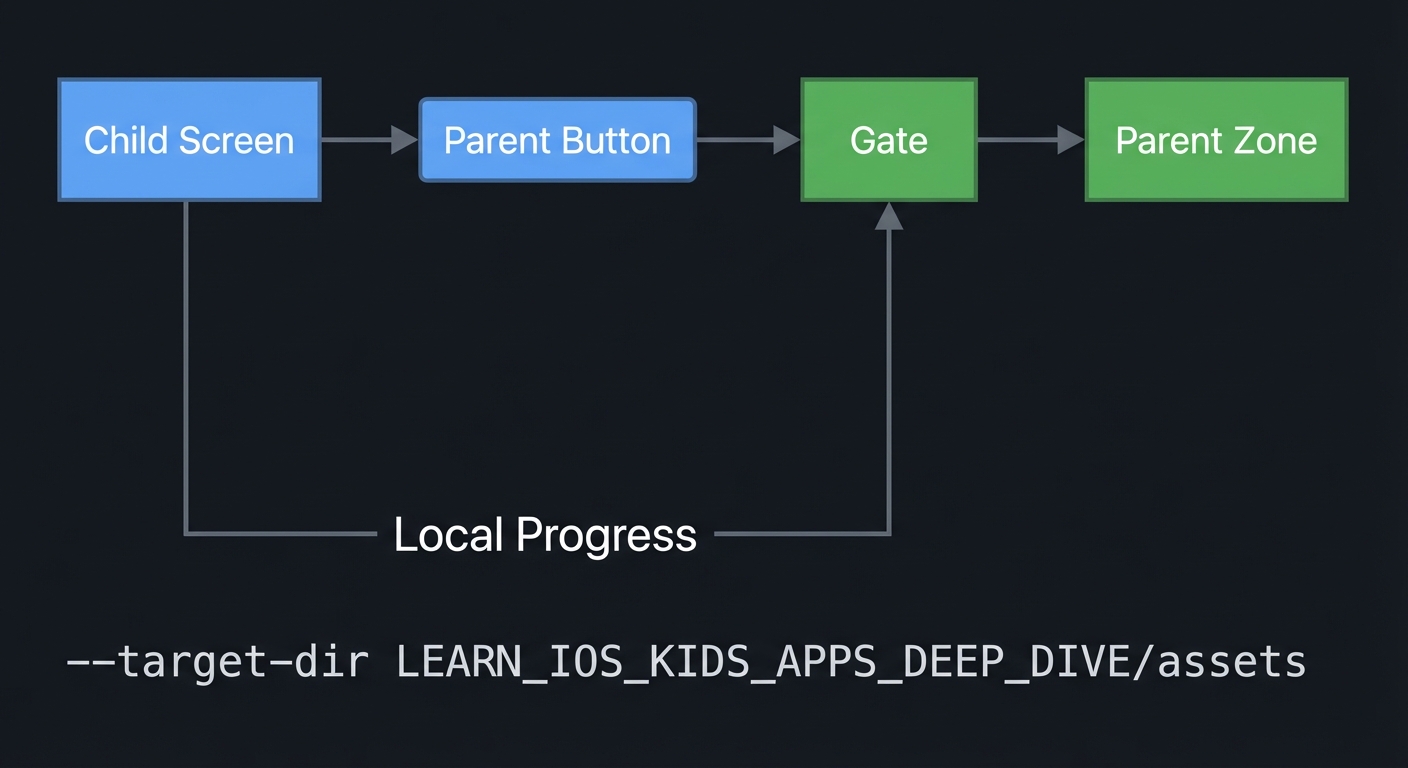
Mental Model Diagram (ASCII)
Child Screen -> (Parent Button) -> Gate -> Parent Zone
      |                                 |
      |-------- Local Progress ---------|
How It Works (Step-by-Step)
- Child views chore list and taps to mark complete.
- Completion is stored locally.
- Parent taps parent button and sees gate challenge.
- If gate succeeds, parent zone opens with summary and controls.
Invariants:
- Parent zone is always gated.
- Progress is stored locally.
Failure modes:
- Gate is bypassed.
- Progress resets without confirmation.
Minimal Concrete Example (Pseudocode)
ON parentButtonTap:
  SHOW gate
  IF gateSuccess:
     SHOW parentZone

ON choreTap:
  TOGGLE completion for today
  UPDATE local storage
Common Misconceptions
- “A gate is the same as parental consent.” It is not; it is a UI safety measure.
- “Parents want detailed analytics.” Most want quick summaries.
- “Progress data must be tied to names.” It should be anonymous.
Check-Your-Understanding Questions
- Why must the parent zone be gated in a kids app?
- What is the safest form of progress data for children?
- How can you prevent accidental resets?
Check-Your-Understanding Answers
- To prevent children from accessing settings or external links.
- Local-only, anonymous completion records.
- Require confirmation inside the parent zone.
Real-World Applications
- Family chore apps
- Classroom task trackers
- Behavior reward charts
Where You Will Apply It
- In this project: see Section 3.7 Real World Outcome and Section 5.10 Implementation Phases.
- Also used in: Project 9 for parent summaries.
References
- Apple App Store Review Guidelines (Kids Category)
- “Design It!” by Michael Keeling - Ch. 2
Key Insight
A simple parent zone builds trust when it is gated, clear, and privacy-safe.
Summary
The parental gate and local progress tracking are essential for kid-safe apps. They provide control for adults without compromising child privacy.
Homework / Exercises to Practice the Concept
- Design two gate patterns and explain which age band fits each.
- Define a minimal progress record for weekly chores.
- Write a one-sentence explanation of why data is stored locally.
Solutions to the Homework / Exercises
- Two-corner press for ages 5-8; simple math for ages 9-11.
- A list of chores with a boolean done flag per day.
- “We store progress only on this device to protect your child’s privacy.”
3. Project Specification
3.1 What You Will Build
A chore tracker with child-friendly checkboxes and a parent zone for managing chores and viewing progress summaries.
3.2 Functional Requirements
- Chore list: Display chores with large icons.
- Completion: Tapping a chore marks it done.
- Parent gate: Parent zone requires a gate.
- Summary: Parent zone shows weekly completion counts.
3.3 Non-Functional Requirements
- Performance: Updates are instant.
- Reliability: Progress persists across app restarts.
- Usability: Parent zone accessible in under 10 seconds.
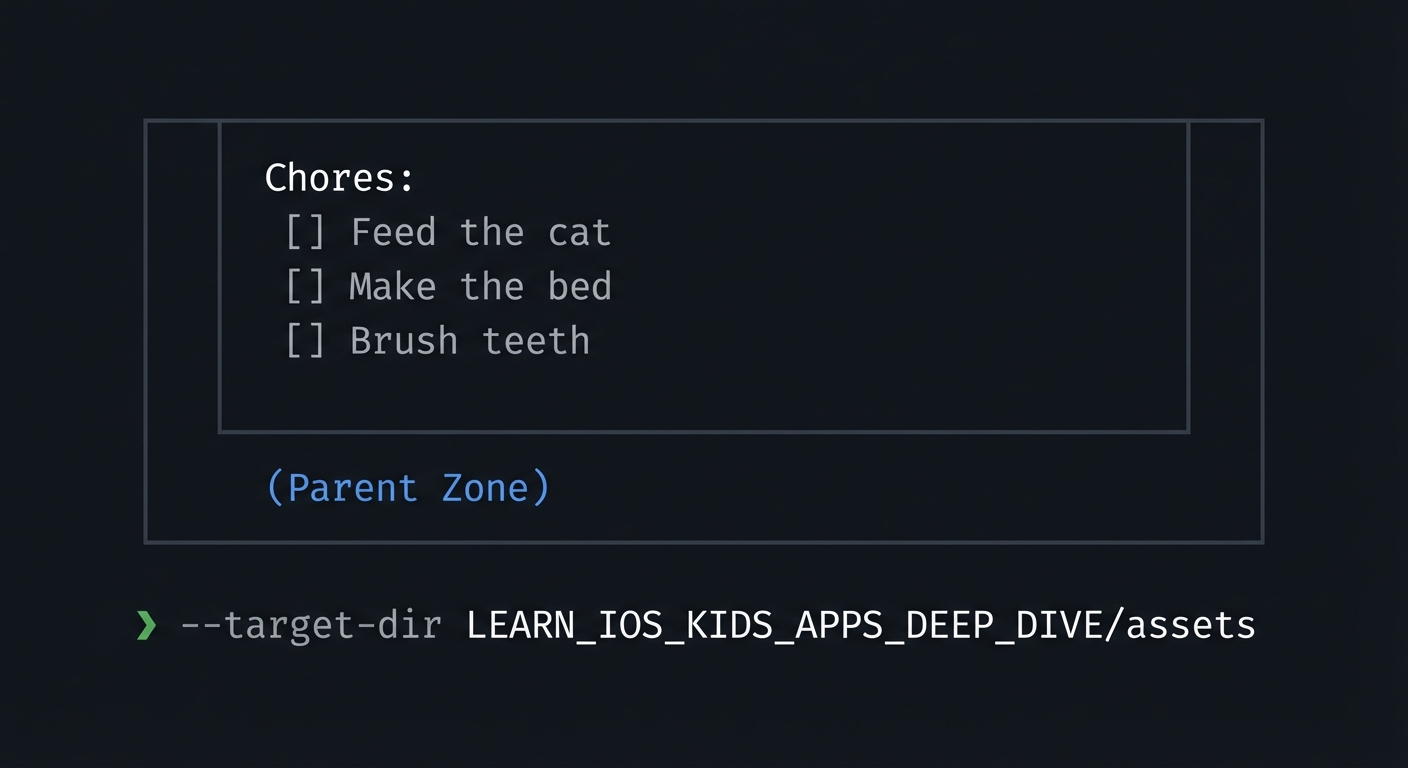
3.4 Example Usage / Output
ASCII wireframe:
+----------------------------------+
| Chores:                           |
| [ ] Feed the cat                  |
| [ ] Make the bed                  |
| [ ] Brush teeth                   |
|                                  |
| (Parent Zone)                    |
+----------------------------------+
3.5 Data Formats / Schemas / Protocols
- Chore: { id, name, icon_id, schedule }
- Completion: { chore_id, day_index, done }
3.6 Edge Cases
- Child taps parent zone repeatedly
- Chore list is empty
- Parent resets data accidentally
3.7 Real World Outcome
3.7.1 How to Run (Copy/Paste)
- Run in iPhone simulator.
- Tap chores and open parent zone.
3.7.2 Golden Path Demo (Deterministic)
Scenario: Mark “Feed the cat” done, then open parent zone.
Expected behavior:
- Chore shows a star or check mark.
- Parent zone shows 1 completed chore today.
3.7.3 Failure Demo (Deterministic)
Scenario: Attempt to open parent zone without completing gate.
Expected behavior:
- Parent zone remains locked.
- Child returns to chore list.
3.7.4 Mobile UI Details
- List of chores with large icons.
- Parent zone button in corner.
- Parent zone shows summary and edit controls.
4. Solution Architecture
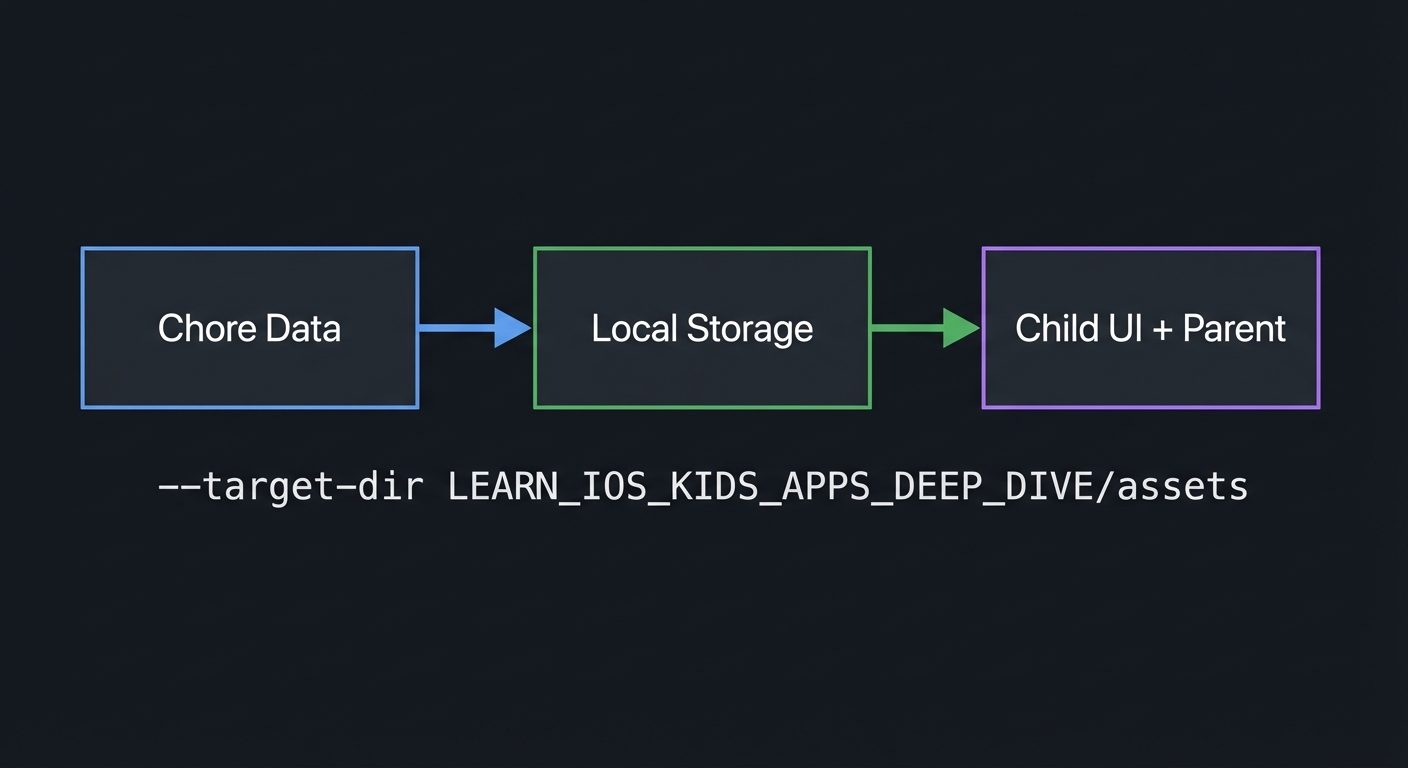
4.1 High-Level Design
+-------------+      +------------------+      +------------------+
| Chore Data  | ---> | Local Storage    | ---> | Child UI + Parent|
+-------------+      +------------------+      +------------------+
4.2 Key Components
| Component | Responsibility | Key Decisions |
|---|---|---|
| Chore List | Defines chores | Simple local list |
| Progress Store | Saves completion | Local only |
| Parent Gate | Protects settings | Adult-only challenge |
4.3 Data Structures (No Full Code)
- ChoreList: list of chore records
- CompletionMap: map of day to completed chores
4.4 Algorithm Overview
Key Algorithm: Completion Update
- Toggle chore done for current day.
- Persist locally.
- Update summary counts.
Complexity Analysis:
- Time: O(1) per toggle
- Space: O(C*D) for chores and days
5. Implementation Guide
5.1 Development Environment Setup
xcodebuild -version
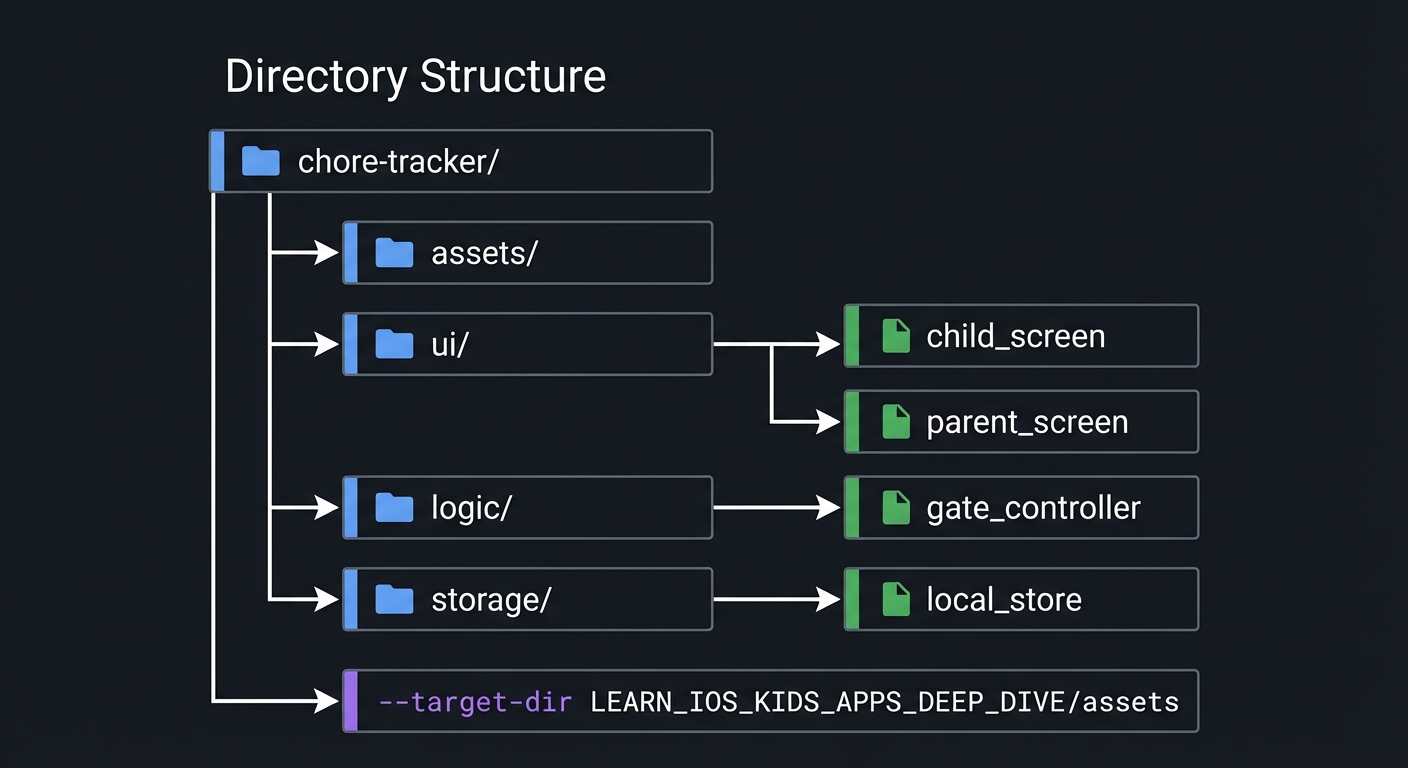
5.2 Project Structure
chore-tracker/
+-- assets/
+-- ui/
|   +-- child_screen
|   `-- parent_screen
+-- logic/
|   `-- gate_controller
`-- storage/
    `-- local_store
5.3 The Core Question You’re Answering
“How do I give parents control without letting kids access settings?”
5.4 Concepts You Must Understand First
- Parental gate design
- What makes a gate safe and fast?
- Book Reference: “Design It!” - Ch. 2
- Local persistence
- How do you store progress without personal data?
- Book Reference: “Clean Architecture” - Ch. 1
5.5 Questions to Guide Your Design
- Gate pattern
- Which gate type fits the target age?
- How do you prevent children from learning it?
- Progress summary
- What metrics matter most to parents?
- How can it be shown in 10 seconds?
5.6 Thinking Exercise
Parent Zone Map
Sketch the parent zone and list the minimum actions it should allow.
5.7 The Interview Questions They’ll Ask
- “How do you design a parental gate?”
- “Why local-only storage for kids apps?”
- “How do you prevent accidental resets?”
- “What should a parent dashboard show?”
- “How do you separate child and parent UX?”
5.8 Hints in Layers
Hint 1: Separate screens Keep parent zone and child zone completely separate.
Hint 2: Keep it minimal Parents need quick summaries, not dashboards.
Hint 3: Add confirmations Require confirmation before resets.
Hint 4: Debug gate Log gate attempts for testing.
5.9 Books That Will Help
| Topic | Book | Chapter |
|---|---|---|
| UX decisions | “Design It!” | Ch. 2 |
| Architecture | “Clean Architecture” | Ch. 1 |
5.10 Implementation Phases
Phase 1: Foundation (3-5 hours)
Goals:
- Chore list UI
- Completion toggles
Tasks:
- Render chore list.
- Toggle completion state.
Checkpoint: Chores can be marked done.
Phase 2: Core Functionality (6-8 hours)
Goals:
- Local persistence
- Parent zone gate
Tasks:
- Store completion data locally.
- Add gate and parent zone screen.
Checkpoint: Parent zone opens only after gate.
Phase 3: Polish & Edge Cases (4-6 hours)
Goals:
- Summary UI
- Reset confirmation
Tasks:
- Add weekly summary view.
- Add reset confirmation.
Checkpoint: Parent can view and reset safely.
5.11 Key Implementation Decisions
| Decision | Options | Recommendation | Rationale |
|---|---|---|---|
| Gate type | Math vs hold | Two-corner hold | Pre-literate friendly |
| Summary detail | Full list vs count | Counts and simple icons | Fast to read |
| Storage | Device only | Local only | Privacy safe |
6. Testing Strategy
6.1 Test Categories
| Category | Purpose | Examples |
|---|---|---|
| Unit | Storage update | Toggle chore |
| Integration | Gate flow | Parent access |
| Edge Case | Reset confirm | Cancel reset |
6.2 Critical Test Cases
- Child cannot access parent zone without gate.
- Completion persists after app restart.
- Reset requires confirmation.
6.3 Test Data
Chores: Feed cat, Make bed, Brush teeth
7. Common Pitfalls & Debugging
7.1 Frequent Mistakes
| Pitfall | Symptom | Solution |
|---|---|---|
| Ungated entry | Child sees settings | Gate every entry |
| Lost progress | Data reset | Persist locally |
| Overload | Too many parent options | Keep minimal |
7.2 Debugging Strategies
- Simulate gate failure multiple times.
- Verify storage keys after app restart.
7.3 Performance Traps
- Large data models can slow loading; keep storage minimal.
8. Extensions & Challenges
8.1 Beginner Extensions
- Add icons for each chore.
8.2 Intermediate Extensions
- Add weekly badge rewards.
8.3 Advanced Extensions
- Add anonymous multi-profile support.
9. Real-World Connections
9.1 Industry Applications
- Family task apps
- Classroom responsibility charts
9.2 Related Open Source Projects
- Look for simple checklist apps with local storage.
9.3 Interview Relevance
- Privacy-first design
- State separation
10. Resources
10.1 Essential Reading
- “Design It!” - Ch. 2
- “Clean Architecture” - Ch. 1
10.2 Video Resources
- Talks on privacy-first kids design
10.3 Tools & Documentation
- Apple App Store Review Guidelines (Kids)
10.4 Related Projects in This Series
11. Self-Assessment Checklist
11.1 Understanding
- I can explain parental gates.
- I can explain local-only storage.
- I can explain why parent summaries are simple.
11.2 Implementation
- Parent zone is gated.
- Progress persists reliably.
- Reset is safe.
11.3 Growth
- I can describe multi-profile improvements.
- I can explain this project in an interview.
12. Submission / Completion Criteria
Minimum Viable Completion:
- Chore list with completion toggles
- Parent gate
Full Completion:
- Weekly summary and reset controls
Excellence (Going Above & Beyond):
- Anonymous profiles and badge system