Project 3: Read-Aloud Storybook
Build a read-aloud storybook with page turns, narration, and text highlighting.
Quick Reference
| Attribute | Value |
|---|---|
| Difficulty | Level 2 (Intermediate) |
| Time Estimate | 1-2 weeks |
| Main Programming Language | Swift (Alternatives: Objective-C, C# Unity, JavaScript React Native) |
| Alternative Programming Languages | Objective-C, C# Unity, JavaScript React Native |
| Coolness Level | Level 3 (Genuinely Clever) |
| Business Potential | Level 2 (Micro-SaaS / Pro Tool) |
| Prerequisites | Project 1 loop, audio handling basics |
| Key Topics | Media timing, page state, parental gates |
1. Learning Objectives
By completing this project, you will:
- Synchronize narration audio with visual text highlights.
- Model page navigation as a predictable state machine.
- Design a parental gate for external links.
- Build a content pipeline for story assets.
2. All Theory Needed (Per-Concept Breakdown)
Synchronized Storytelling (Audio, Text, and Visual Flow)
Fundamentals
A read-aloud storybook is a multi-channel experience. The child sees an illustration, hears narration, and may follow along with highlighted text. The goal is not just to read a story but to help the child connect sounds with symbols. That means timing matters. If the audio says a word and the highlight lags behind, the connection breaks. If the highlight moves too fast, the child cannot keep up. Synchronization is therefore the heart of the experience.
The basic unit of synchronization is a segment. A segment is a small piece of narration tied to a specific piece of text. You can define segments as words, phrases, or lines. For younger children, line-level highlighting is often enough because they are still learning to track text visually. For older children, word-level highlighting is more useful. The choice of segment size is a design decision, not just a technical one.
The second foundational concept is page state. A storybook is a sequence of pages, each with its own assets and timing. The child should be able to move forward and backward. You must keep the current page, the narration state, and the highlight state in sync. If the user swipes to the next page during narration, you should stop the audio and reset highlights. Consistency is more important than fancy transitions.
Finally, there is the parent gate. Storybooks often include a “More Stories” link or a settings area. In a kids app, that must be gated. The gate is part of the narrative flow: it should not distract the child but should also be easy for parents to find. The gate is a boundary between safe content and external content.
Storybooks are also about pacing. The narration pace should match the target age band. For early readers, slower pacing helps them map sounds to text. For older children, too slow pacing can be boring. This is why some story apps offer a speed toggle, but that is optional. For this project, choose a single pacing that matches your target age band and keep it consistent.
Layout is another fundamental. The illustration should dominate the page, with text in a consistent area. If text moves around between pages, the child will have to re-orient each time. A stable text area supports reading skills. The text size should be large and high-contrast for readability.
Storybooks also benefit from repetition. Repeated phrases help children anticipate words and build confidence. When you design your content, consider how repetition supports learning. This is content design, but it affects how you structure timing maps and highlights.
Another fundamental is control simplicity. The child should not face a complex media player. A single “Read” button and a clear “Next” control is enough. Avoid small play or pause icons that rely on adult familiarity. If you include pause, make it large and obvious.
Finally, remember that storybooks are shared experiences. Many parents read along with children. The app should not fight this. Avoid auto-advancing pages or hiding text during narration. Instead, keep the interface stable so a parent can read along and point at words. This social aspect is part of the learning value.
Deep Dive into the Concept
Synchronization is about aligning time. Audio is time-based, text is spatial, and images are static. Your job is to map time to space. The most practical way is to define a timing map for each page: a list of segments with start and end times. This map can be created manually when you record narration, or generated with tools, but for a small storybook you can create it by hand. The key is to keep it deterministic. If the same audio plays, the same highlights should always appear at the same times.
You must decide how much control the child has. There are three common interaction models:
- Auto-play: audio starts automatically when a page appears.
- Tap-to-play: the child taps a button to start narration.
- Tap-to-replay: the child can replay any segment or the full page.
For younger kids, auto-play reduces friction. For older kids, tap-to-play gives control and lets them read first. A hybrid model often works: auto-play the first time, then offer a replay button. But you should avoid constant auto-play if the child is exploring the page interactively.
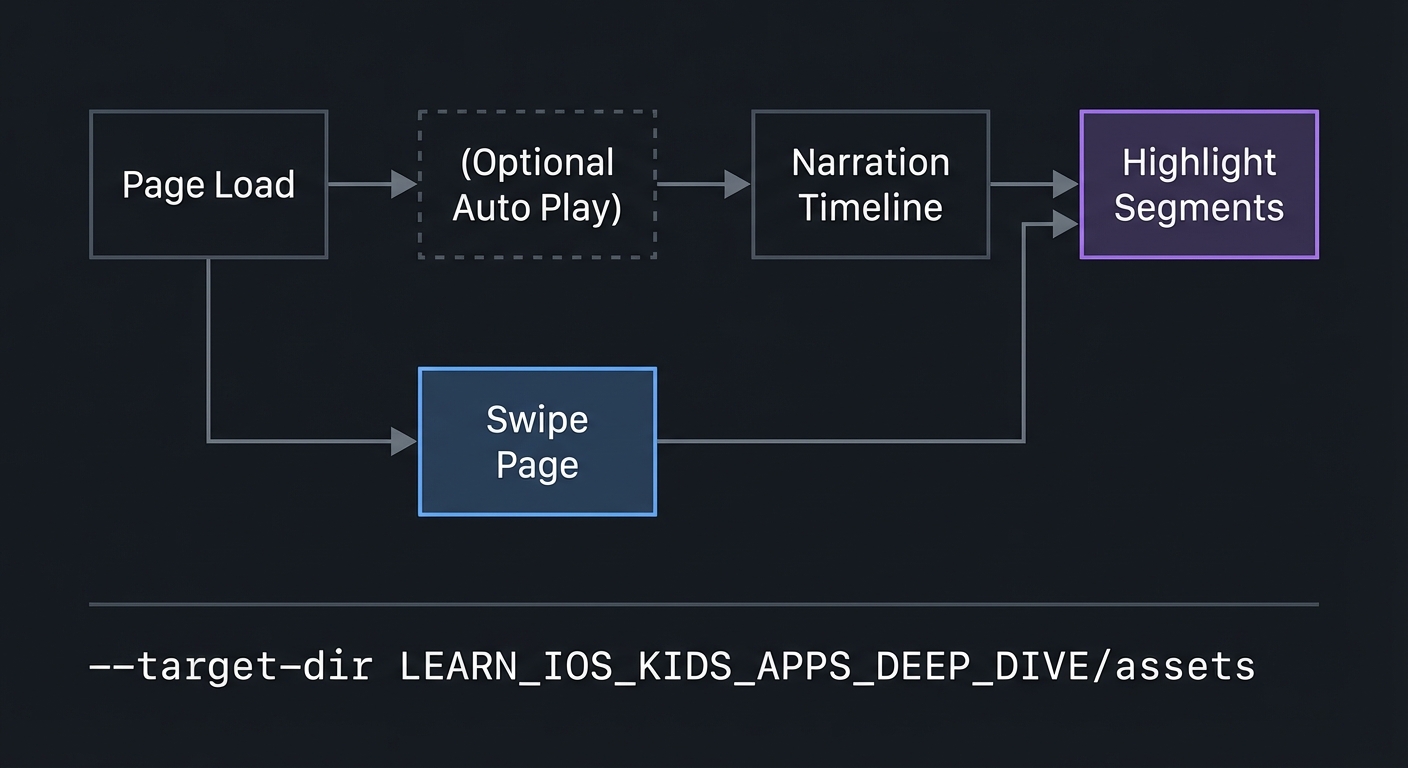
Page navigation should be predictable. Use a simple left-to-right swipe or large next/previous buttons. The important part is that navigation always stops narration cleanly. Overlapping narration from two pages creates confusion. Therefore, when a page changes, the system should: stop audio, clear highlights, load new assets, and then optionally start narration.
Another subtle issue is highlight timing. If you highlight word by word, the highlight may jump quickly. This can be disorienting. A line-level highlight is calmer. For example, highlight a full line as the narration reads that line, then move to the next. This creates a slower visual rhythm. If you choose word-level highlights, you must ensure the highlight is visually gentle, not a flashing effect. A soft underline or background tint works better than a bright flash.
Audio quality is critical. A storybook often has more narrative tone than a simple flashcard. You need consistent pacing and a clear voice. If the narration is too fast, younger children cannot follow. If too slow, older children lose interest. This is why you should align the story to a target age band before recording. Record in a quiet space, normalize volume, and avoid background noise.
The content pipeline also matters. A story page includes image, text, audio, and timing map. Store these as a small content pack. Each page should be self-contained so that you can add or remove pages without breaking others. A common mistake is to hardcode page data inside the UI. That makes it hard to scale. Instead, define a separate content list and map the UI to it.
The parental gate is a different type of synchronization: it is a state boundary. The child must not accidentally enter the parent zone. That means the parent button should be visible but not too tempting. A small gear icon in a corner, protected by a gate, is common. When the child taps it, the gate appears with a simple adult challenge. Only after successful completion does the app show the parent content. This is also where you can place external links.
From a state machine perspective, you have at least three high-level states: reading, paused, and parent-gated. Within reading, you have page states. This hierarchy can be represented explicitly or implicitly, but you should know which state you are in at all times. This is how you avoid audio continuing when you should be in a parent gate.
Synchronization is not just technical; it is educational. When a child sees a word highlighted as they hear it, they build phoneme-to-letter associations. The more consistent the timing, the stronger the association. If the timing is off, the learning value drops. That is why the timing map should be treated as core content, not a small detail.
Finally, test with real kids. You will likely discover that some timing that feels right to you is too fast for them. Adjust. The timing map makes this easy: you can shift the highlight windows without re-recording audio if you plan it well. This is another reason to keep timing data separate from code.
Segment definition is both a technical and pedagogical choice. Word-level segments are precise but can be visually noisy. Line-level segments are calmer. Phrase-level segments are a middle ground. Your timing map should reflect this choice. If you decide on line-level highlights, ensure that the narration pauses slightly between lines so the child can follow the shift.
When a child taps replay, you need to decide whether to replay the whole page or the current segment. Younger children often benefit from whole-page replay because they are listening to the story, not studying a specific word. Older children might prefer segment replay. You can choose one approach for this project and keep it consistent.
Page transitions should be clean. If the child swipes mid-narration, you should stop audio immediately and clear highlights. This means your audio system should support an immediate stop. It also means your UI should not show any residual highlight from the previous page. This is a common bug if you do not reset state properly.
Parent gating for external links in a storybook is particularly important because storybooks often include “More stories” or “Visit our website” buttons. The gate should be visually distinct from the story UI so the child understands it is not part of the story. But it should still be easy for parents to find.
Asset loading strategy matters for performance. Each page should be able to load quickly. You can preload the next page in the background to avoid stutter when the child swipes. This is especially important on older devices. Preloading one page ahead is a good compromise between responsiveness and memory use.
Synchronization testing should include edge cases like skipping pages rapidly or replaying audio multiple times in quick succession. The system should remain stable, with no overlapping audio and no lingering highlights.
You should also plan for accessibility features such as voice-over and dynamic text size. Even if you do not implement full support in this project, avoid hard-coding text sizes so the app remains adaptable. This aligns with iOS best practices and makes the storybook usable by a wider range of children.
How this Fits in the Project
This project takes the basic loop from Project 1 and extends it into a long-form narrative flow with synchronized media and page state management.
Definitions & Key Terms
- Timing map: A list of text segments with start and end times tied to audio.
- Segment: The smallest unit of narration that can be highlighted.
- Page state: The current page and its associated media status.
- Narration state: Whether audio is idle, playing, or paused.
- Parent gate: An adult-only barrier before external links or settings.
Mental Model Diagram (ASCII)
Page Load -> (Optional Auto Play) -> Narration Timeline -> Highlight Segments
     |                                      |
     |-> Swipe Page ------------------------|
How It Works (Step-by-Step)
- Load page assets: image, text, audio, timing map.
- Display the page and optionally start narration.
- As audio plays, highlight segments based on timing map.
- On swipe, stop audio and clear highlights.
- If parent button is tapped, show gate before external links.
Invariants:
- Highlights always match the current page.
- Only one page narration plays at a time.
- Parent content is gated.
Failure modes:
- Highlights continue after page change.
- Audio plays without visible text, confusing the child.
- Parent gate can be bypassed.
Minimal Concrete Example (Pseudocode)
STATE: pageIndex, narrationState, currentSegment

ON pageLoad:
  LOAD page assets
  SET narrationState = "idle"

ON playNarration:
  SET narrationState = "playing"
  START audio and timing map

ON audioTick:
  UPDATE currentSegment highlight

ON swipePage:
  STOP audio
  CLEAR highlights
  INCREMENT pageIndex
Common Misconceptions
- “Word-level highlighting is always better.” Not for younger children; line-level is calmer.
- “Auto-play is always best.” It can overwhelm children who want to explore.
- “Parent gates are only for purchases.” They also protect external links and settings.
Check-Your-Understanding Questions
- Why should timing maps be separate from UI code?
- What happens if narration continues after a page swipe?
- How does segment size affect learning value?
- Why must external links always be behind a gate?
Check-Your-Understanding Answers
- It makes timing adjustable and content scalable.
- The child hears audio that does not match the visuals, breaking trust.
- Smaller segments are more precise but can be too fast for younger kids.
- Because kids apps require adult barriers before leaving safe content.
Real-World Applications
- Interactive storybooks
- Language learning story apps
- Early reading support tools
Where You Will Apply It
- In this project: see Section 3.7 Real World Outcome and Section 4.1 High-Level Design.
- Also used in: Project 7 for audio prompts.
References
- Apple Human Interface Guidelines (media and reading experiences)
- Apple Accessibility resources (spoken content)
- “Design It!” by Michael Keeling, Ch. 1-3
Key Insight
Synchronization turns passive listening into active learning by aligning sound and text.
Summary
A read-aloud storybook is a coordination challenge: audio, text, and visual cues must work together. The timing map and page state model are the key technical tools that make this possible.
Homework / Exercises to Practice the Concept
- Define a timing map for a two-line poem.
- Choose word-level or line-level highlighting for ages 5 and under, and explain why.
- Sketch where a parent gate should appear on the last page.
Solutions to the Homework / Exercises
- Two segments with start/end times, one per line.
- Line-level, because it is calmer and easier to track.
- A small “More Stories” button in the corner with a gate.
3. Project Specification
3.1 What You Will Build
A storybook with 8 pages. Each page shows an illustration and 2-3 lines of text. Narration audio plays on demand and highlights the current segment. A parent-gated “More Stories” link appears at the end.
3.2 Functional Requirements
- Page navigation: Swipe or buttons to move between pages.
- Narration: Play, pause, and replay narration.
- Highlighting: Text highlights in sync with narration.
- Parent gate: External links require gate.
3.3 Non-Functional Requirements
- Performance: Pages load smoothly without stutter.
- Reliability: Narration always matches text.
- Usability: Large text and clear controls.
3.4 Example Usage / Output
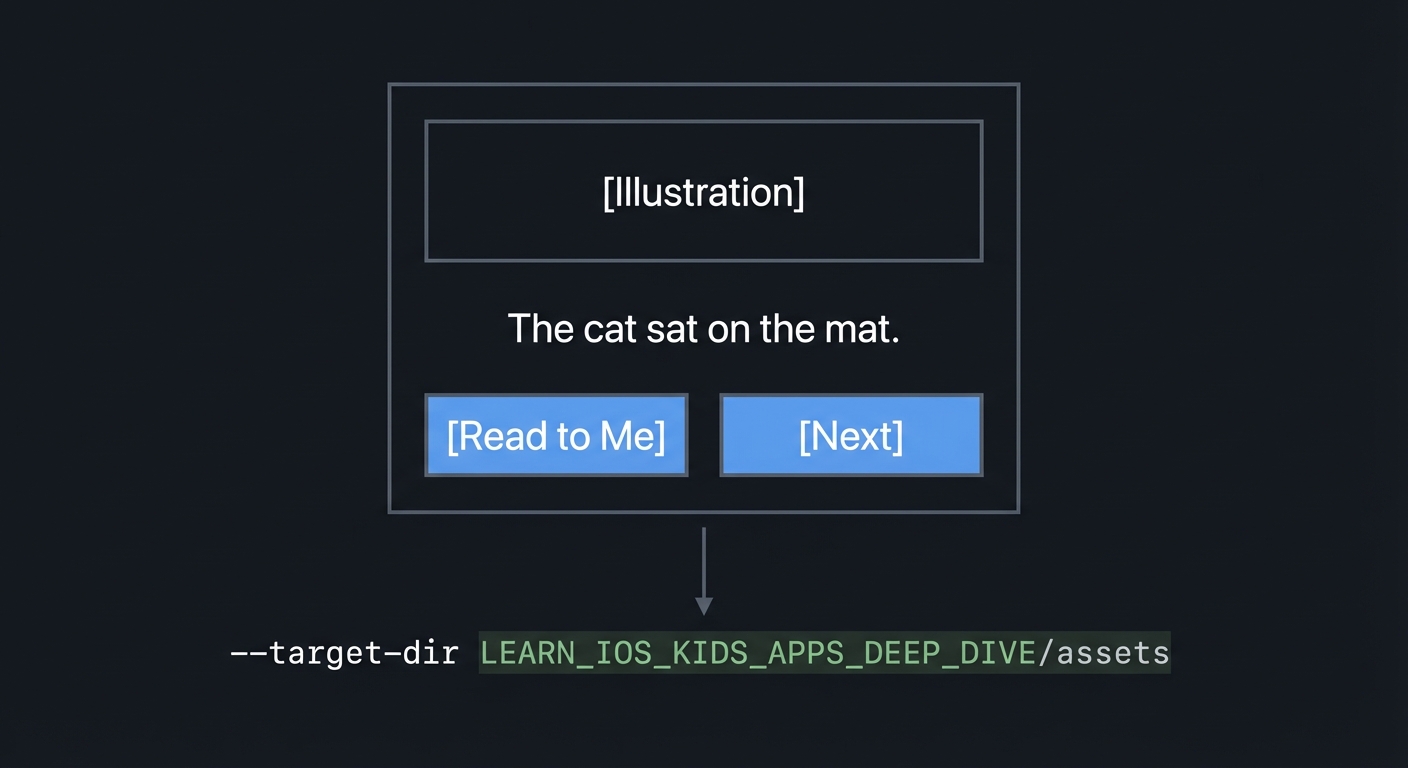
ASCII wireframe:
+----------------------------------+
| [Illustration]                   |
|                                  |
| "The cat sat on the mat."        |
| [Read to Me]  [Next]             |
+----------------------------------+
3.5 Data Formats / Schemas / Protocols
- Page: { image_id, text_lines, audio_id, timing_map }
- Timing map: list of { segment_text, start_time, end_time }
3.6 Edge Cases
- Swipe during narration
- Missing audio file
- Tap replay while audio already playing
3.7 Real World Outcome
3.7.1 How to Run (Copy/Paste)
- Open project in Xcode.
- Run on an iPad simulator for best layout.
3.7.2 Golden Path Demo (Deterministic)
Scenario: Open page 1, tap Read to Me.
Expected behavior:
- Narration starts within 200ms.
- Text highlights line by line in sync with voice.
- After narration ends, highlight clears.
3.7.3 Failure Demo (Deterministic)
Scenario: Swipe to next page mid-narration.
Expected behavior:
- Narration stops immediately.
- New page loads with no lingering highlights.
3.7.4 Mobile UI Details
- Full page image at top.
- Large text at bottom.
- Read and Next buttons near bottom corners.
4. Solution Architecture
4.1 High-Level Design
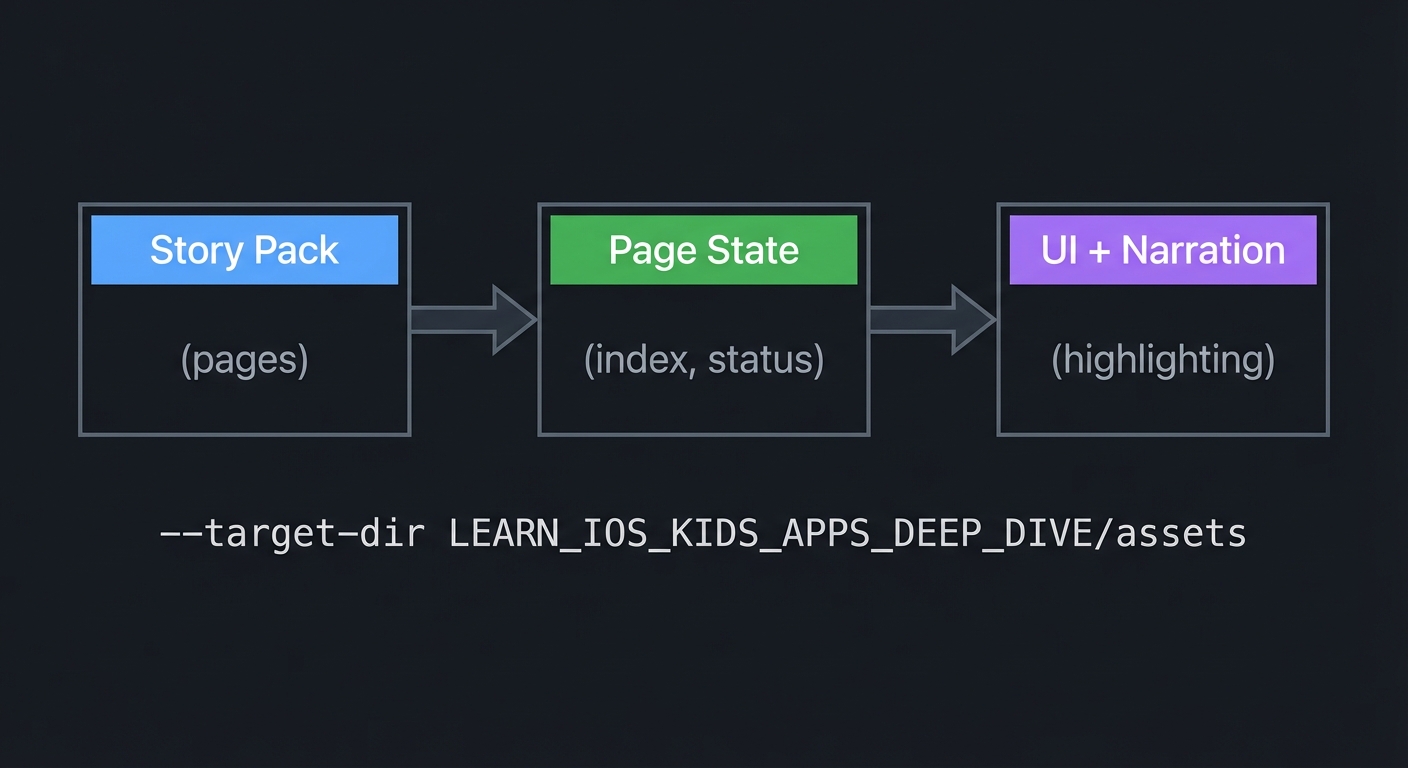
+-------------+      +------------------+      +------------------+
| Story Pack  | ---> | Page State       | ---> | UI + Narration   |
| (pages)     |      | (index, status)  |      | (highlighting)   |
+-------------+      +------------------+      +------------------+
4.2 Key Components
| Component | Responsibility | Key Decisions |
|---|---|---|
| Page Data | Holds content for each page | Separate from UI |
| Narration Engine | Plays audio and triggers highlights | Timing map based |
| Page Controller | Handles navigation | Stop audio on swipe |
| Parent Gate | Protects external links | Adult-only challenge |
4.3 Data Structures (No Full Code)
- PageState: { page_index, narration_state, current_segment }
- StoryPack: list of pages
4.4 Algorithm Overview
Key Algorithm: Highlight Sync
- Start narration with a timer.
- On timer tick, update current segment based on timing map.
- Clear highlight when audio ends.
Complexity Analysis:
- Time: O(S) per page (S = segments)
- Space: O(P) for pages
5. Implementation Guide
5.1 Development Environment Setup
xcodebuild -version
5.2 Project Structure
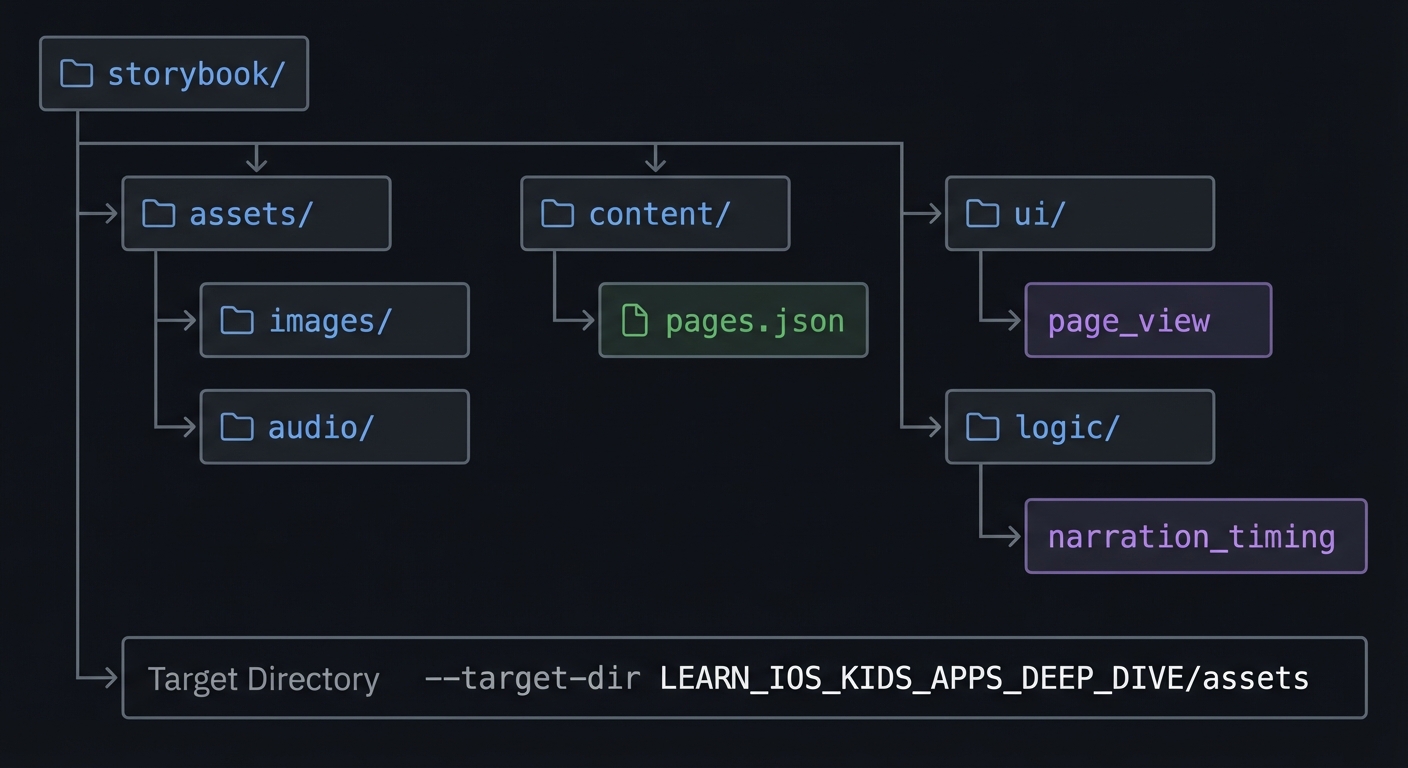
storybook/
+-- assets/
|   +-- images/
|   `-- audio/
+-- content/
|   `-- pages.json
+-- ui/
|   `-- page_view
`-- logic/
    `-- narration_timing
5.3 The Core Question You’re Answering
“How can I align voice, text, and visuals so a child can follow the story?”
5.4 Concepts You Must Understand First
- Timing maps
- How are audio segments aligned to text?
- Book Reference: “Design It!” by Michael Keeling - Ch. 2
- Page state
- How do you prevent narration from crossing pages?
- Book Reference: “Clean Code” by Robert C. Martin - Ch. 2
5.5 Questions to Guide Your Design
- Narration Control
- Should narration auto-play or require a tap?
- How does replay work?
- Navigation
- What happens if a child swipes mid-audio?
- How do you avoid accidental page skips?
5.6 Thinking Exercise
Highlight Rhythm
Listen to a short recording and mark when each line should highlight.
Questions to answer:
- Is word-level too fast?
- What rhythm feels calm?
5.7 The Interview Questions They’ll Ask
- “How do you synchronize text and audio?”
- “Why is timing a learning issue, not just a technical issue?”
- “How does a parent gate protect kids?”
- “What is a timing map?”
- “How would you test narration timing?”
5.8 Hints in Layers
Hint 1: Start with one page Implement narration and highlights on a single page.
Hint 2: Separate content Keep timing data outside the UI code.
Hint 3: Stop on swipe Always stop audio when the page changes.
Hint 4: Use a debug overlay Show current segment index during playback.
5.9 Books That Will Help
| Topic | Book | Chapter |
|---|---|---|
| UX timing | “Design It!” by Michael Keeling | Ch. 2 |
| Code clarity | “Clean Code” by Robert C. Martin | Ch. 2 |
5.10 Implementation Phases
Phase 1: Foundation (3-5 hours)
Goals:
- Page model
- Basic UI layout
Tasks:
- Create a page list with text, images, and audio ids.
- Render a single page.
Checkpoint: One page displays correctly.
Phase 2: Core Functionality (6-8 hours)
Goals:
- Add narration
- Add highlights
Tasks:
- Play audio on tap.
- Highlight text segments based on timing map.
Checkpoint: Narration and highlights align on one page.
Phase 3: Polish & Edge Cases (4-6 hours)
Goals:
- Add navigation
- Add parent gate
Tasks:
- Enable page swipes and stop audio on change.
- Add parent-gated external link on final page.
Checkpoint: Navigation and gate work reliably.
5.11 Key Implementation Decisions
| Decision | Options | Recommendation | Rationale |
|---|---|---|---|
| Highlight granularity | Word vs line | Line for younger kids | Calmer pacing |
| Narration trigger | Auto vs tap | Tap by default | Gives control |
| Gate location | Settings vs end page | End page | Less distraction |
6. Testing Strategy
6.1 Test Categories
| Category | Purpose | Examples |
|---|---|---|
| Unit | Timing map correctness | Segment ordering |
| Integration | Narration + highlight | Sync accuracy |
| Edge Case | Page swipe mid-audio | Stop behavior |
6.2 Critical Test Cases
- Start narration and confirm highlights match segments.
- Swipe mid-playback and verify audio stops.
- Tap replay and confirm it restarts cleanly.
6.3 Test Data
Page 1: "The cat sat on the mat."
Segments: ["The cat", "sat on", "the mat"]
7. Common Pitfalls & Debugging
7.1 Frequent Mistakes
| Pitfall | Symptom | Solution |
|---|---|---|
| Timing drift | Highlights late | Adjust timing map |
| Audio overlap | Two tracks playing | Stop before new start |
| Ungated link | Parent zone bypass | Gate all exits |
7.2 Debugging Strategies
- Add a debug overlay showing current segment index.
- Log timestamps when each segment begins.
7.3 Performance Traps
- Large images can cause slow page loads.
8. Extensions & Challenges
8.1 Beginner Extensions
- Add a replay button per page.
- Add a “bookmark” progress indicator.
8.2 Intermediate Extensions
- Add word-level highlight for older kids mode.
- Add voiceover speed control.
8.3 Advanced Extensions
- Add a parent dashboard with reading time stats (local only).
9. Real-World Connections
9.1 Industry Applications
- Interactive storybook apps
- Language learning tools with narration
9.2 Related Open Source Projects
- Look for storybook-style apps using local assets.
9.3 Interview Relevance
- Media synchronization
- State management across pages
- UX for multi-sensory learning
10. Resources
10.1 Essential Reading
- “Design It!” by Michael Keeling - Ch. 2-3
10.2 Video Resources
- Talks on children’s reading UX
10.3 Tools & Documentation
- Apple Accessibility for spoken content
- Apple HIG for reading apps
10.4 Related Projects in This Series
11. Self-Assessment Checklist
11.1 Understanding
- I can explain timing maps.
- I can explain why narration must stop on page change.
- I can explain what a parent gate is.
11.2 Implementation
- All pages display correctly.
- Narration and highlights are synchronized.
- Parent gate works on external link.
11.3 Growth
- I can describe improvements for older kids.
- I can explain the project in an interview.
12. Submission / Completion Criteria
Minimum Viable Completion:
- Two pages with narration and highlights
- Working page navigation
Full Completion:
- Eight pages with consistent timing
- Parent gate on external link
Excellence (Going Above & Beyond):
- Multiple narration speeds
- Parent dashboard summary