Project 1: Alphabet Flashcards
Build a kid-friendly alphabet flashcard app with large visuals and instant audio feedback.
Quick Reference
| Attribute | Value |
|---|---|
| Difficulty | Level 1 (Beginner) |
| Time Estimate | 1 weekend |
| Main Programming Language | Swift (Alternatives: Objective-C, C# Unity, JavaScript React Native) |
| Alternative Programming Languages | Objective-C, C# Unity, JavaScript React Native |
| Coolness Level | Level 2 (Practical but Forgettable) |
| Business Potential | Level 2 (Micro-SaaS / Pro Tool) |
| Prerequisites | Basic programming, basic UI concepts |
| Key Topics | Learning loop, instant feedback, audio timing, accessibility |
1. Learning Objectives
By completing this project, you will:
- Design a short, clear learning loop for pre-literate users.
- Model app state so the UI is always predictable and responsive.
- Deliver audio feedback with consistent timing and volume.
- Apply kid-safe UX principles (large tap targets, minimal text).
2. All Theory Needed (Per-Concept Breakdown)
Immediate Feedback Learning Loop for Pre-Literate Users
Fundamentals
A flashcard app looks simple, but the learning loop is the core. A child interacts in a tight cycle: see the letter, hear the sound, confirm it, move to the next. This loop must be obvious without reading. That means your design has to be visual-first and audio-first. The child should not wonder what to do. A single tap should do the main action. The system should respond quickly, and the feedback should be unmistakable.
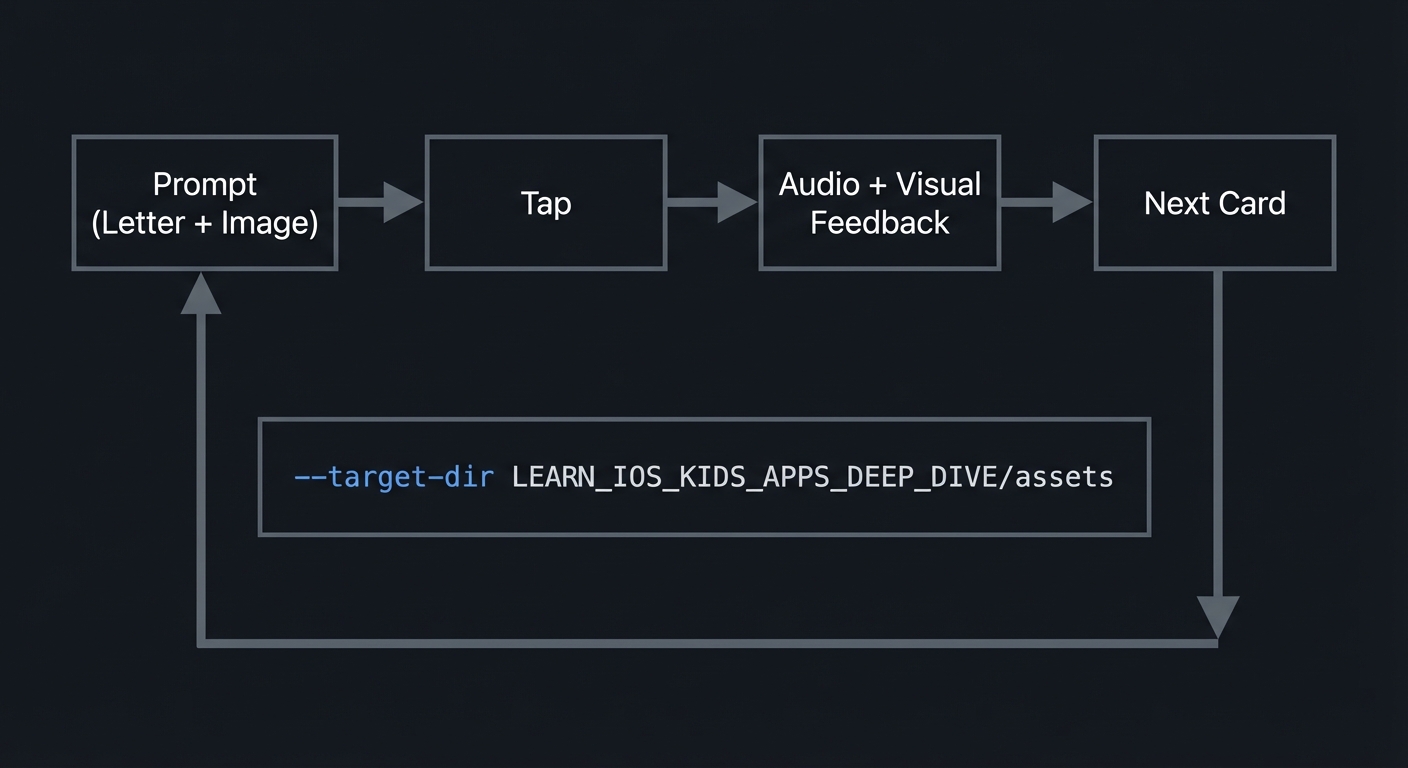
A learning loop has four parts: prompt, action, feedback, and progress. The prompt is the letter and the image. The action is the child tapping to hear the sound or move on. The feedback is the audio plus a small visual response. The progress is moving to the next card. If any of these are missing or delayed, the child experiences confusion. For adults, confusion can be resolved by reading instructions. For kids, confusion often ends the session.
Immediate feedback is also a trust signal. When a child taps and nothing happens, they assume the app is broken. The simple rule is: every tap must cause an observable change within a fraction of a second. This does not mean chaotic animation. It means a small, predictable response that confirms the app heard them. The simplest feedback is a sound plus a gentle visual change, such as the letter slightly growing and returning to size.
The loop must also avoid negative feedback. Flashcards have no wrong answers. There is no fail state, only repetition. That means your design must never suggest the child made a mistake. If you add a quiz later, that is a different project. Here, the loop is about exposure and reinforcement.
The loop should also be consistent across all cards. If some letters play a sound instantly and others are delayed, the experience feels unreliable. Consistency is a hidden form of quality for kids. It is the difference between playful and frustrating.
Finally, the loop must be accessible. Tap targets must be large. The letter should be high contrast. The image should be obvious and friendly. You should not require precise tapping or gestures. The loop should work with a single tap anywhere on the card to avoid confusion. The child should never need to find a tiny button.
Another foundational idea is cognitive load. Young children can only hold a few pieces of information at once. If the screen has too many elements, the letter itself becomes less memorable. A good flashcard layout has a single focal point and a single action. This is why a large letter, one image, and one primary action is enough. Any extra controls should be subtle or hidden.
Consistency across cards is a teaching tool. If each card has a different layout, the child spends energy re-learning the interface. A stable layout lets the child focus on the letter sound. This is the reason to keep colors, spacing, and button placement the same for all cards. Consistency also supports children with neurodivergent learning styles, who may rely on predictable patterns.
The flashcard loop also has an implicit pacing decision: how fast does a child move on? If you allow an immediate next action, some kids will skip too quickly. If you force a delay, others will feel stuck. A balanced approach is to allow immediate replay but make the “next” action clear and optional. That keeps control in the child’s hands without making the loop chaotic.
Deep Dive into the Concept
Think of the learning loop as a tiny state machine designed for human attention. Each step must fit within the attention span of a child in your target age band. For younger children (5 and under), the loop must be extremely short: one action, one feedback response, and a short transition. For older children (6-8, 9-11), you can add small variations like a quick hint or a repeated audio prompt. But the loop should never become complex.
A reliable loop is built on three layers: content, timing, and interaction. Content is the letter, the image, and the sound. Timing is the delay between the tap and the sound, and how long the visual response lasts. Interaction is the rule for what happens on each tap. The simplest rule is: a tap plays the sound, and a swipe or separate button advances. But for young kids, even the difference between tap and swipe can be too much. An alternative is to use a single tap to play the sound and a second tap to advance. That keeps the motor pattern simple, but it requires the child to understand that the same action does different things based on context. If you choose this approach, make the context clear with visual cues.
To keep the loop predictable, define a small number of explicit states. Example states: “idle” (card shown), “playing” (audio and visual feedback in progress), and “ready” (audio finished, ready for next card). When audio is playing, ignore extra taps or queue them. This prevents overlapping sounds and reduces sensory overload. It also prevents a child from accidentally triggering multiple audio clips in rapid succession. A simple rule: only one audio clip at a time.
Now consider audio. Kids respond to voice clarity and consistency. Record all letter sounds in the same voice with the same pace and volume. Normalize volume across files. If some letters are louder, the child may become startled or tune out. If the audio is too quiet, the child may repeat taps, creating a confusing loop. Also plan for device mute. Many parents keep devices silent. The visual feedback must still confirm the tap even if the audio is not audible. You cannot rely on sound alone.
The next layer is visual feedback. The simplest feedback is a gentle animation on the letter or the picture, such as a small scale up and down. Avoid flashes or strong motion. The feedback should feel calm and friendly. Too much motion can distract from the learning goal, which is letter recognition.
We should also consider the psychology of repetition. Kids learn letters through repeated exposure, not through one-time success. The loop should encourage repeated listening. A simple “repeat” icon can be used, but for small children it might be better to let them tap anywhere on the card to replay. This keeps the interaction consistent. The loop also needs a way to progress. A large “next” button or a swipe gesture can work, but you should test with real children. If they keep tapping expecting the next card, consider making the second tap advance after the audio finishes.
From an engineering standpoint, the loop is built on state and events. The state includes which card is active and whether audio is playing. The events are taps and audio completion. The UI is a function of these. This is where a declarative UI is a strong fit, because it ensures the visuals always match the current state.
Another important factor is load time. If a card takes time to load its image or audio, the loop breaks. The simplest solution is to preload all assets at app start because the alphabet is small. There are only 26 letters and 26 images. Preload audio into memory or keep a small cache. This ensures the tap triggers sound quickly and consistently. If you do not preload, you risk delays on some letters, which makes the loop feel unpredictable.
The loop also benefits from a small progress indicator, even if the child does not explicitly understand it. For example, a row of dots showing how many letters are left can help parents understand progress and can create a sense of completion. The key is to keep it subtle so it does not distract the child.
Finally, consider the environment. Kids often use apps in noisy spaces or while moving. That means audio needs to be clear, and the visual feedback needs to be visible. High contrast and simple graphics help. Also consider left-handed and right-handed use: tapping anywhere should work. The loop should not require precision.
By designing the loop as a deliberate and consistent system, you create an experience that feels safe and reliable to a child and trustworthy to a parent. The loop is the first building block in every other project in this series. If you get it right here, you will reuse the same mental model for more complex interactions later.
Asset preparation is often underestimated. Because you have only 26 letters, you can and should curate high-quality assets. That includes recording audio in the same acoustic environment, trimming silence at the start of each clip, and normalizing loudness. It also includes choosing images that are culturally neutral and recognizable. For example, “A for Apple” is common, but be mindful of letter-image pairs that are not universally known.
Testing the learning loop is not just about bugs. You should test with a stopwatch: how long does it take from tap to sound? If it is more than a few hundred milliseconds, the child will likely tap again. This creates repeated audio and confusion. The solution is to preload audio or keep a small cache in memory. With a small dataset like the alphabet, preloading is feasible and safe.
Another subtle issue is the silent switch or low volume. A child might tap and hear nothing, which can feel like a failure. You should ensure a visible response even when sound is not heard. This can be a pulse animation or a brief highlight. You can also add a small visual “sound” icon when audio starts to signal that the app attempted to play sound.
Finally, consider the parent perspective. A parent wants to see that the app is educational and safe. A simple indicator like “A of 26” or a progress row of dots can help parents understand the scope. This is not for the child, but it helps the parent feel the app has structure.
How this Fits in the Project
The flashcard app is a single-loop app. Everything is built around the loop: show letter, tap, hear sound, see feedback, go to next. Your UI, state, and asset decisions are all derived from this loop.
Definitions & Key Terms
- Learning loop: The repeated cycle of prompt, action, feedback, and progress.
- Immediate feedback: A response to user action that occurs quickly enough to feel instant.
- Pre-literate UX: Design for users who cannot read, using icons and audio.
- Tap target: The interactive area on screen a user can tap.
- Audio normalization: Process to make all audio files the same loudness.
Mental Model Diagram (ASCII)
Prompt (Letter + Image) -> Tap -> Audio + Visual Feedback -> Next Card
           ^                                                   |
           |---------------------------------------------------|
How It Works (Step-by-Step)
- Display the current letter and its image.
- Wait for a tap event.
- On tap, play the audio for the letter and trigger a brief visual animation.
- When audio finishes, allow the next action.
- On “next”, advance to the next letter and update the UI.
Invariants:
- Only one audio clip plays at a time.
- A tap always produces visible feedback.
- Every letter has a valid image and audio asset.
Failure modes:
- Missing audio file breaks the loop.
- Feedback delayed beyond a second feels unresponsive.
- Tap target too small causes accidental misses.
Minimal Concrete Example (Pseudocode)
STATE: currentCardIndex, audioStatus

ON tapCard:
  IF audioStatus == "playing":
     IGNORE tap
  ELSE:
     PLAY audio for currentCardIndex
     SET audioStatus = "playing"
     START visual pulse

ON audioFinished:
  SET audioStatus = "idle"

ON nextPressed:
  INCREMENT currentCardIndex (wrap to 0 at end)
  UPDATE letter and image
Common Misconceptions
- “If the sound plays, feedback is done.” False: visual feedback is still needed if the device is muted.
- “Kids will find the next button.” Not always. Many will keep tapping the main card.
- “All audio files will feel the same.” Not unless you normalize volume and pacing.
Check-Your-Understanding Questions
- Why should a flashcard app ignore taps while audio is playing?
- What is the smallest loop that still teaches a letter sound?
- How does preloading assets affect user perception?
- What feedback should exist when audio is muted?
Check-Your-Understanding Answers
- To prevent overlapping sounds and confusing feedback.
- Show letter, play sound, confirm with a visual pulse, then move on.
- It makes responses consistent and feels instant.
- A visual change such as a pulse or highlight must still occur.
Real-World Applications
- Early literacy apps that focus on letter recognition.
- Speech therapy tools that encourage repeated sound exposure.
- Language-learning apps for toddlers.
Where You Will Apply It
- In this project: see Section 3.7 Real World Outcome, Section 5.4 Concepts, and Section 5.10 Implementation Phases.
- Also used in: Project 2, Project 4, Project 7.
References
- Apple Human Interface Guidelines (touch target sizes and accessibility)
- Apple Accessibility resources for audio and text
- “Design It!” by Michael Keeling, Ch. 1-2
Key Insight
Immediate, consistent feedback is the foundation of trust and learning for pre-literate users.
Summary
The flashcard loop is small but powerful. It is a controlled, predictable experience where every tap is answered. This simplicity is what makes it effective for young learners.
Homework / Exercises to Practice the Concept
- Write down the shortest possible learning loop for a shape recognition activity.
- Sketch three visual feedback ideas that do not rely on sound.
- List all the assets needed for 26 letters and how you would organize them.
Solutions to the Homework / Exercises
- Show shape, tap, hear name, see glow, next shape.
- Pulse animation, color outline, gentle bounce.
- 26 images, 26 audio clips, 26 letter labels in a single content list.
3. Project Specification
3.1 What You Will Build
A single-screen flashcard app that cycles through the alphabet. Each card includes a large letter, a friendly image, and a clear audio pronunciation. The user can replay audio and move to the next card. The app is offline-first and collects no data.
Included:
- 26-letter card set with images and sounds
- Tap to play audio
- Large, accessible UI
- Simple next navigation
Excluded:
- Quizzes or scoring
- User accounts or analytics
- External links
3.2 Functional Requirements
- Card display: Show one letter and one matching image at a time.
- Audio playback: Tapping the card plays the correct letter sound.
- Navigation: A next control moves to the next letter.
- Repeat: The current card audio can be replayed at any time.
- Offline: The app works without network access.
3.3 Non-Functional Requirements
- Performance: Audio starts within 200ms of tap.
- Reliability: Every letter has a valid audio and image asset.
- Usability: Tap targets are large and easy to hit.
3.4 Example Usage / Output
Screen flow:
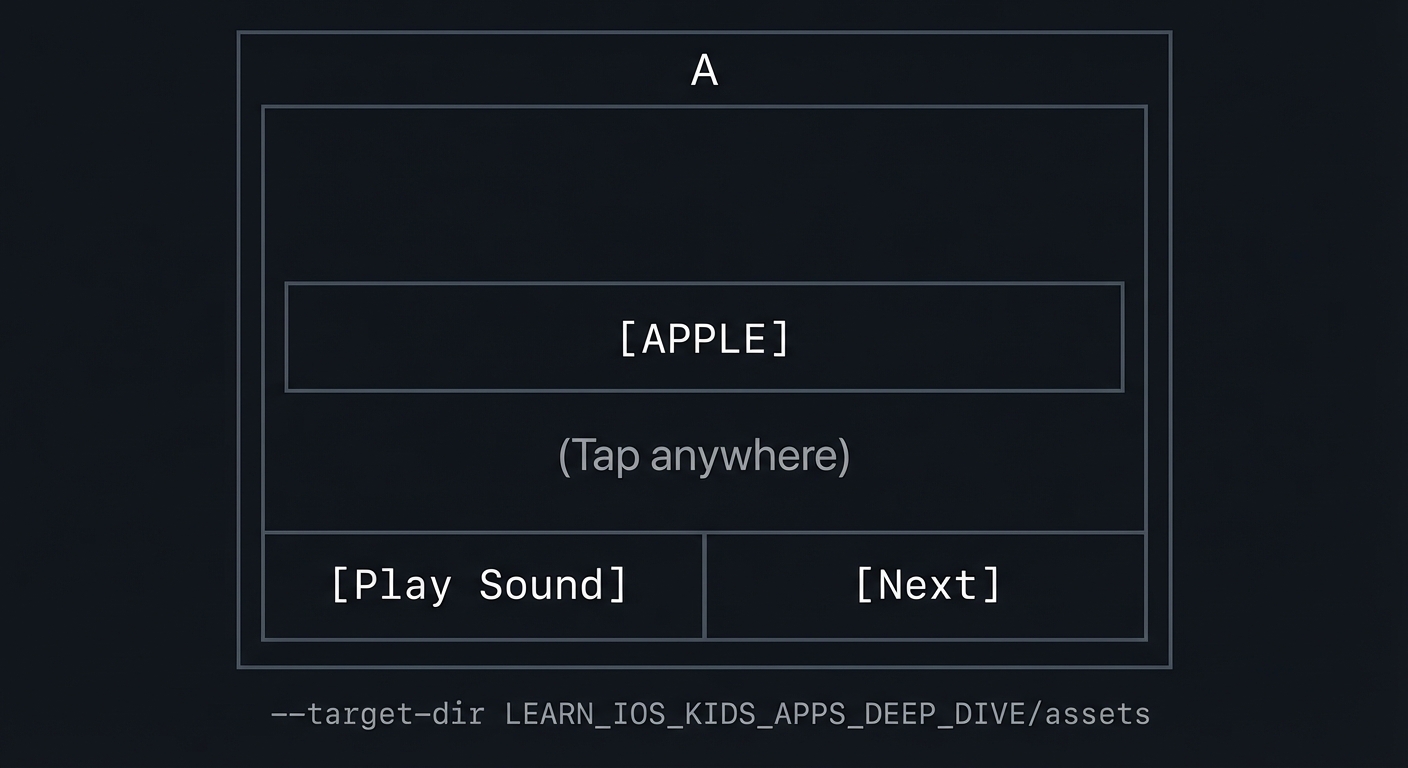
- Home shows big letter A and an apple image.
- Tap anywhere on the card to hear “A”.
- Tap the “Next” button to move to B.
ASCII wireframe:
+----------------------------------+
|              A                   |
|                                  |
|            [APPLE]               |
|                                  |
|        (Tap anywhere)            |
|                                  |
|   [Play Sound]     [Next]        |
+----------------------------------+
3.5 Data Formats / Schemas / Protocols
Local content list (conceptual):
- letter: “A”
- image: “apple.png”
- audio: “A_sound.m4a”
Progress storage (optional):
- last_seen_index: integer
3.6 Edge Cases
- Missing audio file for a letter
- Device in silent mode
- Rapid repeated taps during playback
- User reaches Z and cycles back to A
3.7 Real World Outcome
This section is a golden reference. A learner should compare their app against this description.
3.7.1 How to Run (Copy/Paste)
- Open the project in Xcode.
- Select an iPhone simulator (e.g., iPhone 15).
- Press Run.
3.7.2 Golden Path Demo (Deterministic)
Scenario: Open app, tap card twice, press Next.
Expected behavior:
- The letter “A” appears with the apple image.
- First tap plays the “A” audio within 200ms and the letter pulses once.
- Second tap replays the same sound with the same pulse.
- Next moves to the “B” card with its image.
3.7.3 Failure Demo (Deterministic)
Scenario: The audio file for “Q” is missing.
Expected behavior:
- The letter and image still render.
- Tapping shows a subtle visual “no audio” indicator and does not crash.
- The app logs a missing asset for developer debugging.
3.7.4 Mobile UI Details
- Single screen with a centered letter and image.
- Tap area is the entire card surface.
- Buttons are large with clear labels.
4. Solution Architecture
4.1 High-Level Design
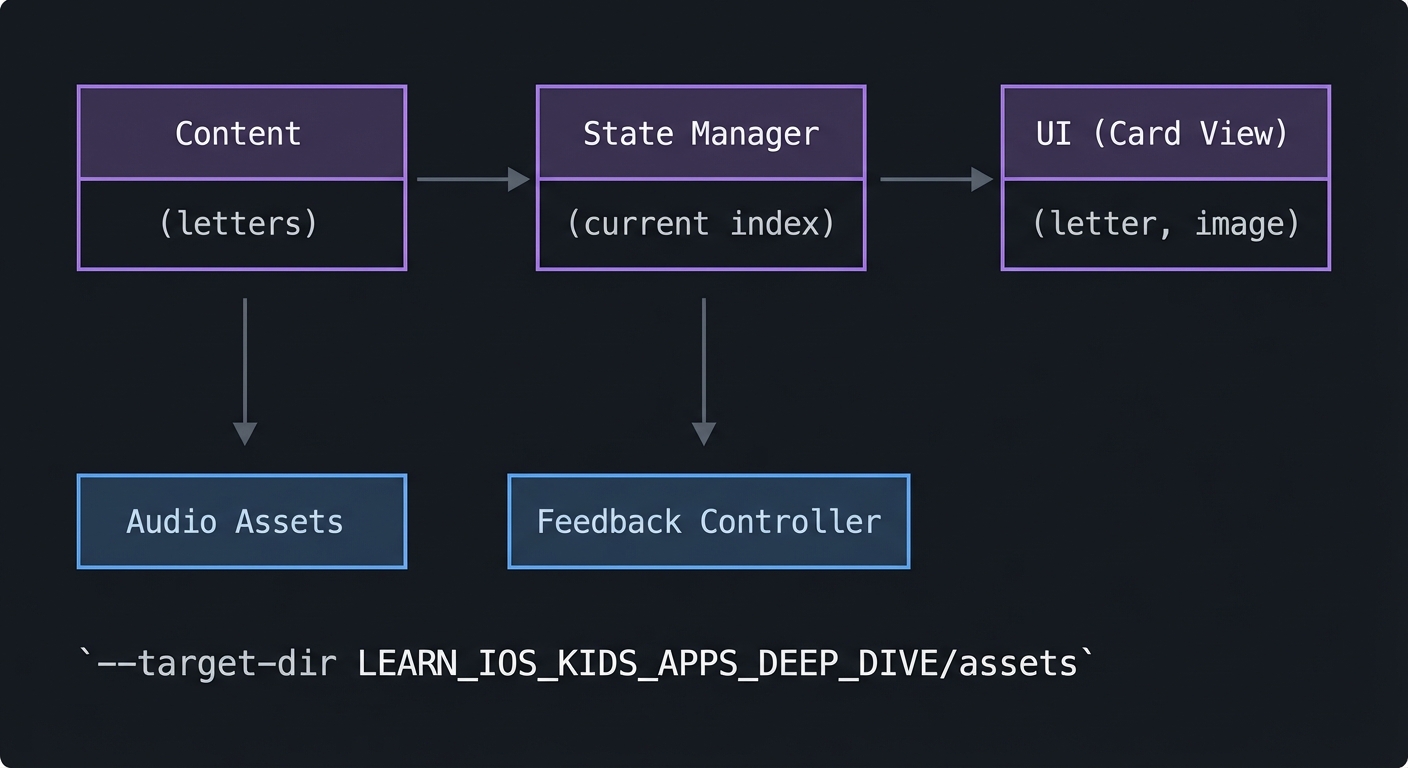
+-------------+      +------------------+      +------------------+
| Content     | ---> | State Manager    | ---> | UI (Card View)   |
| (letters)   |      | (current index)  |      | (letter, image)  |
+-------------+      +------------------+      +------------------+
         |                         |
         v                         v
   Audio Assets              Feedback Controller
4.2 Key Components
| Component | Responsibility | Key Decisions |
|---|---|---|
| Content List | Holds letter, image, audio mappings | Keep in local bundled assets |
| State Manager | Tracks current card and audio state | Simple state machine |
| Audio Player | Plays letter sounds | Preload audio for consistency |
| UI Layer | Displays card and buttons | Large touch targets |
4.3 Data Structures (No Full Code)
- Card: { letter, image_id, audio_id }
- AppState: { current_index, audio_status }
4.4 Algorithm Overview
Key Algorithm: Card Progression
- On next, increment index.
- If index exceeds last card, wrap to 0.
- Update displayed card.
Complexity Analysis:
- Time: O(1) per interaction
- Space: O(N) for asset list
5. Implementation Guide
5.1 Development Environment Setup
# Install Xcode from the Mac App Store
# Verify
xcodebuild -version
5.2 Project Structure
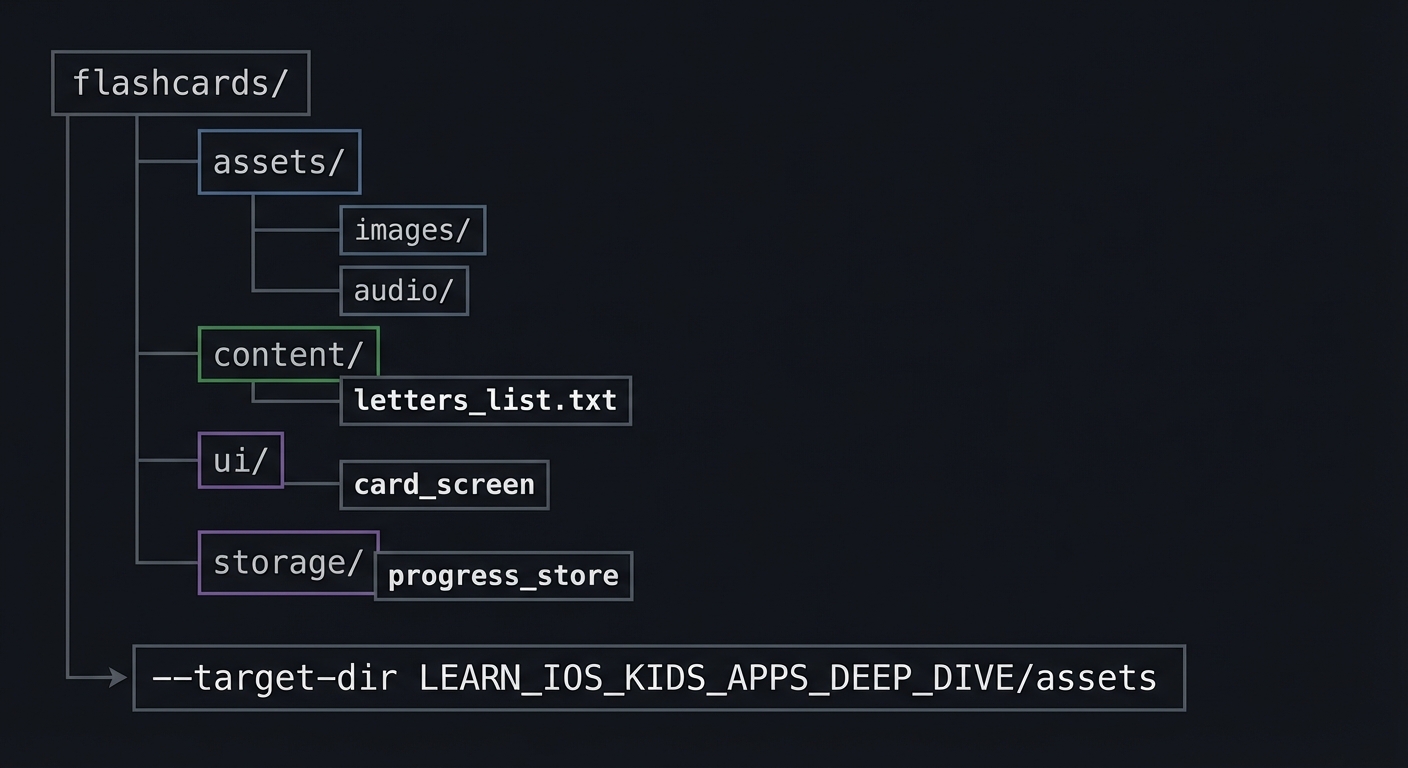
flashcards/
+-- assets/
|   +-- images/
|   `-- audio/
+-- content/
|   `-- letters_list.txt
+-- ui/
|   `-- card_screen
`-- storage/
    `-- progress_store
5.3 The Core Question You’re Answering
“How can a single tap create a complete learning moment for a child who cannot read?”
5.4 Concepts You Must Understand First
Stop and review these before building:
- Learning loop basics
- How do prompt, action, feedback, and progress connect?
- Book Reference: “Design It!” by Michael Keeling - Ch. 1
- State-driven UI
- Why does UI need to reflect state changes immediately?
- Book Reference: “Clean Code” by Robert C. Martin - Ch. 2
5.5 Questions to Guide Your Design
- Audio timing
- What is the maximum acceptable delay after a tap?
- How will you prevent overlapping audio?
- Interaction model
- Will a tap replay or advance?
- How does the child know what happens next?
5.6 Thinking Exercise
Tap Feedback Timeline
Draw a 1-second timeline and mark when audio starts and when the animation begins.
Questions to answer:
- Where could the child get confused?
- Which feedback happens first, and why?
5.7 The Interview Questions They’ll Ask
- “How would you keep audio feedback consistent across all cards?”
- “Why does a simple state model matter for kids apps?”
- “How would you design for a silent device?”
- “What makes a tap target ‘kid-friendly’?”
- “How do you test a flashcard loop?”
5.8 Hints in Layers
Hint 1: Start with the loop Define the prompt, tap, feedback, and next transition before building UI.
Hint 2: Cache assets Preload sounds so playback is immediate.
Hint 3: Control taps Ignore taps while audio is playing to avoid overlap.
Hint 4: Verify with a stopwatch Measure audio start time; aim for under 200ms.
5.9 Books That Will Help
| Topic | Book | Chapter |
|---|---|---|
| UX for clarity | “Design It!” by Michael Keeling | Ch. 1-2 |
| Code structure | “Clean Code” by Robert C. Martin | Ch. 2 |
5.10 Implementation Phases
Phase 1: Foundation (2-3 hours)
Goals:
- Define content list
- Build basic card screen
Tasks:
- Create a list of letters with matching image and audio file names.
- Display a single card with large letter and image.
Checkpoint: One card renders cleanly with no layout issues.
Phase 2: Core Functionality (3-5 hours)
Goals:
- Add audio playback
- Add next navigation
Tasks:
- Play audio on tap and provide visual feedback.
- Add next control and cycle through letters.
Checkpoint: You can move from A to Z and hear every sound.
Phase 3: Polish & Edge Cases (2-4 hours)
Goals:
- Handle missing assets
- Improve accessibility
Tasks:
- Add fallback behavior for missing audio.
- Increase tap targets and contrast.
Checkpoint: App still works when a sample asset is missing.
5.11 Key Implementation Decisions
| Decision | Options | Recommendation | Rationale |
|---|---|---|---|
| Tap action | Tap = replay, swipe = next | Tap to replay, button for next | Simple and predictable |
| Audio loading | Load on demand vs preload | Preload | Prevents delays |
| Progress storage | None vs local last-seen | Local last-seen | Friendly for parents |
6. Testing Strategy
6.1 Test Categories
| Category | Purpose | Examples |
|---|---|---|
| Unit | Validate content mapping | All letters have audio + image |
| Integration | Check audio and UI timing | Tap triggers sound and pulse |
| Edge Case | Missing assets | Missing audio file behavior |
6.2 Critical Test Cases
- Tap during playback: Additional taps are ignored and do not overlap audio.
- Missing audio: Card still displays with a fallback indicator.
- Wrap around: After Z, Next returns to A.
6.3 Test Data
Card list:
A -> apple.png -> A_sound.m4a
B -> ball.png -> B_sound.m4a
...
7. Common Pitfalls & Debugging
7.1 Frequent Mistakes
| Pitfall | Symptom | Solution |
|---|---|---|
| Audio delay | Sound starts late | Preload or cache audio |
| Tiny tap targets | Missed taps | Increase tap area |
| Asset mismatch | Wrong sound plays | Validate mapping list |
7.2 Debugging Strategies
- Log every tap with card index and audio file name.
- Add a debug overlay that shows the current letter and audio status.
7.3 Performance Traps
- Loading audio on every tap can create noticeable lag.
- Large uncompressed images can cause memory spikes.
8. Extensions & Challenges
8.1 Beginner Extensions
- Add a “repeat” button with a universal icon.
- Add a simple progress dot row.
8.2 Intermediate Extensions
- Add a “favorites” list that parents can customize.
- Add a letter order shuffle for variety.
8.3 Advanced Extensions
- Add phonics (letter + example word sound).
- Add a parent zone to choose age band.
9. Real-World Connections
9.1 Industry Applications
- Literacy apps that teach phonics and alphabet recognition.
- Early childhood education tools used in classrooms.
9.2 Related Open Source Projects
- Look for open educational apps that provide offline flashcards and audio.
9.3 Interview Relevance
- State-driven UI design
- UX design for non-readers
- Handling media assets and timing
10. Resources
10.1 Essential Reading
- “Design It!” by Michael Keeling - Ch. 1-2
- “Clean Code” by Robert C. Martin - Ch. 2
10.2 Video Resources
- Short talks on kid-safe UX and accessible design
10.3 Tools & Documentation
- Apple Human Interface Guidelines (touch targets)
- Apple Accessibility documentation
10.4 Related Projects in This Series
- Project 2: Color and Shape Sorter - expands the feedback loop into drag and drop
- Project 4: Counting Adventure - adds adaptive difficulty
11. Self-Assessment Checklist
11.1 Understanding
- I can explain the learning loop in one sentence.
- I can explain why feedback must be instant.
- I can explain how to handle a muted device.
11.2 Implementation
- All functional requirements are met.
- Audio plays consistently for every letter.
- Edge cases are handled gracefully.
11.3 Growth
- I can describe what I would improve in a second version.
- I can explain this project in a job interview.
12. Submission / Completion Criteria
Minimum Viable Completion:
- A working flashcard loop for at least 10 letters
- Audio playback and visual feedback
- No crashes on missing asset
Full Completion:
- All 26 letters with consistent assets
- Accessibility improvements (large tap targets, high contrast)
Excellence (Going Above & Beyond):
- Multiple audio voices or phonics mode
- Parent customization for letter order