Project 9: The Code Navigator (CTags & Jumps)
Build a fast navigation workflow using tags and jump lists to traverse a codebase without file browsing.
Quick Reference
| Attribute | Value |
|---|---|
| Difficulty | Level 3: Advanced |
| Time Estimate | 1 week |
| Main Programming Language | Any codebase |
| Alternative Programming Languages | C, Go, Python, JS |
| Coolness Level | Level 3: Code explorer |
| Business Potential | 4: Onboarding accelerator |
| Prerequisites | Basic search, motions, command-line comfort |
| Key Topics | ctags, tag stack, jump list, navigation workflow |
1. Learning Objectives
By completing this project, you will:
- Generate a tags index for a codebase.
- Jump to definitions using
Ctrl-]and return withCtrl-t. - Use the jump list to navigate backward/forward.
- Combine tags with search for quick exploration.
- Build a navigation routine you can use on any repo.
2. All Theory Needed (Per-Concept Breakdown)
2.1 Tags and Tag Stacks
Fundamentals
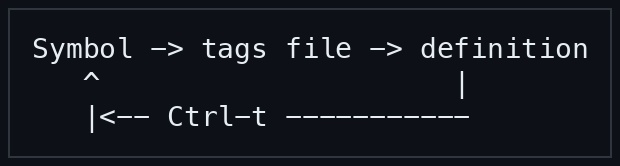
Tags are an index of symbol definitions produced by tools like ctags. Vim reads the tags file and allows you to jump from a symbol to its definition with Ctrl-]. The tag stack remembers where you came from so you can return with Ctrl-t. This turns a codebase into a navigable graph rather than a collection of files.
Deep Dive into the concept
The tags file is essentially a map from symbol names to file locations. Each entry records the file and a search pattern. When you jump, Vim records the current location on the tag stack, then opens the target file and moves the cursor. The tag stack is separate from the jump list but often overlaps. The deeper skill is understanding that tags are only as good as your tag generator: you need to run ctags -R at the project root and regenerate when code changes.
How this fits on projects
- You will generate tags for a repository.
- You will use tag jumps to explore code paths.
Definitions & key terms
- Tags file: A database of symbol definitions.
- Tag stack: A stack of tag jumps for returning.
- ctags: A tool that generates tags.
Mental model diagram (ASCII)
Symbol -> tags file -> definition
   ^                     |
   |<-- Ctrl-t -----------
How it works (step-by-step)
- Run
ctags -R .in the project root. - Open a file and place cursor on a symbol.
- Press
Ctrl-]to jump to definition. - Press
Ctrl-tto return.
Minimal concrete example
:!ctags -R .
Ctrl-]
Ctrl-t
Common misconceptions
- “Tags are built-in”: You must generate a tags file.
- “Tags are static”: Regenerate after changes.
- “Ctrl-] always works”: It fails if no tags file exists.
Check-your-understanding questions
- What does
Ctrl-]do? - How do you return from a tag jump?
- Why might a tag jump fail?
Check-your-understanding answers
- It jumps to the definition of the symbol under cursor.
- Use
Ctrl-t. - No tags file or symbol not indexed.
Real-world applications
- Exploring unfamiliar codebases.
- Following call chains quickly.
- Navigating code during debugging.
Where you’ll apply it
- See Section 3.4 Example Usage / Output and Section 5.10 Implementation Phases in this project.
- Also used in: Project 1: No-HJKL Navigator.
References
:help tags- “Practical Vim” Ch. 16
Key insights
Tags turn code into a navigable graph with memory.
Summary
Tags give you one-key jumps to definitions and a stack to return. They are essential for code exploration.
Homework/Exercises to practice the concept
- Generate tags for a small repo and jump to five definitions.
- Use
:tagsto inspect the tag stack.
Solutions to the homework/exercises
ctags -R .thenCtrl-]on symbols.- Run
:tagsto view the stack.
2.2 Jump List and Navigation History
Fundamentals
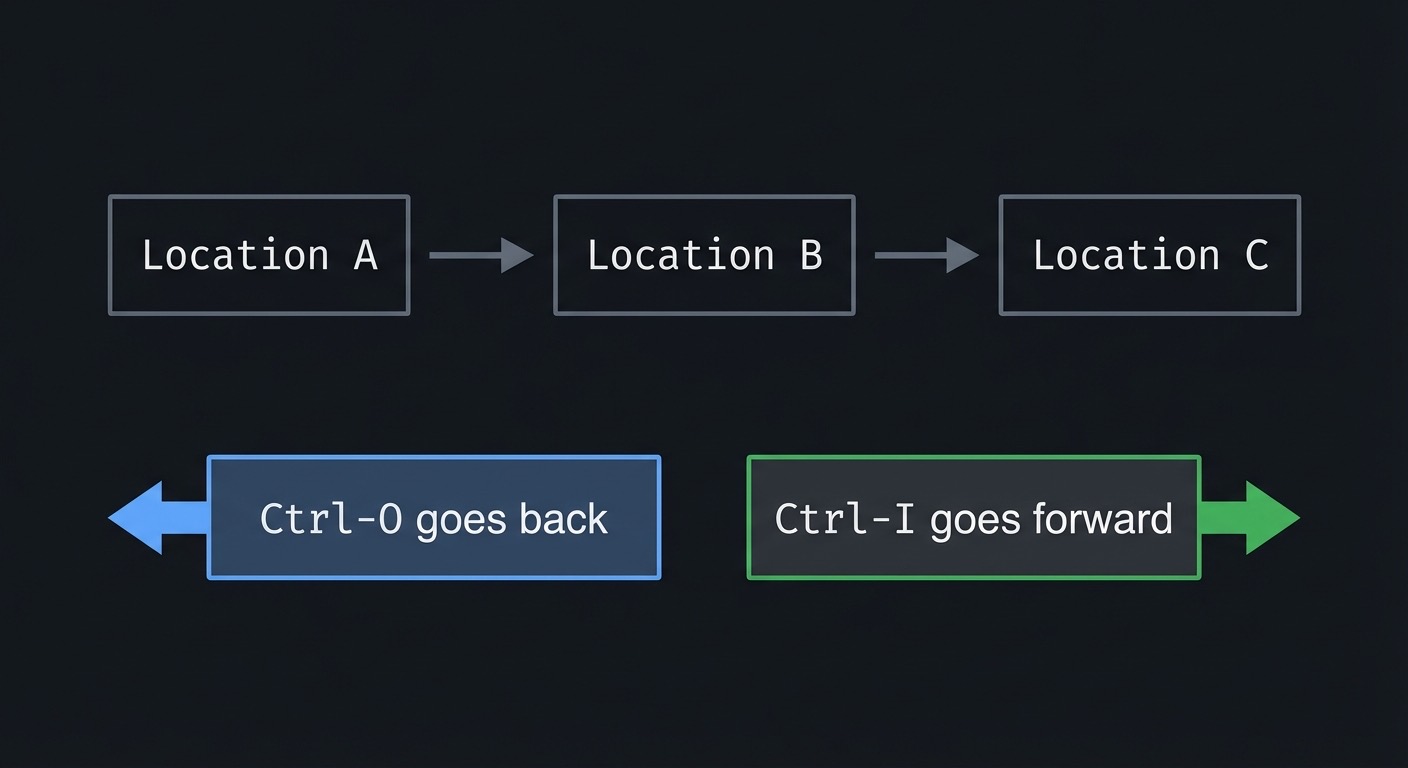
The jump list records significant cursor movements across the file and between files. Ctrl-O moves backward in the jump list, and Ctrl-I moves forward. This is separate from the tag stack and works for searches, tags, and manual jumps. It is your navigation history.
Deep Dive into the concept
Jump list entries are created for jumps beyond a certain distance. This means small movements are not recorded. The list is per-window, which matters if you use splits. Understanding this helps you predict where Ctrl-O will take you. The jump list is crucial when tags are not available; it lets you return to where you were after exploring.
How this fits on projects
- You will use the jump list to navigate back after multiple jumps.
- You will inspect the list with
:jumps.
Definitions & key terms
- Jump list: History of significant cursor jumps.
- Backward jump:
Ctrl-O. - Forward jump:
Ctrl-I.
Mental model diagram (ASCII)
Location A -> Location B -> Location C
Ctrl-O goes back, Ctrl-I goes forward
How it works (step-by-step)
- Jump to a location (search, tag, or mark).
- Vim records the jump.
- Use
Ctrl-Oto go back. - Use
Ctrl-Ito go forward.
Minimal concrete example
/SomeFunction<Enter>
Ctrl-O
Ctrl-I
:jumps
Common misconceptions
- “Jump list only works with tags”: It works with any large jump.
- “Ctrl-I is Tab”: It is the same key, which can be tricky in terminals.
- “Jump list is global”: It is per-window.
Check-your-understanding questions
- How do you see the jump list?
- What key moves backward?
- Why might
Ctrl-Inot work in some terminals?
Check-your-understanding answers
- Use
:jumps. Ctrl-O.- It maps to Tab in some terminal settings.
Real-world applications
- Returning to earlier context during code review.
- Navigating between search results.
Where you’ll apply it
- See Section 3.7 Real World Outcome and Section 5.8 Hints in Layers in this project.
- Also used in: Project 6: HTML Tag Wrapper.
References
:help jumplist- “Practical Vim” Ch. 9
Key insights
Jump list is your breadcrumb trail through a codebase.
Summary
The jump list works even when tags do not. It is your safety net for navigation.
Homework/Exercises to practice the concept
- Perform three searches and navigate back with
Ctrl-O. - Use
:jumpsto locate the position you want to return to.
Solutions to the homework/exercises
/patternthree times, thenCtrl-Oto move backward.:jumpsshows the list.
2.3 Search as Navigation Glue
Fundamentals
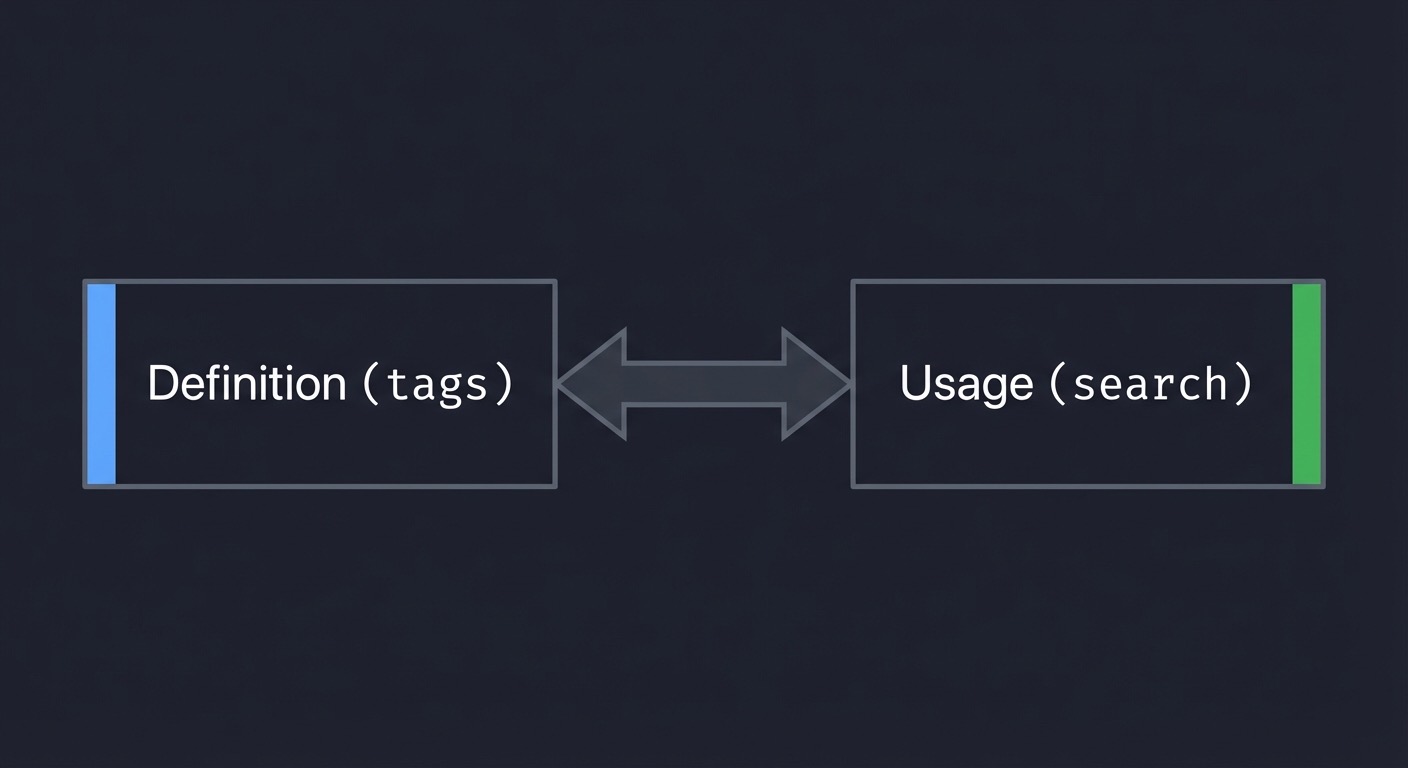
Tags are powerful, but search remains essential. When a symbol is not in tags, or you want to find usages instead of definitions, search is the fastest method. Search + jump list creates a flexible navigation workflow: you can search to any usage, then jump back when done.
Deep Dive into the concept
You can use :vimgrep or /pattern to find references. The quickfix list provides a list of matches, and you can jump between them with :cnext and :cprev. While this project focuses on tags and jumps, search is the glue that connects the workflow when tags are missing or incomplete. The deeper idea is to combine tags (definition) with search (usage) to build a mental map of the codebase.
How this fits on projects
- You will use search to find symbol usage when tags are not enough.
- You will combine search with jump list to return to context.
Definitions & key terms
- Search: Pattern-based navigation.
- Quickfix list: A list of search matches across files.
- Usage search: Finding where a symbol is used, not defined.
Mental model diagram (ASCII)
Definition (tags) <-> Usage (search)
How it works (step-by-step)
- Search for a symbol usage.
- Jump through matches with
nor quickfix commands. - Return with jump list or tag stack.
Minimal concrete example
:vimgrep /initServer/ **/*.c
:cnext
Ctrl-O
Common misconceptions
- “Tags replace search”: Search is still necessary for usages.
- “Quickfix is advanced”: It is a simple list of results.
- “Search is slow”: It is often faster than file browsing.
Check-your-understanding questions
- What is the difference between definition and usage navigation?
- How do you move to the next quickfix result?
- How do you return to your previous location?
Check-your-understanding answers
- Definitions are via tags; usages are found by search.
- Use
:cnext. - Use
Ctrl-O.
Real-world applications
- Tracing call chains across files.
- Locating configuration usage in large repos.
Where you’ll apply it
- See Section 5.5 Questions to Guide Your Design and Section 6 Testing Strategy in this project.
- Also used in: Project 10: Search-Replace Master.
References
:help vimgrep:help quickfix
Key insights
Search complements tags by revealing usage paths.
Summary
Tags show definitions; search shows usage. Together, they create a complete navigation workflow.
Homework/Exercises to practice the concept
- Use
:vimgrepto find a function usage in multiple files. - Jump through matches and return to the start.
Solutions to the homework/exercises
:vimgrep /name/ **/*.extthen:cnext.- Use
Ctrl-Oto return.
3. Project Specification
3.1 What You Will Build
You will create a navigation workflow for a real codebase using tags, tag stacks, and jump lists. The deliverable is a short navigation log demonstrating jumps and returns.
3.2 Functional Requirements
- Tags File: Generate a tags file for a repo.
- Tag Jumps: Jump to at least 10 definitions.
- Return: Use
Ctrl-tto return after each jump. - Jump List: Use
Ctrl-O/Ctrl-Iand inspect:jumps. - Search: Find at least 5 usages with search or quickfix.
3.3 Non-Functional Requirements
- Repeatability: Workflow should work on any repo.
- Clarity: Navigation log explains each jump.
- Accuracy: Jumps land on correct definitions.
3.4 Example Usage / Output
ctags -R .
# In Vim
Ctrl-]   (jump)
Ctrl-t   (return)
3.5 Data Formats / Schemas / Protocols
Tags file generated by ctags in project root.
3.6 Edge Cases
- Multiple tags with the same name.
- Tags file out of date.
- Symbols defined in generated files.
3.7 Real World Outcome
You will navigate a codebase without file browsing and return safely to your starting point.
3.7.1 How to Run (Copy/Paste)
ctags -R .
vim src/main.c
3.7.2 Golden Path Demo (Deterministic)
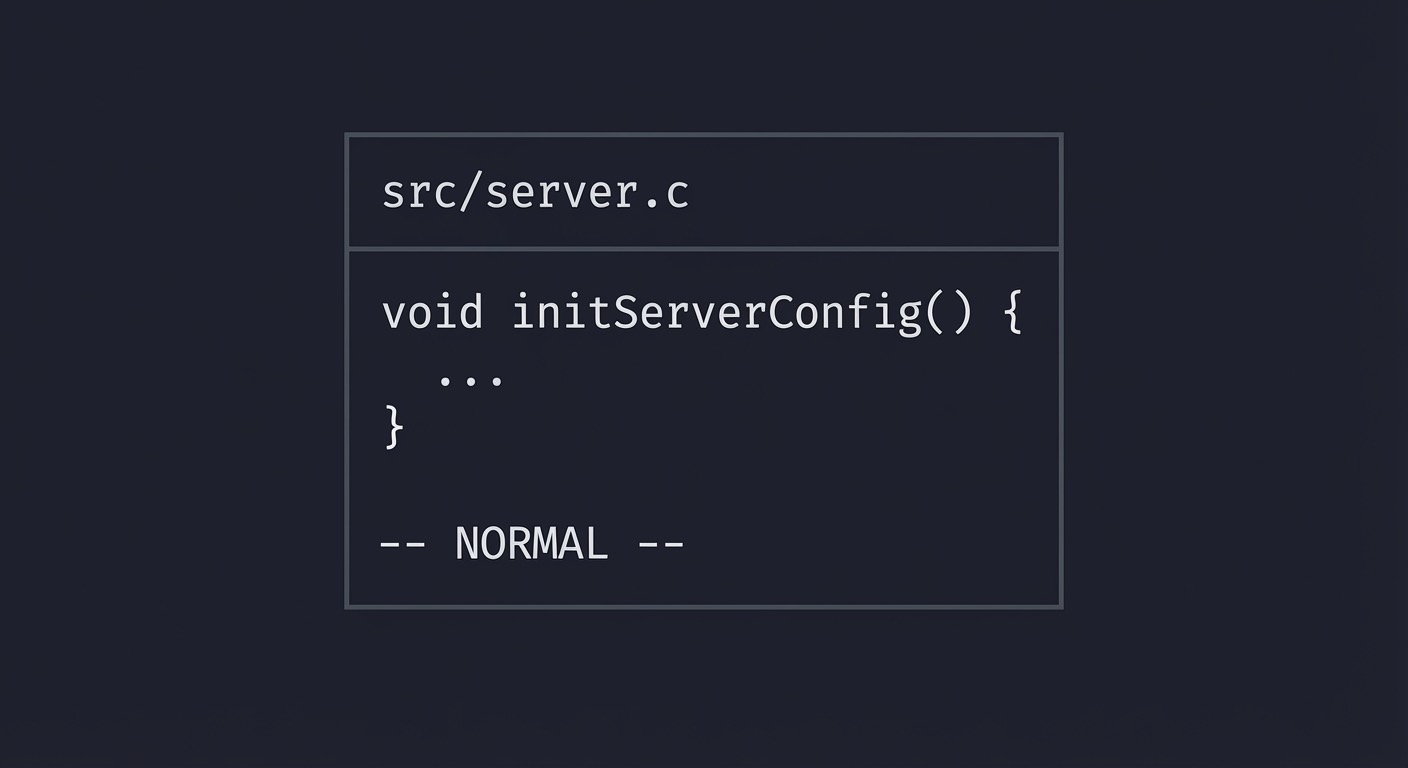
- Place cursor on
initServerConfig. - Press
Ctrl-]to jump. - Press
Ctrl-tto return.
3.7.3 Failure Demo (Deterministic)
If the tags file is missing or outdated, Ctrl-] fails and Vim shows a “tag not found” message.
3.7.4 If CLI
Not applicable.
3.7.5 If Web App
Not applicable.
3.7.6 If API
Not applicable.
3.7.7 If Library
Not applicable.
3.7.8 If TUI
+------------------------------------+
| src/server.c                       |
| void initServerConfig() {          |
|   ...                              |
| }                                  |
| -- NORMAL --                       |
+------------------------------------+
Key interactions:
Ctrl-]andCtrl-tfor tag jumpsCtrl-OandCtrl-Ifor jump list
4. Solution Architecture
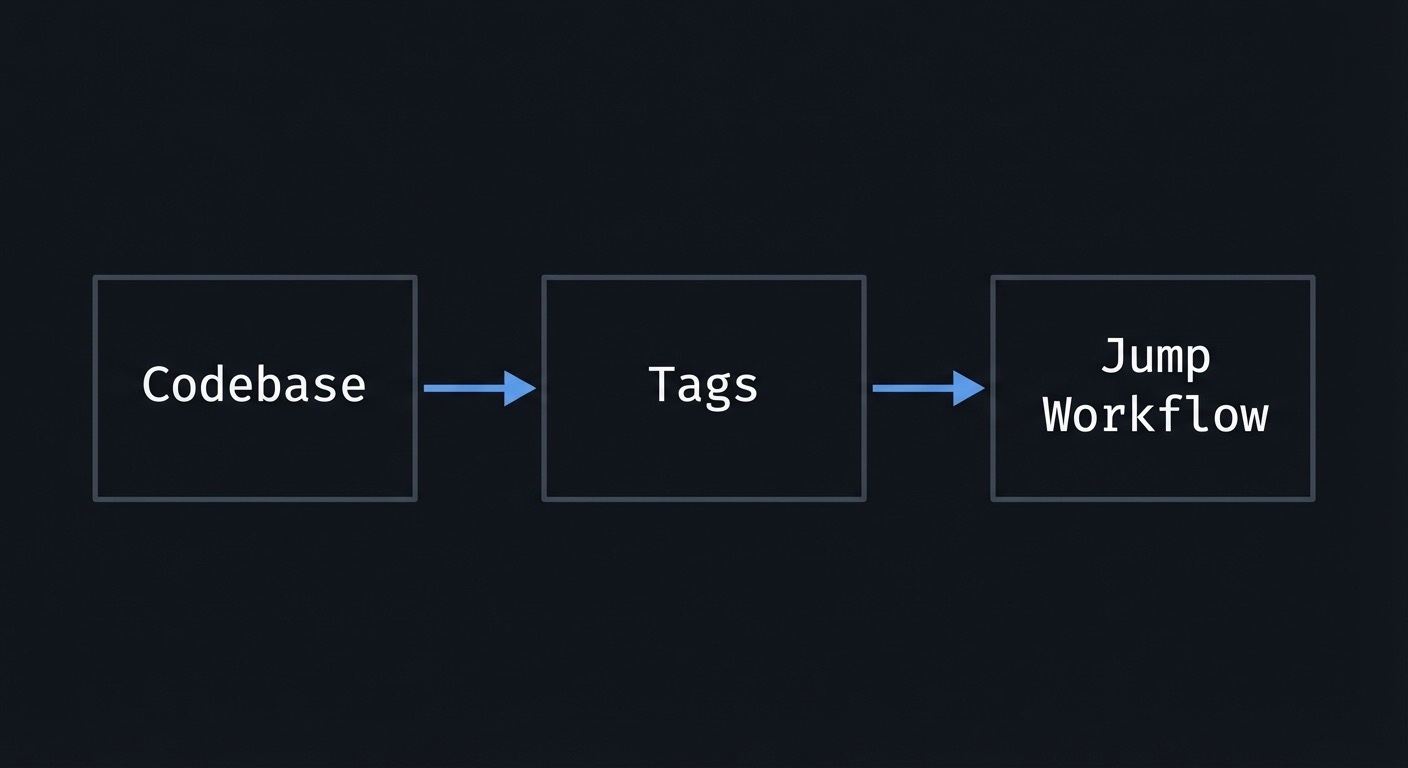
4.1 High-Level Design
+-----------+    +----------+    +-----------------+
| Codebase  | -> | Tags     | -> | Jump Workflow   |
+-----------+    +----------+    +-----------------+
4.2 Key Components
| Component | Responsibility | Key Decisions |
|---|---|---|
| Tag generator | Build tags file | Use ctags -R . |
| Vim workflow | Jump + return | Use tag stack + jumps |
| Navigation log | Record steps | Note symbols and locations |
4.3 Data Structures (No Full Code)
NavStep:
- symbol
- command
- result
4.4 Algorithm Overview
Key Algorithm: Definition Navigation
- Generate tags.
- Jump to definition with
Ctrl-]. - Return with
Ctrl-t. - Use jump list as backup.
Complexity Analysis:
- Time: O(1) per jump
- Space: O(1) per jump record
5. Implementation Guide
5.1 Development Environment Setup
brew install ctags # or your package manager
5.2 Project Structure
code-navigator/
|-- tags
`-- navigation_log.md
5.3 The Core Question You’re Answering
“How do I build a mental map of a codebase quickly?”
5.4 Concepts You Must Understand First
- Tags and tag stack (
Ctrl-],Ctrl-t) - Jump list (
Ctrl-O,Ctrl-I) - Search for usage
5.5 Questions to Guide Your Design
- Should I jump to definition or search for usage first?
- How do I avoid getting lost after multiple jumps?
- How often should I regenerate tags?
5.6 Thinking Exercise
Navigate 5 levels deep into function calls, then return to the start using Ctrl-t.
5.7 The Interview Questions They’ll Ask
- “How do you generate a tags file?”
- “How do you jump to a definition?”
- “How do you return from a tag jump?”
5.8 Hints in Layers
Hint 1: Generate tags
ctags -R . in repo root.
Hint 2: Use Ctrl-]
Cursor on symbol, then jump.
Hint 3: Use Ctrl-t
Return on the tag stack.
Hint 4: Use jump list
Ctrl-O works even without tags.
5.9 Books That Will Help
| Topic | Book | Chapter |
|---|---|---|
| Tags | “Practical Vim” | Ch. 16 |
| Jumps | “Practical Vim” | Ch. 9 |
5.10 Implementation Phases
Phase 1: Generate Tags (1-2 hours)
Goals:
- Build a tags file for the repo.
Tasks:
- Run
ctags -R .. - Verify
tagsfile exists.
Checkpoint: :echo tagfiles() lists the tags file.
Phase 2: Tag Navigation (2-3 hours)
Goals:
- Jump to definitions and return.
Tasks:
- Jump to 10 definitions.
- Return to each location with
Ctrl-t.
Checkpoint: No navigation errors.
Phase 3: Jump List + Search (2-3 hours)
Goals:
- Use jump list and search for usages.
Tasks:
- Use
Ctrl-O/Ctrl-Ito navigate history. - Run
:vimgrepand navigate quickfix results.
Checkpoint: You can explain your navigation path.
5.11 Key Implementation Decisions
| Decision | Options | Recommendation | Rationale |
|---|---|---|---|
| Tag generator | ctags / universal-ctags | universal-ctags | Better language support |
| Navigation history | tag stack / jump list | Both | Redundancy |
| Search tool | / / :vimgrep |
Use both | Definitions vs usages |
6. Testing Strategy
6.1 Test Categories
| Category | Purpose | Examples |
|---|---|---|
| Tag correctness | Verify definition jumps | Ctrl-] lands correctly |
| Return path | Verify Ctrl-t works |
Return to original line |
| Search usage | Verify usage search | :vimgrep results |
6.2 Critical Test Cases
- Jump to a function definition in another file.
- Return after multiple nested jumps.
- Search for usage and return to start.
6.3 Test Data
Use a repo with multiple files and functions.
7. Common Pitfalls & Debugging
7.1 Frequent Mistakes
| Pitfall | Symptom | Solution |
|---|---|---|
| No tags file | Tag not found | Regenerate tags |
| Multiple matches | Wrong definition | Use :tselect |
| Lost context | Don’t know where you were | Use :jumps |
7.2 Debugging Strategies
- Use
:tagsto inspect the tag stack. - Regenerate tags after major changes.
7.3 Performance Traps
- Generating tags in a huge repo without excluding vendor dirs.
- Forgetting to update tags after pulling changes.
8. Extensions & Challenges
8.1 Beginner Extensions
- Jump to 5 definitions in a small repo.
- Use
:tagsto inspect the stack.
8.2 Intermediate Extensions
- Configure
tagsoption for multiple tag files. - Use
:tselectfor ambiguous symbols.
8.3 Advanced Extensions
- Integrate tags generation into a build script.
- Use
:cstagsor LSP tags in addition to ctags.
9. Real-World Connections
9.1 Industry Applications
- Faster onboarding in large codebases.
- Exploring unfamiliar systems during incidents.
9.2 Related Open Source Projects
- universal-ctags
- Neovim’s built-in tag navigation
9.3 Interview Relevance
- Demonstrates tool fluency for code exploration.
10. Resources
10.1 Essential Reading
- “Practical Vim” Ch. 9 and 16
10.2 Video Resources
- Ctags + Vim navigation tutorials
10.3 Tools & Documentation
:help tags:help jumplist
10.4 Related Projects in This Series
11. Self-Assessment Checklist
11.1 Understanding
- I can explain how tags are generated.
- I can use
Ctrl-]andCtrl-tconfidently. - I can use the jump list.
11.2 Implementation
- Generated tags file for a repo.
- Completed 10 tag jumps.
- Logged navigation steps.
11.3 Growth
- I can apply this workflow to any repo.
- I can teach it to another developer.
12. Submission / Completion Criteria
Minimum Viable Completion:
- Generated tags for a repo.
- Jumped to 10 definitions and returned.
- Used jump list at least 5 times.
Full Completion:
- All minimum criteria plus:
- Used
:vimgrepor search for usage. - Documented navigation workflow in a log.
Excellence (Going Above & Beyond):
- Added tag generation to a build script.
- Used tags and jump list to trace a call chain end-to-end.