Project 5: The Log Parser (Macros)
Record and replay a macro that converts log lines into clean CSV output at scale.
Quick Reference
| Attribute | Value |
|---|---|
| Difficulty | Level 3: Advanced |
| Time Estimate | 1 week (spread across sessions) |
| Main Programming Language | Plain text (logs) |
| Alternative Programming Languages | CSV |
| Coolness Level | Level 3: Automation |
| Business Potential | 4: Ops accelerator |
| Prerequisites | Motions, search, registers, basic macros |
| Key Topics | Macro recording, repeatability, error handling |
1. Learning Objectives
By completing this project, you will:
- Record macros that perform multi-step edits reliably.
- Use search/find inside macros to target fields.
- Handle line variation and macro failure gracefully.
- Convert semi-structured logs into CSV without external tools.
- Build confidence in repeatable automation inside Vim.
2. All Theory Needed (Per-Concept Breakdown)
2.1 Macro Recording and Playback
Fundamentals
Macros let you record a sequence of Vim commands into a register and replay them. You start recording with q{register} and stop with q. You replay with @{register}. Macros are deterministic only if the actions inside them are deterministic. This means you must design them to depend on predictable patterns (like consistent delimiters) rather than absolute positions.
Macro recording turns manual edits into automation. The basic idea is to create one perfect edit on a single line, then apply it to many lines. This is ideal for logs, where each line is similar but long. When you use macros, you trade a little upfront planning for a huge time savings.
Deep Dive into the concept
Macro reliability depends on three things: cursor starting position, command sequence, and predictable text patterns. If your macro begins at column 0 and uses f to find delimiters, it will work as long as those delimiters exist. If the pattern changes, the macro might fail. Vim stops a macro when a command fails, which is both a safety feature and a limitation. You must plan for that by testing on a small sample and handling errors.
Macros can include search commands, which means they can be both global and line-local. You can also nest macros (@a inside another macro), but this is advanced and not necessary here. The key is to keep macros small, repeatable, and deterministic.
How this fits on projects
- You will record a macro to transform each log line into CSV.
- You will replay it across dozens of lines.
Definitions & key terms
- Macro: A recorded sequence of commands stored in a register.
- Register: Storage slot for text or macros.
- Determinism: The property that the same input yields the same output.
Mental model diagram (ASCII)
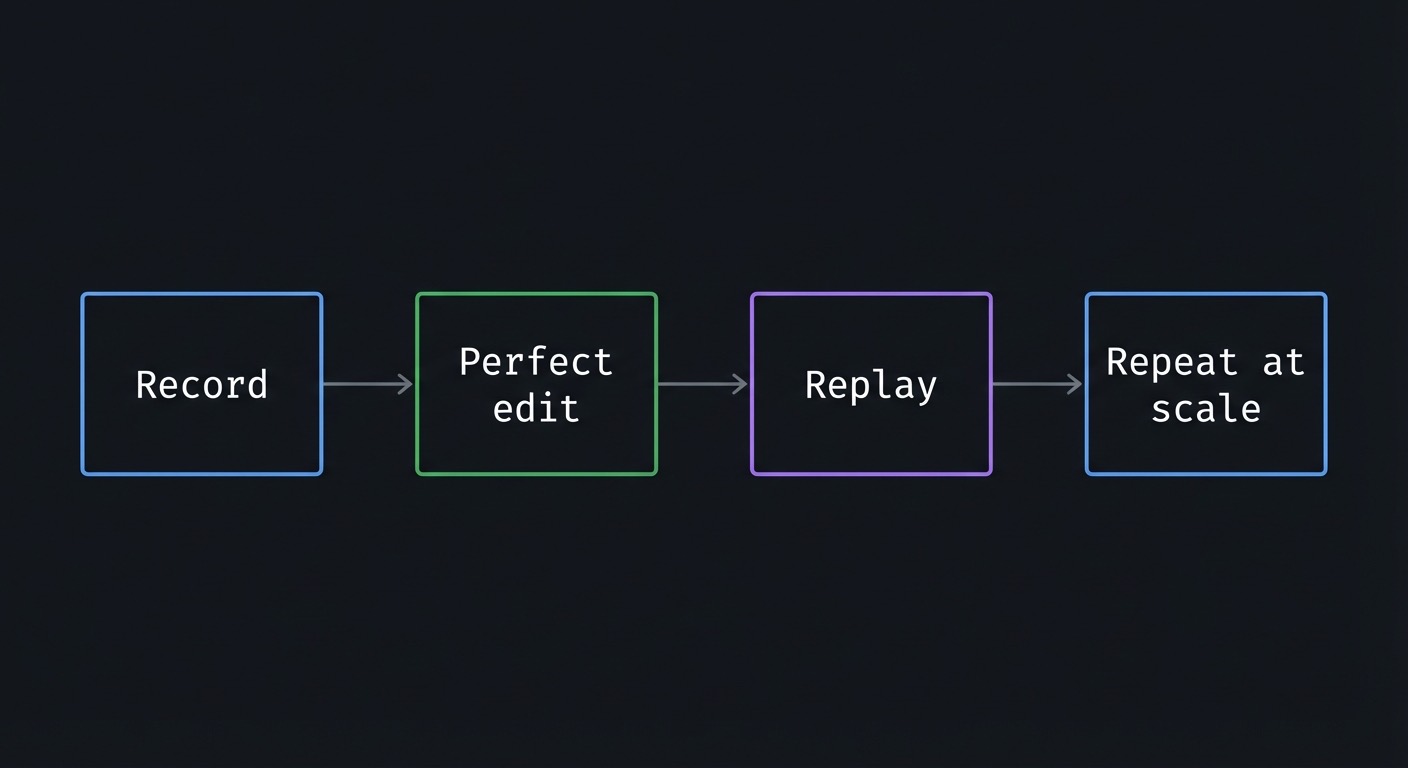
Record -> Perfect edit -> Replay -> Repeat at scale
How it works (step-by-step)
- Start recording:
qa. - Perform the edit sequence on one line.
- Stop recording:
q. - Replay:
@aor10@a.
Minimal concrete example
qa
0f<Space>r, f<Space>r, f=bdw j
q
10@a
Common misconceptions
- “Macros are only for experts”: They are just recorded commands.
- “Macros must be perfect on first try”: You can re-record quickly.
- “Macros are fragile”: They are reliable if built on stable patterns.
Check-your-understanding questions
- How do you record a macro into register
a? - What does
@ado? - What happens when a macro command fails?
Check-your-understanding answers
qastarts recording;qstops.- It replays the macro in register
a. - The macro stops, and Vim reports the failure.
Real-world applications
- Transforming logs into structured formats.
- Reformatting CSV or TSV fields.
- Batch editing text without external scripts.
Where you’ll apply it
- See Section 3.4 Example Usage / Output and Section 5.10 Implementation Phases in this project.
- Also used in: Project 7: Vim Golf Challenge.
References
:help q- “Practical Vim” Ch. 11
Key insights
Macros are automation built from the same motions you already know.
Summary
Macros let you turn a single good edit into a repeatable transformation. The key is to keep the macro deterministic.
Homework/Exercises to practice the concept
- Record a macro that wraps a word in brackets.
- Replay the macro on 10 lines.
Solutions to the homework/exercises
qatheniwmovement and insertion, thenq.10@a.
2.2 Search and Find Inside Macros
Fundamentals
Macros become powerful when they use search or find to locate fields. Find (f, t) is line-scoped, which is perfect for logs where fields are separated by spaces or punctuation. Search can also be used but is riskier inside macros if it jumps to another line. The safer pattern is to use line-local finds inside macros and use search outside macros to position the cursor.
Deep Dive into the concept
Within a macro, every cursor move must be deterministic. f is deterministic as long as the target character exists on the line. t is useful when you want to stop just before a separator for delete or change operations. The key is to design the macro around the structure of the line, not around absolute column positions.
Search in macros can be used if the pattern is guaranteed and you include motions to return to the right place. But it is often safer to use search outside the macro to position to the correct line, then rely on line-local operations inside the macro. This makes your macro more robust across line variations.
How this fits on projects
- You will use
f<space>andf=to locate log fields. - You will avoid global search inside the macro for safety.
Definitions & key terms
- Find: A line-scoped search for a character.
- Target character: The delimiter that defines a field boundary.
- Line-local: Operations that do not move off the current line.
Mental model diagram (ASCII)
Line: field1 field2 field3
         f<space> moves to delimiter
How it works (step-by-step)
- Identify stable delimiters (space, comma, equals).
- Use
fortto reach them. - Apply an operator (
r,d,c) to edit around them. - End macro with
jto move to next line.
Minimal concrete example
0f<Space>r,  " replace first space with comma
f=bdw     " delete key name
Common misconceptions
- “Search is always best”: It can jump to another line and break the macro.
- “Counts are safer”: Counts break if line length changes.
- “Macros must avoid find”: Find is often the safest tool in macros.
Check-your-understanding questions
- Why is
fsafer than/inside a macro? - What does
t,do? - Why end a macro with
j?
Check-your-understanding answers
fis line-scoped and will not jump to another line.- It moves to just before the comma.
- It advances to the next line for replay.
Real-world applications
- Parsing log lines with consistent delimiters.
- Editing CSV fields without leaving Vim.
- Massaging log data for analysis.
Where you’ll apply it
- See Section 3.6 Edge Cases and Section 7.1 Frequent Mistakes in this project.
- Also used in: Project 1: No-HJKL Navigator.
References
:help f- “Practical Vim” Ch. 8
Key insights
Line-scoped motions make macros reliable.
Summary
Macros should rely on stable, local motions. Find and replace are your best tools.
Homework/Exercises to practice the concept
- Build a macro that replaces the first two spaces with commas.
- Use
f=to delete key names in a key=value log line.
Solutions to the homework/exercises
- Record:
0f<Space>r, f<Space>r,then replay. f=bdwdeletes the key name before the value.
2.3 Macro Failure Modes and Recovery
Fundamentals
Macros fail when the command sequence does not match the line structure. The most common failure is a missing delimiter, which causes f to fail and the macro to stop. This is not necessarily bad; it protects you from applying a wrong edit. The skill is designing macros that either gracefully stop or are resilient to minor variations.
Deep Dive into the concept
You can design macros with defensive patterns: start at column 0, use f for expected delimiters, and end with j to move down. If a line does not match, the macro stops and you can correct it manually. Another pattern is to use :set lazyredraw or :set nowrapscan when testing, to make macro execution more predictable.
The deeper idea is to treat macros as deterministic programs. Test them on 2-3 lines, confirm the output, then scale. If you need more robustness, consider combining macros with :global or running them on visually selected ranges. But in this project, the goal is to understand the failure modes rather than eliminate them entirely.
How this fits on projects
- You will test macros on a small subset before running them on all lines.
- You will learn to recognize failure signals and recover.
Definitions & key terms
- Failure mode: A predictable way a macro can break.
- Lazy redraw: A Vim option that reduces screen updates during macros.
- Deterministic macro: A macro that behaves consistently across lines.
Mental model diagram (ASCII)
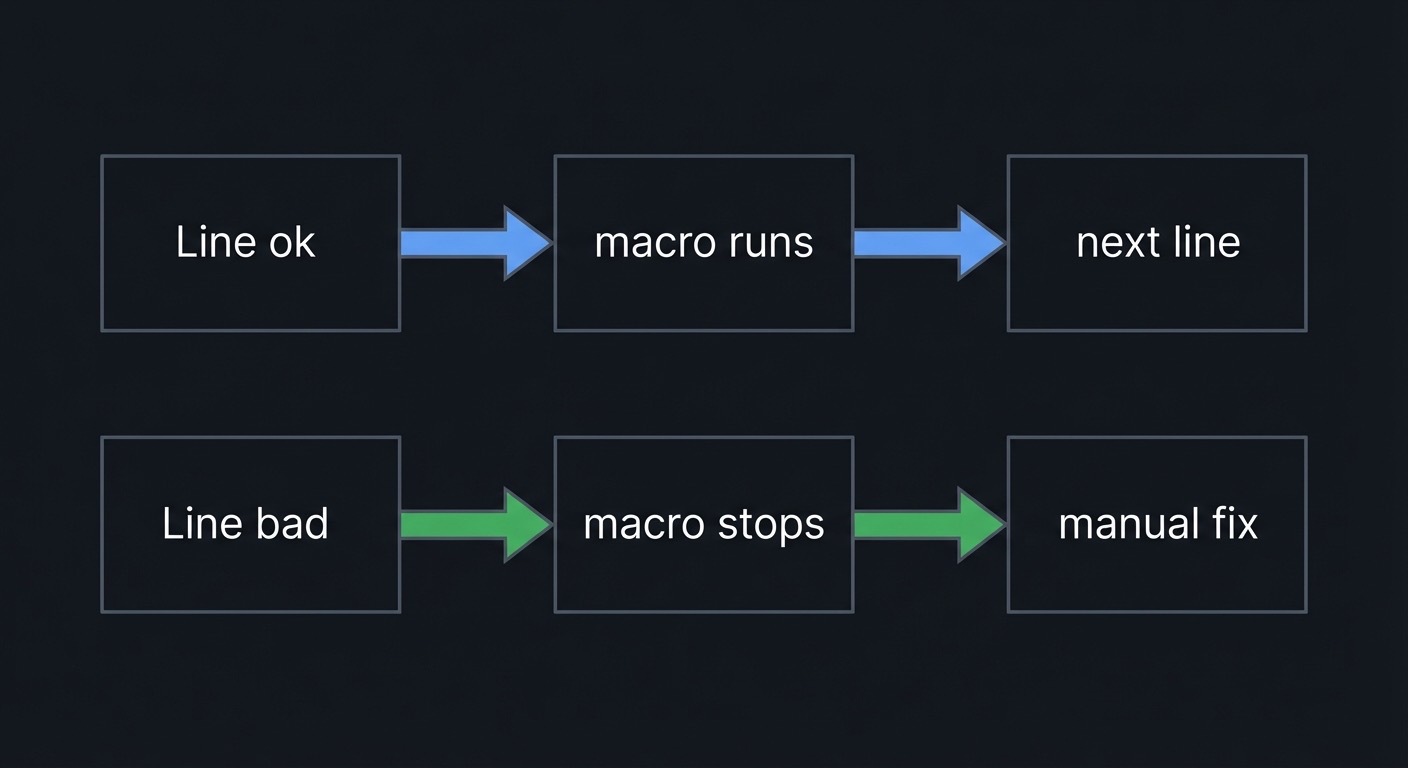
Line ok -> macro runs -> next line
Line bad -> macro stops -> manual fix
How it works (step-by-step)
- Record macro on one representative line.
- Replay on the next two lines manually.
- Fix issues and re-record if needed.
- Execute at scale with
N@a.
Minimal concrete example
:set lazyredraw
qa ... q
3@a
Common misconceptions
- “Macro failure means macro is useless”: It often means the input line is different.
- “Macros must handle every case”: Sometimes manual cleanup is faster.
- “You should never stop a macro”: Stopping prevents bad edits.
Check-your-understanding questions
- What happens when
ffails inside a macro? - Why test on 2-3 lines first?
- How can you reduce screen flicker during macro runs?
Check-your-understanding answers
- The macro stops at the failure.
- It validates correctness before scaling.
- Use
:set lazyredraw.
Real-world applications
- Bulk cleanup of inconsistent logs.
- Quick transformations where full scripting is overkill.
Where you’ll apply it
- See Section 3.7 Real World Outcome and Section 7.2 Debugging Strategies in this project.
- Also used in: Project 10: Search-Replace Master.
References
:help @- “Practical Vim” Ch. 11
Key insights
Macro safety comes from predictable patterns and controlled scaling.
Summary
Macros are only as reliable as the structure they depend on. Test small, then scale.
Homework/Exercises to practice the concept
- Run a macro on 3 lines and note where it fails.
- Adjust the macro to handle the failure or skip the line.
Solutions to the homework/exercises
- Use
@athree times and observe the stopping point. - Re-record with a more stable delimiter.
3. Project Specification
3.1 What You Will Build
You will convert a log file into CSV using a single macro. The deliverable is the transformed CSV file plus a command log and a short note about failure cases.
3.2 Functional Requirements
- Input File: Create
app.logwith at least 50 lines. - Macro: Record a macro in register
athat converts one line to CSV. - Repeat: Apply the macro to all lines with
N@a. - Failure Handling: Identify at least one line variation and document it.
- Output File: Save the result as
app.csv.
3.3 Non-Functional Requirements
- Determinism: Macro produces identical output for identical lines.
- Safety: Macro stops on unexpected patterns rather than corrupting data.
- Clarity: Output CSV fields are correctly ordered.
3.4 Example Usage / Output
Before:
2025-01-15T10:23:45Z INFO user=42 action=login ip=192.168.1.10

Macro:
qa
0f<Space>r, f<Space>r, f=bdw f=bdw f=bdw j
q

After:
2025-01-15T10:23:45Z,INFO,42,login,192.168.1.10
3.5 Data Formats / Schemas / Protocols
Log line format:
TIMESTAMP LEVEL user=ID action=ACTION ip=IP
CSV output format:
TIMESTAMP,LEVEL,ID,ACTION,IP
3.6 Edge Cases
- Missing
ip=field. - Extra fields appended to the line.
- Multiple spaces between fields.
3.7 Real World Outcome
You will have a CSV file ready for analysis and a macro you can reuse.
3.7.1 How to Run (Copy/Paste)
vim app.log
3.7.2 Golden Path Demo (Deterministic)
- Record macro in register
a. - Run
50@a.
Expected output (first line):
2025-01-15T10:23:45Z,INFO,42,login,192.168.1.10
3.7.3 Failure Demo (Deterministic)
If a line is missing ip=, the macro stops at f= and leaves the line unchanged. This is acceptable; you should fix that line manually.
3.7.4 If CLI
Not applicable.
3.7.5 If Web App
Not applicable.
3.7.6 If API
Not applicable.
3.7.7 If Library
Not applicable.
3.7.8 If TUI
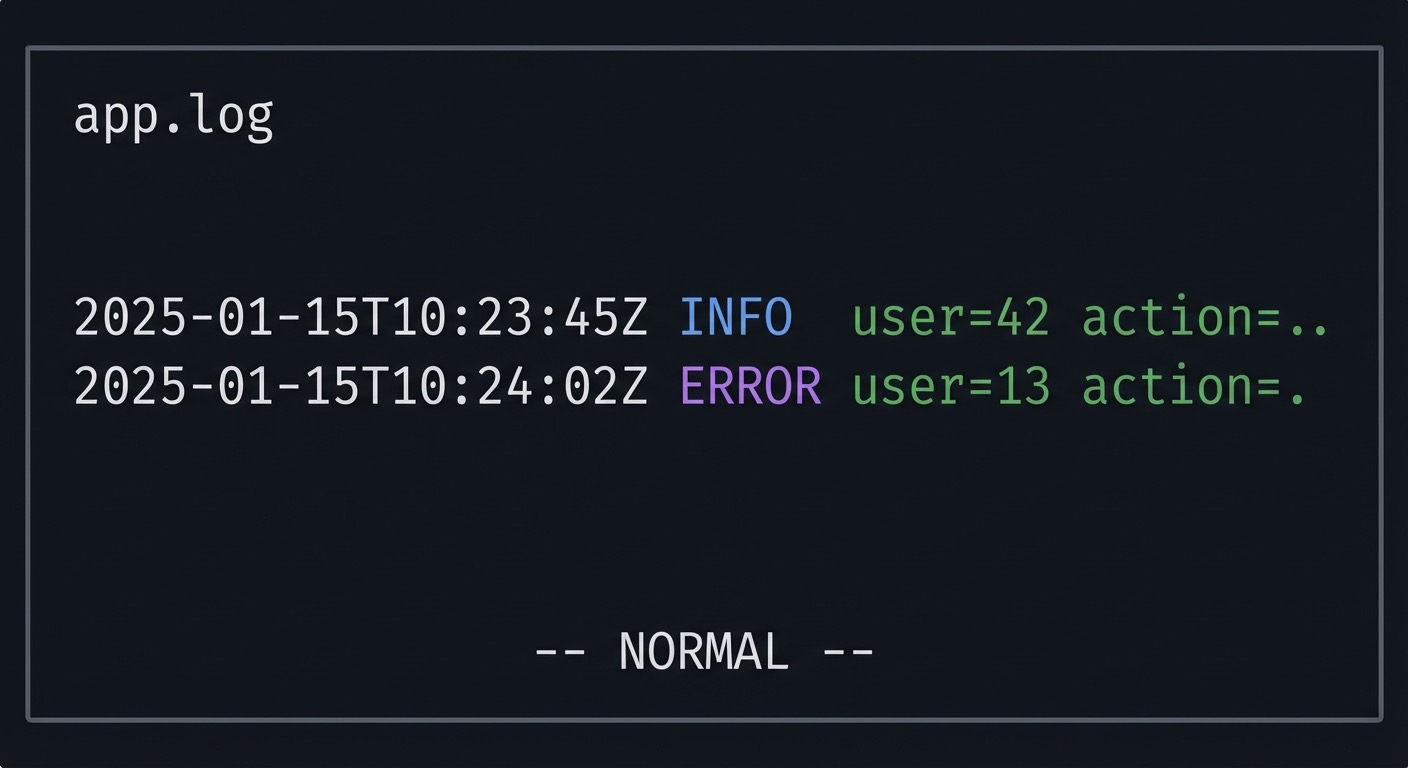
+--------------------------------------------+
| app.log                                    |
| 2025-01-15T10:23:45Z INFO user=42 action=..|
| 2025-01-15T10:24:02Z ERROR user=13 action=.|
|                                            |
| -- NORMAL --                               |
+--------------------------------------------+
Key interactions:
qa/qto record@ato replayfandrinside macro to edit fields
4. Solution Architecture
4.1 High-Level Design
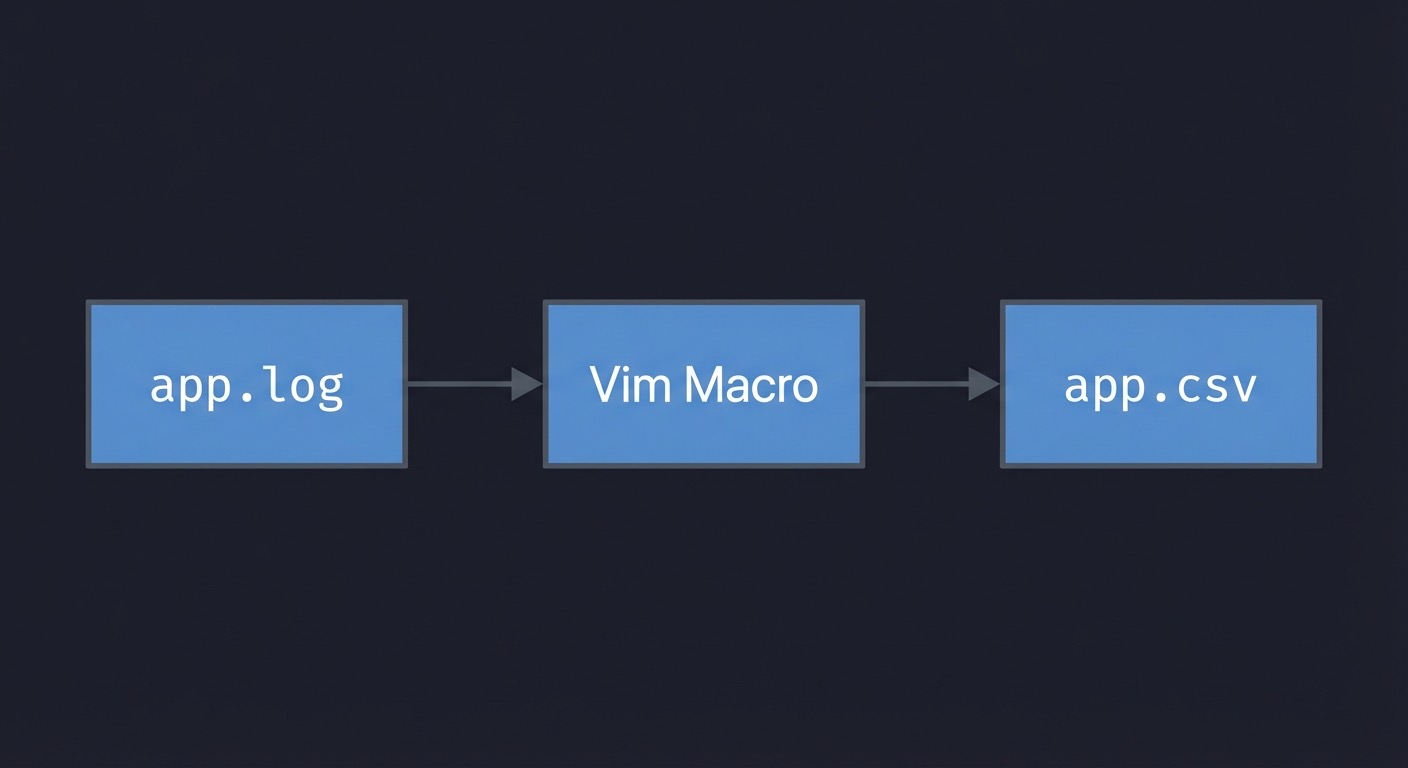
+-----------+    +------------+    +----------+
| app.log   | -> | Vim Macro  | -> | app.csv  |
+-----------+    +------------+    +----------+
4.2 Key Components
| Component | Responsibility | Key Decisions |
|---|---|---|
| Log file | Provide consistent input | Use fixed field order |
| Macro | Transform line to CSV | Use f and r not counts |
| Output | Store CSV lines | Save as separate file |
4.3 Data Structures (No Full Code)
MacroPlan:
- start at column 0
- replace separators
- delete keys
- move down
4.4 Algorithm Overview
Key Algorithm: Line Transformation Macro
- Replace spaces with commas.
- Delete key names (
user=,action=,ip=). - Move to next line.
Complexity Analysis:
- Time: O(k) per line
- Space: O(1)
5. Implementation Guide
5.1 Development Environment Setup
vim --version
5.2 Project Structure
log-parser/
|-- app.log
|-- app.csv
`-- macro_notes.md
5.3 The Core Question You’re Answering
“How do I automate repetitive edits across many lines?”
5.4 Concepts You Must Understand First
- Macro recording and replay (
q,@) - Find motions (
f,t) - Macro failure and recovery
5.5 Questions to Guide Your Design
- Are the delimiters consistent across all lines?
- Should I end the macro with
jorj0? - How will I handle missing fields?
5.6 Thinking Exercise
Design a macro that inserts a comma after the second word on every line.
5.7 The Interview Questions They’ll Ask
- “How do you record a macro in register
a?” - “What does
@ado?” - “How do you make a macro safer?”
5.8 Hints in Layers
Hint 1: Start at line start
Use 0 as the first command.
Hint 2: Use f for separators
Find the spaces and replace them with commas.
Hint 3: End with movement
Add j to move to the next line.
Hint 4: Test on 2 lines
Never run 100@a without testing first.
5.9 Books That Will Help
| Topic | Book | Chapter |
|---|---|---|
| Macros | “Practical Vim” | Ch. 11 |
| Registers | “Practical Vim” | Ch. 10 |
5.10 Implementation Phases
Phase 1: Build Input (1-2 days)
Goals:
- Create a realistic log file.
Tasks:
- Write 50 lines with consistent fields.
- Introduce 2 lines with slight variation.
Checkpoint: Log file is ready for macro testing.
Phase 2: Record Macro (2-3 days)
Goals:
- Record a deterministic macro.
Tasks:
- Record macro on a sample line.
- Test on 2-3 lines.
- Re-record if needed.
Checkpoint: Macro transforms lines correctly.
Phase 3: Scale and Validate (1-2 days)
Goals:
- Apply macro to the entire file.
Tasks:
- Run
N@afor the line count. - Scan for failures and fix manually.
Checkpoint: CSV output is correct for all lines.
5.11 Key Implementation Decisions
| Decision | Options | Recommendation | Rationale |
|---|---|---|---|
| Macro target | Use spaces / use regex | Use spaces + f |
Deterministic |
| Error handling | Stop on failure / ignore | Stop on failure | Safer |
| Output | In-place / new file | New file | Preserve original |
6. Testing Strategy
6.1 Test Categories
| Category | Purpose | Examples |
|---|---|---|
| Correctness | Validate CSV fields | Compare first 5 lines |
| Repeatability | Check macro stability | Run on 10 lines |
| Failure handling | Ensure safe stop | Insert malformed line |
6.2 Critical Test Cases
- Standard line with all fields.
- Line missing
ip=field. - Line with extra whitespace.
6.3 Test Data
2025-01-15T10:23:45Z INFO user=42 action=login ip=192.168.1.10
7. Common Pitfalls & Debugging
7.1 Frequent Mistakes
| Pitfall | Symptom | Solution |
|---|---|---|
| Macro stops early | Only part of file transformed | Fix missing delimiters |
| Wrong field order | CSV columns swapped | Re-record macro with correct sequence |
| Overwritten register | Lost yanked data | Use named registers |
7.2 Debugging Strategies
- Run macro on 2 lines and inspect.
- Use
uto undo before re-recording.
7.3 Performance Traps
- Using search inside macro when line-local find is enough.
- Recording a macro with cursor not at column 0.
8. Extensions & Challenges
8.1 Beginner Extensions
- Convert logs with only three fields.
- Use
@:to repeat a command-line change.
8.2 Intermediate Extensions
- Add a macro that normalizes IP addresses.
- Use
:globalto apply macro only to matching lines.
8.3 Advanced Extensions
- Build a macro that splits multi-line log entries.
- Apply the workflow to a real production log file.
9. Real-World Connections
9.1 Industry Applications
- Incident response log cleanup.
- Preparing log data for spreadsheets or dashboards.
9.2 Related Open Source Projects
- GoAccess (log analyzer) - shows why structured logs matter.
- Vim macros used for text transformations.
9.3 Interview Relevance
- Demonstrates automation skill and careful handling of edge cases.
10. Resources
10.1 Essential Reading
- “Practical Vim” Ch. 10-11
10.2 Video Resources
- Vim macro tutorials
10.3 Tools & Documentation
:help q:help @
10.4 Related Projects in This Series
11. Self-Assessment Checklist
11.1 Understanding
- I can explain how macros are recorded and replayed.
- I can design a deterministic macro sequence.
- I know how to recover from macro failures.
11.2 Implementation
- Macro converts all lines correctly.
- Output CSV is correct.
- Failure cases documented.
11.3 Growth
- I can apply macros to other repetitive editing tasks.
- I can explain macro safety to another person.
12. Submission / Completion Criteria
Minimum Viable Completion:
- Recorded a macro that converts one line to CSV.
- Applied it to at least 20 lines.
- Documented at least one failure case.
Full Completion:
- All minimum criteria plus:
- Converted 50+ lines successfully.
- Documented the macro sequence in the log.
Excellence (Going Above & Beyond):
- Used
:globalor macros to handle conditional lines. - Applied the workflow to a real log file.